Drawing up a vehicle handover report every time an employee collects or returns a company car is good practice. Unfortunately, the process can be time-consuming:
- First you have to find the previous report for the vehicle, then the spreadsheet listing all the damage, and you will also need the folder with photos of the car.
- Once you have all that information you can fill in the report and print it in two copies. If, at handover, it turns out there is new damage on the car, you have to add it to the report, take additional photos, sign it with the user and only then hand over the keys. Unfortunately, that is not the end.
- Back at the office you have to scan the document and put the scan together with the photos in the right folder on the shared drive, and remember to update the damage spreadsheet and the usage history spreadsheet.
If this process sounds familiar, keep watching, because I am going to show you how to make it take just a few minutes and, above all, not waste a single sheet of paper.
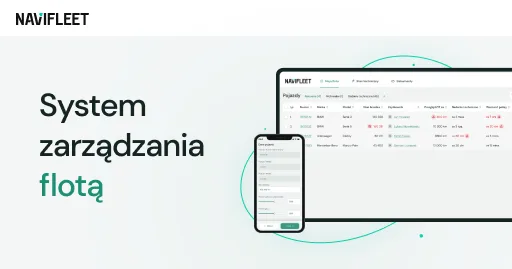
Your command centre is the web app, which you open in a browser. Once logged in you can add vehicles and their users and fill in the key details about them.
Fleet hubs are another useful option: you can use them, for example, as your company's branches and assign vehicles to them. Each vehicle is a rich set of vehicle data, an automatically generated usage history and a library of important documents and photos.
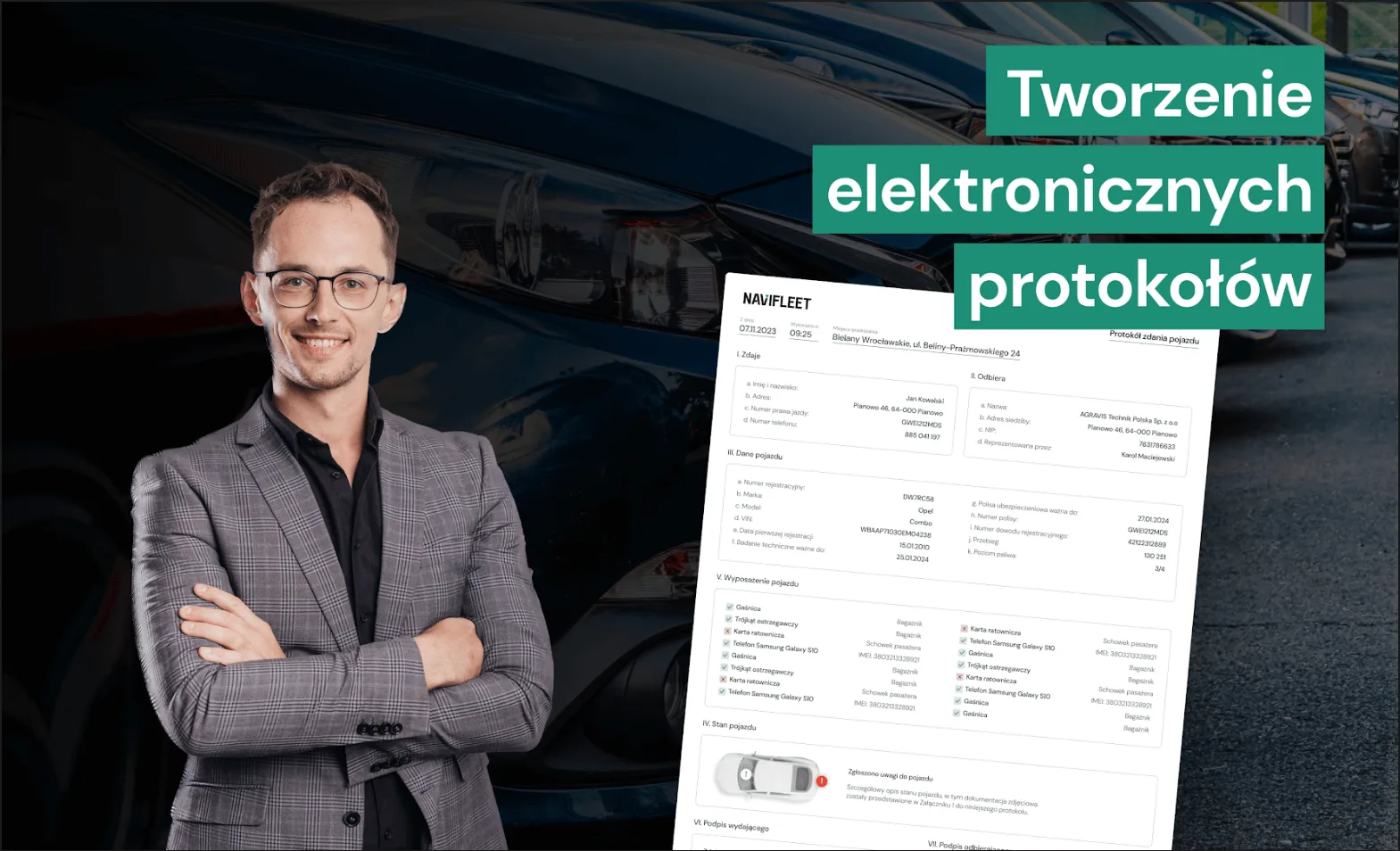
A considerable convenience is that from the vehicle view you can easily display the report from any handover or return.
The report contains all the necessary data: the parties to the handover, vehicle details, the condition of the equipment issued, electronic signatures and an attachment with photo documentation. Creating the report itself is remarkably simple. All you need is a smartphone and the mobile app, which you can download from the official app stores.
Once the app is installed, you log in to your account. You will produce a handover report in no time. Just select the right vehicle and indicate which hub or user you want to assign it to; the remaining information is filled in automatically or is optional.
How to create a vehicle handover report in the Navifleet Manager app?
- The first step of the report is to document the exterior condition of the vehicle. This is a good moment to make sure that all damage to the vehicle has been reported.
- If you spot new damage, you can report it quickly. Just take a photo, mark where the damage is and optionally add a note. To be on the safe side you can take a few more photos around the vehicle: the number plate and the VIN. Only if you want them to appear on the report, of course.
- In the next step you can document the interior of the vehicle in detail and, as in the previous step, add photos of damage as well as reference photos, for example of the seat upholstery or the dashboard.
- The penultimate step is the list of equipment issued. Here you can verify which items are present and add new ones. In the final step, you and the vehicle user simply sign on the screen.
The report is saved as a PDF and automatically uploaded to the cloud.
That is all. As you can see, a vehicle handover can be short and painless. All the vehicle data loaded automatically, and the photos and damage were updated in the cloud straight away. Not just you, but everyone on your team can have instant access to this data.
If you want to try this solution in your company, go to: www.navifleet.pl/elektroniczne-protokoly and create a free account.