The Route Manager module is a set of practical features from a transport management perspective. The basic one is a map layer showing restrictions for heavy goods vehicles, such as weight, height or ADR restrictions. Alongside traffic restrictions there is also information on current traffic levels. This lets you help the driver in advance to avoid a traffic jam or find a detour around a restriction. Both layers can be activated in the top right-hand corner of the map in the MAP tab.
Route planning
The basic feature of the Route Manager is the ability to plot and then monitor the progress of a given route. Route planning is based on set preferences (e.g. shortest, fastest), restrictions (avoiding tolls, motorways, ferries, rail) and countries to avoid. Bear in mind that the planned route runs along roads our vehicle is allowed to use, which follows from the settings in the vehicle panel.
Vehicle parameters
The first step in planning routes and supervising transport is to describe the vehicle correctly using the vehicle edit form. In the Technical Data section, enter the correct vehicle type, its dimensions, GVW and number of axles. This is essential for plotting the route correctly while respecting the restrictions in force on the roads.
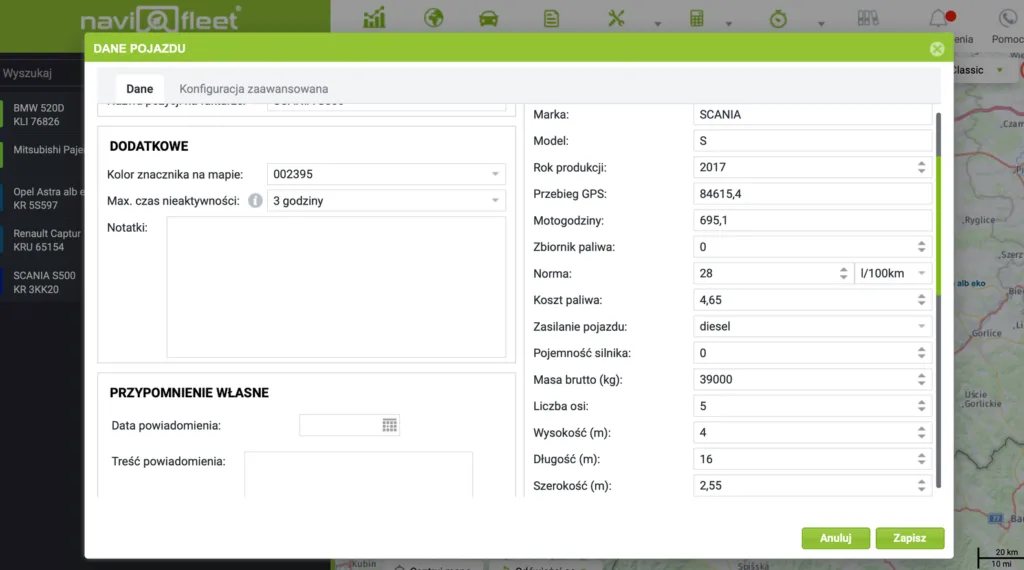
Billing data
The Route Manager also helps manage the profitability of freight performed on a large scale. It automates billing calculations and makes it easier to settle with subcontractors (carriers). To use automatic cost calculations for a given transport, enter the billing data for the vehicle, such as the emission standard, rates for empty and loaded kilometres, billing currency and any pool of empty kilometres the carrier performs free of charge.
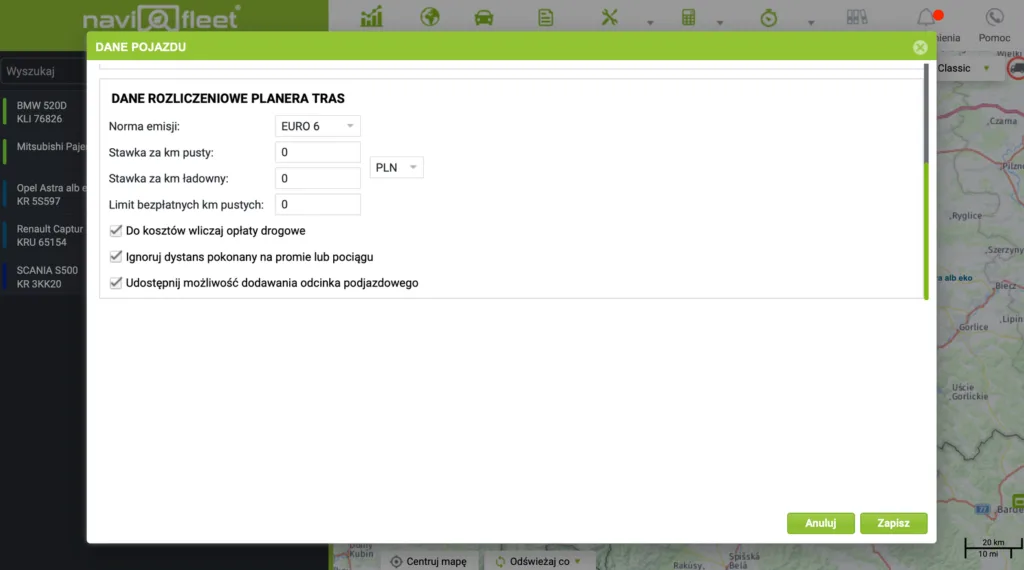
Tractor–trailer combinations
The system is designed for planning transport for any type of vehicle – rigid lorries, semi-trailers and articulated combinations. If your company owns and monitors semi-trailers while the tractor units are supplied by subcontractors, you can create virtual profiles for your subcontractors' tractor units and link them to your semi-trailers. Billing settings are always assigned to the tractor unit, and the planned route costs are calculated on their basis. If a semi-trailer changes subcontractor, the costs will be based on the arrangements applicable to the new subcontractor. You can create virtual tractor unit profiles and couple them into combinations from the Settings.
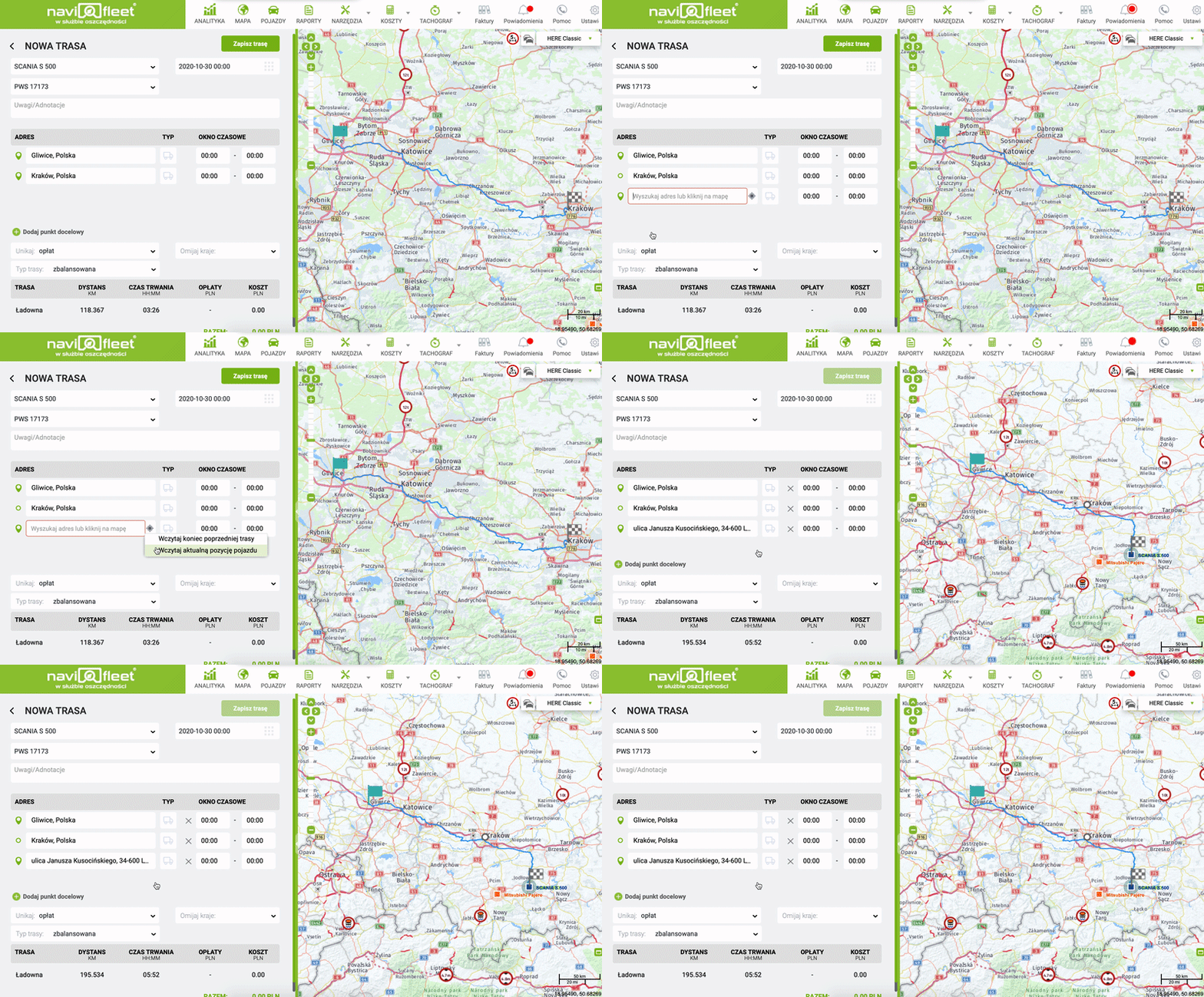
Loading the vehicle's location
If you want to quickly plot a route from the vehicle's current position to the loading or unloading point to check the ETA or the expected cost of positioning the vehicle, click the crosshair icon and select the option you want.

Address search
Within a given route you can add dozens of waypoints. Waypoints are added by clicking on selected places on the map or by using the search box. You can paste geographic coordinates, postcodes, the names of companies you want to reach, and full addresses into the search box. For convenience, the search box also finds POIs on your Navifleet account; you will recognise them by the distinctive green point icon to the left of the name.
Tolls and costs – route planning
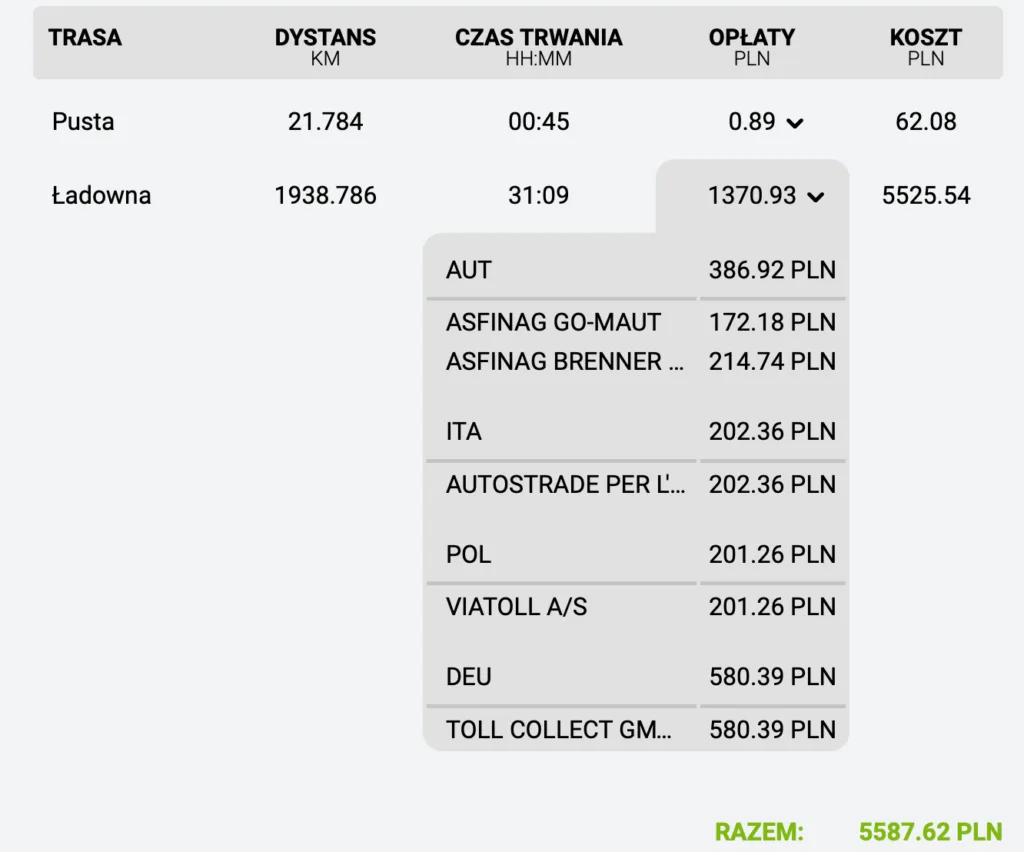
If you have completed your vehicle settings, the Route Manager will calculate the expected cost of the planned route for you. You will be able to analyse the tolls along the route, converted into a single currency, and find out the cost of the transport based on the rate per kilometre.
Planned route preferences
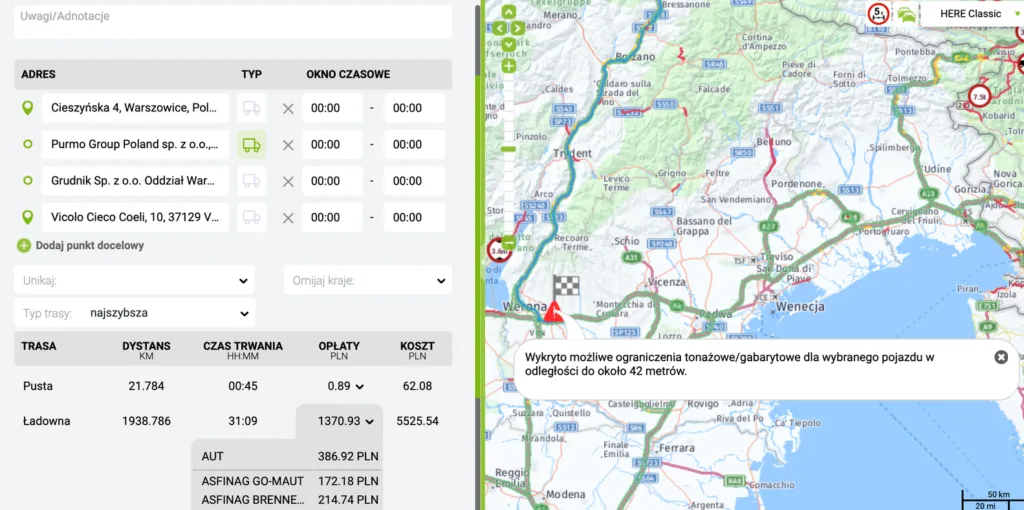
You can control the preferences of the plotted route at any time. You decide how it should run, and if our algorithm keeps proposing routes far from what you expect, you can grab a selected section of the route and drag and drop it over the area you are interested in. If the route you plot runs along roads your vehicle is not allowed to use, we will let you know.
Empty and loaded legs
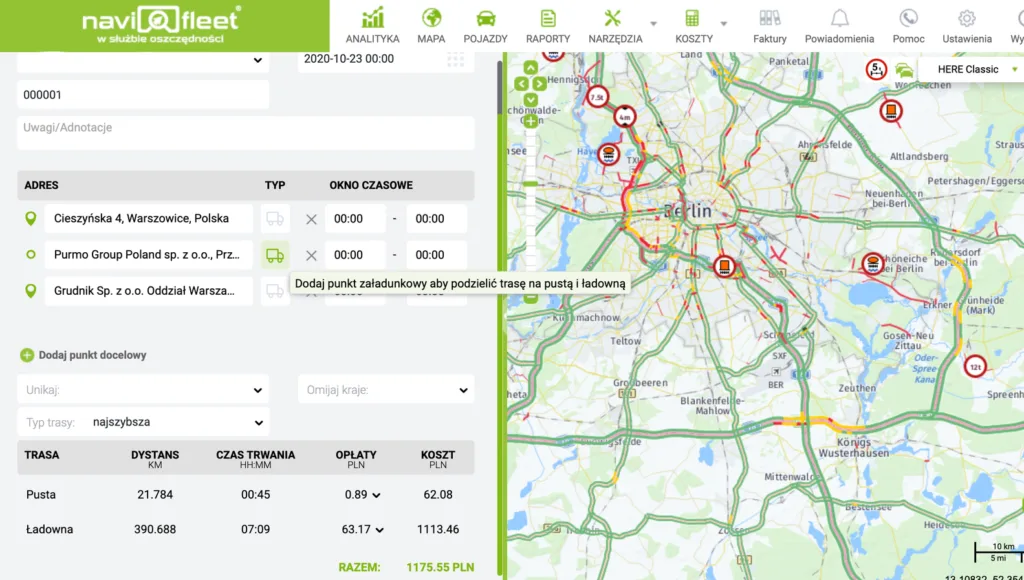
After finding all the points you want to send the vehicle to and plotting the route according to your preferences, you can split the route into an empty and a loaded leg (NOTE: you must first enable this feature in the vehicle settings). Splitting the route into empty and loaded kilometres will help you analyse the effectiveness of your forwarders and help them select freight so that the ratio of empty to loaded kilometres is as favourable as possible. By default, if you do not enter a split, the whole route is marked as loaded.
Monitoring progress
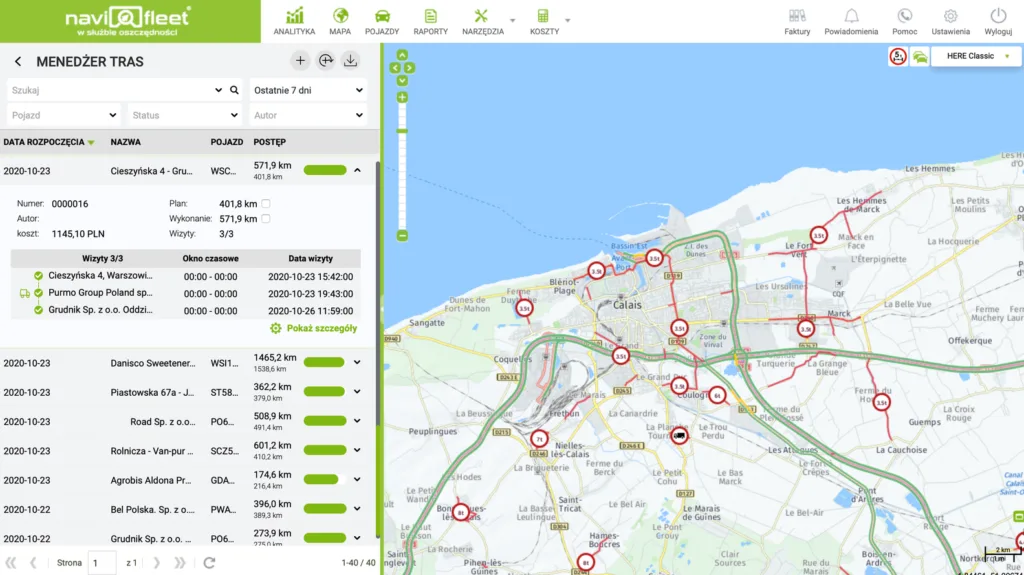
Once a route has been planned, it is added to the list of routes shown in the Manager's main view. The list shows parameters such as the route start date, its name, the vehicle performing it and its degree of completion.
Monitoring the progress of a planned route
The view of all routes shows only a fragment of the information on the degree of completion. Clicking the arrow to the right of the progress bar also shows you the list of addresses to visit together with their current status, information on any time windows, and the option to display the planned route and overlay the track actually driven by the vehicle. Visits along the route are detected automatically as the vehicle leaves the starting point and reaches subsequent points. Every route in the system has one of the available statuses:
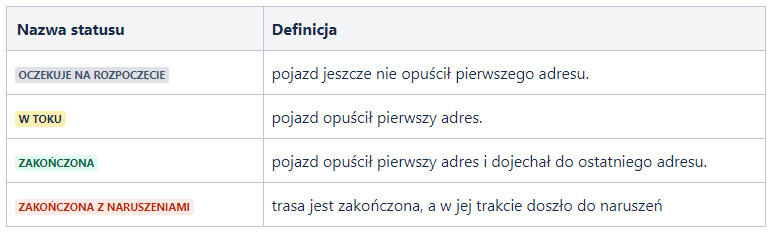
Once the vehicle sets off, the kilometres driven are calculated automatically and then shown on the progress bar against the kilometres planned.
Violations
The Route Manager has a violations module that informs the user that a route is not going according to plan. Currently the following are treated as violations:
- missing a time window,
- exceeding the planned distance by more than 5%.
- skipping an address and ending the route.
A violation is indicated by the progress bar turning red.
Planned route templates
If your fleet regularly covers the same or slightly modified routes, templates may be of interest to you. A route template is a configuration of addresses, preferences and route course with an optionally assigned vehicle and repeat interval. Just save the route as a template and define the days on which it should repeat and the dates on which the Route Manager should automatically create it and monitor its progress.
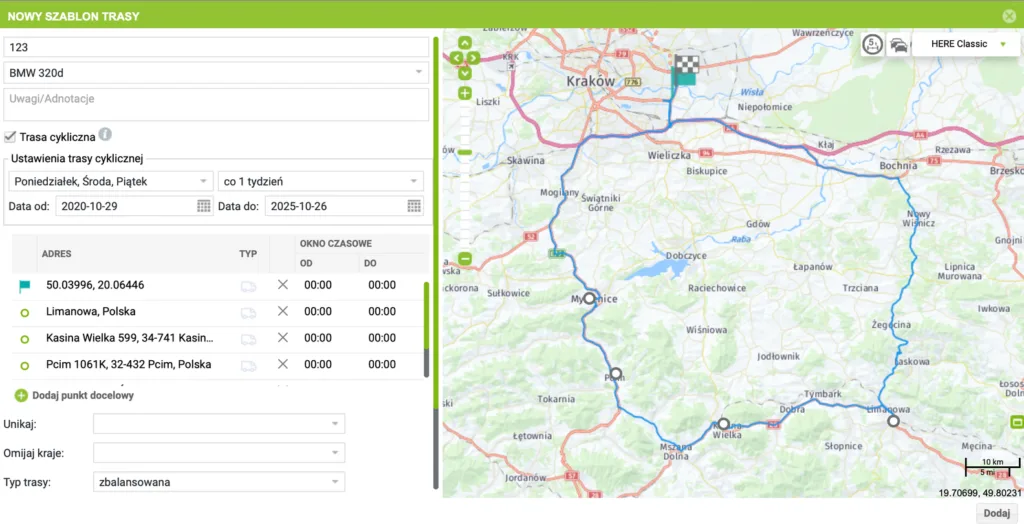
Export to a spreadsheet (.xlsx)
The Route Manager has a feature for exporting detailed data on all routes. To export data from the Route Manager, set the filters to select the routes whose data you want to export, then click the download icon in the top right-hand corner of the route list.
If you would like to learn more about the "Route Manager" feature, get in touch with us!