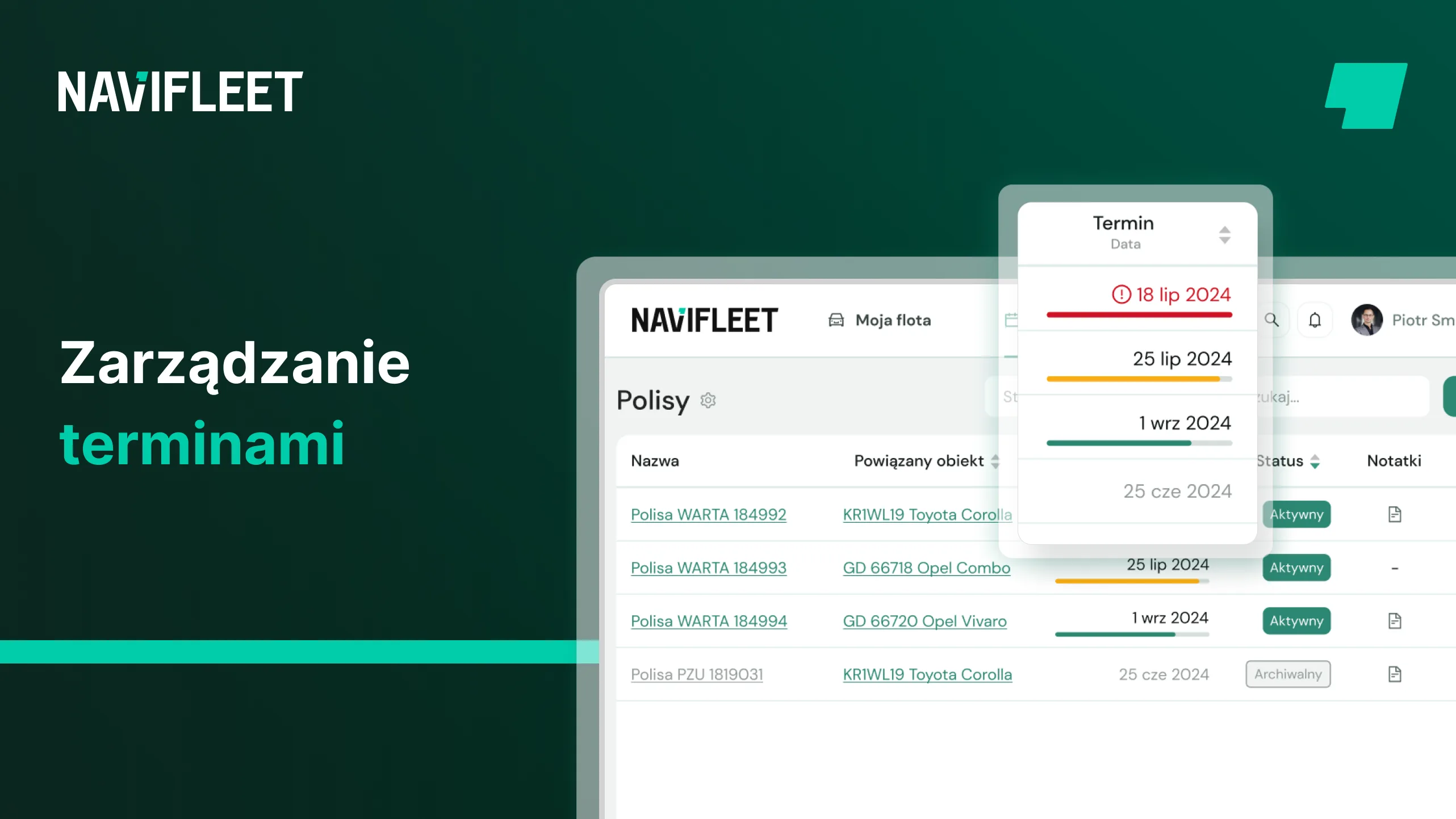
An upcoming oil change in three cars, the insurance policies of seven vehicles about to expire, and two drivers who will soon lose their licences: these are just a few of the hundreds of deadlines you have to keep track of.
If:
- you have to enter dozens of different deadlines for vehicles and drivers into Excel and then systematically check whether an important date is approaching,
- you have missed an important deadline while tracking key dates by hand,
- or you waste valuable time making call after call to drivers to remind them of an upcoming warranty service or another deadline,
then see how to automate this process with Navifleet Manager.
Scheduler and notifications
In our app you enter all your important deadlines in one place, and we send exactly the notifications you need, when you need them.
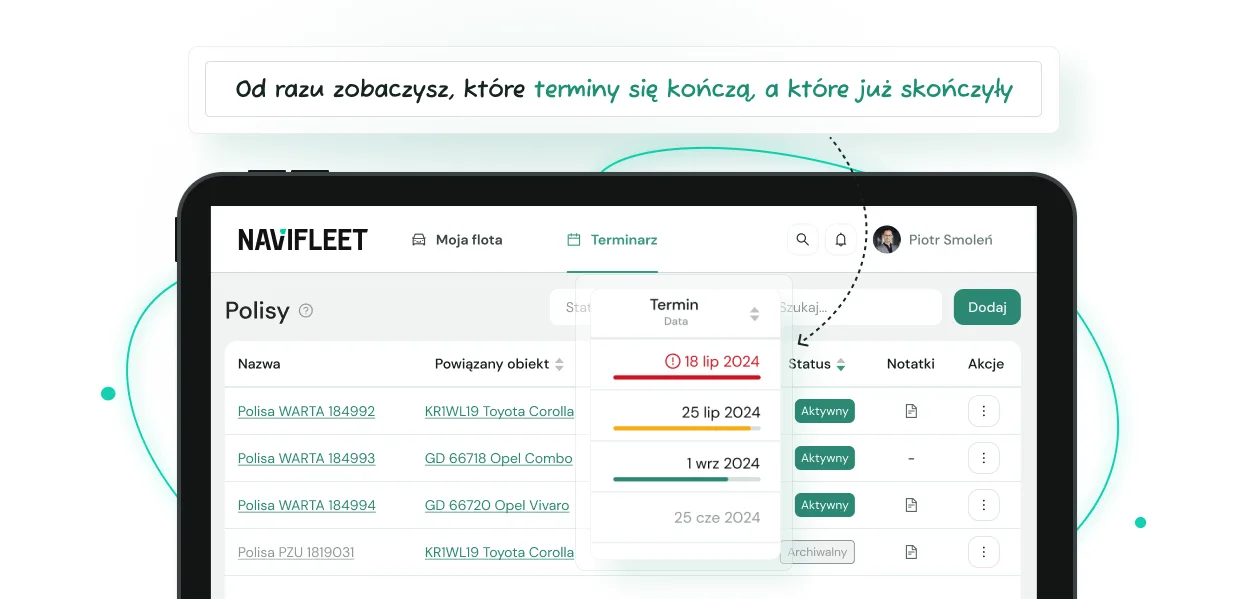
Just add all the important deadlines to the app and decide how, who and when should be notified about them.
In addition, you can easily review all important deadlines in one place, even from your smartphone.
See how to move your important deadlines to Navifleet Manager in three simple steps.
1. Add all important deadlines to the app
To add a new deadline in the Navifleet Manager app, log in to your account in the browser app and go to the vehicle or user you are interested in.

In the detailed view of the vehicle or user, scroll down to the "Scheduler" section, select the tab corresponding to the deadline you want to add and click the "Add" button.
In Navifleet Manager you can add all important deadlines, divided into:
- policies,
- roadworthiness tests,
- inspections,
- financing,
- calibrations,
- HR deadlines,
- and others.
Next, add the name of the deadline, which will appear in the notification sent, indicate whether the deadline concerns a user or a vehicle, choose the specific person or vehicle it applies to, choose the deadline status and enter the specific date or odometer reading at which the deadline expires.
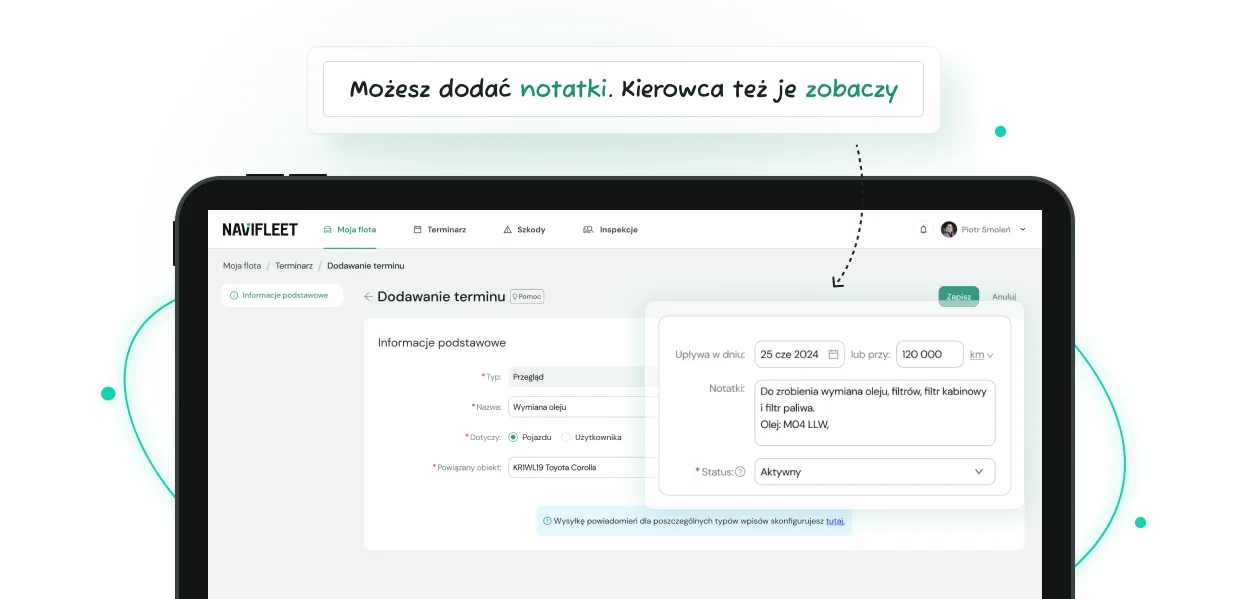
2. Set the right notifications
Next, set what the notifications should look like for each type of deadline listed in the previous paragraph.
To go to the scheduler notification settings, expand your avatar in the top right corner of the app and click the cog icon next to the organisation you are interested in. In the settings view, go to the "Deadline types" section.
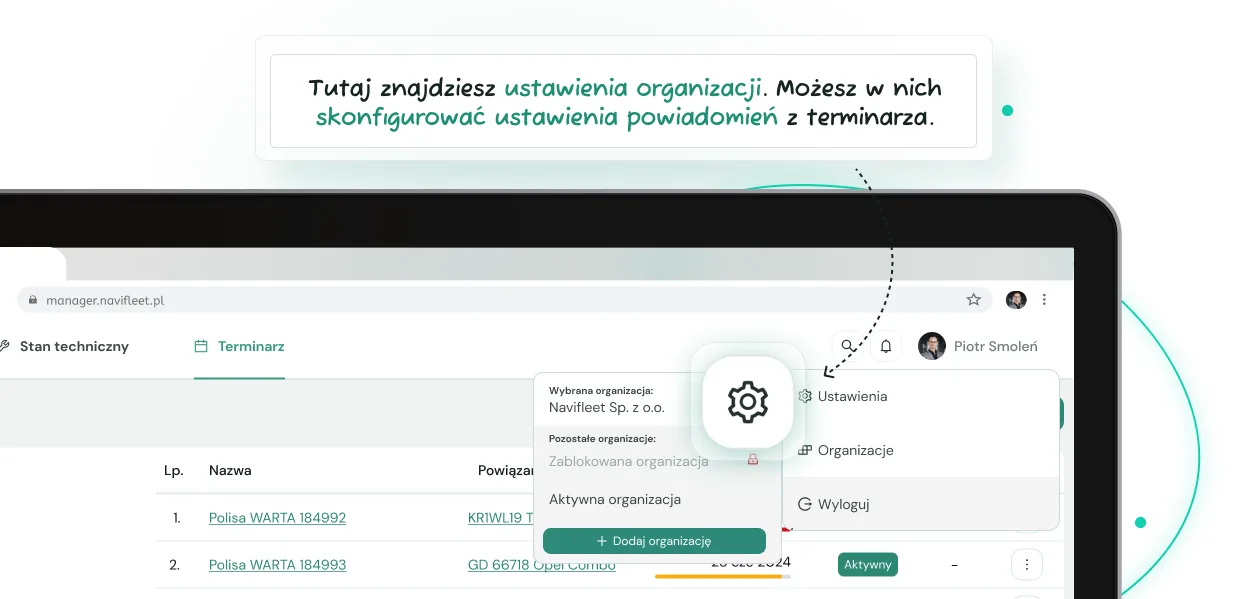
Here you specify:
- how far in advance the app will inform you about a specific type of deadline: you can choose the lead time based on dates or the odometer reading, e.g. two weeks before a given deadline or two thousand kilometres before the set mileage is reached.
- which fleet administrator the app will notify of upcoming deadlines: one person may be responsible for warranty services and another for roadworthiness tests. You do not have to bother others with information that is irrelevant to them.
- whether you want the app to notify the relevant user of the upcoming deadline too: if you tick "yes" here, in addition to notifying the fleet administrator, Navifleet will also send an e-mail reminder about the important deadline to the relevant user.
- what the e-mail message sent to the driver should say: if you decide to notify the driver about the upcoming deadline too, you can fill in the message that will be sent to them depending on the chosen type of deadline. For example, you can enter a message informing the driver that they will soon need to renew their licence.
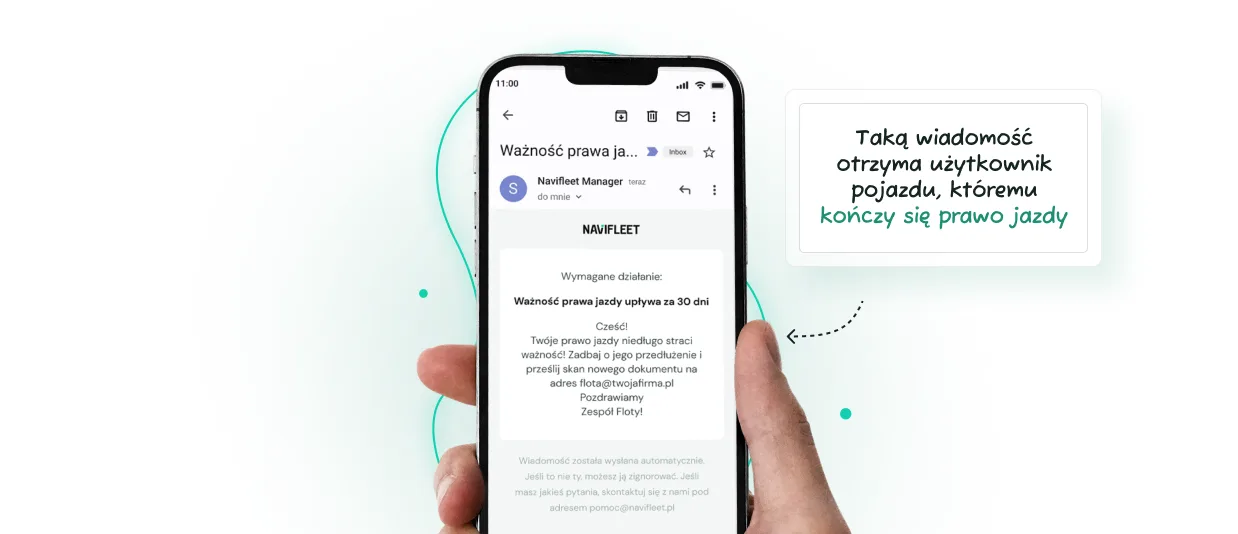
3. Review notifications and enjoy an automated scheduler
Once you have added all the important deadlines and set the notification details, there is nothing left to do but enjoy your automated scheduler.
In addition to the notifications you will receive in your e-mail inbox with the lead time you chose, you can also track all important deadlines directly in the app.
To review upcoming deadlines for all users and vehicles in the fleet, go to the "Scheduler" tab. To review deadlines for a specific vehicle or driver, open the detailed view of the person or car you are interested in.
The vehicle users in your fleet will see in their Navifleet account only the deadlines linked directly to them or to the vehicles assigned to them. They do not have to open the vehicle details if an important deadline is approaching; they will see it on the app's home screen.
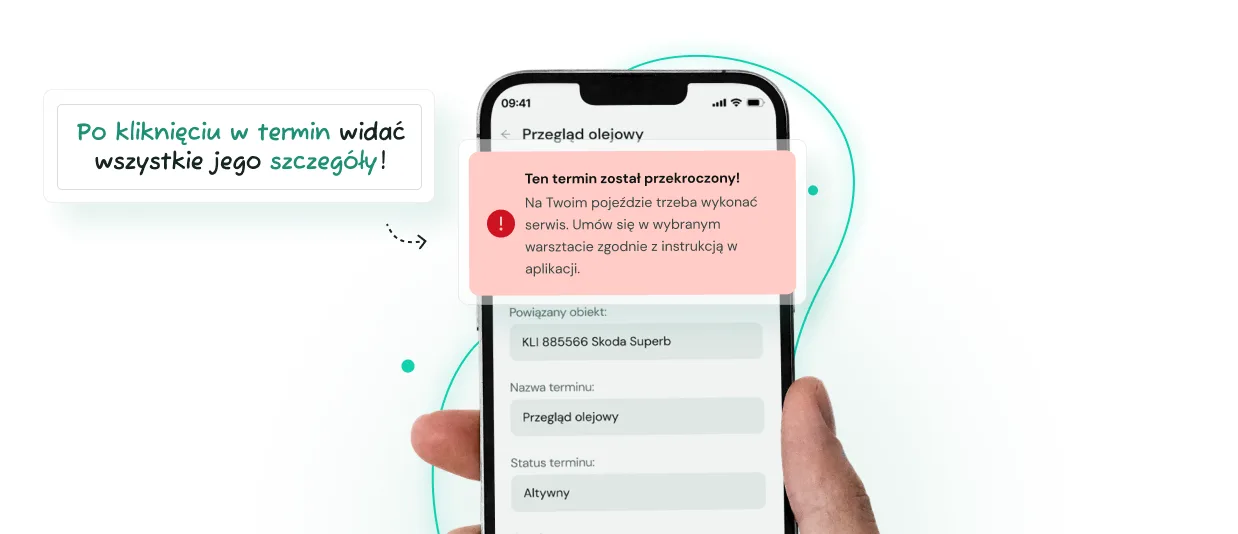
Try Navifleet for free
Do you feel like a walking diary when managing your vehicle fleet?
Excel will not send you a notification about an upcoming deadline, but Navifleet will: create an account today and test the Scheduler and other functions free for 7 days.
Let the app track important dates and remind the people concerned, including drivers, even in the case of an upcoming medical examination or loss of a driving licence.