
Help › Navifleet Tracker › Administration
How to stop invoice e-mails from Navifleet going to SPAM?
Updated: 20 May 2022
The SPAM folder exists in every mailbox. It is intended for unwanted messages. Unfortunately, in some cases e-mails that matter to us end up there, including those containing an invoice for Navifleet services. Below we present simple ways to solve this problem in the most commonly used e-mail services (Gmail; WP.pl; Onet.pl; O2.pl; Interia.pl).
Gmail
In Gmail, the problem of e-mails going to SPAM can be dealt with in several ways. The first is very simple. Log in to the mail client in your browser, then go to the SPAM folder in the sidebar. If you have trouble finding the folder, select the More
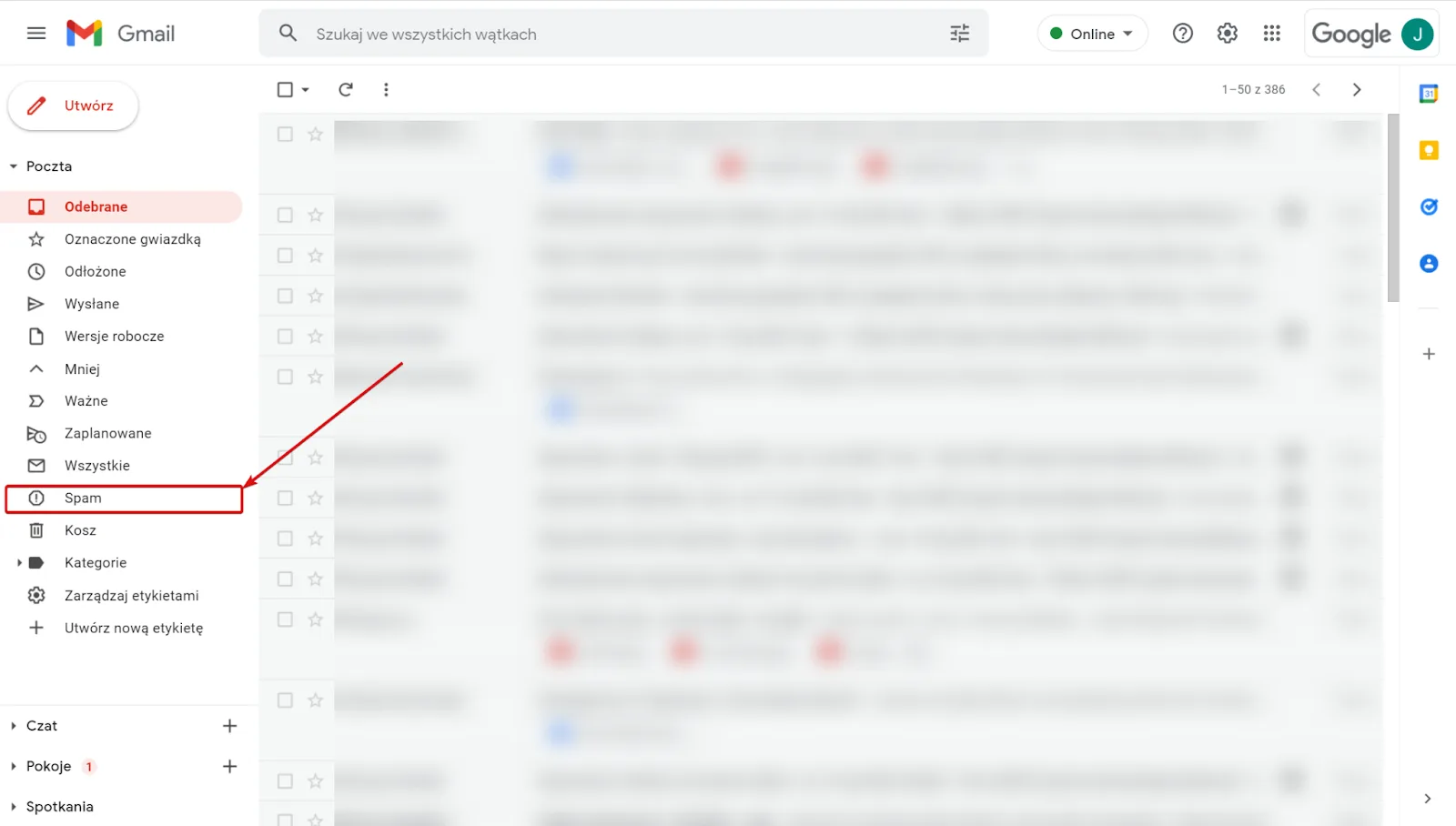
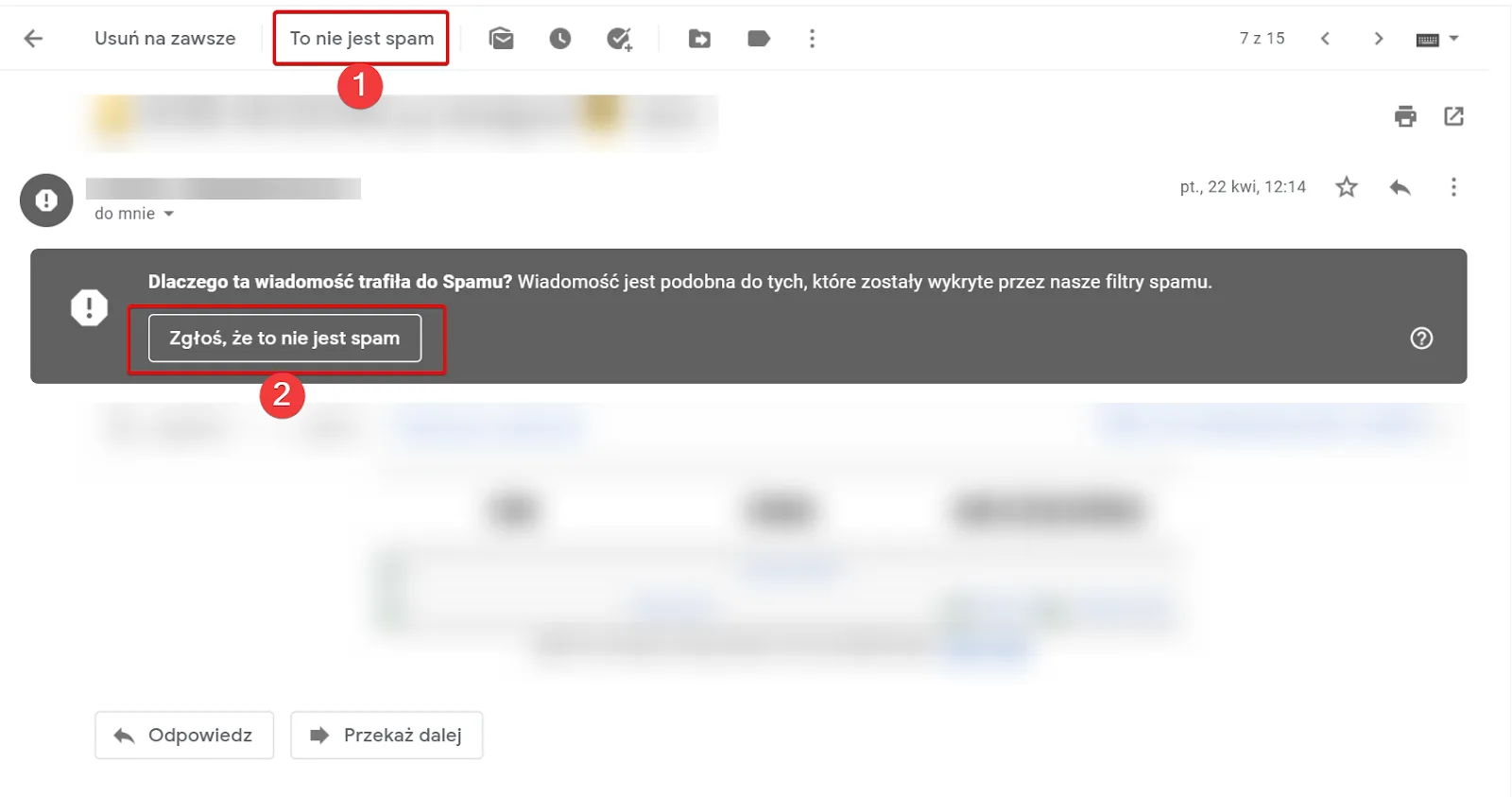
tab. Then open the message in question and select Not spam (1) or Report not spam (2).
The second method is to add the address [email protected] to your contacts. If we receive a message from an address in our contacts, it should appear in the inbox even if it qualifies as SPAM.
To add a contact, select this option from the drop-down menu in the top right corner of the screen.
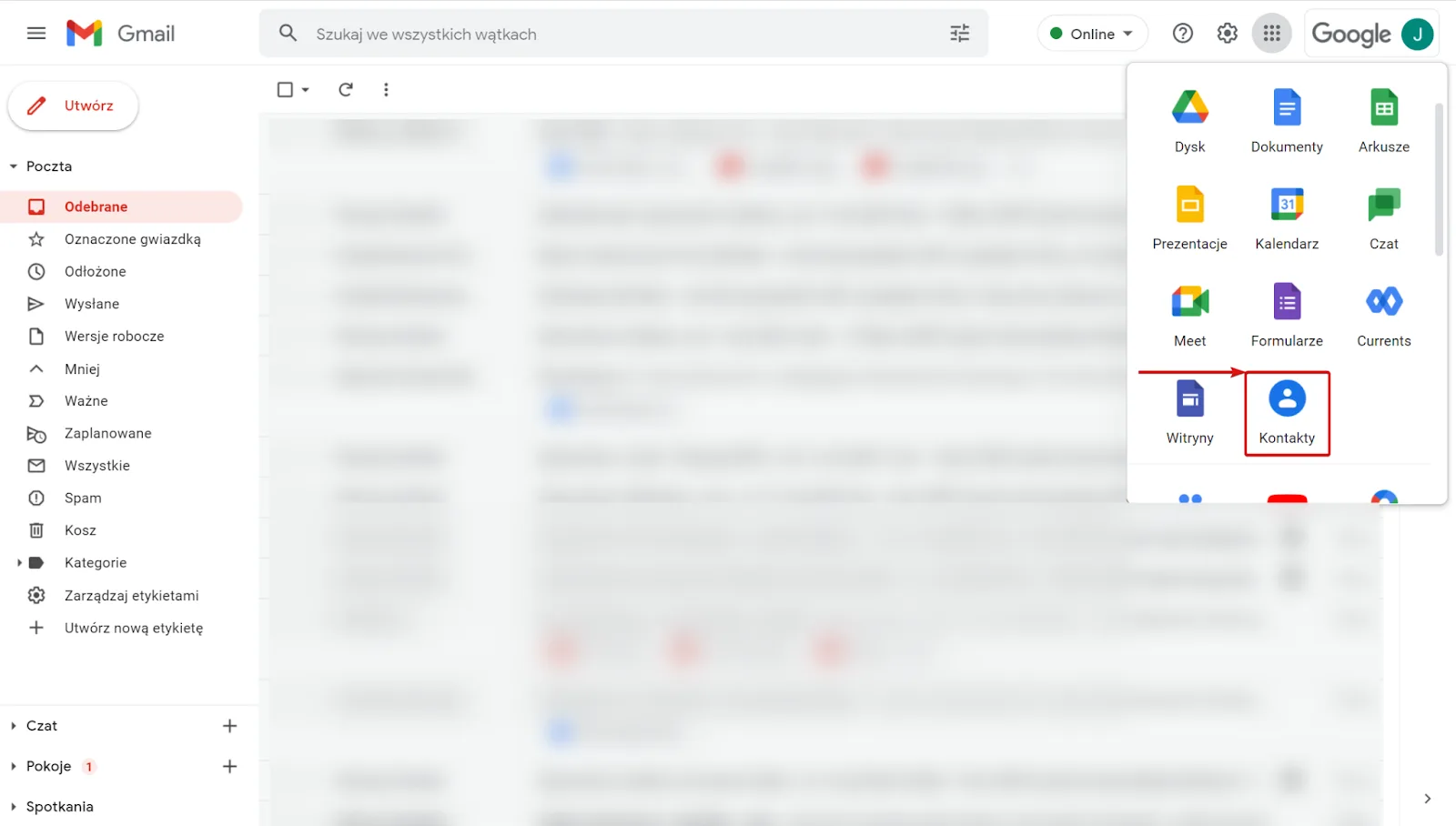
Then select Create contact and fill in the correspondent's details (in this case, include the e-mail address [email protected]).
Another option is to create an appropriate filter. Adding anti-spam filters is the same as creating message filters/rules. Message rules let you manage incoming mail, i.e. move it to particular folders, filter it and label it (including as SPAM).
To create your own filter, first open a message that has landed in the SPAM folder. This time, however, do not select Not spam (although it does no harm), but expand the menu on the right and select Filter messages like this.
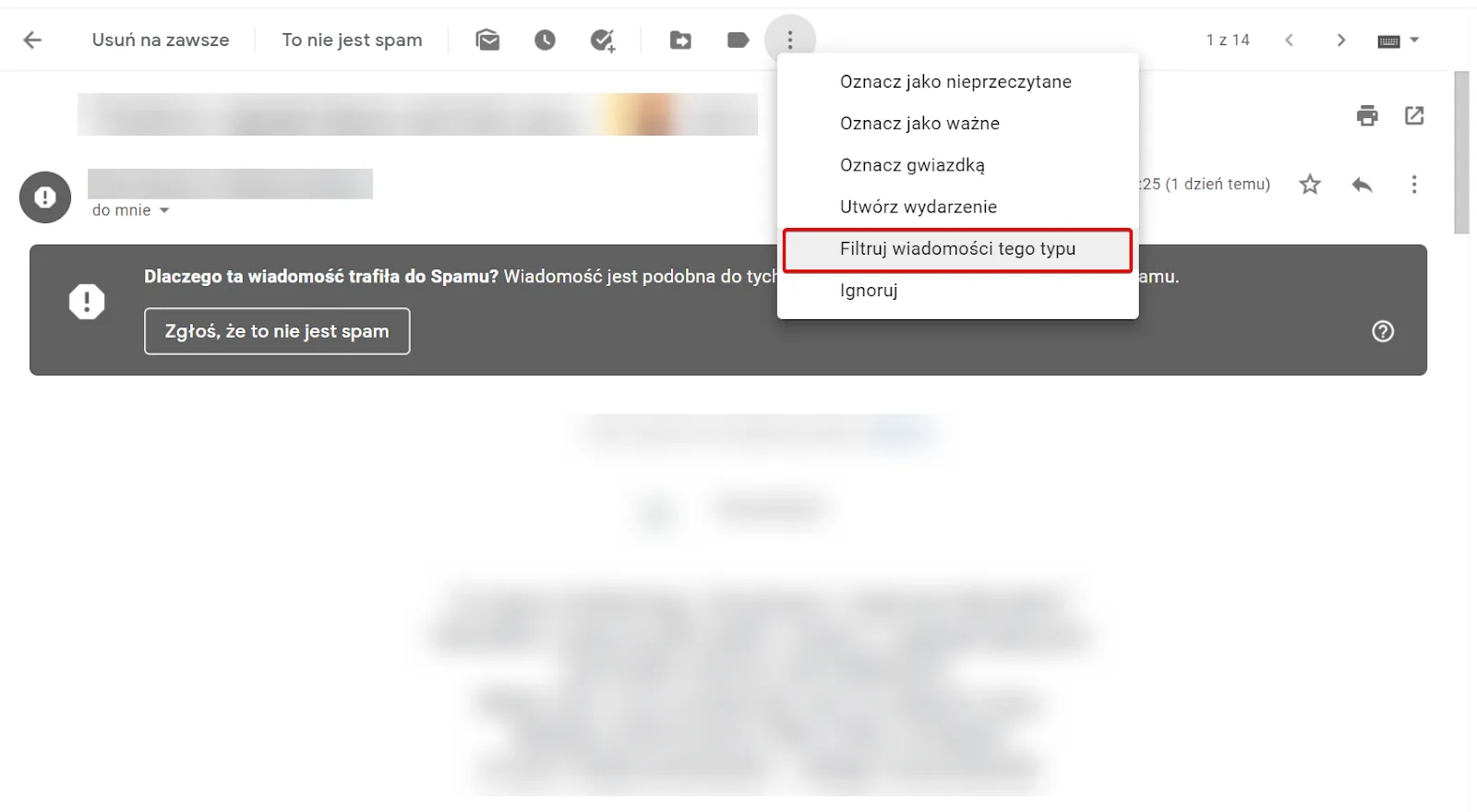
The filter creation window will appear. Select the criteria by which messages are to be filtered. The default setting covers all messages from the sender's e-mail address, which is already filled in.
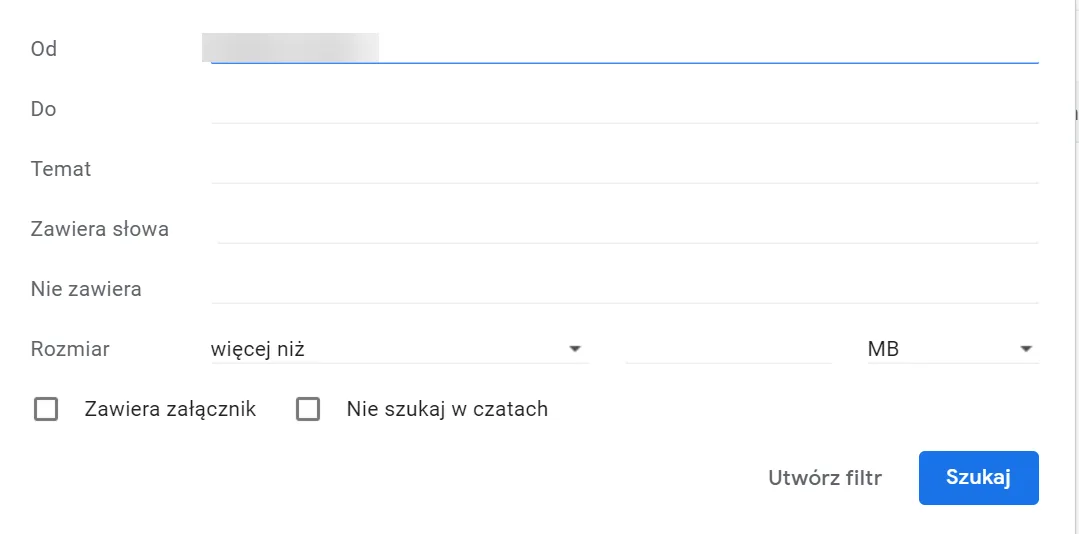
Once you have completed the fields as needed, click Create filter and proceed to the last step (another window appears).
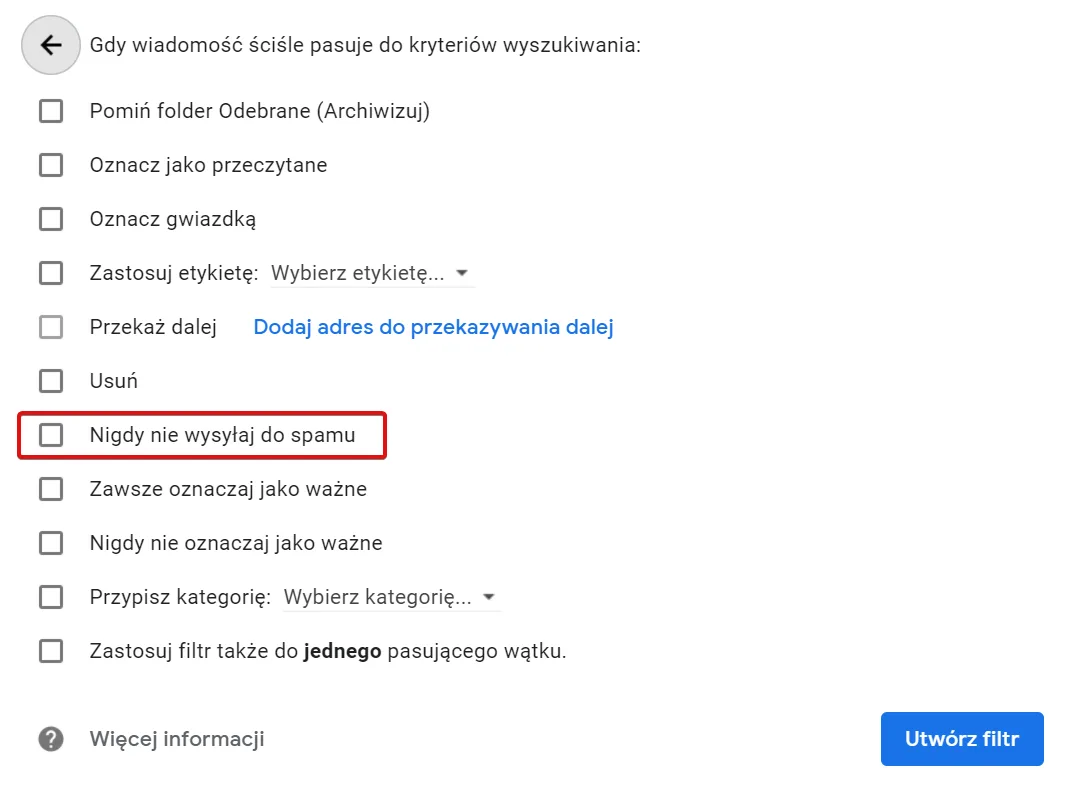
In the window displayed, select Never send it to Spam and click Create filter.
WP.pl
Anti-spam filters can also be created in the WP.pl webmail. To do this, go to the Options tab and select Filters.
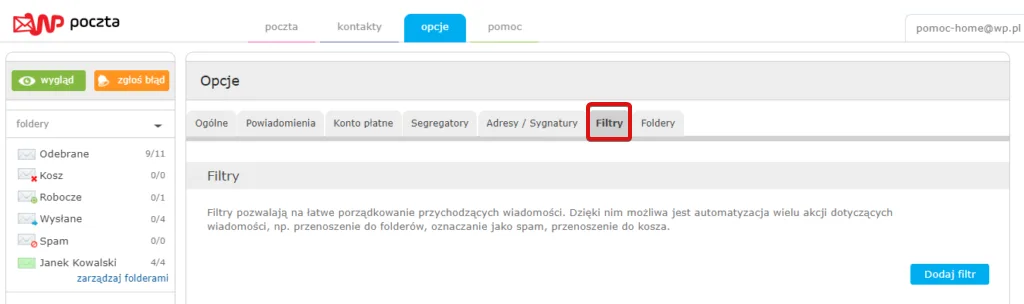
A filter is added using an appropriate condition.
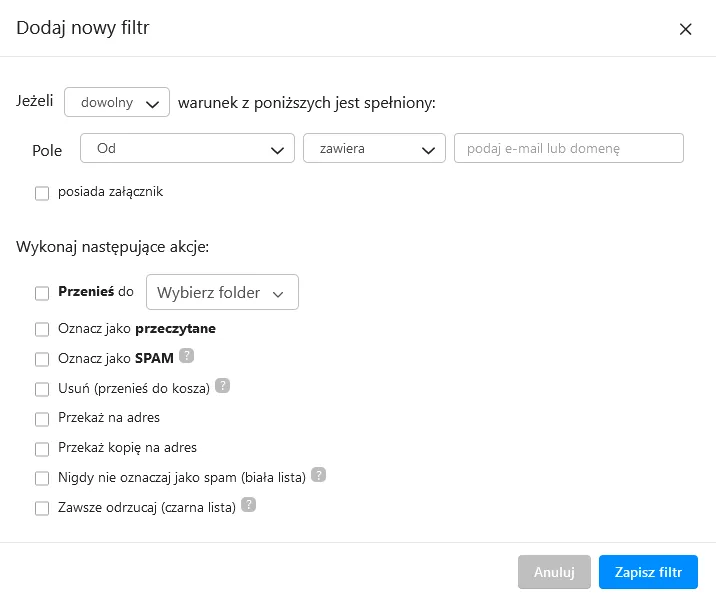
The condition can be configured in two ways, which are equally effective. In both, enter the address [email protected] in the field provided. From the available actions you can select Move to selected folder or Never mark as spam.
NOTE! The above process for creating anti-spam filters applies to both WP.pl and o2.pl webmail.
Onet.pl
The Onet.pl webmail lets you add an e-mail address that will never go to SPAM. To do this, go to the Anti-spam tab and select Add rule.
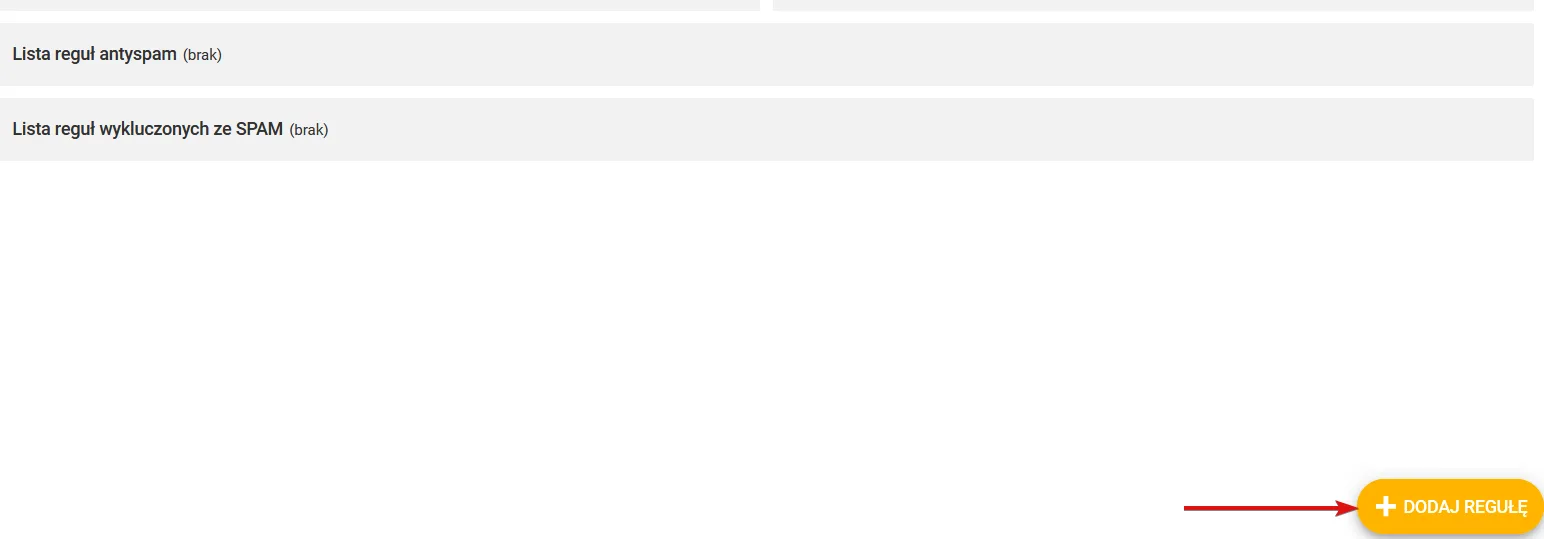
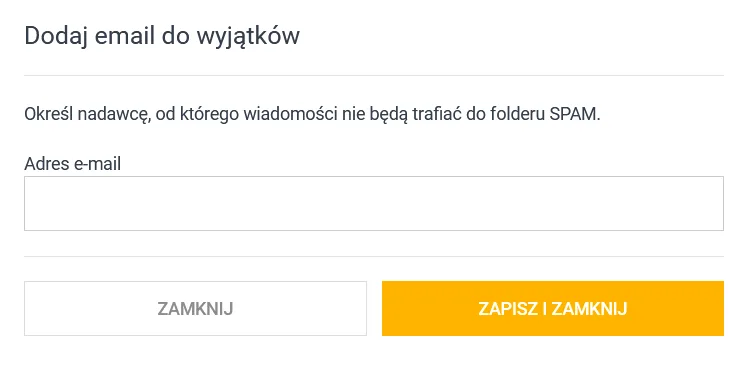
Then, from the expanded options, select Add e-mail to exceptions. In the window displayed, enter the address [email protected] and click Save and close.
Interia.pl
In the Interia.pl webmail you can create a Private anti-spam filter. To adjust the anti-spam filter options to suit you best, go to Account settings and select Anti-spam
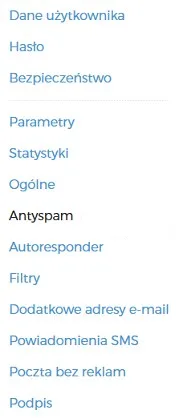
from the menu on the left. In the Trusted field paste the address [email protected] and click Add. From now on, all messages received from this address will be treated by the filter as trusted and safe.