
Help › Navifleet Tracker › Fuel control
Universal fuel card import module
Updated: 17 February 2022
The fuel card import module lets you create a consolidated summary of refuelling across the fleet. This way you can monitor fuel costs in a selected period.
Creating an import template
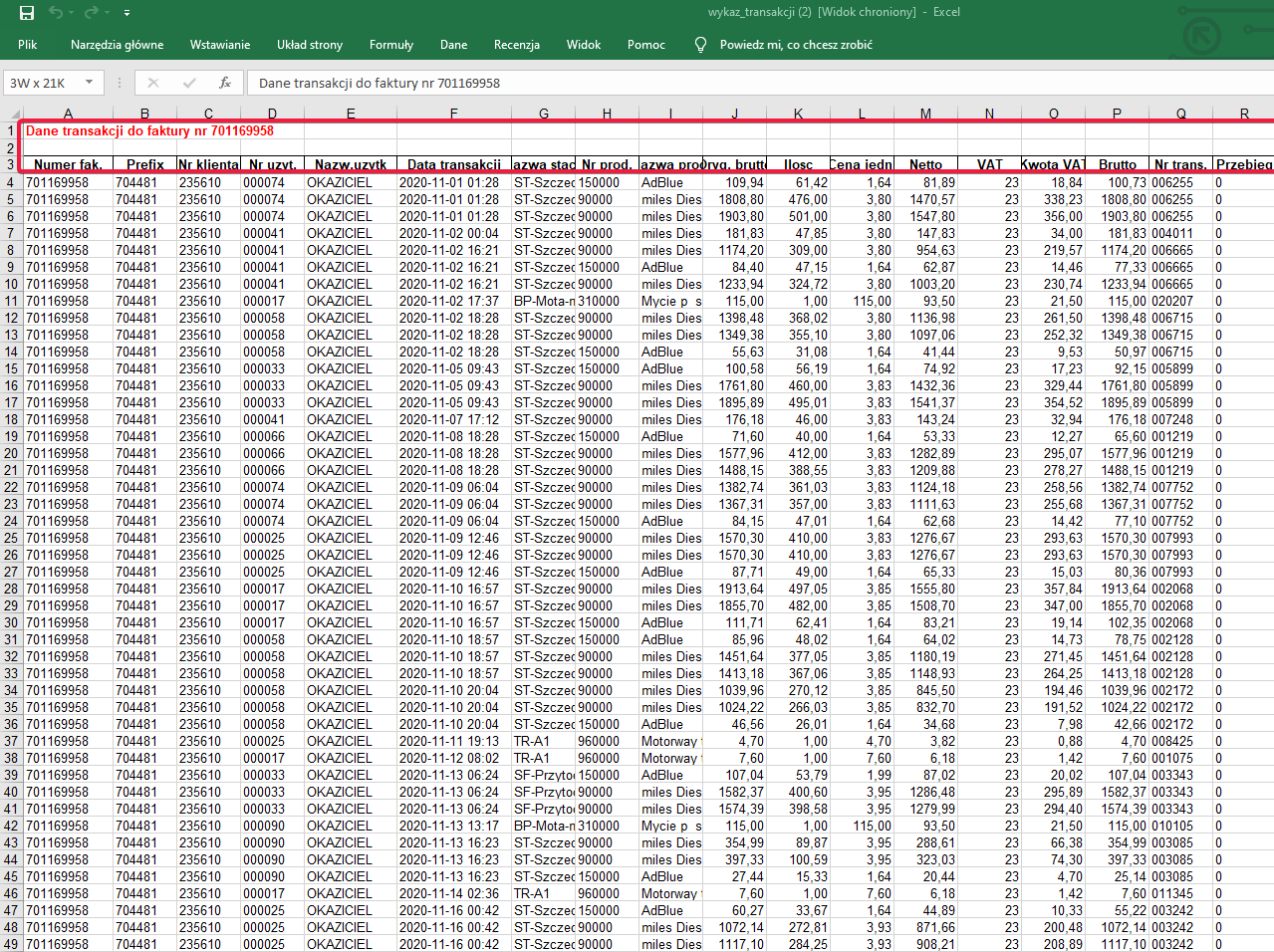
The first step in importing a fuel card statement is to create an import template. The import module is compatible only with files with the XLS and XLSX extensions.

Create the template in the Costs → Documents → Import templates section.
How to fill in the template
Default document settings:
- Template name - Any.
- Number - By default the name of the imported file.
- Type - Select from the drop-down list.
- Contractor - Select from the drop-down list; if you do not have a list of contractors, add it in the Costs → Contractors section.
Source data configuration
- Skip the first [x] rows - Here enter the number of unnecessary rows (containing no values to import, e.g. column headers).
Vehicle
- Column name - Enter the column letter (upper case).
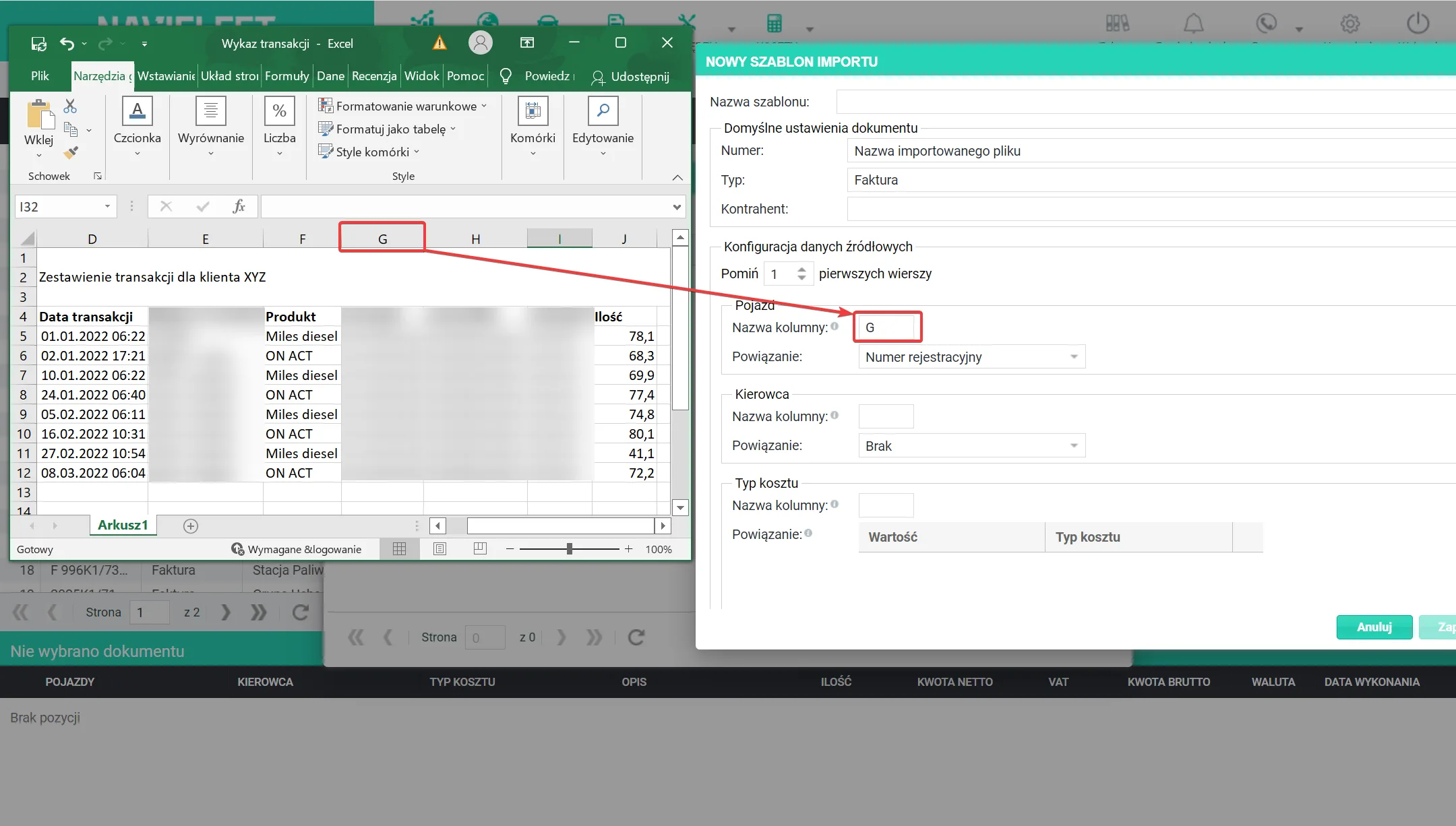
- Mapping - By default the registration number.
Driver
- If the imported file contains no driver data, you can leave this section empty.
- Column name - As in point 3.
- Mapping - Select from the drop-down list.
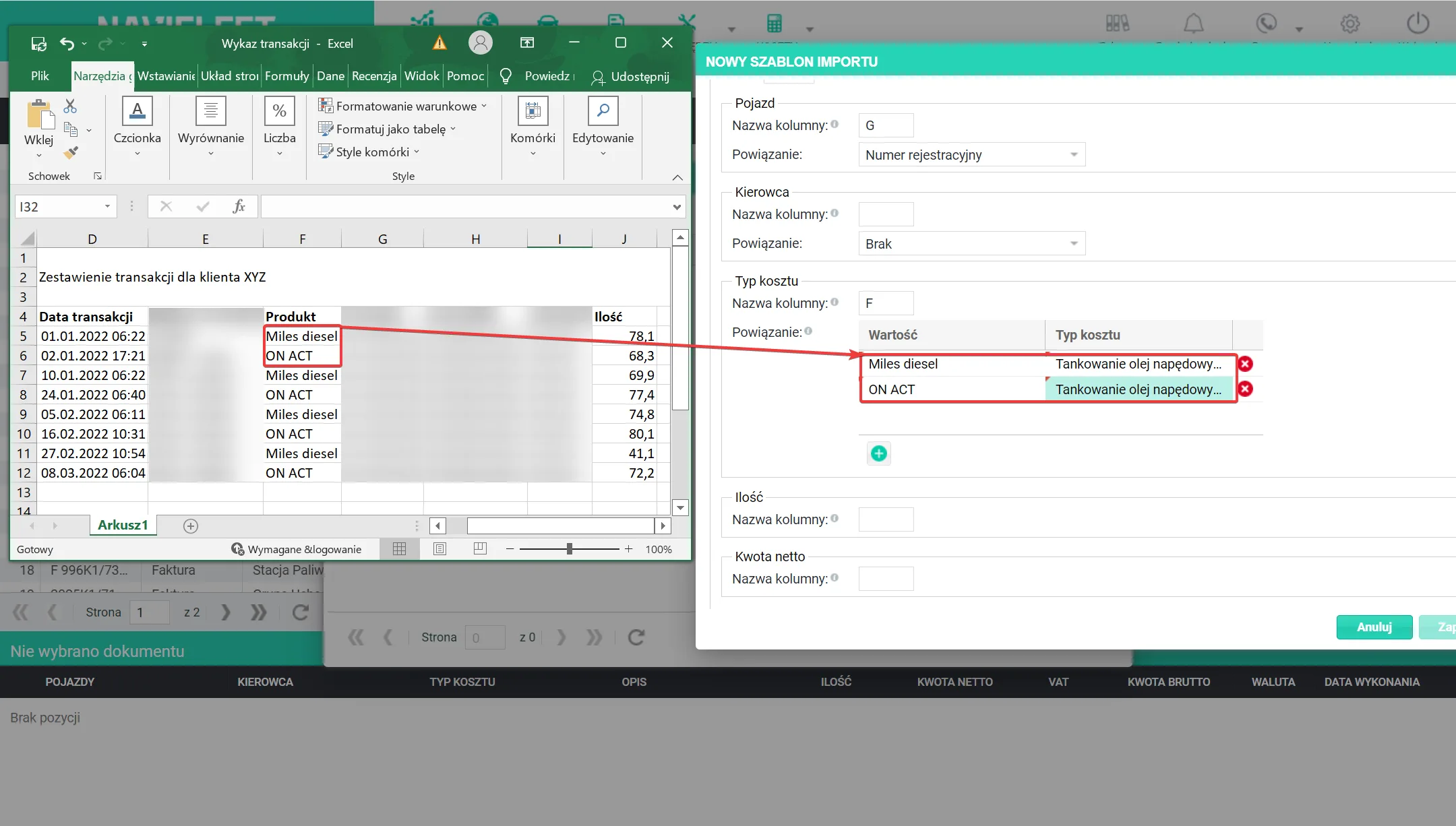
Cost type
- Column name - As in point 3.
- Mapping - Enter the name of the product item from the file and specify the item name after import.
Quantity, Net amount, Gross amount
- Column name - As in point 3.
Currency
- Default currency - Select from the drop-down list.
- Column name - As in point 3.
- Mapping - Enter the currency name from the file and specify the currency name after import.
Transaction date
- Column name - As in point 3.
- Date format with a leading zero: Y-M-D H:I:S.
- Date format without a leading zero y-m-d h:i:s.
Importing a file using the template
- Go to the Costs → Documents → Import section.
- From the drop-down list select the source, i.e. XLS file.
- Select the template created earlier.
- Specify the location of the file to import.
- Click import.
- Once the file is imported, set the issue date and click save.