
Help › Navifleet Tracker › Reports 2.0
Business and private mileage
Updated: 5 December 2022
Using the Navifleet Driver app, employees can declare whether a given journey is business or private. Based on this data, the business and private mileage report shows how drivers use their company vehicles.
What data will you find in the business and private mileage report?
Each business and private mileage report consists of two parts: a summary and tables with individual data for each of the drivers included when the report was generated.
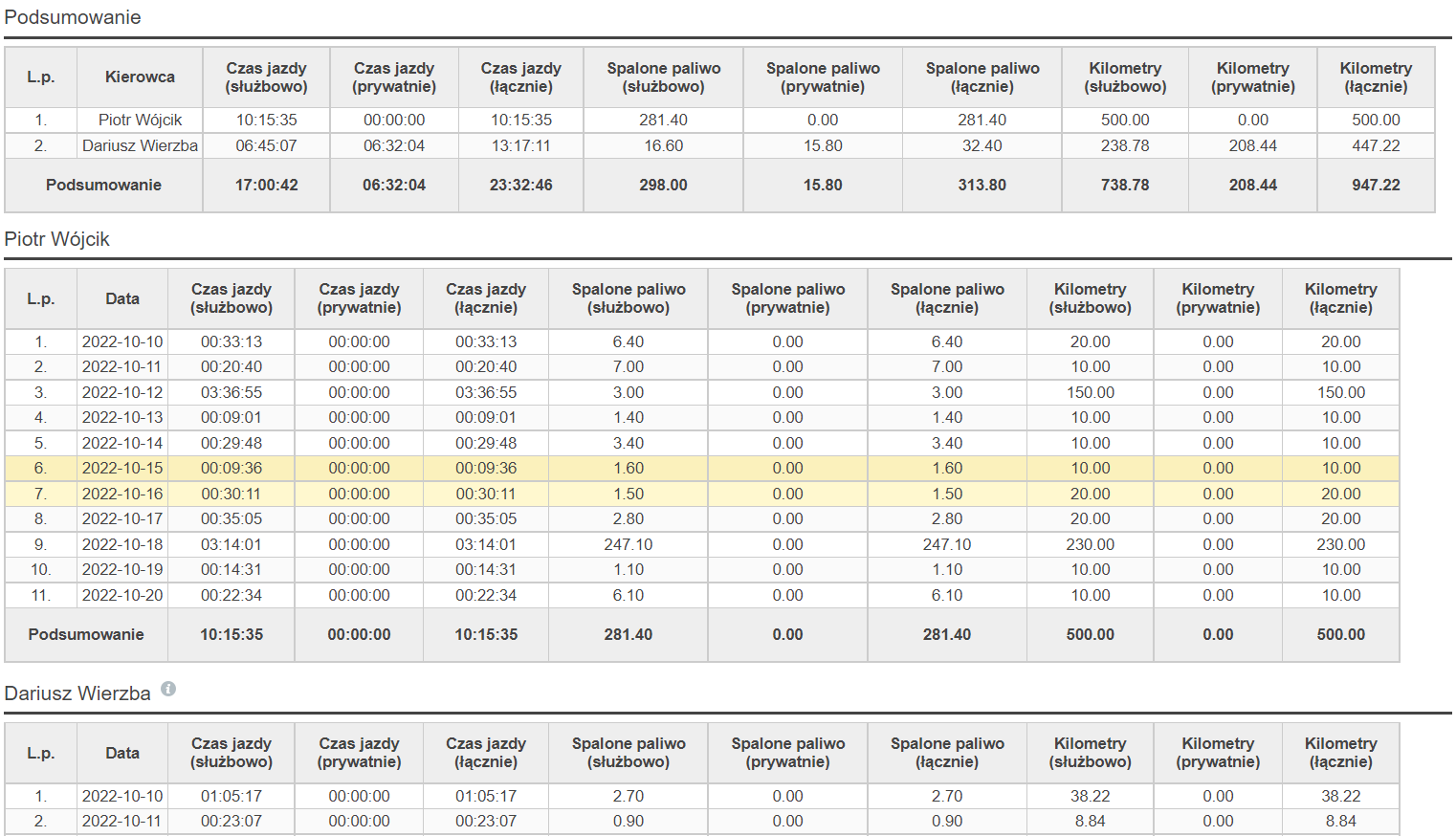
The report compares driving time, fuel burned (based on the reading from the CAN bus) and distance travelled, split into business and private journeys. You will find this information both in the summary and in each driver's individual statistics (with the date of the given journey).
When and how to use business and private mileage reports?
Situation | How to use the business and private mileage report? |
The management and the fleet manager do not know how much private journeys cost the company | Based on the summary of fuel used for private journeys, the fleet manager can prepare a cost report (taking current fuel prices into account). It can cover any period and any group of drivers. |
The need to settle up with an employee for fuel used on private journeys | If the fleet policy includes limits on company-funded fuel used for private purposes, the fleet manager can check whether a given driver has exceeded them. If so, a simple calculation gives the amount the employee has to cover. The fleet manager can also compare the values in the Fuel burned (private) column with refuellings made without a fuel card, which are listed in the Fuel cards vs refuellingsreport. This is particularly useful when the fleet policy states that the employee bears the full cost of fuel used privately. |
The need to check unjustified business journeys on non-working days (e.g. weekends). | Thanks to the weekends being highlighted (in yellow) in the report, the fleet manager can easily spot any values other than 0 appearing in the Driving time (business)column. This is the basis for starting to check for possible abuse by employees. |