Help › Navifleet Tracker › Getting started
How to activate vehicles and edit their data in the Navifleet app?
Updated: 12 August 2022
Once the device has been installed in the vehicle, the next step is to activate the vehicle in the Navifleet system. This step is essential to make full use of the app.
Activating vehicles
To activate a vehicle, go to the Vehicles tab. Whether a vehicle is active is shown in the Status column.

You activate a vehicle using the dot next to the status description. Suspending the service works the same way.

If a vehicle is not activated, messages about missing permissions will appear next to the vehicle name (e.g. in the Map view) and the functional modules in the app will not be available.
Editing vehicle data
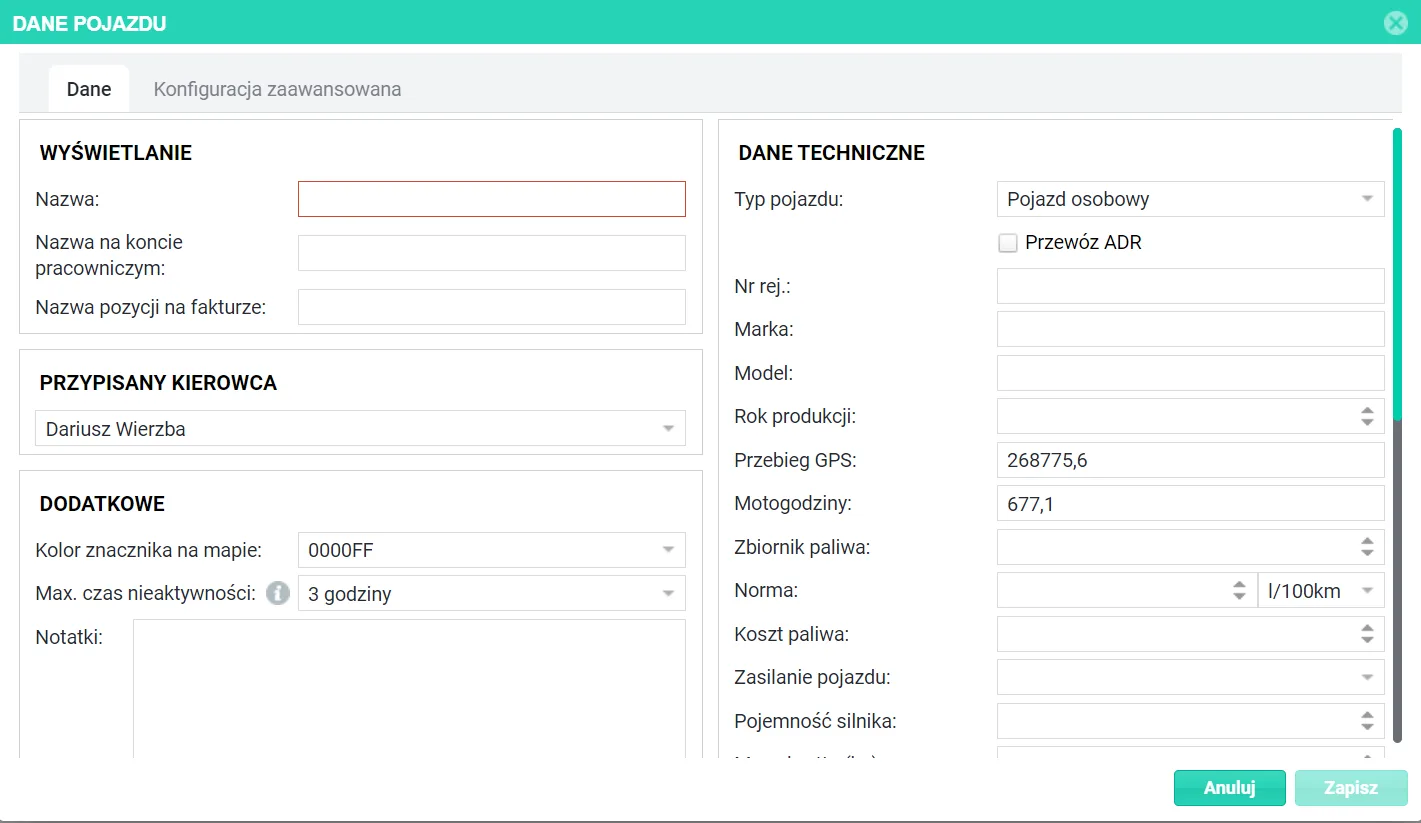
By selecting the icon in the last column, you can enter or edit the vehicle data.

In the window that appears, you can enter information such as:
- Display - here you can set, among other things, the vehicle name and the name of the item that will appear on the invoice.
- Assigned driver.
- Additional data - including the marker colour and the maximum tracker inactivity time (after which an alert is to be generated).
- Technical data - including the vehicle type, fuel tank capacity and editable mileage (if you are unable to edit the mileage, contact Navifleet Customer Service).