
Help › Navifleet Tracker › Getting started
How to add drivers in the Navifleet app?
Updated: 12 August 2022
After logging in, you are taken to the app's main view. It includes the map, the list of your vehicles (added beforehand by the Navifleet team) and the bar of available features. To add drivers, go to TOOLS -> DRIVERS.
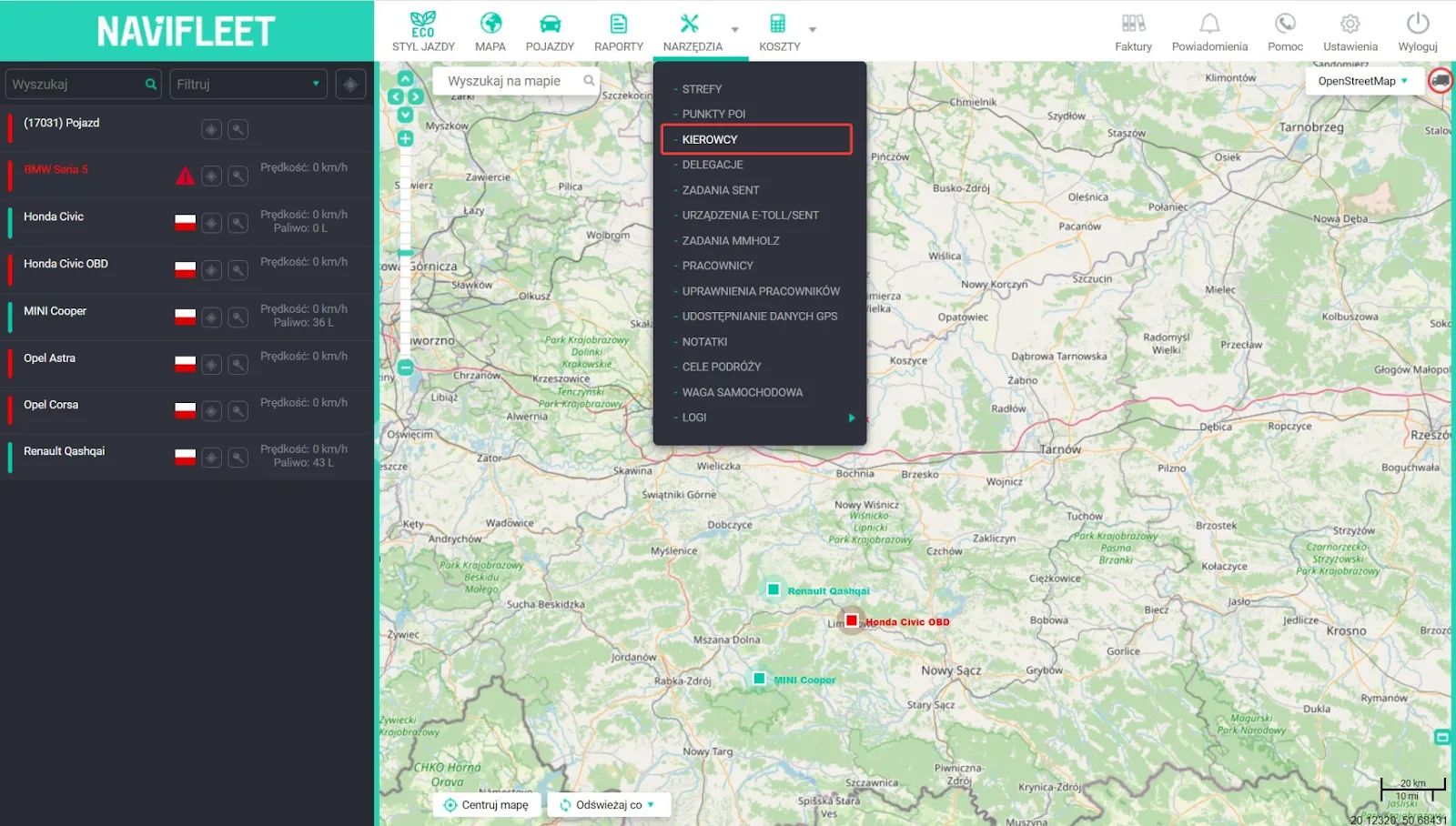
A table (still empty) is displayed. Drivers can be added in two ways: one at a time or several at once.
To add a single driver, select Actions -> Add driver.

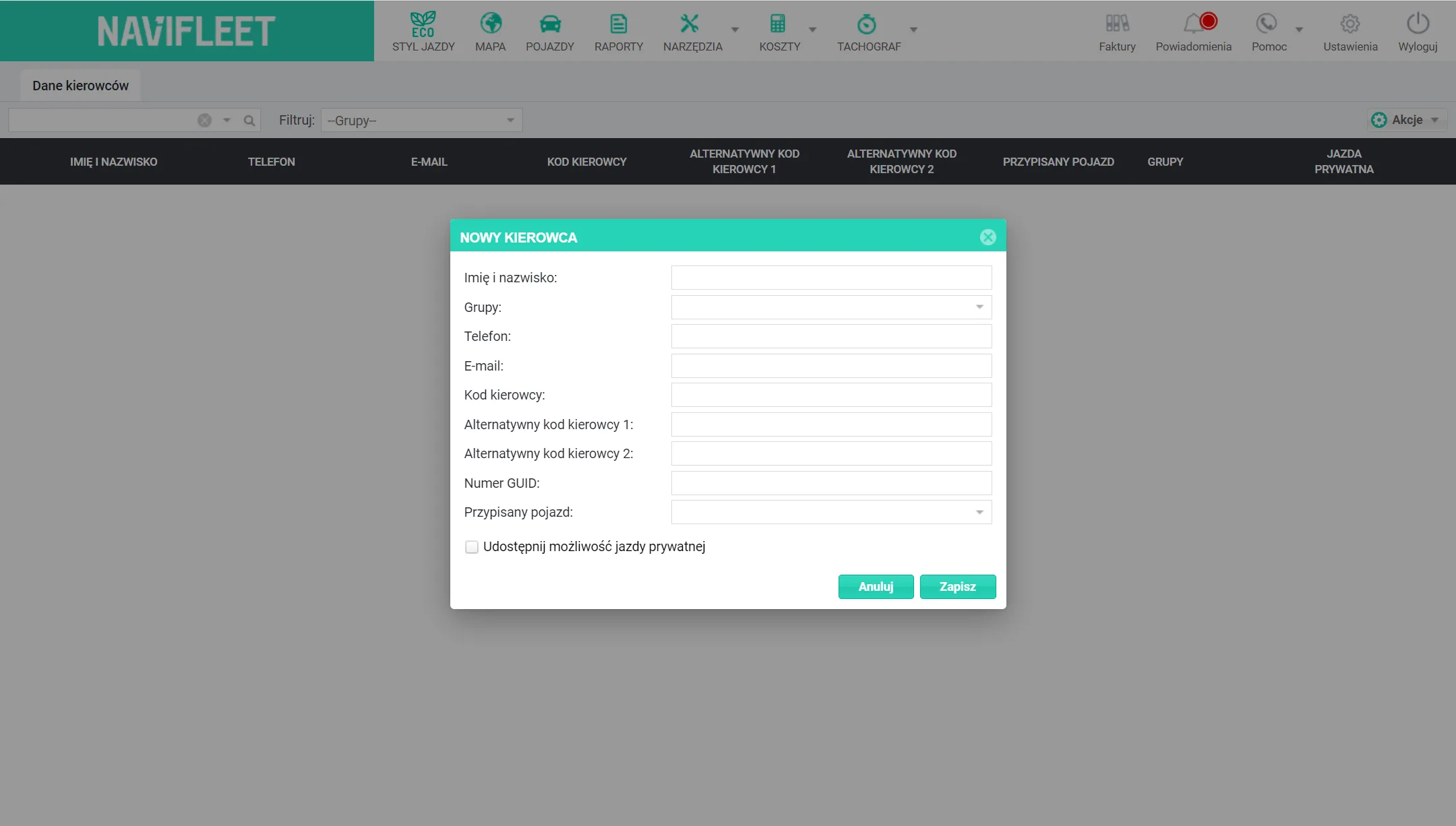
This takes you to the new driver window. Only two fields are required to add a driver: Full name and Driver code. The codes are supplied by Navifleet, after which the Customer can assign a physical identifier to the driver themselves and then import it into the app.
The remaining fields are:
Groups - lets you assign the driver to a chosen group.
Phone - the phone number is required for the driver to be able to use the Navifleet Driver app.
E-mail.
Bonus factor - a field not used in the Driving style analysis module.
Alternative driver code 1 - an additional, optional driver identifier.
Alternative driver code 2 - as above.
GUID number.
Assigned vehicle - a critical field when the company does not use driver identifiers and vehicles are permanently assigned to individual people. On this basis, the Navifleet app assigns journey data to a specific driver. This option is used only in the Driving style analysis module. NOTE! You can also change the driver assigned to a vehicle when editing the vehicle's details.
Allow private mileage - ticking this option gives the driver permission to switch private mode on and off (this option can also be switched on and off by double-clicking the icon in the relevant column in the main drivers view).
These fields are optional - fill them in according to your own needs.
Important! The driver code has a higher priority than the assigned vehicle. This means that if both are assigned to a driver, the app will assess them regardless of which vehicle they drive (once identified by the code). This most often happens with pool cars.
If you want to add a larger number of drivers at once, you can do so using the Import from file option.

For this you will need the Excel file template, which is available for download in the app.

The Excel file is filled in in the same way as the first method of adding a driver (one at a time). The following fields are available:
- reader code (if you use such a solution),
- full name (required),
- group,
- phone and e-mail,
- driver codes (if you identify drivers this way; if not, enter any code (e.g. "xxx")).
- GUID no.,
- private mileage (depending on whether you want to give the driver permission to use private mode - enter YES or NO).
- assigned vehicle.

The added drivers will appear in the table. Using the buttons on the right of each row, you can edit the details and delete drivers.
