
Help › Navifleet Tracker › Getting started
Logging in to the Navifleet app
Updated: 26 February 2026
The Navifleet app is available at: https://gps.navifleet.pl/logowanie
Navifleet is a web app. It can be used on any device that supports a web browser, both on desktop computers and on mobile devices.
The recommended web browsers are Google Chrome® and Mozilla Firefox®.
To log in, you need a username and a password.
When logging in, you can choose the language version of the Navifleet app.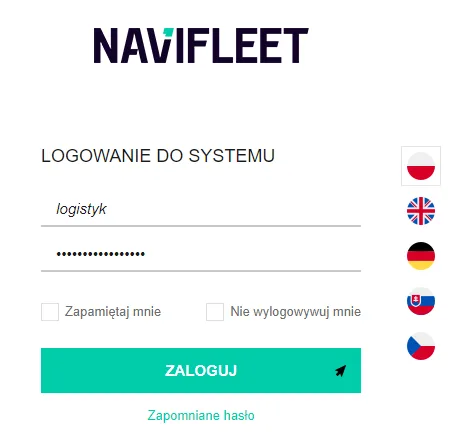
TABLE OF CONTENTS
Login options
- Remember me – when this option is ticked, the system will remember the logged-in user. The next time you log in, you will not need to enter your username and password. When the page https://gps.navifleet.pl is opened again, the app will open with the user last logged in on that device.
- Keep me logged in – when this option is ticked, the user will not be logged out of the app until they select Log out themselves.
How to change your Navifleet app password
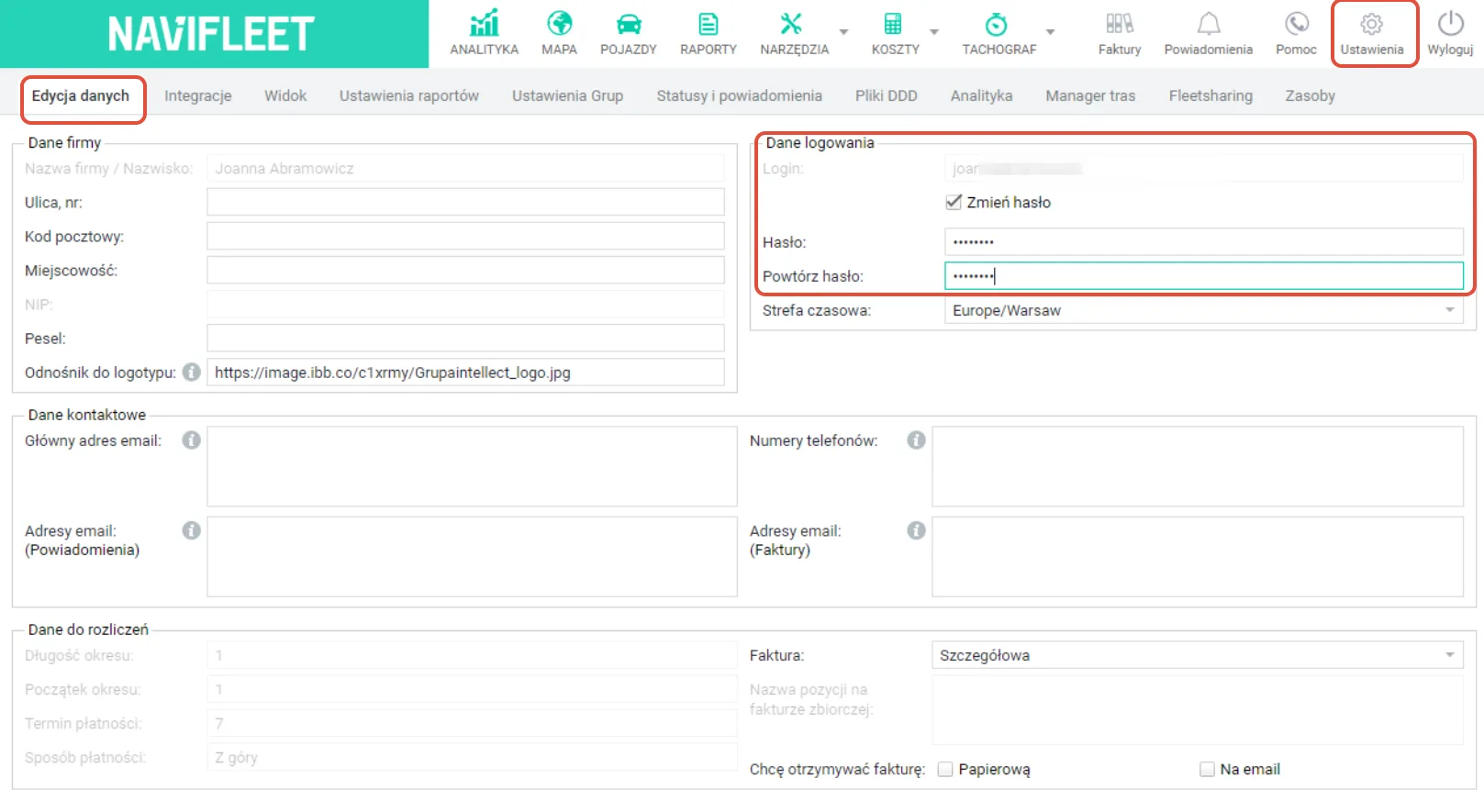
- Select Settings, then the Edit details tab.
- In the Login details section, tick the Change password checkbox.
- Enter the new Password. Repeat the same password in the next field.
Resetting a lost password
A forgotten password can be reset from the login panel. Select the Forgotten password option.
A new password will be sent to the e-mail address provided when registering in the system.