
Help › Navifleet Tracker › Getting started
How to create employee accounts and grant permissions?
Updated: 12 January 2022
The Employees feature in the gps.navifleet.pl app is used to create access accounts for employees. Each employee receives their own unique login and password, as well as a set of permissions defining access to particular system functions.
Creating permission groups
Before adding an employee account, you need to create an employee permission group. To do this, go to Tools → Employee permissions.
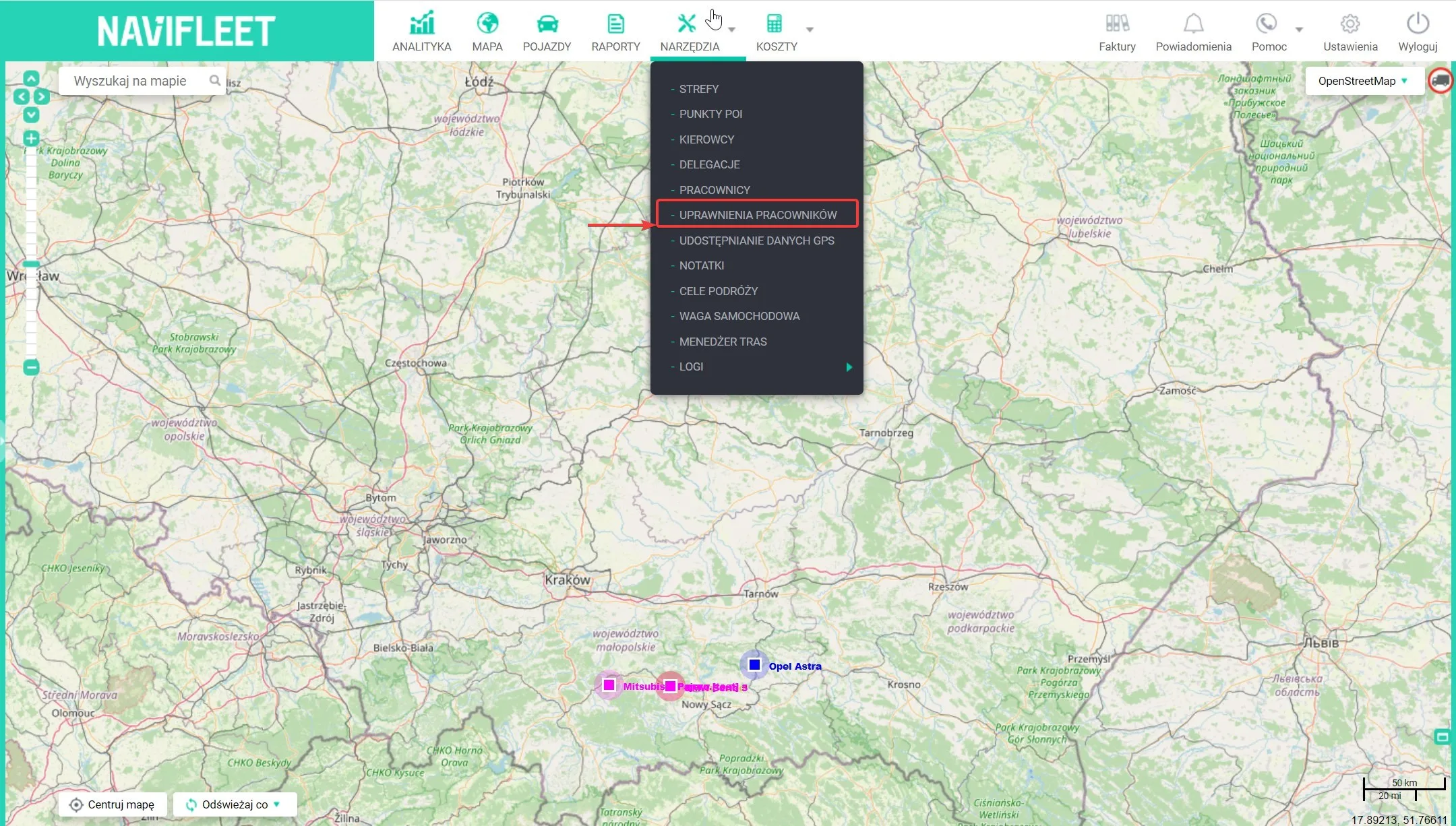
To add a permission group, select the option in the top right corner of the window.

In the window that appears, you can freely define the scope of permissions for the group. Permissions are divided into the following tabs: Permission management, Employees, Vehicles, Points, POI, Zones, Drivers, Other.

Once you save the selected configuration, the permission group appears in the main view. From here you can delete it or edit it as you wish by selecting the relevant option on the right-hand side of the row.

Adding an employee
Once the permission groups are created, you can start adding employee accounts. To do this, go to Tools → Employees.
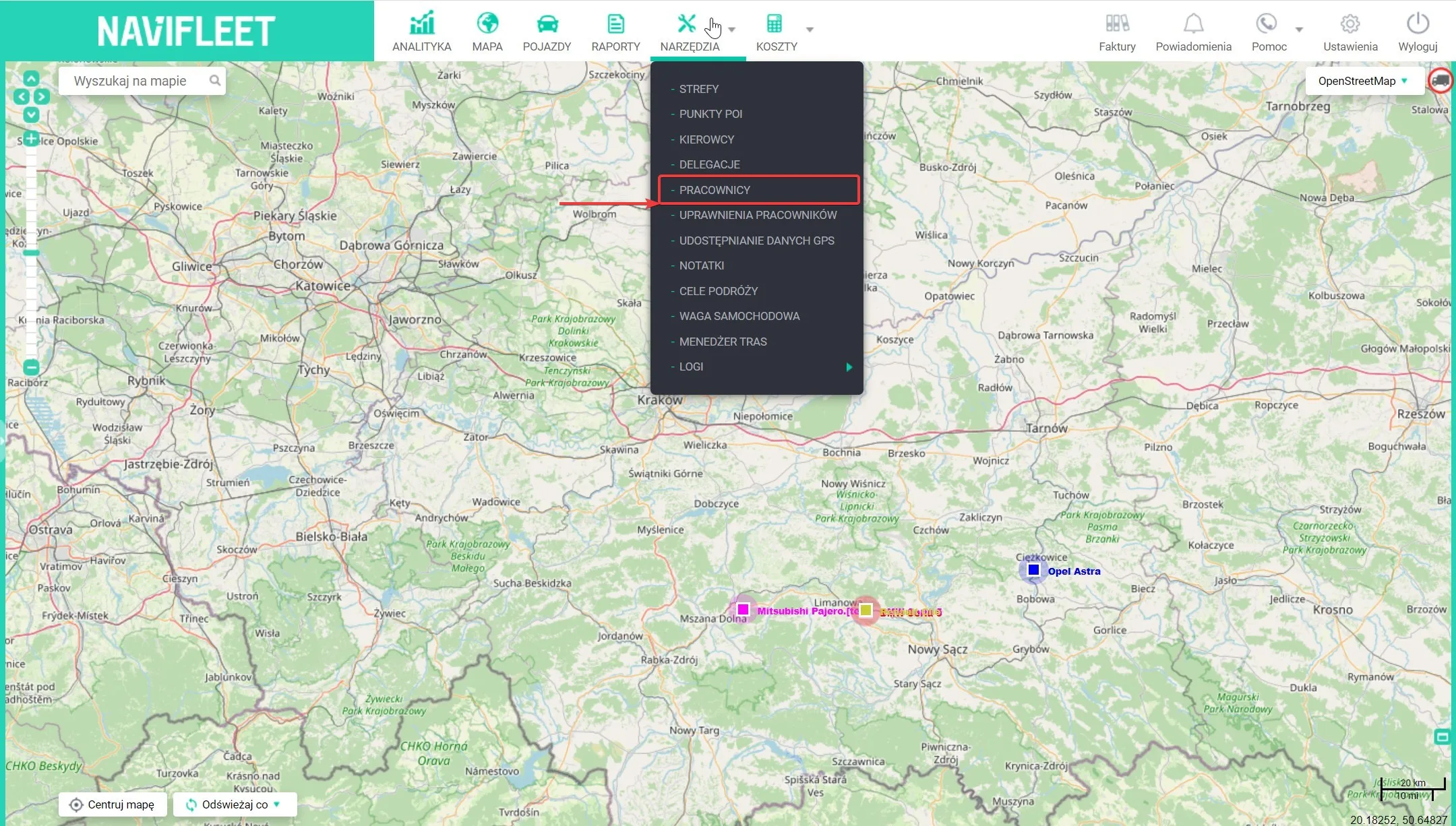
To add an employee account, select the Add user option in the top right corner of the window.

The NEW EMPLOYEE ACCOUNT window that appears is divided into two tabs. The first is Edit data. Here you enter the company details, login details and contact details of the new user.
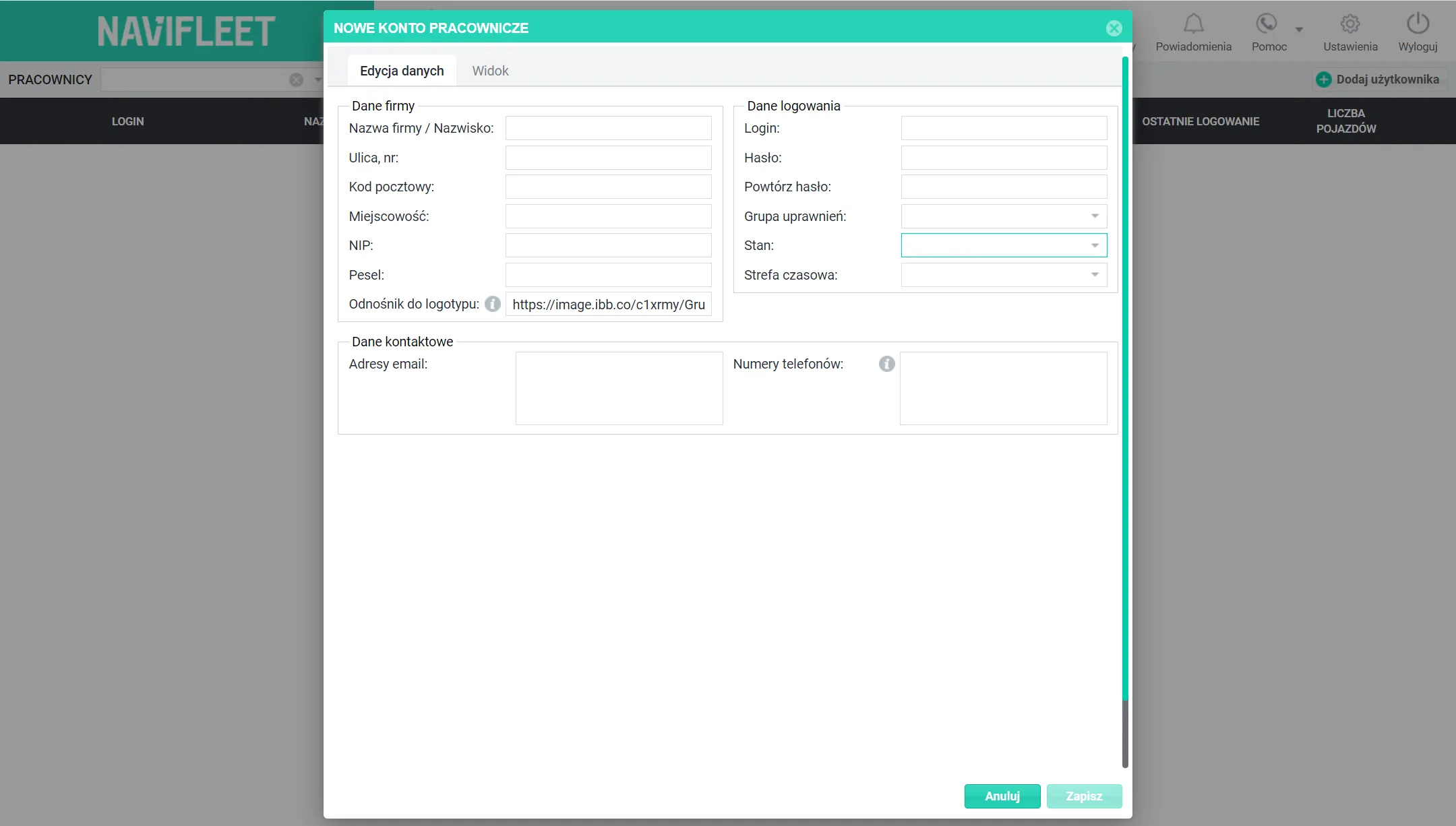
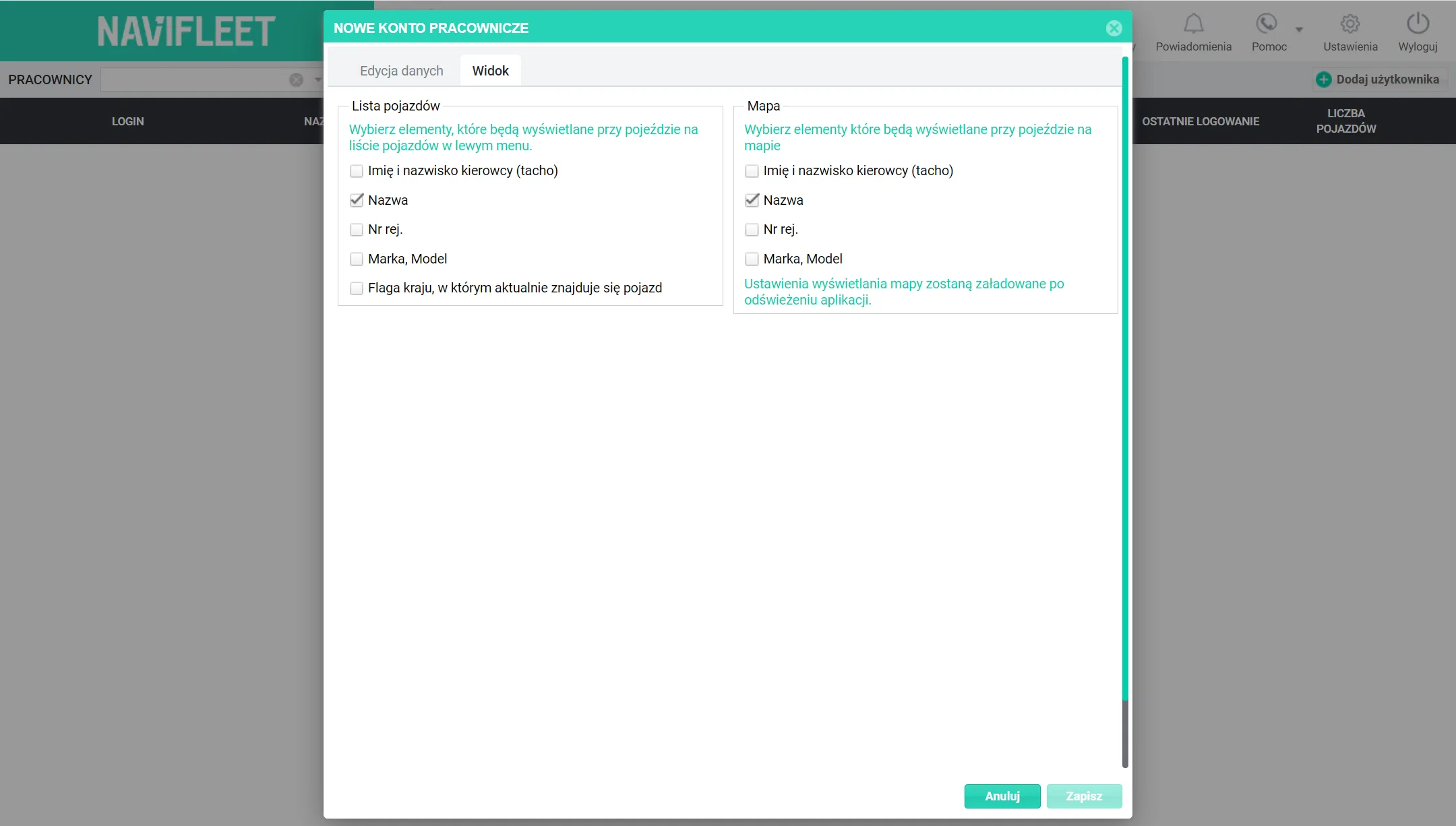
The second tab is View. Here you decide what the new user sees - the elements shown next to a vehicle on the vehicle list in the left-hand menu and those shown next to a vehicle on the map.
Once saved, the new employee account appears in the main view of the Employees option, together with contact details, information about the last login and the number of assigned vehicles. You can delete the account or edit its details at any time (icons on the right-hand side of the row).
