
Help › Navifleet Tracker › Route manager
Monitoring route progress
Updated: 17 March 2022
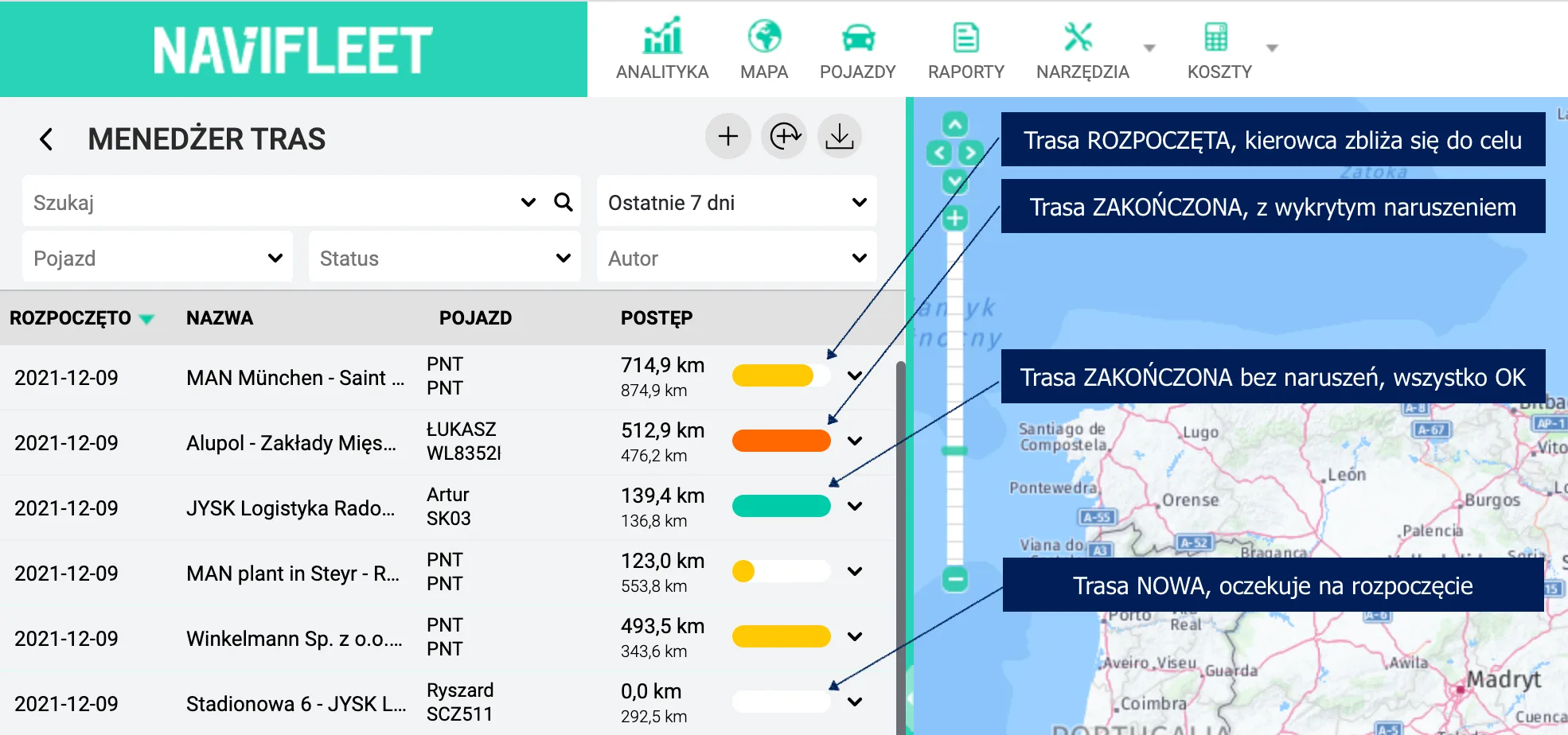
The app automatically detects when a given route starts, based on the vehicle's position and the address of the starting point. While the route is in progress, its progress is shown by a progress bar that lets you grasp the situation at a glance.
Route details
Route execution is documented in detail by the Navifleet app. Each route can be expanded to show its mini-details. The view contains basic information about route execution, such as the list and status of visits to the planned points, the distance travelled, and the trace of the planned and completed route.
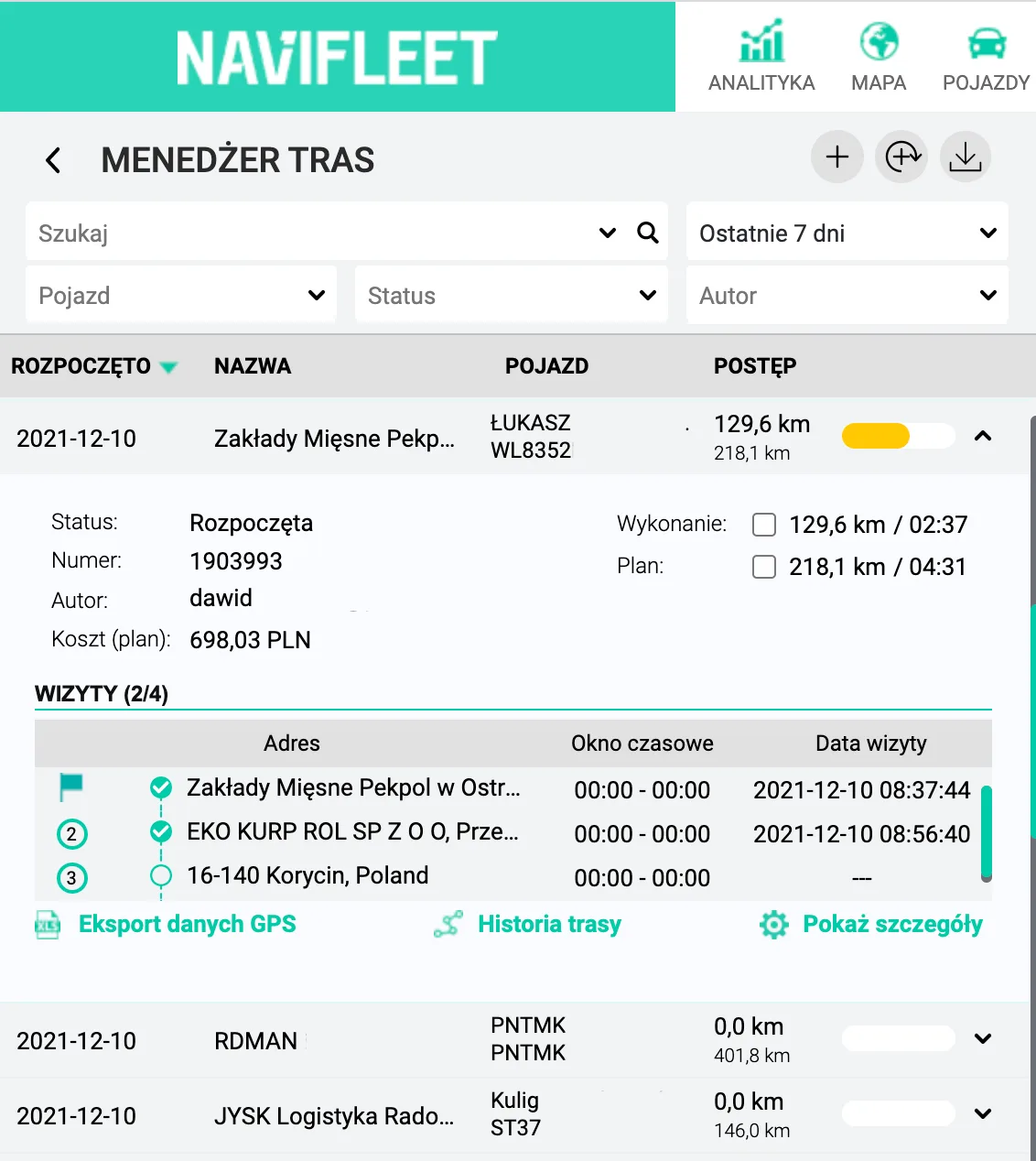
From the mini-details view you can go directly to the full route details and edit its assumptions.
Route statuses and their meaning
Each route has an execution status that is updated automatically based on GPS data from the tracker in the vehicle carrying out the transport. The available statuses are:
NEW - a route waiting for the vehicle to arrive at the first point and leave it, which is equivalent to starting the route.
STARTED - a route receives this status when the vehicle has left the first point after the start date, or up to 3 days before its start, when an empty and a loaded route exist for the vehicle and the start of this route is within 500 m of the end of the previous route.
COMPLETED - a status indicating that the vehicle has entered the last point, started a new route, or 14 days have passed since the route's start date.
COMPLETED WITH VIOLATION - a route that is completed, but during its execution the planned empty or loaded distance was exceeded by 50 km or not all points were visited.
What to do if the route mileage is calculated incorrectly
If the Navifleet system has calculated a route incorrectly (for example, a visit was not detected, or the distance is wrong due to a delay in receiving GPS data), you can force the route to be recalculated manually. To recalculate the route, open the route editing window and then save the form without making any changes. The data should be recalculated within 15 minutes at most
Calculating road tolls
The app calculates planned road tolls (when the route is set) and actual road tolls (when the route is completed). Road tolls in different countries are charged in different currencies, but for simplicity they are converted using the exchange rates current on the given day. As a result, regardless of which country the route passed through, road tolls are shown in a single currency, according to the billing settings in the vehicle panel.
E-TOLL charges are included in the route summary.
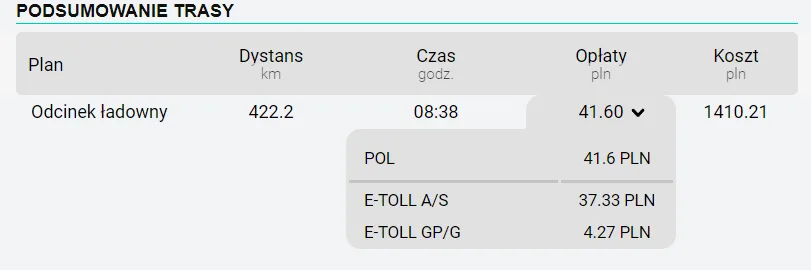
The types of roads on which an E-TOLL charge was paid are marked with the following symbols:
- A - motorways.
- G - main roads.
- S - expressways.
- Gp - main roads with increased traffic.