
Help › Navifleet Tracker › Route manager
Planning a one-off route
Updated: 15 February 2022
The Route Manager module is a set of practical features from a transport management perspective. The basic one is a map layer showing restrictions for heavy goods vehicles, such as weight, height or ADR restrictions. Traffic restrictions go hand in hand with information on current traffic levels. This lets you help the driver avoid a traffic jam in advance or find a detour around a restriction. Both layers can be activated in the top right corner of the map.
A new route is added from the Route Manager tab, which is located under TOOLS -> ROUTE MANAGER.
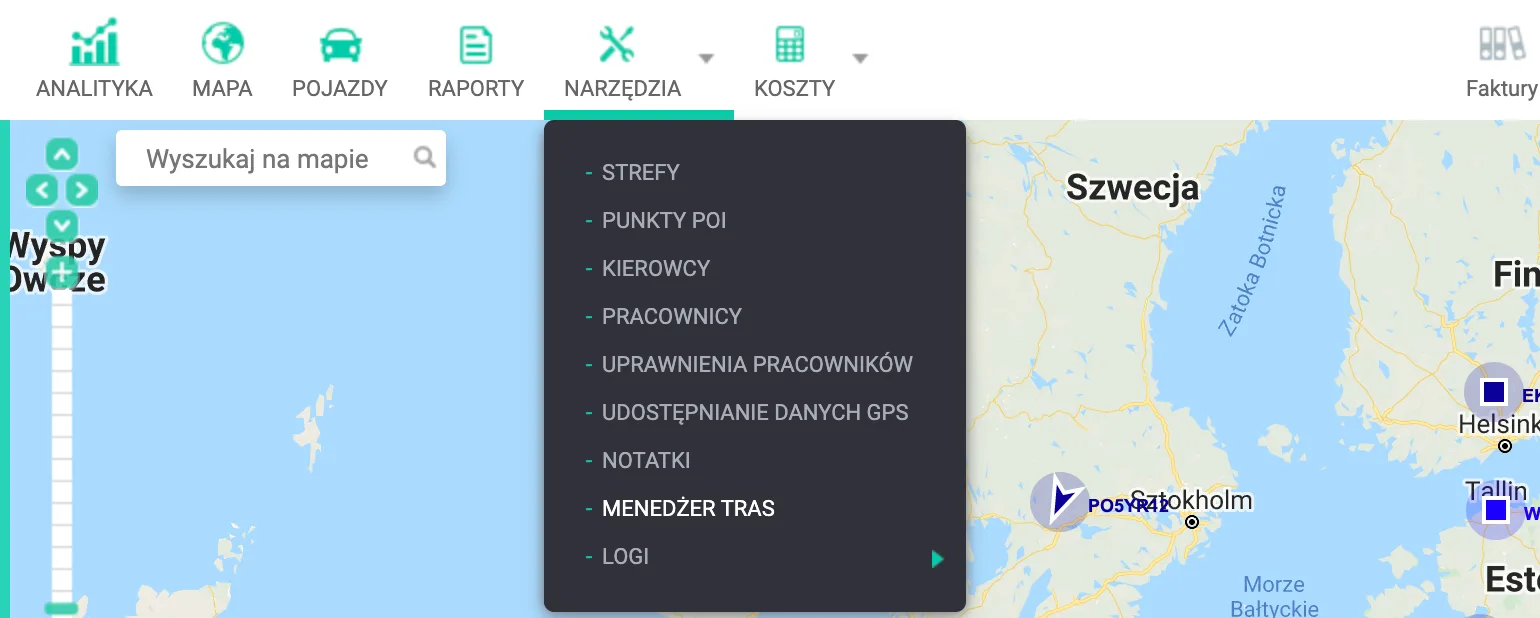
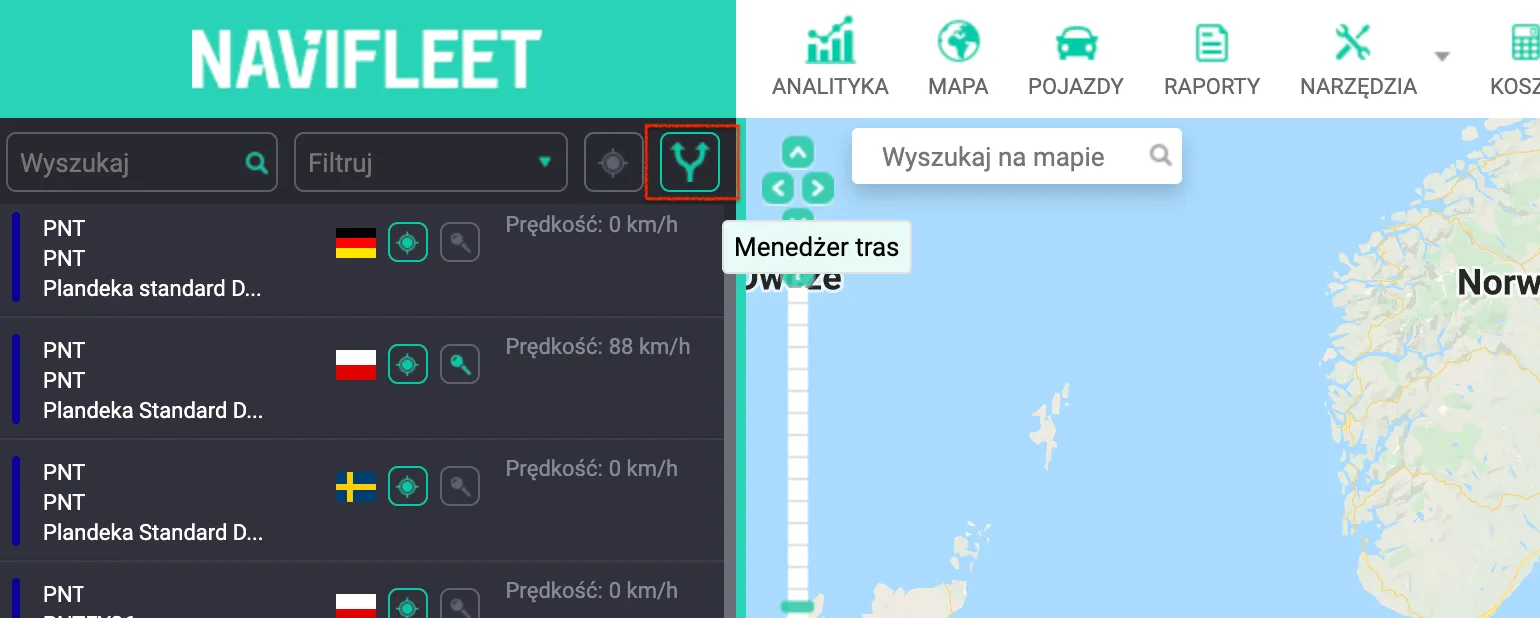
To plan a route quickly, a link to the Route manager has also been placed above the vehicle list:
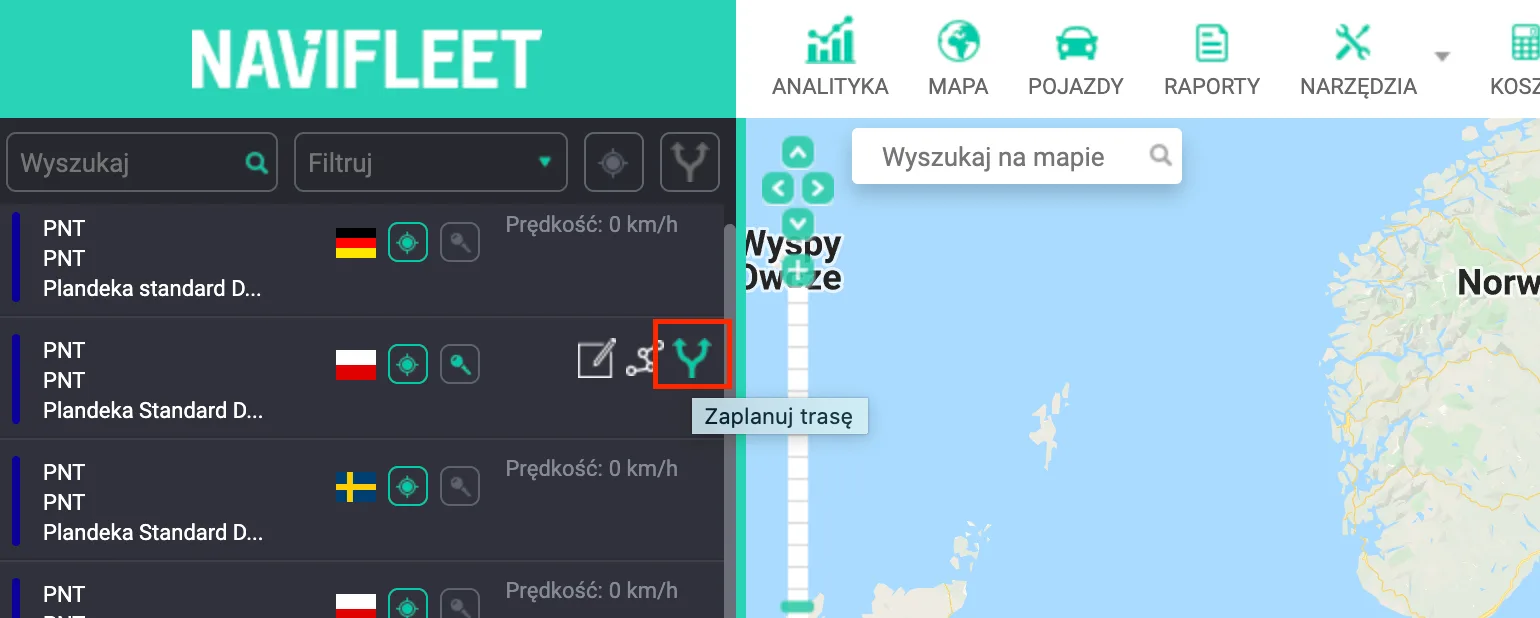
From the vehicle list, you can go directly to planning a route for a specific vehicle by clicking the "Plan route" button:
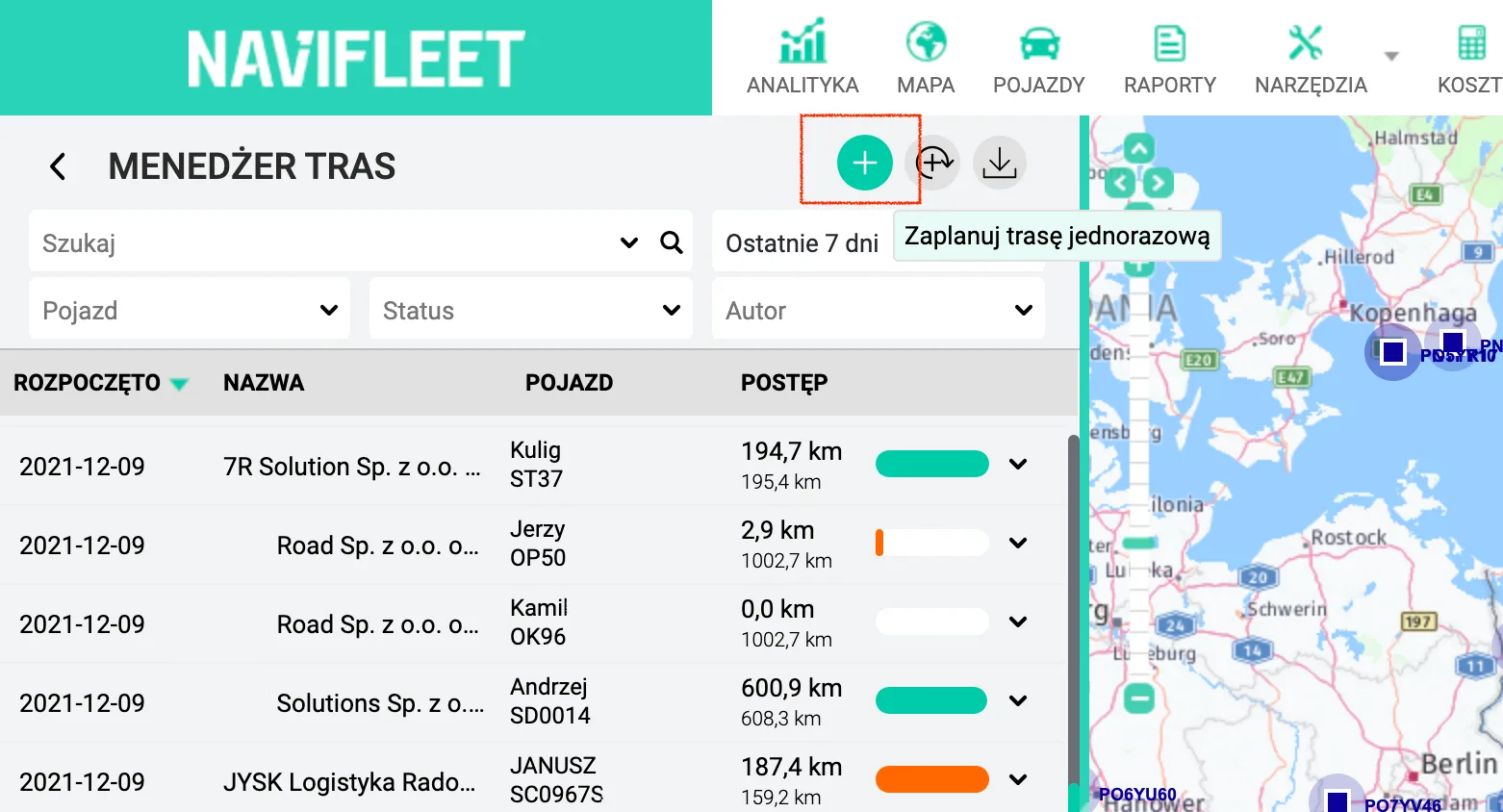
Planning a one-off route
One-off routes are routes that are not automatically repeated at a set interval. Adding a one-off route involves selecting a start point, an end point and waypoints. Route planning uses the vehicle's technical data (dimensions, GVW, type). For each planned route, the expected cost of carrying it out is calculated based on the billing settings. Planning a one-off route consists of the following stages:
a) Entering route planning mode for a specific vehicle:
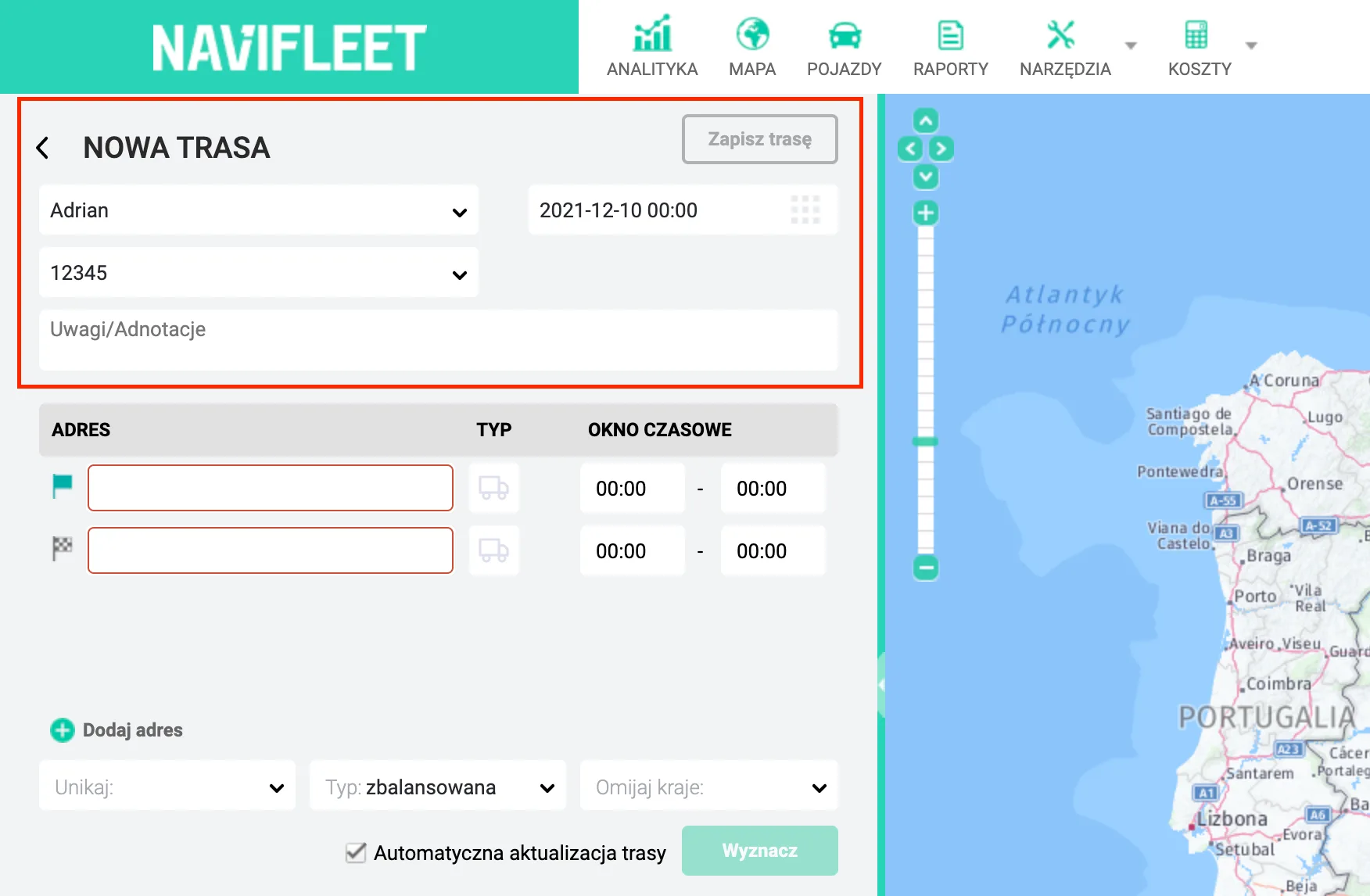
b) Entering the route identification details (for your own use) and the planned start date:
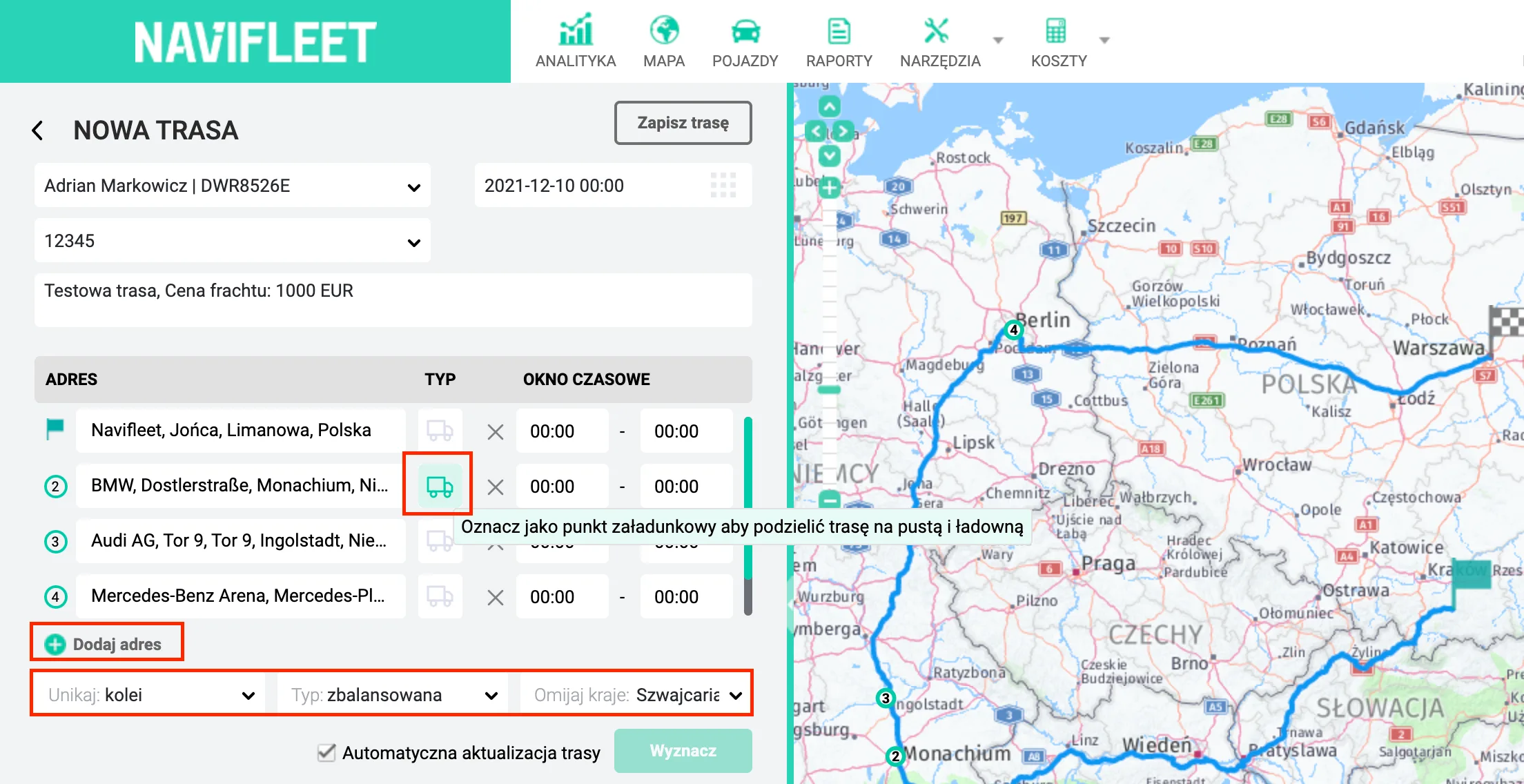
c) Entering the addresses: start, end and, optionally, the waypoints where the vehicle must stop. At this stage you also define the loading point, which divides the route into an empty and a loaded section, and set the required restrictions, such as avoiding tolls, ferries, motorways or even entire countries. You can also set a time window at this stage. If the driver visits a point outside the time window, the system will treat it as a violation.
d) The last, optional step is to adjust the course of the route using the "Drag&Drop" feature. Moving any section of the route over a specific place automatically recalculates the new course of the planned route. Below the address list there is a full summary of the calculated route, consisting of its length, driving time and costs.
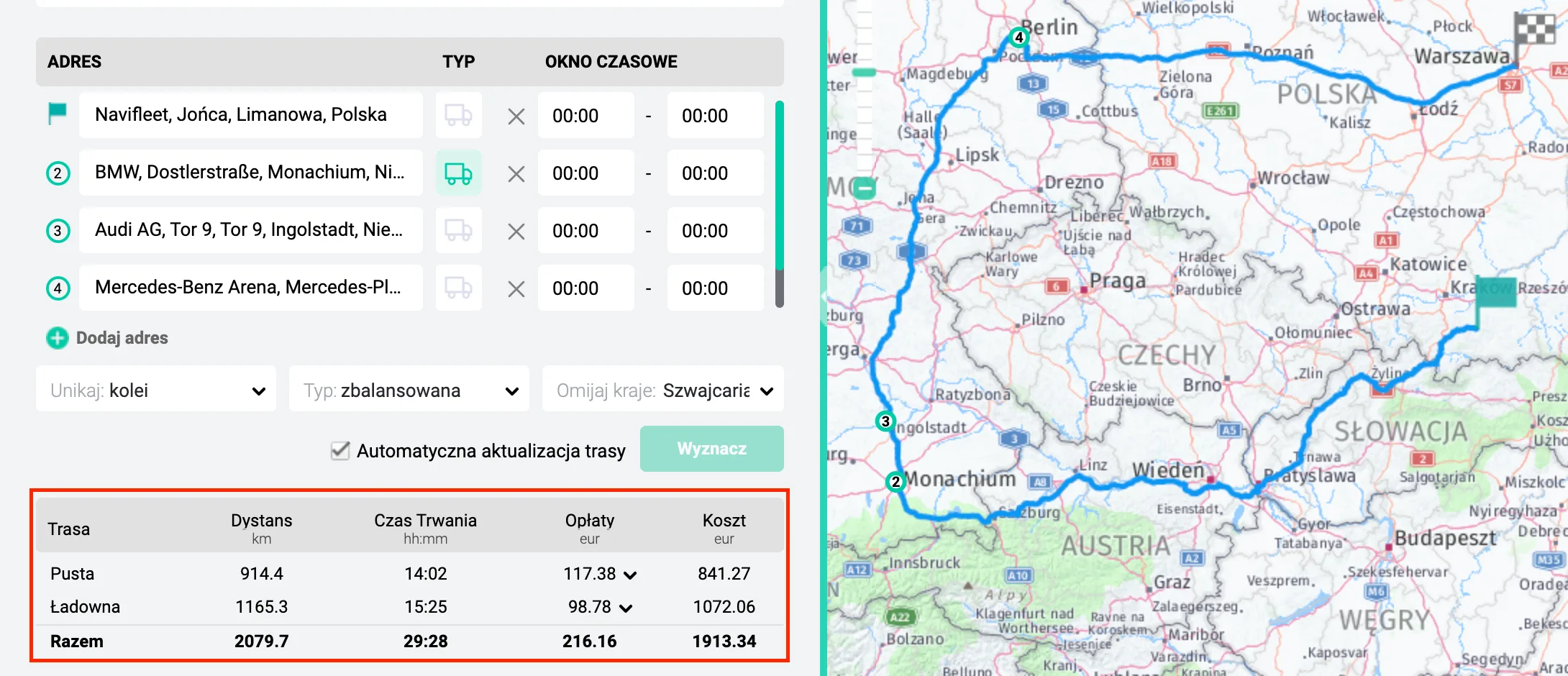
Once the route has been calculated, save it by clicking the SAVE button in the top right corner of the route creation window.