
Help › Navifleet Tracker › Remote tachograph
Preparing the environment and configuring the system
Updated: 8 April 2026
Conditions for the Tachograph module to work correctly
For the Tachograph module to work correctly, two conditions must be met:
1. The TachoReader program is installed
The program must be downloaded and running on a computer (installation instructions are below).
2. The Company Card is inserted
The card must be inserted into a reader connected to a computer that is switched on and has internet access.
The download starts automatically when the computer is started with the Company Card inserted. The system can download data from the tachograph only when the computer is switched on and the Company Card is in the reader. If the computer is switched off, the download will not be carried out.Configuration in the Navifleet app
To configure the remote data download settings, log in to the Navifleet app and go to the DDD files section in the system settings.
Here you can enable or disable automatic downloading of data from driver cards and tachograph memory.
Below you will find descriptions of the available options and recommendations for their use.
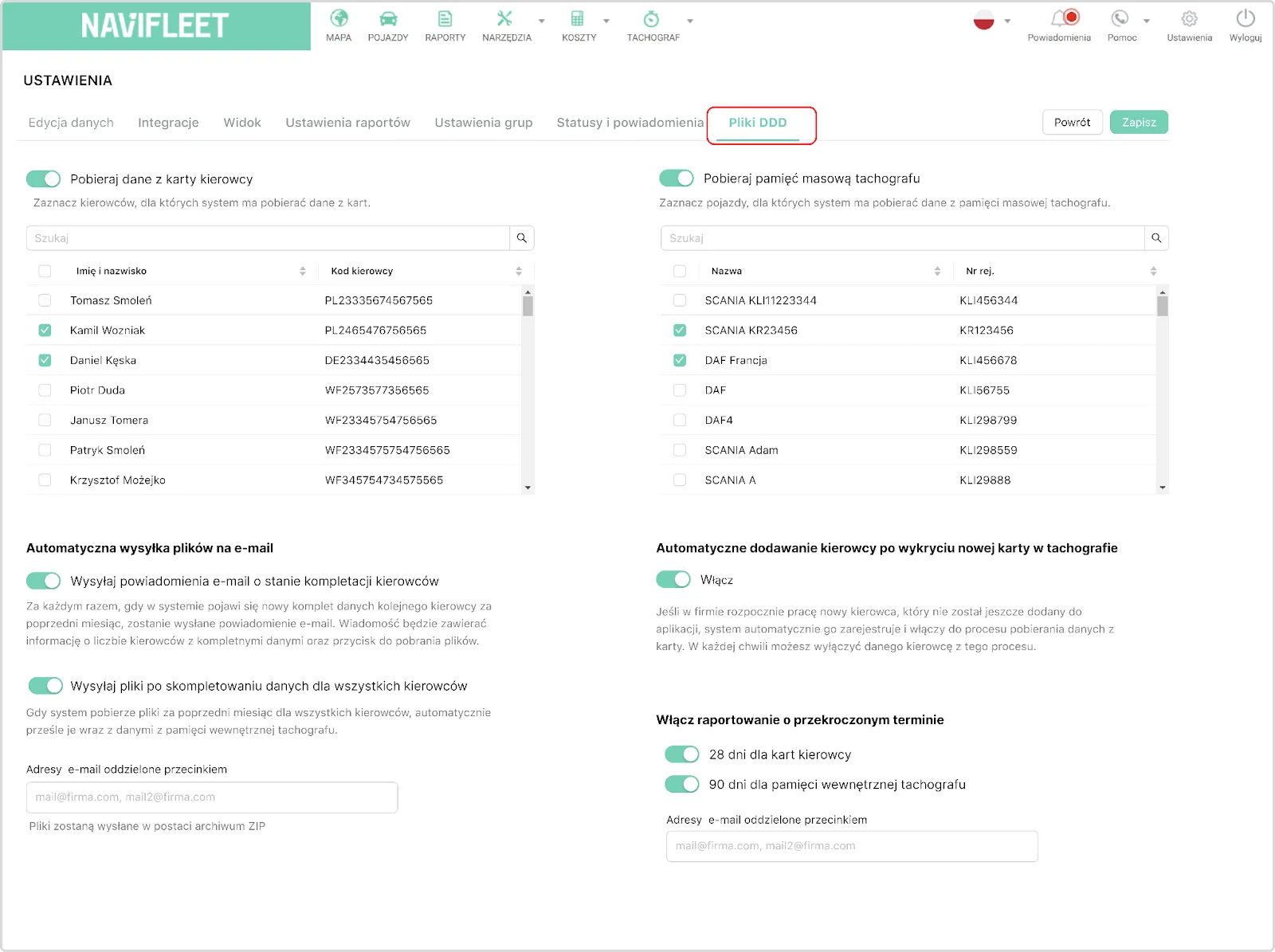
Image 1. View of the DDD files section in the Tachograph module settings.
The following options can be configured in the module settings:
Downloading data from the driver card
Download data from the driver card
Enable this option so that the system automatically downloads data from driver cards according to the schedule.
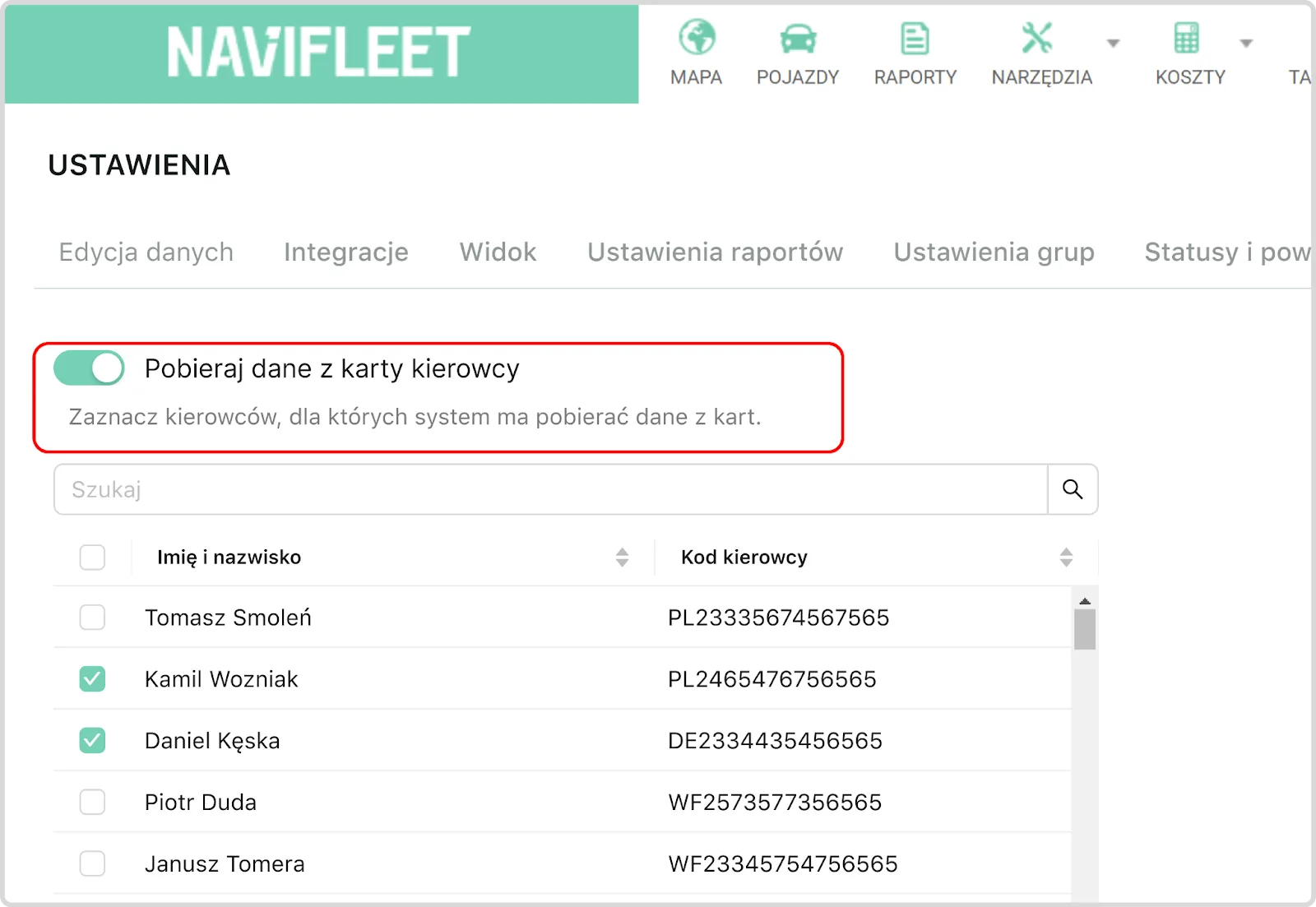
Image 2. Configuring the automatic data download settings for the driver card in the Tachograph module.
Mark drivers who have ended their cooperation - the system will not try to download data from them, which increases download success. Their data will still be available in the Files tab.Note: After downloading data from driver cards, the system sends an e-mail stating how many drivers' data was downloaded successfully. If you think it is a good moment, you can click the Download files button - the system will send them in a separate e-mail. The file download link will be active for 5 days. After that time, the button will stop working.
Downloading data from the tachograph mass memory
Download tachograph mass memory
Enabling this option allows data to be downloaded automatically from the memory of the tachograph installed in the vehicle.
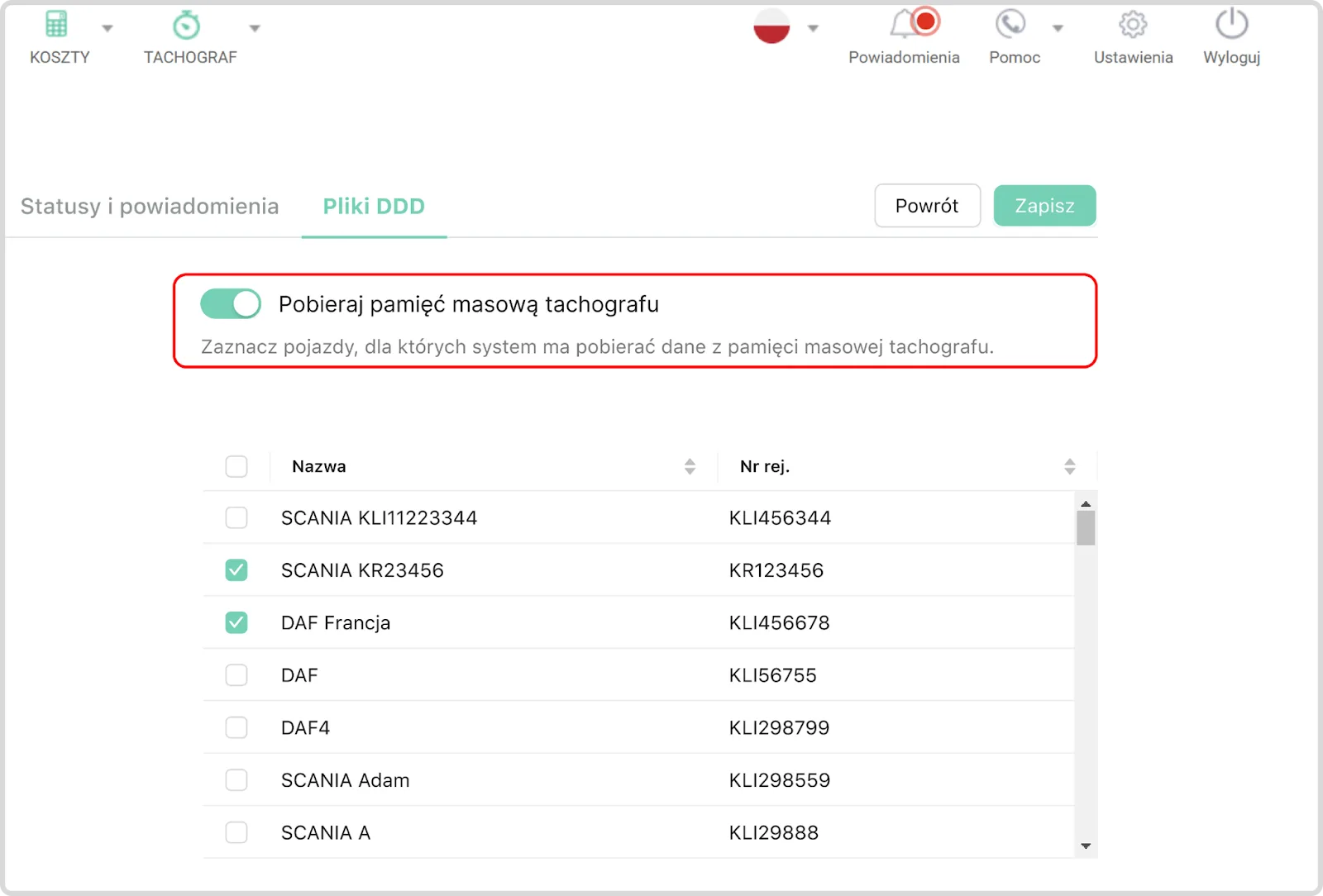
Image 3. View of the Download tachograph mass memory option in the Tachograph module settings.
Mark withdrawn vehicles that are to remain in the system but will no longer be used as inactive - this prevents incorrect download attempts.Automatically adding new drivers
When this option is ticked, as soon as a new driver starts work the system automatically adds them to the app and starts downloading data. You can disable automatic data download for a given driver at any time.
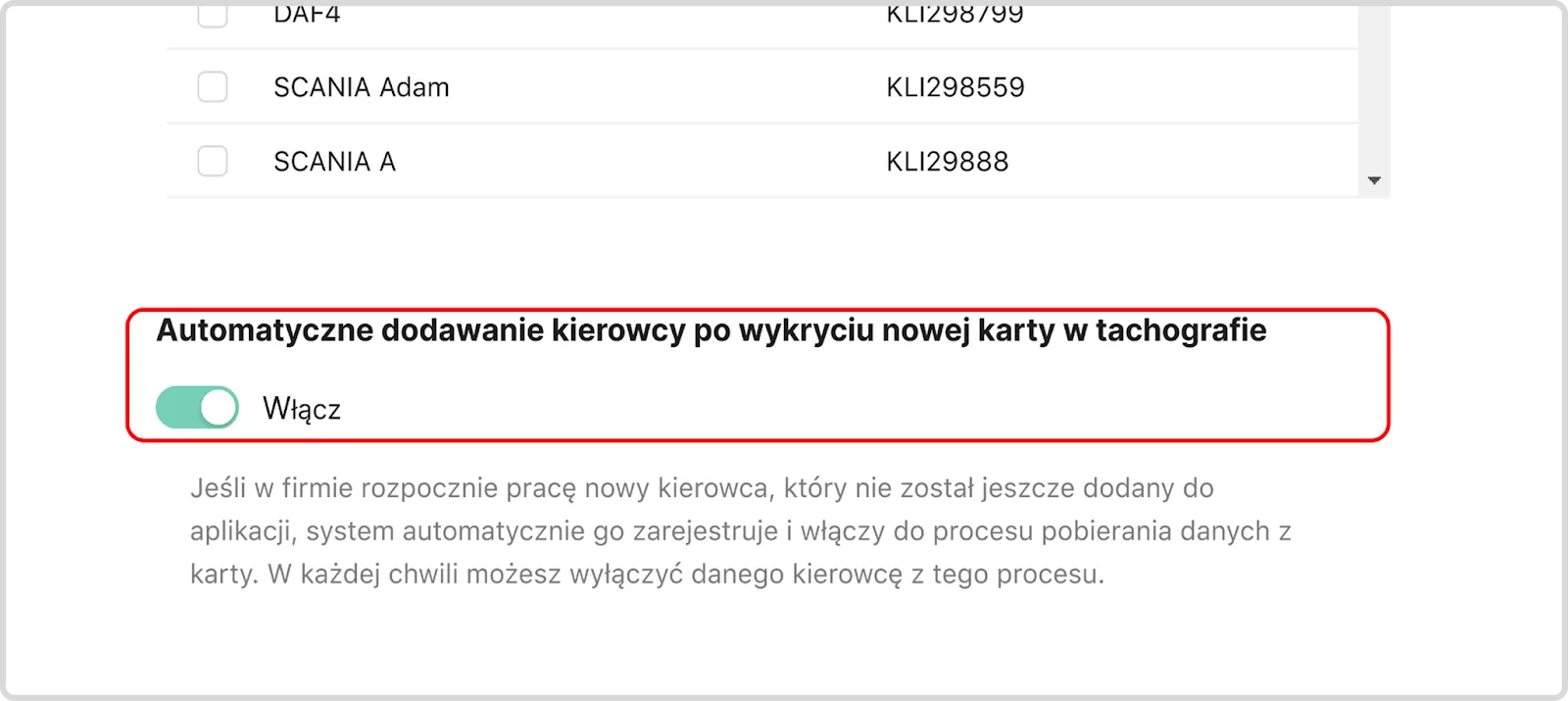
Image 4. View of the Automatically add driver option in the Tachograph module settings.
If you do not want the system to add drivers automatically, disable this option. In that case, you add and mark drivers manually.Automatic sending of files by e-mail
This feature allows the downloaded files (from cards and tachographs) to be forwarded automatically to the settlement office or the HR department.
Options:
Send e-mail notifications about driver data completion status
The system automatically sends an e-mail when a new driver has a complete set of data for the previous month.
The message contains:
- the number of drivers with a complete set of data,
- a button to download the files.
Tachograph mass memory downloads will also be attached to the driver files. This way, a single e-mail contains the complete set of data needed for settlements. The file download link is active for 5 days – after that time, the files will no longer be available from the message. If necessary, you will be able to request the data to be downloaded from the system again.
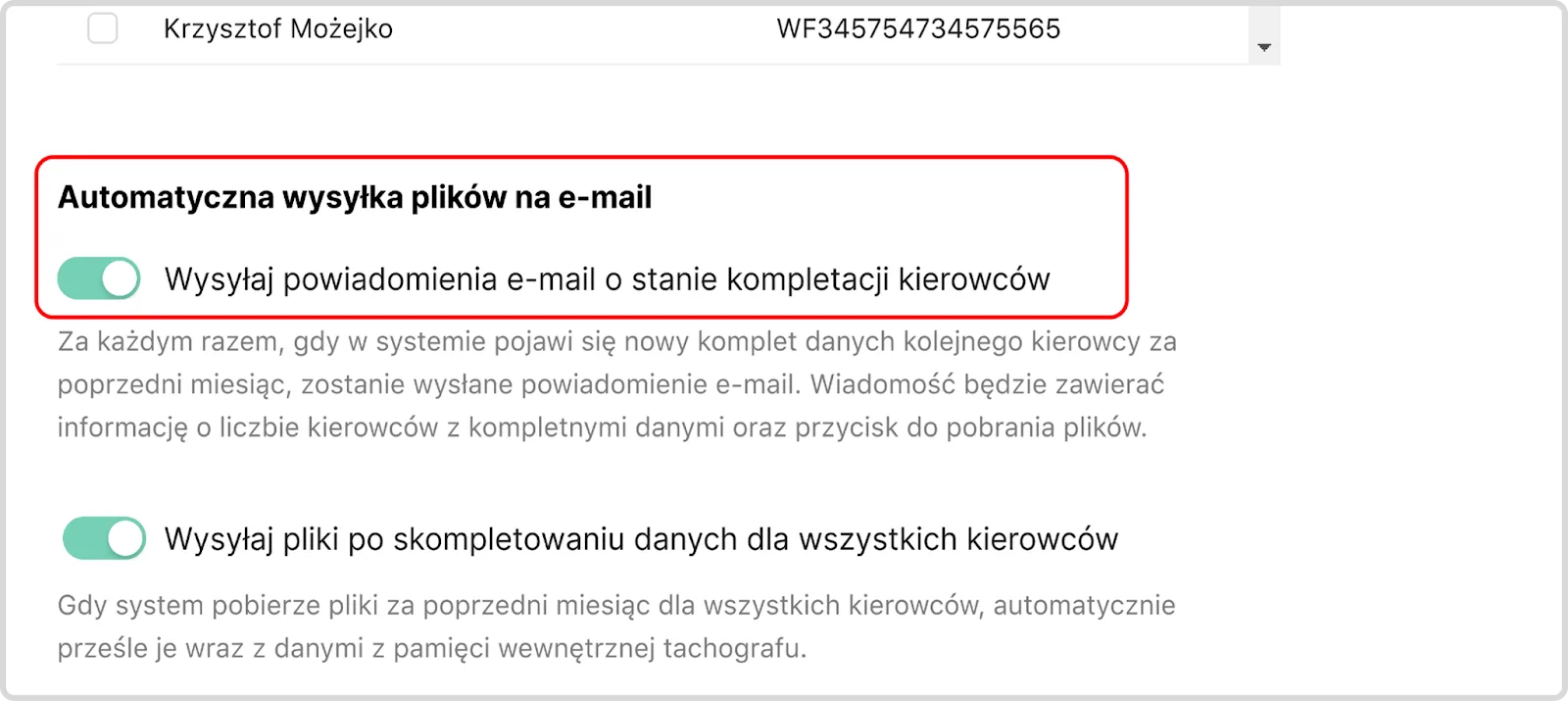
Image 5. View of the automatic e-mail file sending option with the Send e-mail notifications
about driver data completion status setting in the Tachograph module.
Send files once data is complete for all drivers
The system will send the data automatically only once it has downloaded the files for the previous month for all drivers as well as the data from the tachograph internal memory. If you do not remove inactive drivers and vehicles, the system will keep trying to download their data. Once the download deadline is exceeded, alerts will appear, and automatic sending will not work - due to incomplete data.
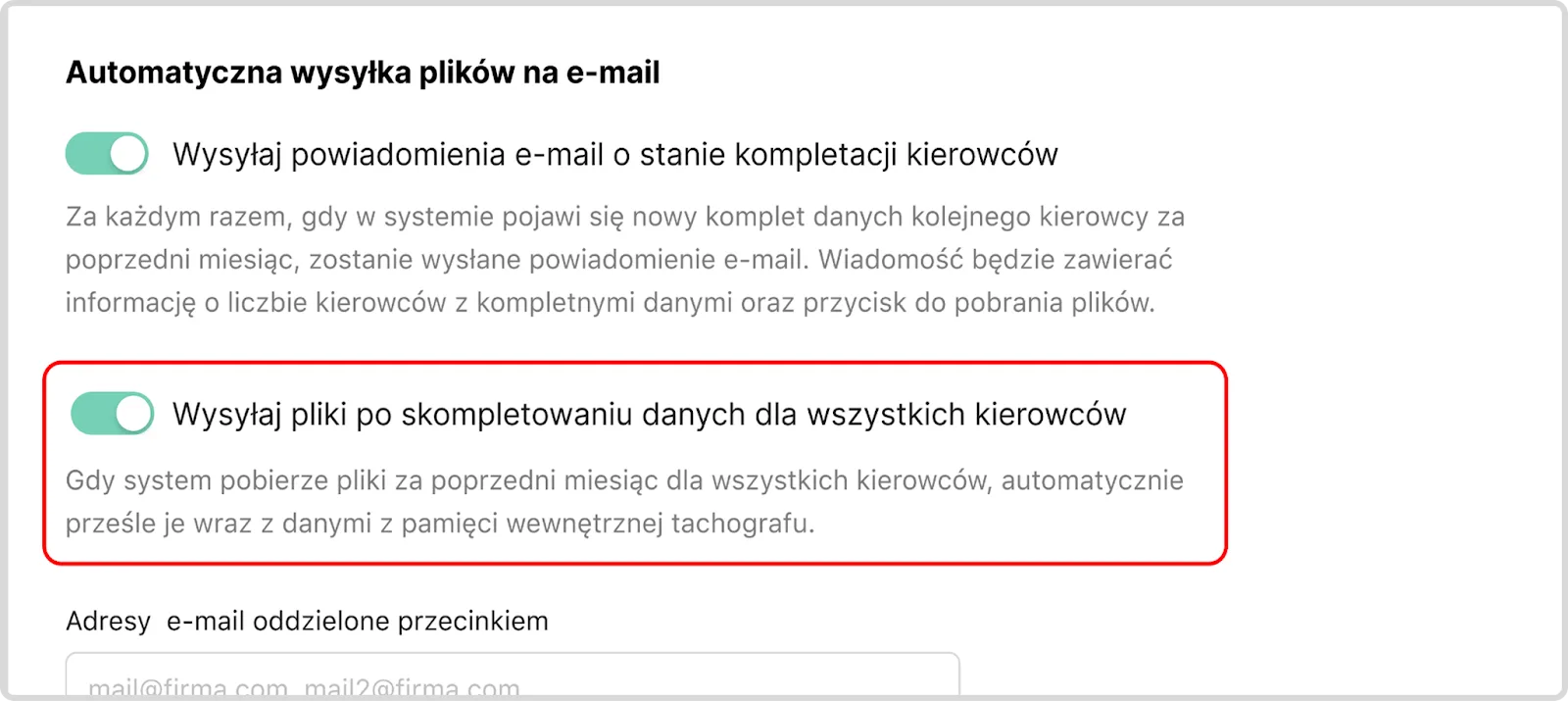
Image 6. View of the automatic e-mail file sending option with the Send files once data is complete
for all drivers setting in the Tachograph module.
Keeping the list up to date regularly guarantees that as soon as all the required downloads for a given month are complete, the files are automatically sent to the e-mail addresses of the people settling working time — without any manual action.Reporting exceeded deadlines
Enable reporting of exceeded deadlines
When this option is activated, the system sends e-mail notifications if the mandatory data download deadline is exceeded.
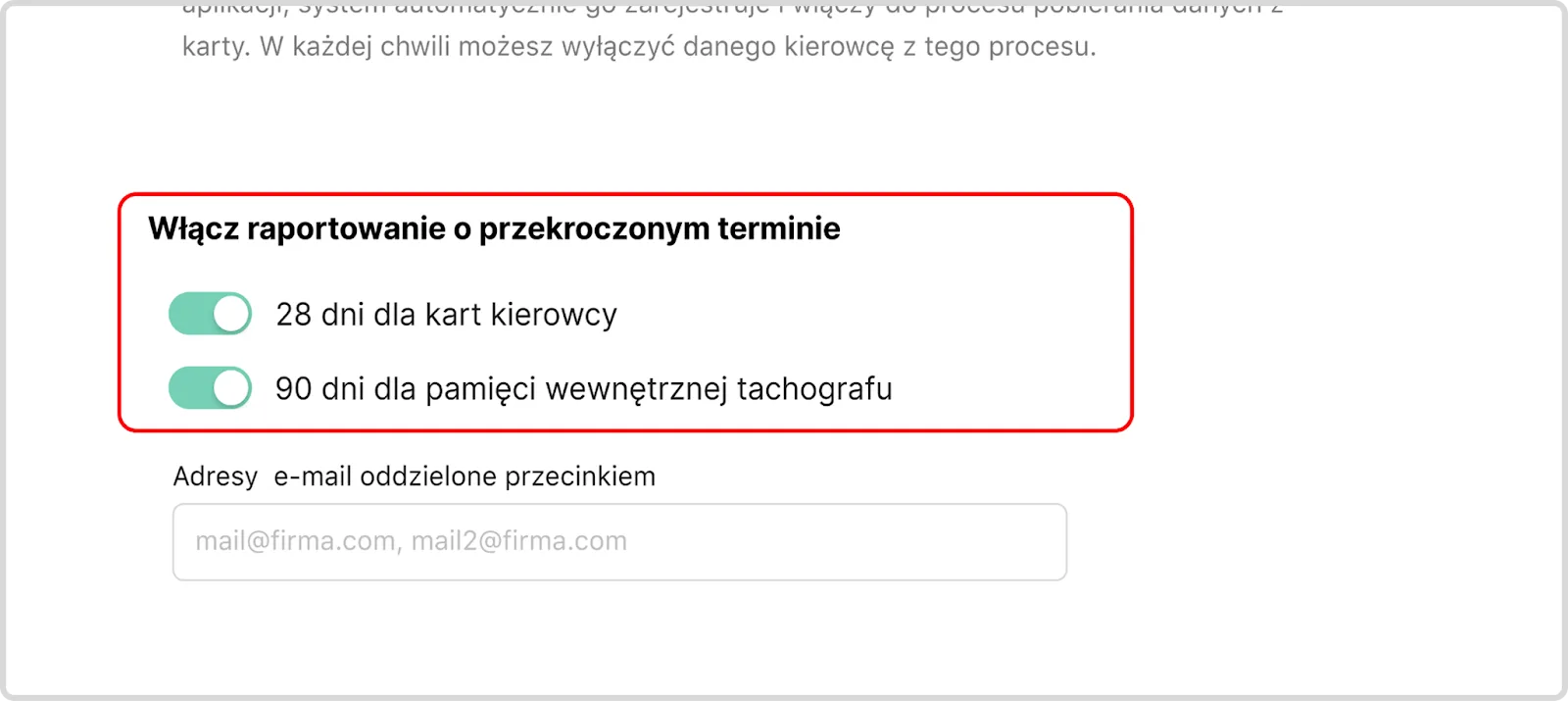
Image 7. View of the Enable reporting of exceeded deadlines option in the Tachograph module settings.
Alerts are generated:
on the 28th day after the last download of data from the driver card,
on the 90th day after the last download of data from the tachograph mass memory.
The e-mail contains all cases of exceeded deadlines.
Possible causes of an alert:
Outdated data – e.g. when the system tries to download data from inactive drivers.
Technical problem – if you are sure that the driver is still working and the vehicle is in use, contact Navifleet technical support.
Configuring the TachoReader program
Step 1: Start the computer
Start the computer on which you want to install TachoReader.
Important: The computer in which the company card is inserted must be switched on throughout the tachograph data download.
Step 2: Download and install TachoReader
- Log in to the system: http://gps.navifleet.pl.
- In the top right corner, click Download the TachoReader program.
- Install the program, then run it.
- Log in with the same details as for the Navifleet web version.
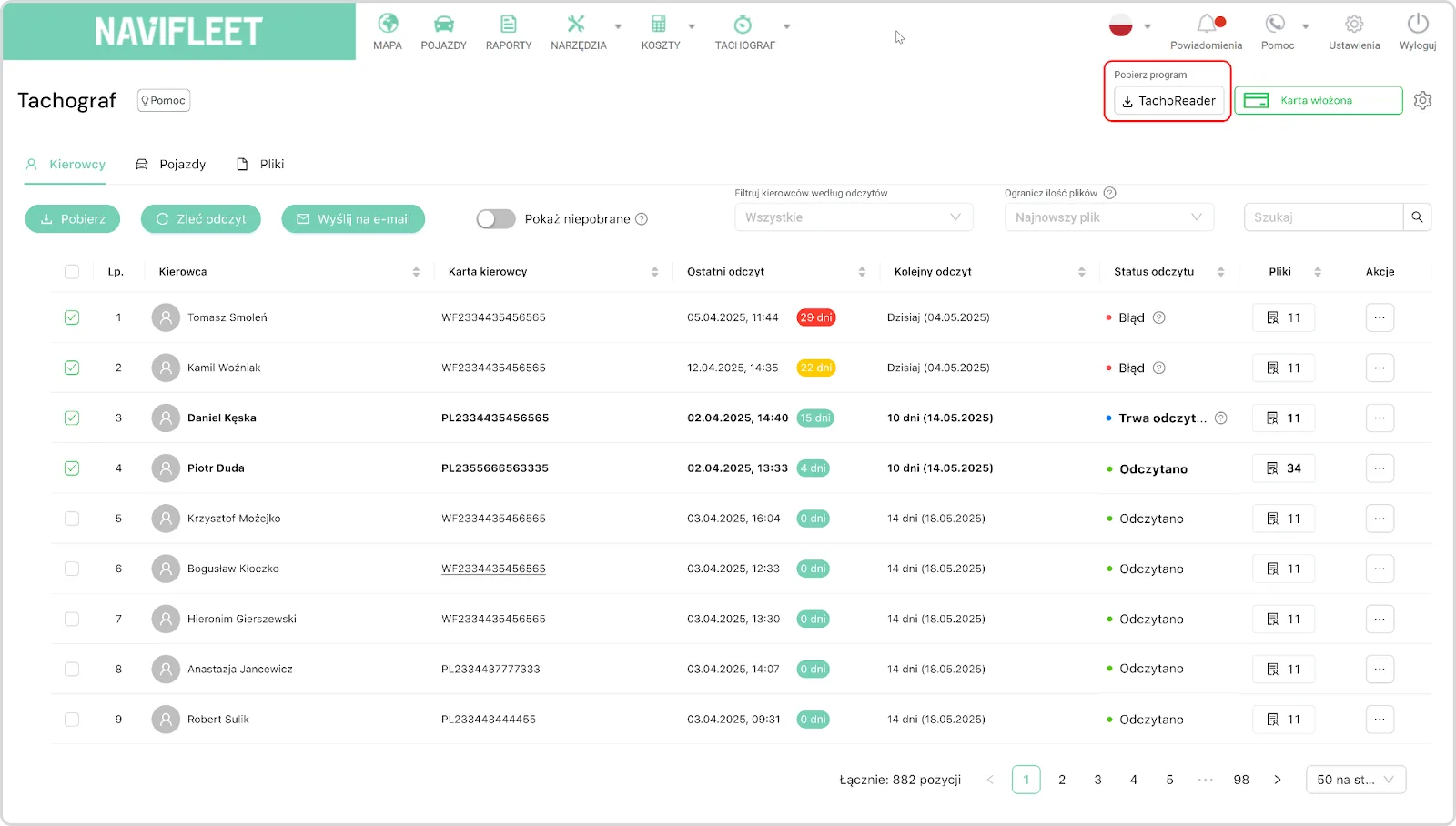
Image 8. Where to download the TachoReader program in the Tachograph module.
Step 3: Connect the reader and insert the company card
- Connect the card reader to a USB port.
- Insert the company card into the reader.
- In the application, select the correct reader from the list.
- Make sure the card data has been read correctly.
- You can minimise the application – the computer must remain switched on.
Step 4: Check the operating status
- In the main application window, all 4 blocks should be lit green.
- If any block is red, click the icon and follow the message.
- Once the problem is resolved, the status should change to green.
Video guides
Downloading and installing TachoReader
Find out where to download the installer and how to go through the application configuration process correctly on Windows. This is the fastest way to fully automate remote downloading of data from driver cards and tachographs.
TachoReader diagnostics and application status
See how to check in a few seconds whether the system is ready to work and what the individual statuses and colours in the application mean. You will learn how to instantly diagnose the state of the reader, the company card and the connection to the Navifleet server.
Configuring automatic data download
Learn step by step how to start automatic downloading of cards and tachographs and set up sending of DDD files directly to the settlement office.
Recommended articles
1. Remote download of driver cards and tachograph memory.