
Help › Navifleet Tracker › Remote tachograph
Remote download of driver cards and tachograph memory
Updated: 8 April 2026
What is the remote download module?
The module for remote download of driver cards and the tachograph's internal memory enables data to be downloaded and archived automatically.
What is this data used for?
- analysing road traffic offences,
- calculating drivers' pay.
Pay is usually paid out by the tenth day of the following month, so it is important that the previous month's data is downloaded before that date.
How does the Navifleet system work?
The Navifleet system is based on a dynamic file download schedule:
- from the first day of the month, the system automatically tries to download the data,
- when the driver card is in the tachograph and a download is possible, the data is downloaded automatically,
- when drivers set off on a journey, the system downloads data from both the driver cards and the tachograph memories on its own, which is particularly important for a large fleet.
This way, you quickly obtain complete data for the previous month, which can be passed to the settlement office or used in-house.
If the data cannot be downloaded, the system displays the reason why the files are missing (e.g. no driver card, no ignition), so you know why the data has not yet been downloaded. Download logs are also available in the system, allowing detailed verification of the download attempts.
Adding a download request manually (outside the schedule)
Although the module works automatically, you can initiate a data download yourself in urgent situations - both individually and in bulk.
To do this:
- Go to the list of drivers or vehicles.
- Select one or more drivers/vehicles on the list.
- Click the Request download button above the table.
Once the request has been added, the system waits for the conditions required for a remote download to be met.
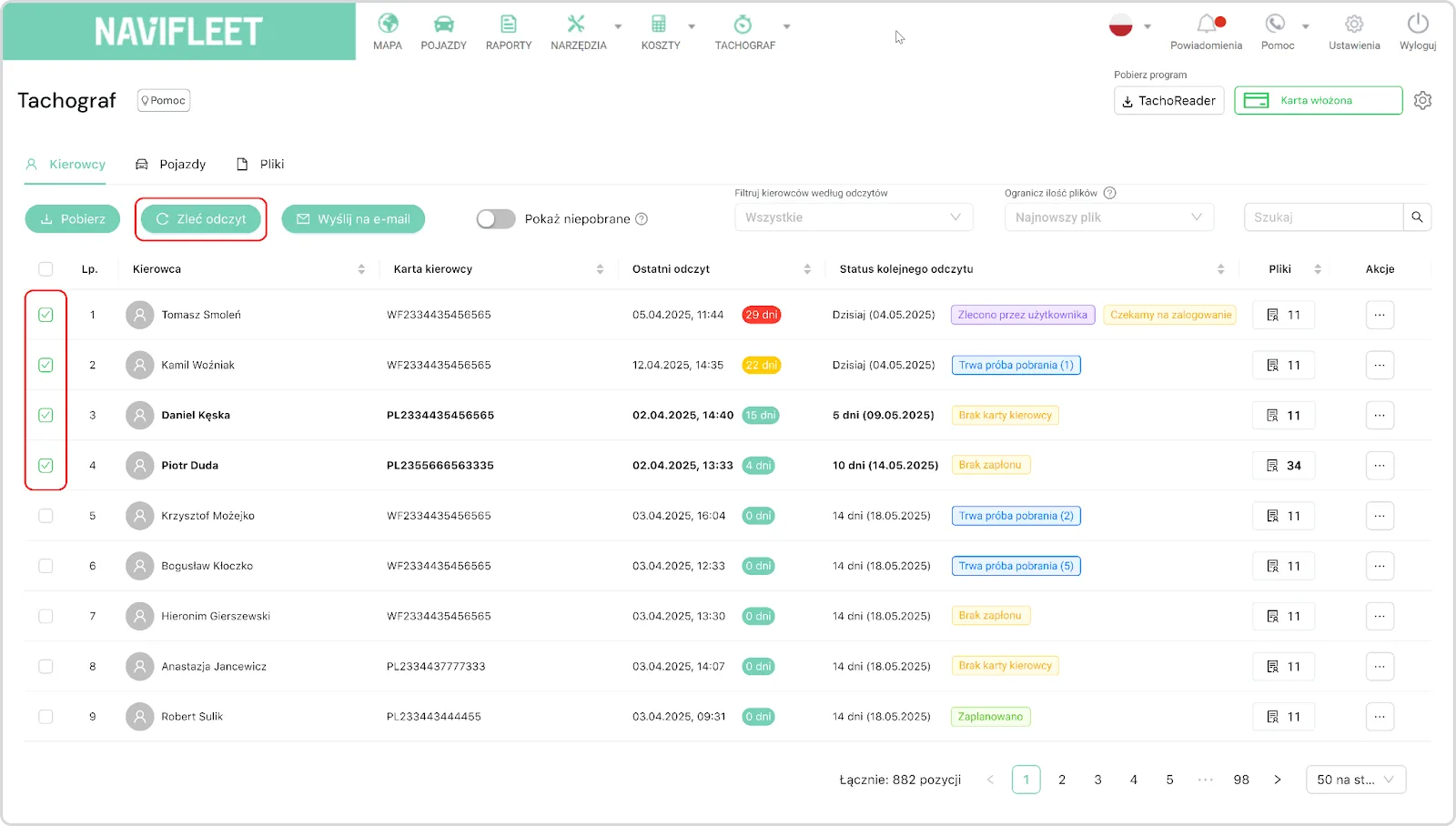
Figure 1. View of the Request download feature in the Drivers tab of the Tachographmodule.
Additional download management options
In addition to the standard requesting of downloads from the driver and vehicle lists, you can also manage all files and data in the Files tab, which also contains the data of drivers who have been removed from the system but whose files are still available and can be downloaded or sent.
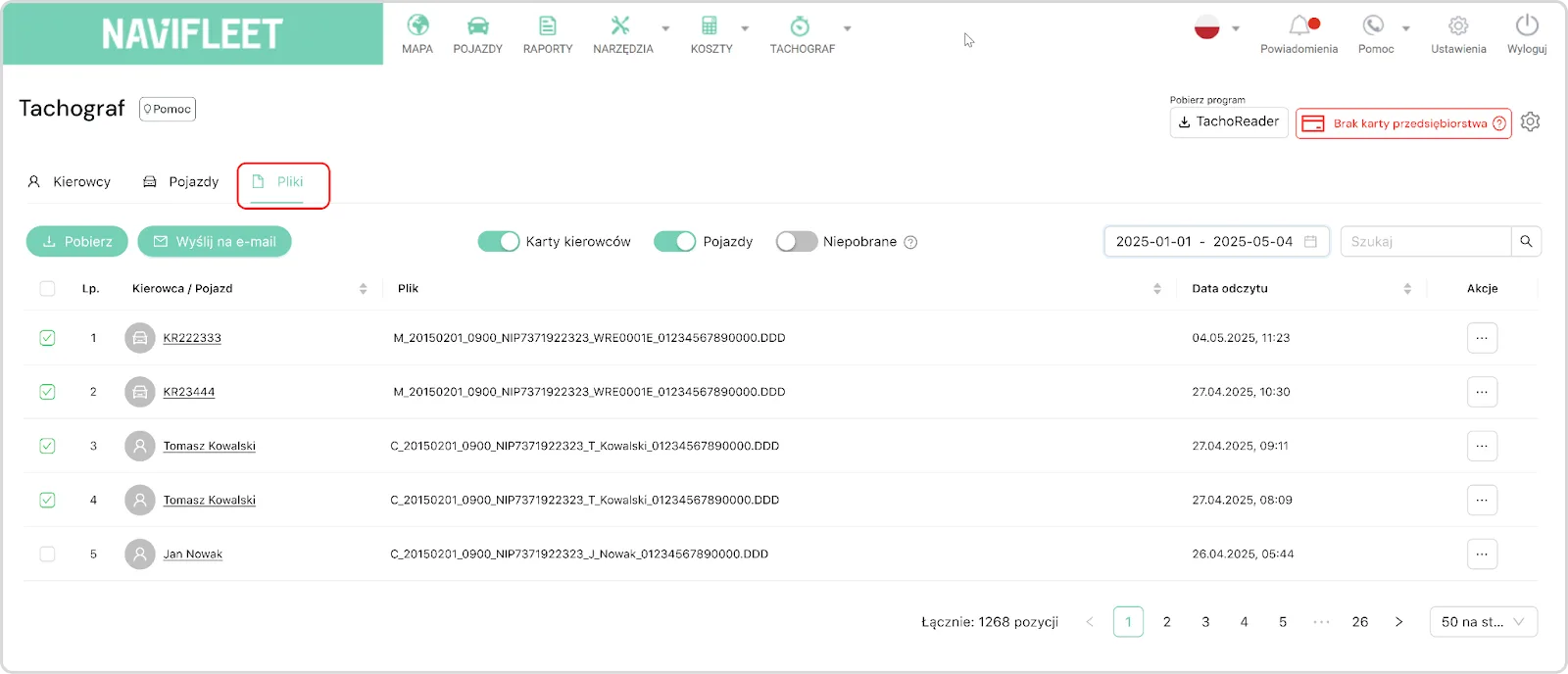
Figure 2. View of the Files tab of the Tachographmodule.
Sending data by e-mail
Downloaded files are automatically assigned to the relevant driver or vehicle and stored on the server. You can download them at any time. To send them by e-mail (e.g. to the settlement office), click Send by e-mail and enter the destination address.
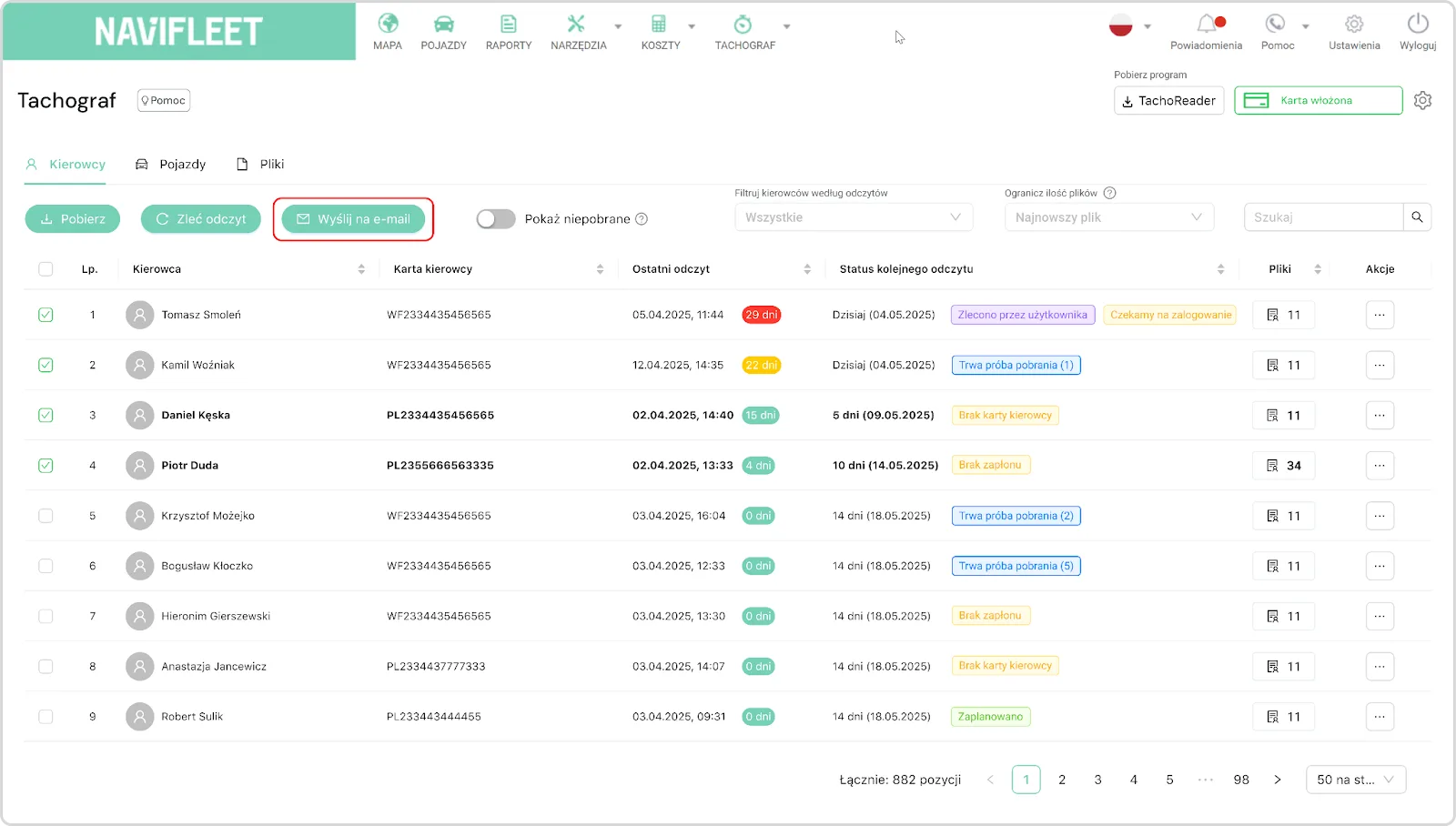
Figure 3. View of the Send by e-mail feature in the Drivers tab of the Tachographmodule.
The whole process can be automated - the files will then go to the specified addresses without any action on your part. You will find the automation instructions here.
Filters
To get to the information you need more quickly, you can use the filters available at the top of the driver or vehicle list. They make it easy to narrow the view down to specific cases - such as downloads in the current month or no downloads.
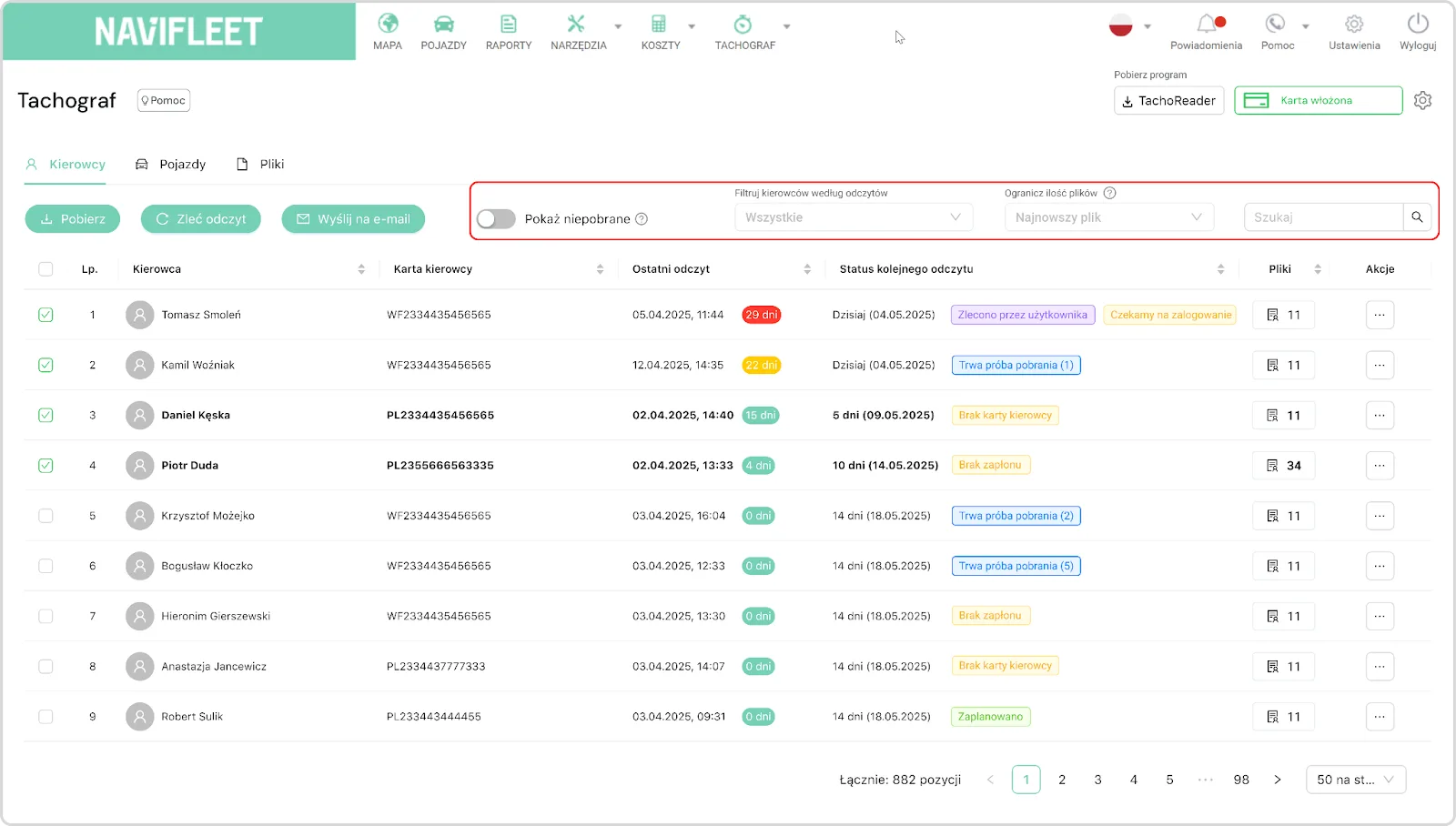
Figure 4. View of the available filters in the Drivers tab of the Tachographmodule.
Available filters:
- Show not downloaded
- Filter drivers by downloads: All, Current month, No download in the current month, 28 days exceeded
- Limit number of files: Latest file, 30 days back, 60 days back, 90 days back, All (18 months)
- Search box
Downloading files not yet downloaded
The Show not downloaded option lets you quickly select the drivers or vehicles for which new files to download have appeared since the last download. This way, with one click you can limit the list to only those units for which the system has recorded new data.
Rows of drivers or vehicles with files not yet downloaded in the selected date range are automatically highlighted in bold. This makes it easy to quickly identify the units whose data has not yet been downloaded.
The feature works in the same way for both drivers and vehicles.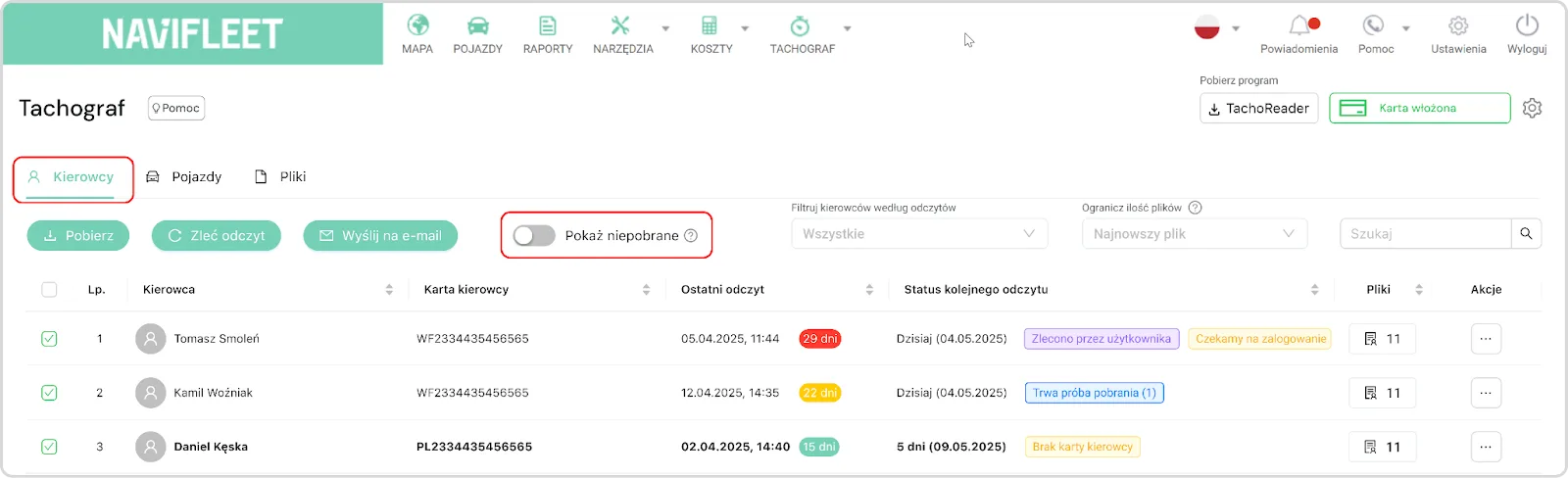
Figure 5. View of the Show not downloaded feature in the Drivers tab of the Tachographmodule.
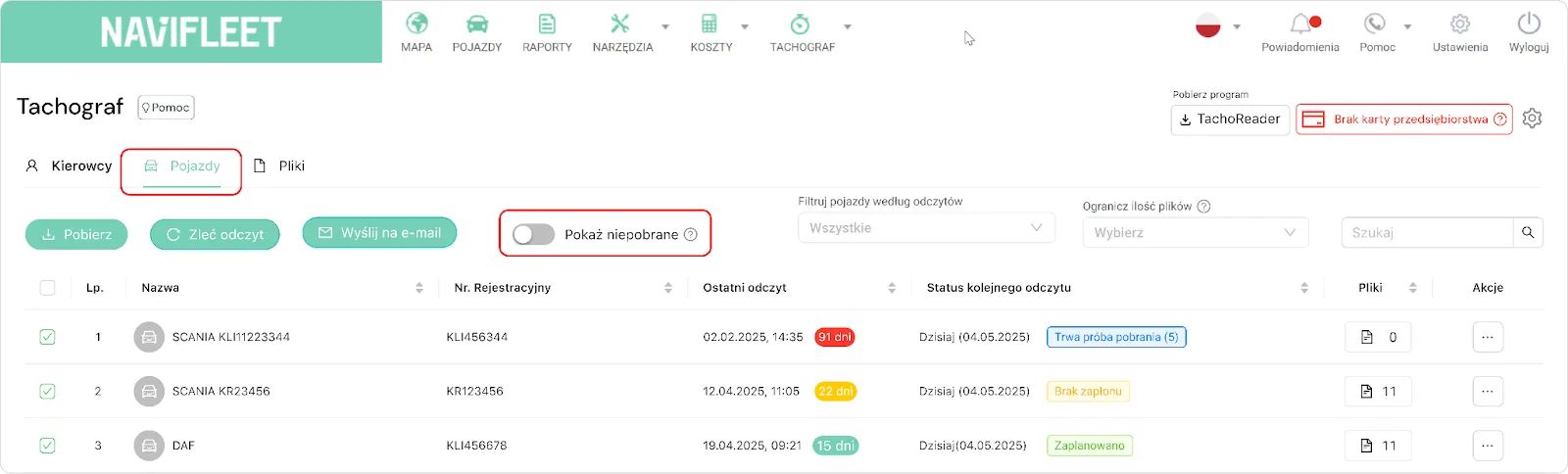
Figure 6. View of the Show not downloaded feature in the Vehicles tab of the Tachographmodule.
Filter drivers by downloads:
- All – shows all drivers, regardless of when the last download of data from the card or tachograph was made. This lets you quickly check the overall list of drivers in the system and verify for which of them downloads have already been made and for which they have not.
- Current month – shows the drivers for whom the system has already made a download in the current month. If the files were downloaded in February, for example, it means that the data for January is complete and ready to be passed to the settlement office.
If you want to settle January, check in February which drivers already have a download – only then can you be sure the data is complete. You can safely pass such data to the settlement office – a download made in the current month means that all the working time information for the previous month is already available and complete. - No download in the current month - shows the drivers for whom no download has yet been made in the current month. This may mean that the data for the previous month is incomplete, e.g. when the driver was on a long break over the turn of the month.
- 28 days exceeded – shows the drivers whose last data was downloaded more than 28 days ago. Although the legal limit for downloading data may be longer, this simplified filter lets you quickly identify potential gaps.
Limit number of files:
- Latest file – shows only the latest download file for the given driver or vehicle.
- 30 days back – shows the download files from the last month, counting back from today. It lets you check which drivers or vehicles had a download in the last 30 days.
- 60 days back – shows the files from the last 60 days, counting from today. This gives you a wider range of data, but still limited to more recent downloads – e.g. when you want to analyse data for the current and previous month.
- 90 days back – shows all the files downloaded in the last 90 days, counting from today.
- All (18 months) – shows all the available files from the last 18 months. This is the widest possible range, which lets you go back to archived data, e.g. to complete settlements, carry out an audit or perform a long-term analysis.
Need data for a specific period?
If you are interested in an exact date range – e.g. from 01.01 to 31.01 – you can use the date filter available in the Filestab. This makes it easy to display only the files that match the specified time period.
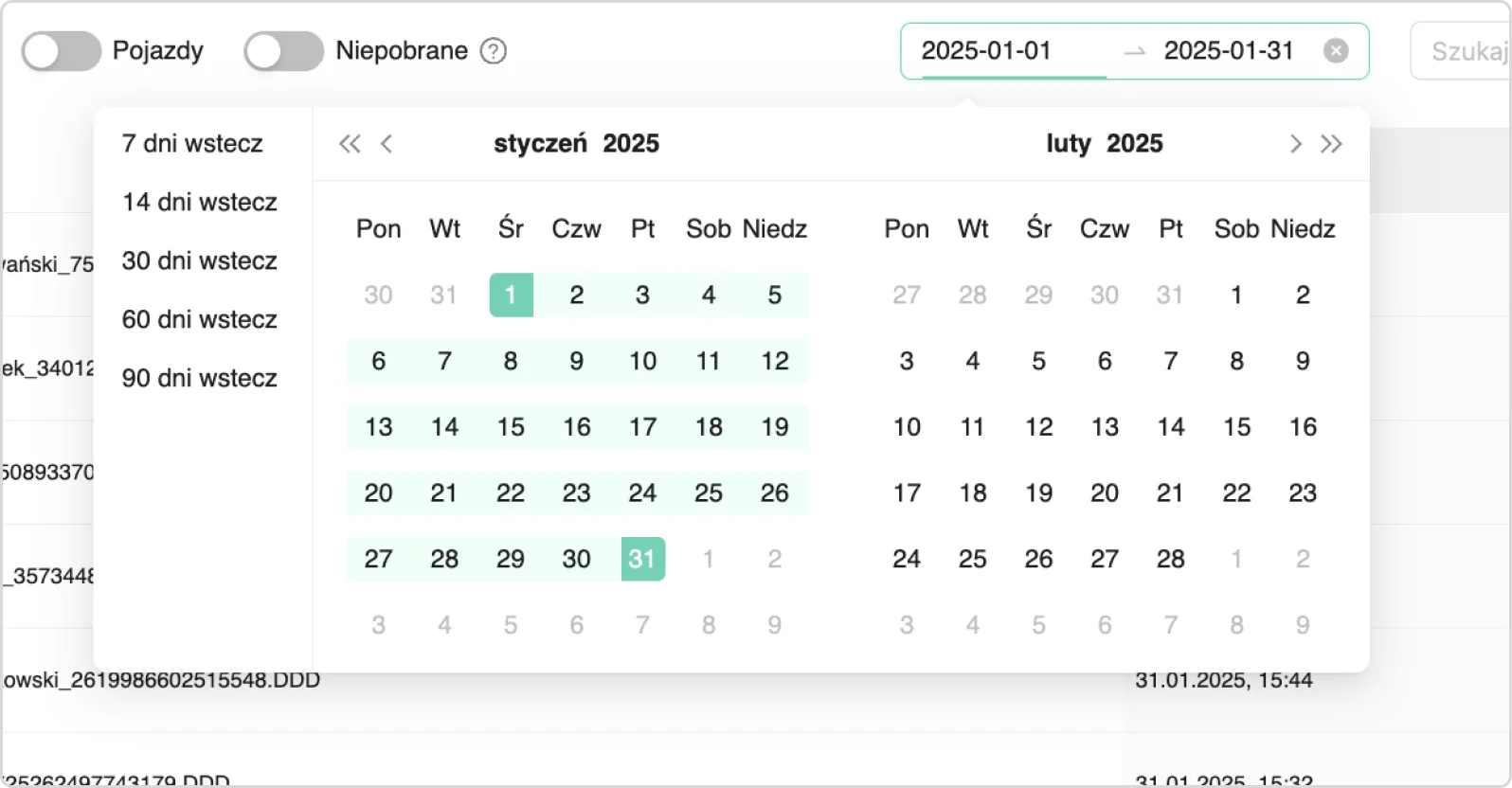
Figure 7. View of the date filter available in the Files tab of the Tachographmodule.
Search box
You can also use the search boxto quickly find a specific driver or vehicle on the list – regardless of the filters applied.
Checking the download status
The Next download status column shows the current state of the data download - here you can check whether the data was downloaded correctly. If there are problems, the system displays a detailed diagnostic message marked with a question mark icon. Clicking this icon displays the cause of the error, e.g.: “The vehicle's ignition is not switched on”.
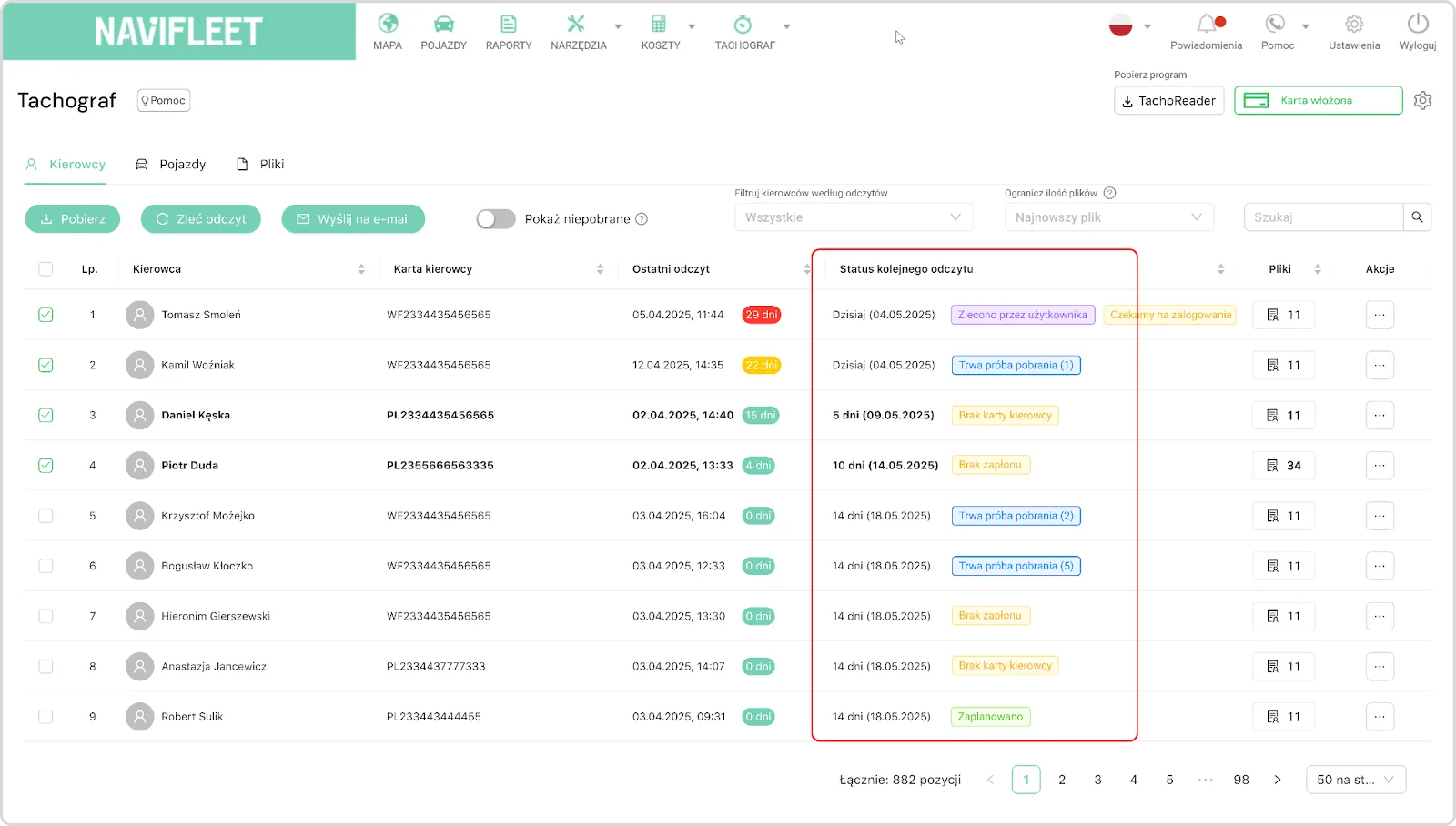
Figure 8. View of the Download status column in the Drivers tab of the Tachographmodule.
Analysing the status lets you quickly identify the cause of the failure and take appropriate action – e.g. contact the driver.Download event log
By hovering over the “Download attempt in progress” message, you can see the history of all data download attempts:
- the date and time of the download attempt,
- the download status (success, error, pending),
- error details and the reason for the failure.
The popover makes it easy to diagnose the problem quickly.
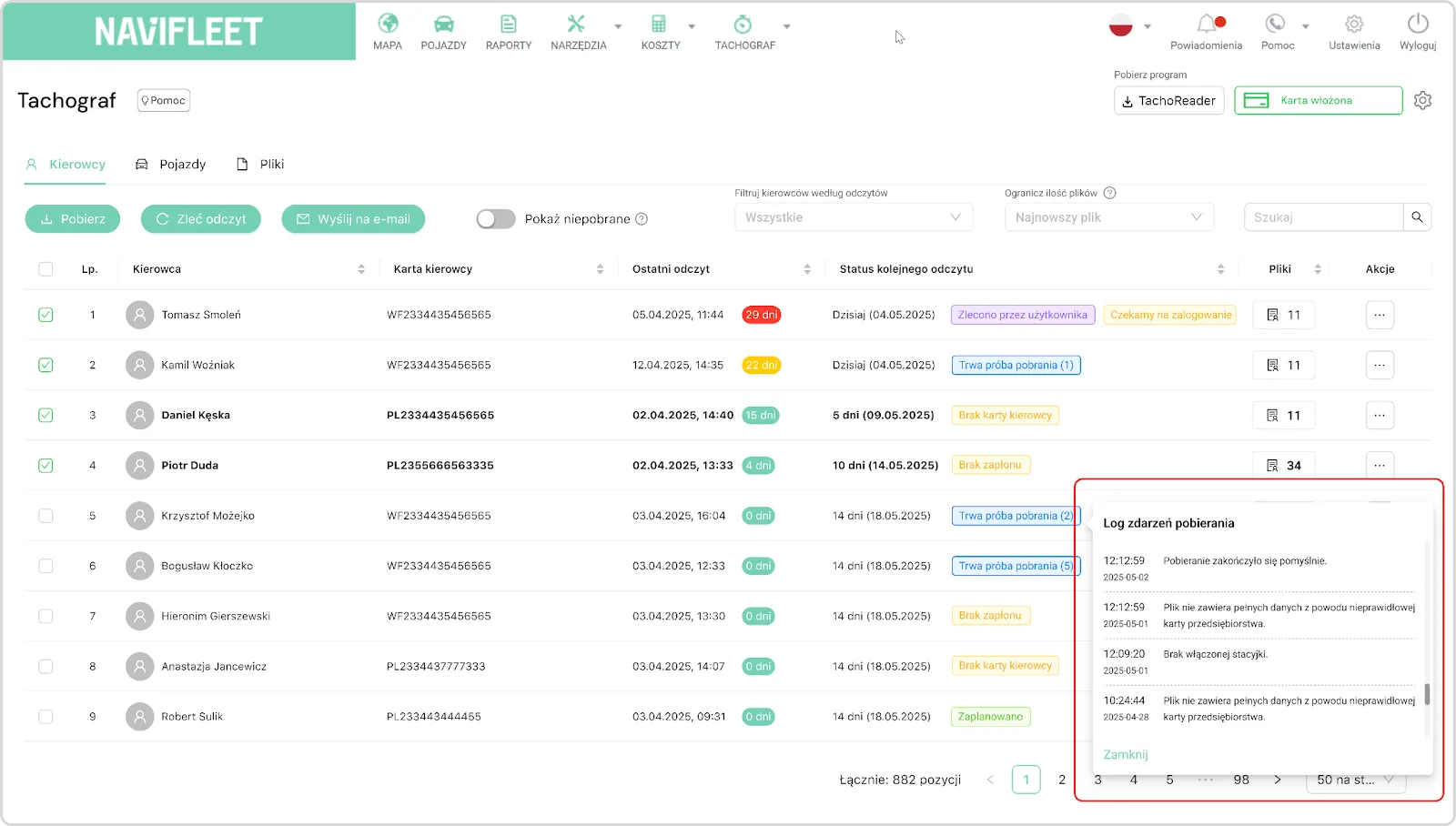
Figure 9. View of the Download event log in the Drivers tab of the Tachographmodule.
Regulatory compliance
In accordance with the current regulations on digital tachographs:
- Date from driver cards must be downloaded at least once every 28 days.
- Date from the tachograph memory must be downloaded at least once every 90 days.
In the Navifleet system, information about download dates is available in the Last downloadcolumn, which shows the date of the last download and the number of days that have passed since then.
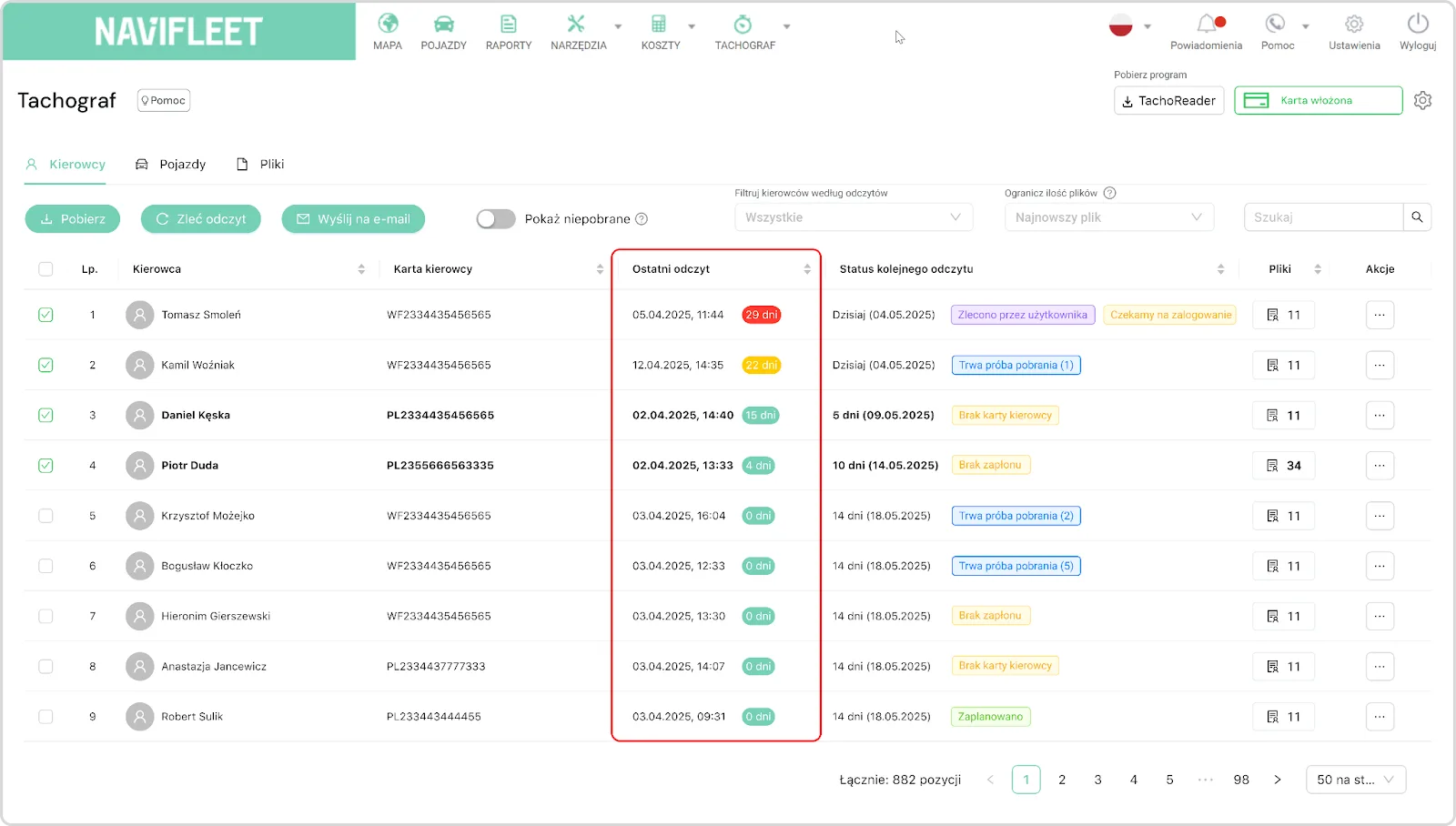
Figure 10. View of the Last download column in the Drivers tab of the Tachographmodule.
This column contains:
- the date and time of the last download,
- the number of days that have passed since then.
Explanation of the colour coding
To make compliance easier to monitor, the system uses colour coding:
- Yellow = deadline approaching. 7 days or fewer remain until the statutory limit.
- Red = deadline exceeded. The download should have been made earlier.
Checking the Last download column regularly helps you avoid administrative penalties for failing to comply with the data download obligation.
Data retention period
Downloaded data is stored in the system for 18 months from the moment it is downloaded. After this period, the files are deleted automatically and cannot be recovered.
Steps for every data download
- The tachograph must be active – if it is in sleep mode, switch on the ignition.
- The driver card must be in the tachograph.
- At the moment the data is downloaded, the tachograph may contain only the driver card; other cards (control, workshop and company cards) must not be inserted.
- The reader with the company card must be connected to the computer running the TachoReaderapplication. Only one user can use a given reader at a time (one application, one login, one reader, one card).
Video guides
Remote data download
See how to request a data download manually and use the filters that show you the most important information in a few seconds.
“No company card” message
Getting a message about a missing card in the Navifleet Tracker system? This short video will help you quickly diagnose the cause.
Recommended articles
1. Preparing the environment and configuring the system.