
Help › Navifleet Tracker › Remote tachograph
How to read working time?
Updated: 8 April 2026
In the remote tachograph module of the Navifleet app you can quickly check how much working time a driver has left before a mandatory rest. The information is updated continuously, giving you full insight into the situation in real time. This is a great convenience when planning routes and assigning jobs — everything is at hand, with no need to contact the driver.
Working time
To read a driver's working time, select Working Time in the Tachograph module.
Explanation of the symbols shown in the table
The working time window displayed contains information such as:
- First name and surname of the driver.
- Activity type - information on what the driver is currently doing (the duration of the activity is given in brackets): Rest (green), Driving (blue), Work (purple).
- Vehicle - registration number of the assigned vehicle.
- Remaining (cycle) - how much driving time is left in the current work cycle.
- Remaining (day) - how many hours of driving can still be used within the day.
- Remaining (two weeks) - remaining driving time over a two-week period.
- Details - contains information on extended driving time and reduced rests.
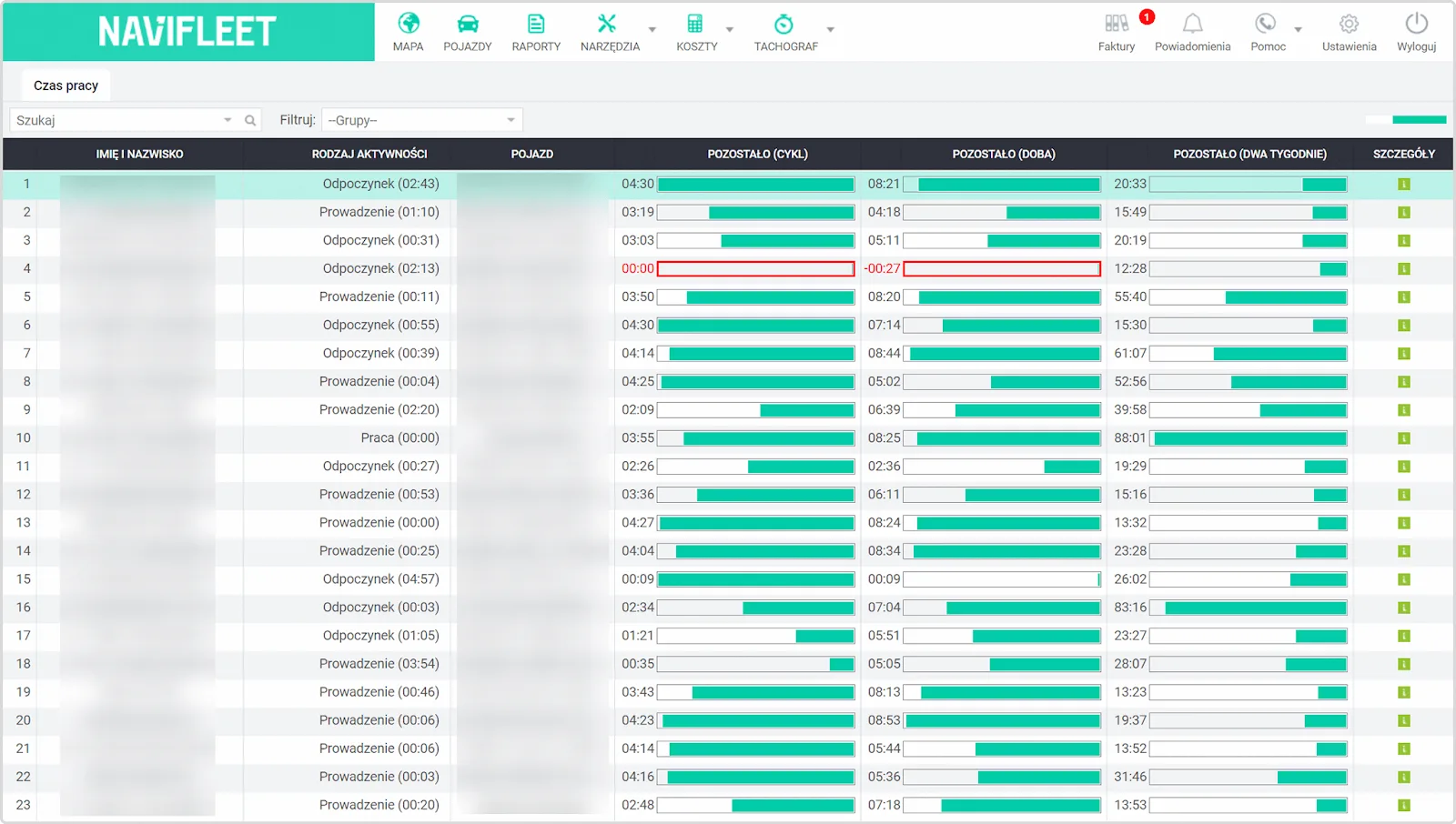
Picture 1. View of the Working time option in the Tachograph module.
How to read the information?
Example of a correct state:
The driver is resting (e.g. 02:43), and in the columns with the remaining time available we see:
- remaining (cycle): 04:30,
- remaining (day): 08:21,
- remaining (two weeks): 20:33.
All values are positive and marked in green.
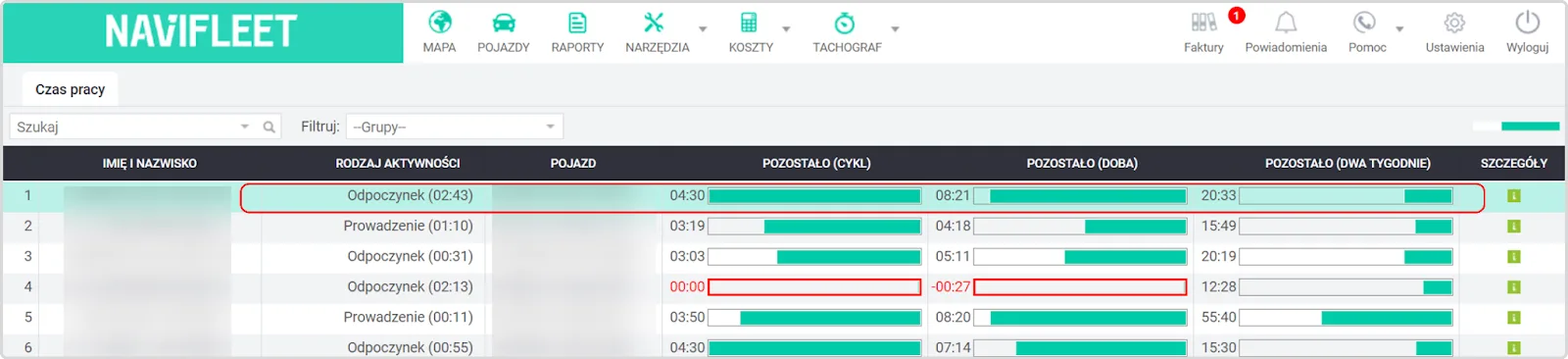
Picture 2. View of a driver's working time without infringements.
Example of an infringement:
The driver is resting (e.g. 02:13), but the system shows:
- remaining (cycle): 00:00,
- remaining (day): -00:27.
The values are marked in red, which indicates the permitted driving time has been exceeded – the driver can no longer drive until they have rested long enough.
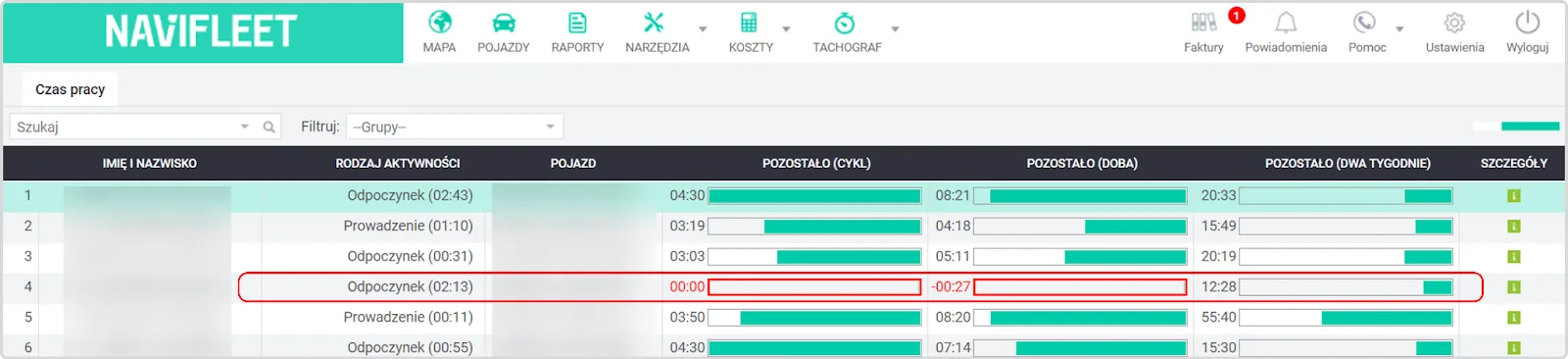
Picture 3. View of a driver's working time with infringements.
Additional tips
Colours make it easy to quickly spot situations requiring intervention (e.g. red = exceeded). Clicking the details icon lets you analyse the exact causes of the limits or infringements.
Data is updated continuously – you do not need to refresh it manually.
The above values are read directly from the tachograph installation.See how it works on video
If you want to see how to navigate the module containing drivers' working time in practice and where to find individual features, watch the guide below:
Recommended articles
1. Preparing the environment and configuring the system.
2. Remote download of driver cards and tachograph memory.