
Help › Navifleet Tracker › Remote tachograph
Unlocking a digital tachograph
Updated: 26 June 2025
Configuring a Smart 2 tachograph for remote download of DDD files and driver card data in the Navifleet system.
1. Preliminary information
Preliminary information Remember that when the tachograph is replaced with a Smart 2, the service technician must activate the functions responsible for remote download of DDD files and driver card data. Without this activation, files cannot be downloaded from the tachograph.
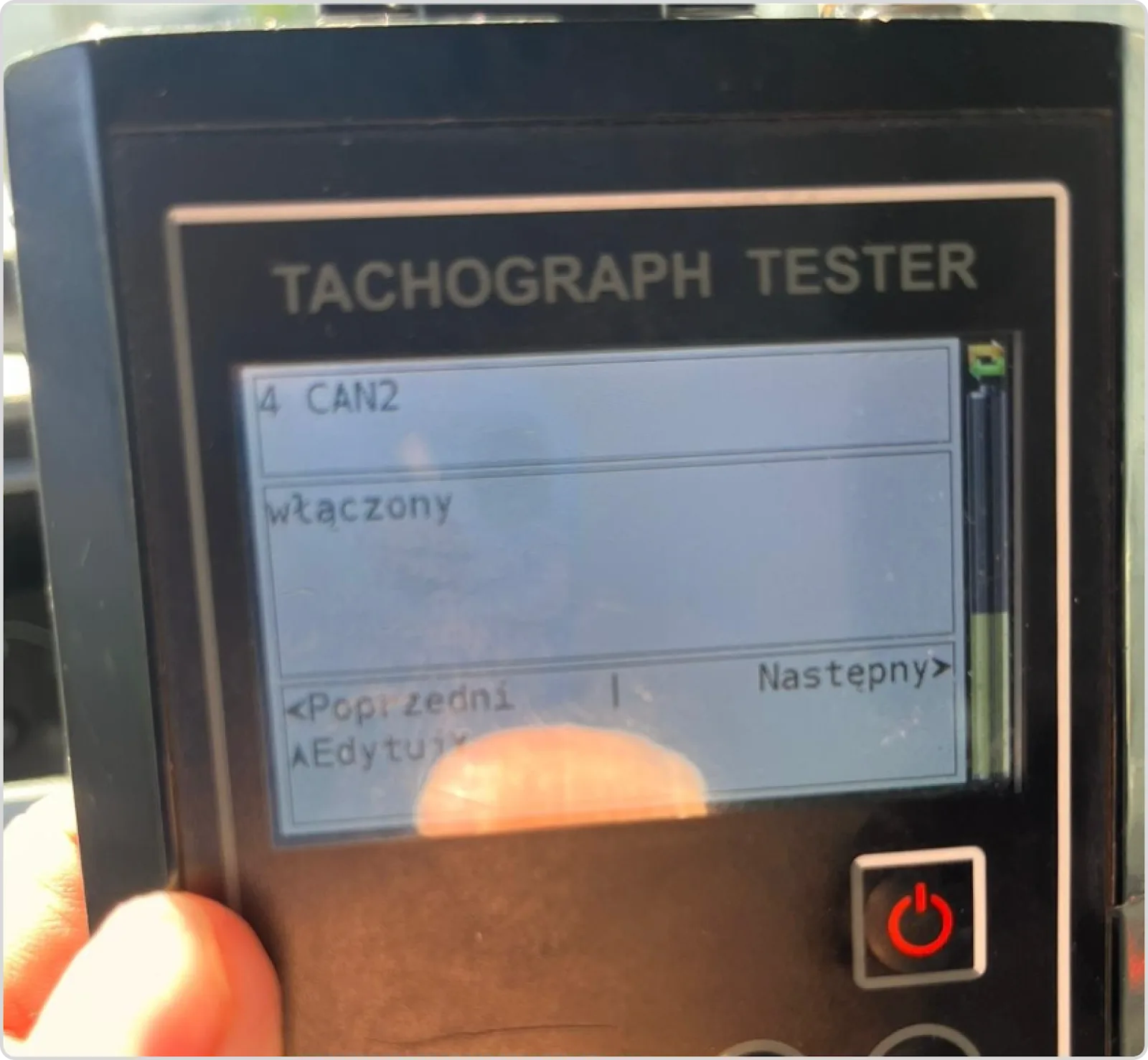
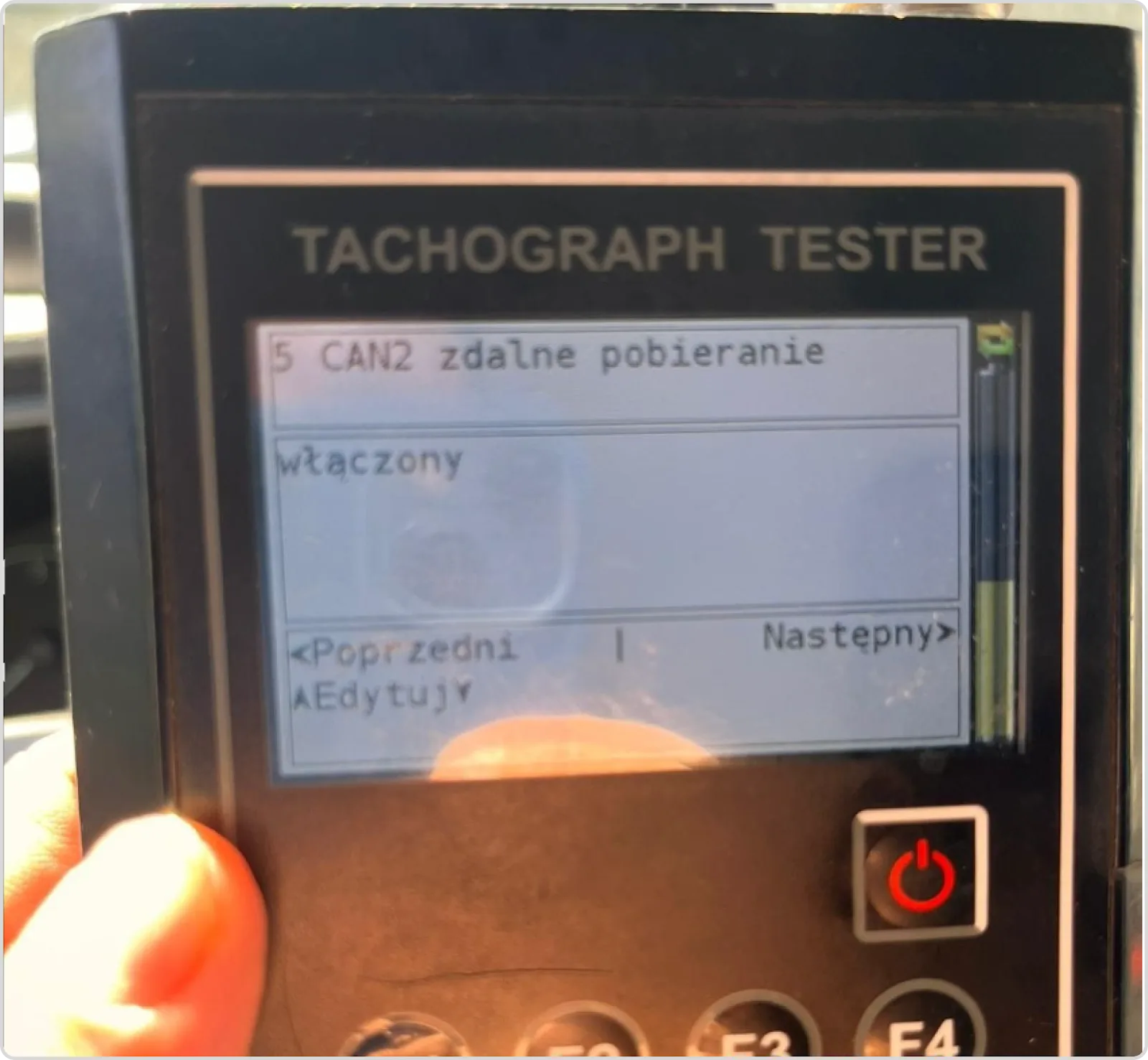
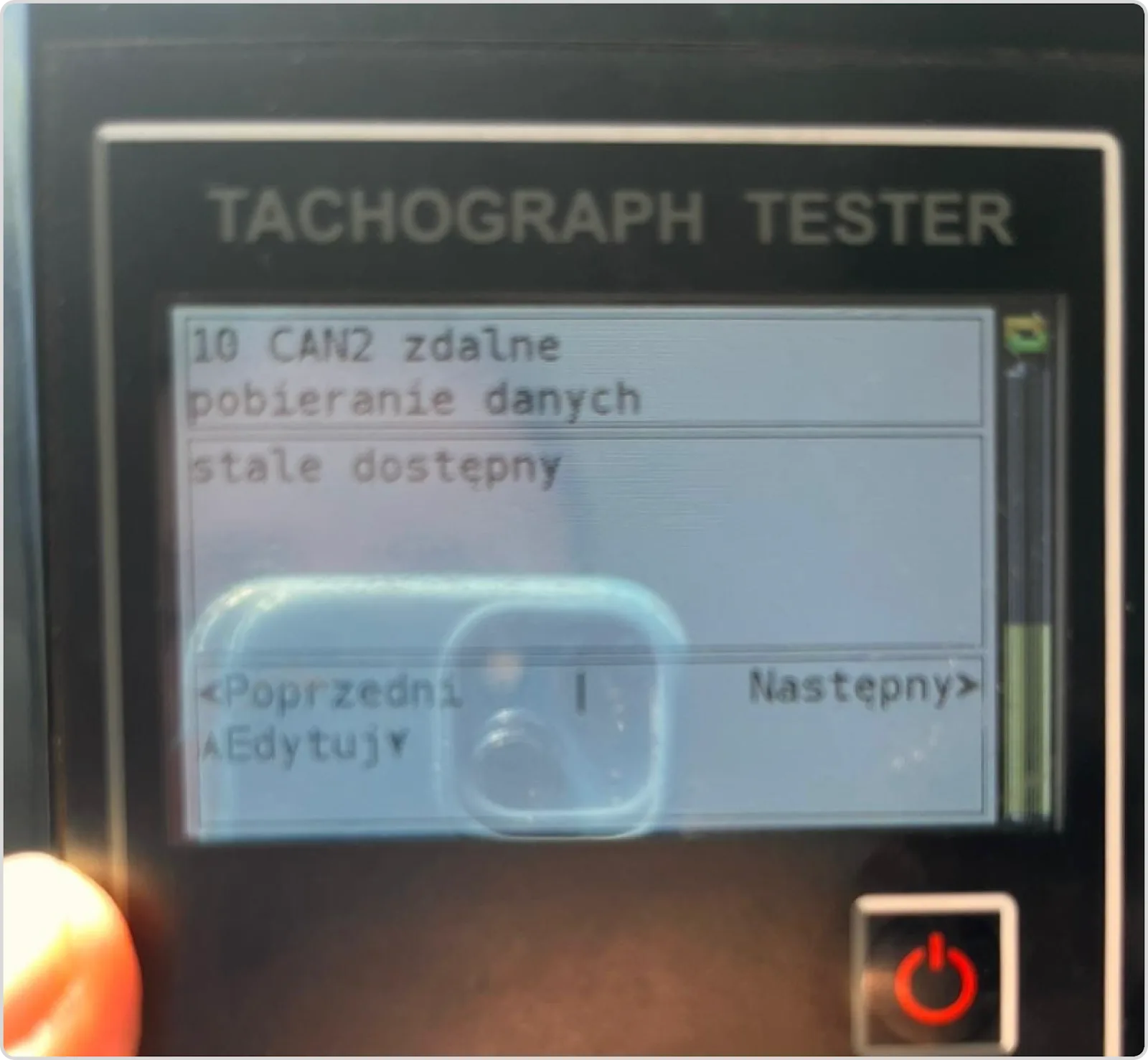
Each step should be documented with a photo taken by the service technician.
2. Configuration steps
1. Go to the tachograph settings panel. | |
2. Find the CAN2 setting and set it to enabled. |
|
3. Find and activate CAN2 remote download and set it to enabled. |
|
4. Set CAN2 remote data download to always available. |
|
3. Technical notes
Do not disconnect the device installed by Navifleet during the configuration. Once the tachograph is set up correctly, the DDD files will be downloaded automatically.
4. Contact
If you have any questions, please contact our technical department:
- tel. +48 732 082 017
- e-mail: [email protected]
Recommended articles
1. Preparing the environment and configuring the system.
2. Remote download of driver cards and tachograph memory.