
Help › Navifleet Manager › Web panel: Vehicles
How to add and edit vehicles?
Updated: 20 August 2026
Adding another vehicle to the system does not require signing an annex to the agreement or any contact with us. You can add vehicles within your organisation yourself, but remember that we will include them on the next invoice, regardless of whether you mark them as Active or Archived.
Who can add vehicles to the app?
Adding a vehicle is an action that any user with the Administratorrole can perform. By default, the administrator is the person who created the organisation, but this role can be given to other people in the company. You just need to remember, in the add new user window, to:
Set the system role to Administrator.
Fill in the e-mail address field.
You will find more about system roles in the article User roles.
Bulk adding of vehicles (import from file)
If you want to avoid entering data manually, use the option to import vehicles from an XLS file. To do this:
Click the More menu next to the Add button in the Vehiclestab.
Select Download import file template.

Fill in the required fields in the file, remembering not to change its structure.

Upload the completed file to the system using the same option in the More menu and selecting Import vehicle list (*.xls).
How to add a vehicle to the app manually?
To add a vehicle to the app:

go to the vehicle list and click the Addbutton in the top right-hand corner.
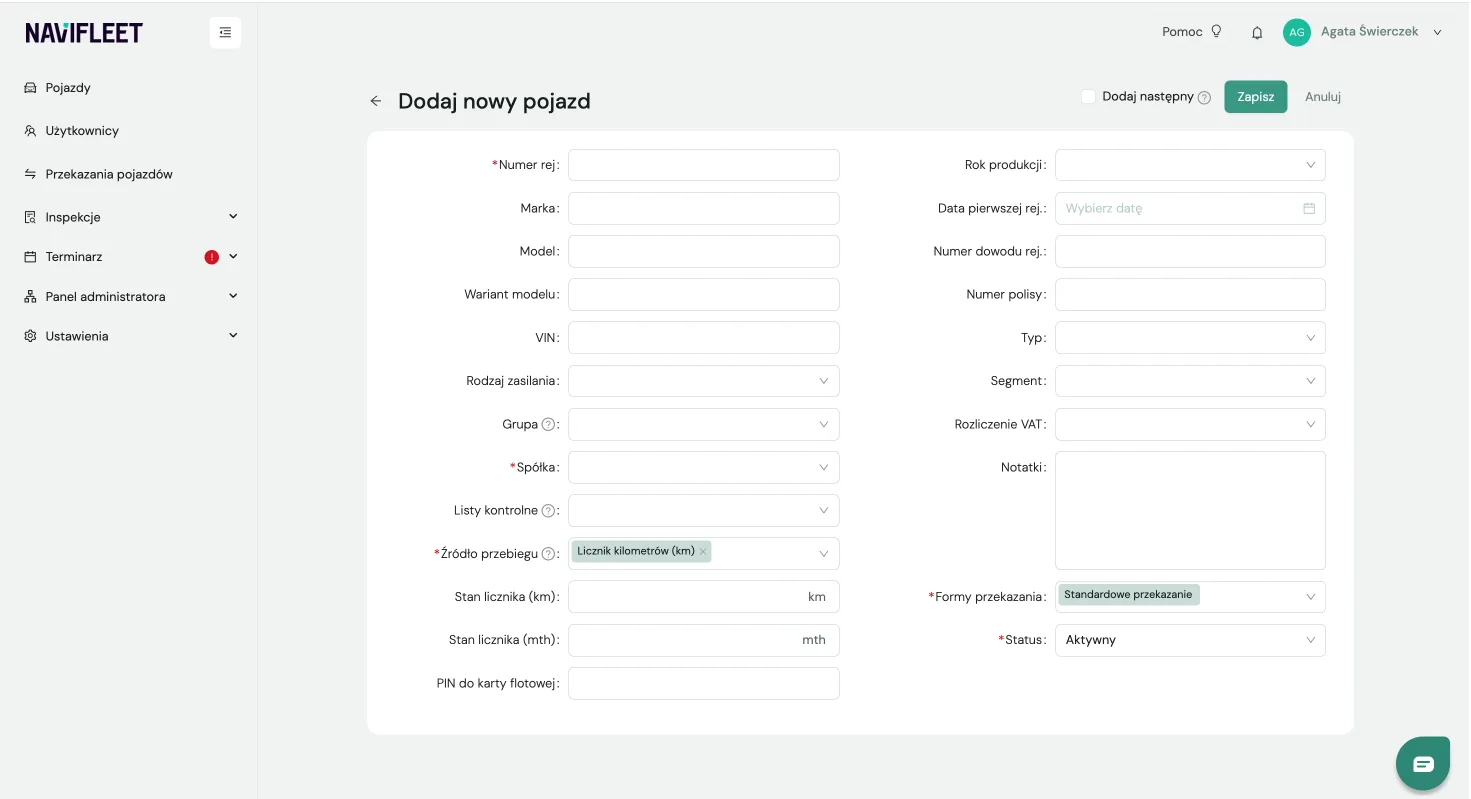
fill in all the vehicle's details in the form while adding it.
Save the changes
Explanation of the form fields
Filling in all the fields in the form allows processes to be automated later. The more data is added at the start, the greater the share of management processes in the system that will run without user involvement. This way, the information can be used in subsequent actions, e.g. during a vehicle handover the details are filled in on the documents without having to be entered again.
Basic vehicle details
Registration number: the vehicle's unique identifier across the whole organisation (the system prevents two vehicles with the same number from being added).
Make, Model and Model variant (trim level or body version).
VIN, Year of manufacture, Date of first registration and registration certificate number.
Operation and fuel type
Fuel type (options: Diesel, Petrol, Petrol + LPG, Electric, Hybrid, Hybrid + LPG, Plug-in hybrid, Hydrogen),
Mileage source (options: Odometer km/Engine hours counter).
Odometer reading (km) or (mth): the current odometer reading in kilometres or engine hours (for machinery and specialist vehicles).
Fleet card PIN: the code for the fuel card assigned to the vehicle, visible to the driver in the app.
Company structure (correct placement of the vehicle in the organisation)
Group (the company department or branch assigned to the vehicle).
Company: a key field defining the legal entity that is the owner/lessee, which lets the system choose the right document and terms templates when generating reports.
Additional parameters and documentation
Checklists (from here you can quickly add or remove the checkliststhat are to be assigned to the vehicle).
Insurance policy number, Type, Segment and VAT settlement (method of tax deduction).
Handover forms - choose how the vehicle can be assigned to users. The available options are:
- Standard handover (the vehicle is issued and received by the fleet manager).
- Self-service vehicle collection (the user can collect an available vehicle themselves in the Navifleet Manager app, without the fleet manager's involvement).
- Driver-to-driver handover (the user can hand over the vehicle they are currently using directly to another driver. They do not have to return it to the fleet first).
You can select more than one handover form for a given vehicle.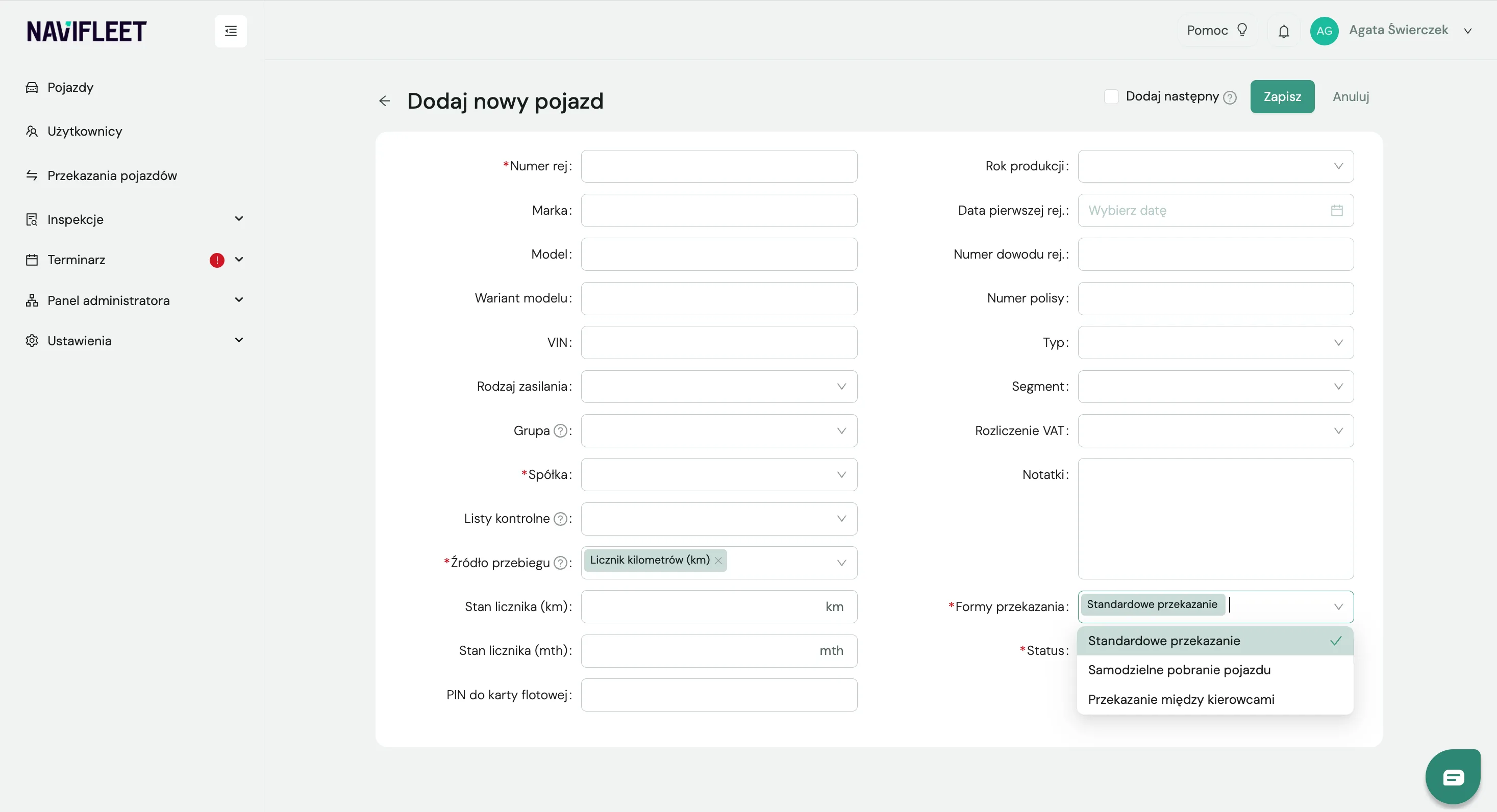
Notes: a field for any comments.
Check what Checklists are and what their role is.
See how to export the fleet usage history.