Help › Navifleet Manager › FAQ
How to add your logo to the handover report?
Updated: 19 August 2026
Vehicle handover reports generated in the system can include your organisation's logo. Adding a logo lets you match the documents to your company's visual identity.
Why do we require the vehicle to be linked to a company?
Every vehicle in the system must be assigned to a company (read what companies are and what their role is). This is required so that the report contains the details of the entity responsible for the vehicle.
Benefits of assigning a vehicle to a company
Assigning a vehicle to a company lets you match the content shown in the system more closely to your company's organisational structure:
if different companies operate within one fleet, you can assign separate documents and instructions to each of them. As a result, users see only the content assigned to their company, for example user guides or operating instructions.
More information on sharing documents with drivers can be found in the article on documents for signature and their role, and on the role of fleet instructions.
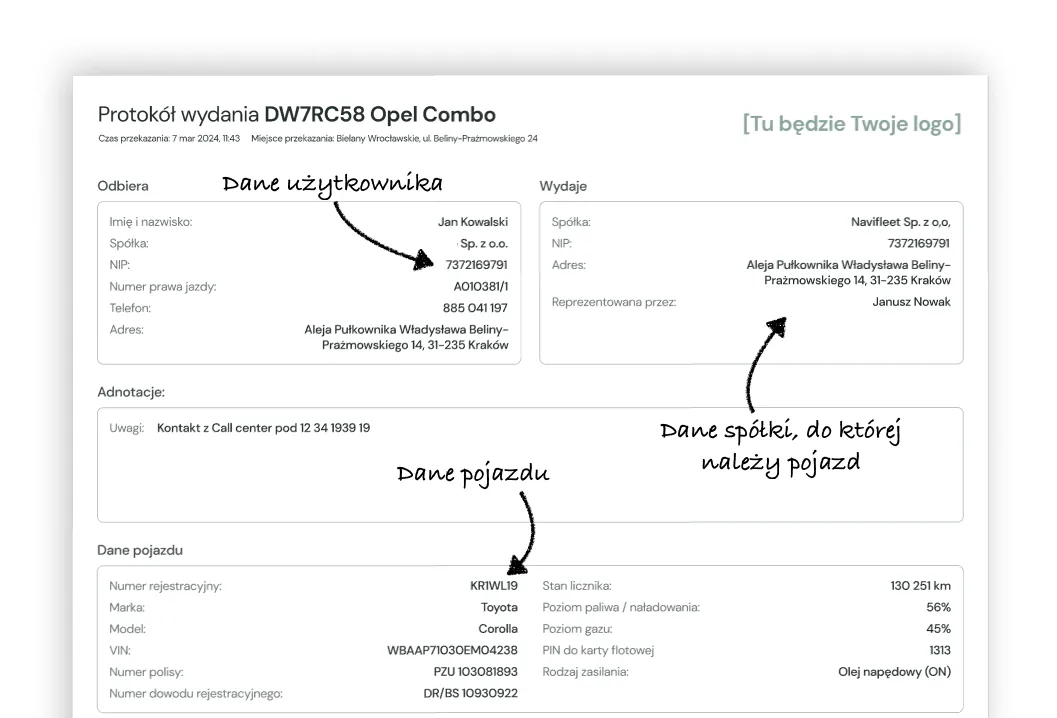
in addition, the handover report can show the logo of the company to which the vehicle being handed over is assigned.
Preparing the logo in the right form
If several variants of the logo are available, we recommend using the horizontal version. Square logos are also accepted, but may be shown at a smaller size.
The logo shown on the report must meet the following requirements:
maximum dimensions: 800x400 px
accepted file formats: .jpg, .jpeg, .png.
maximum file size: 1 MB.
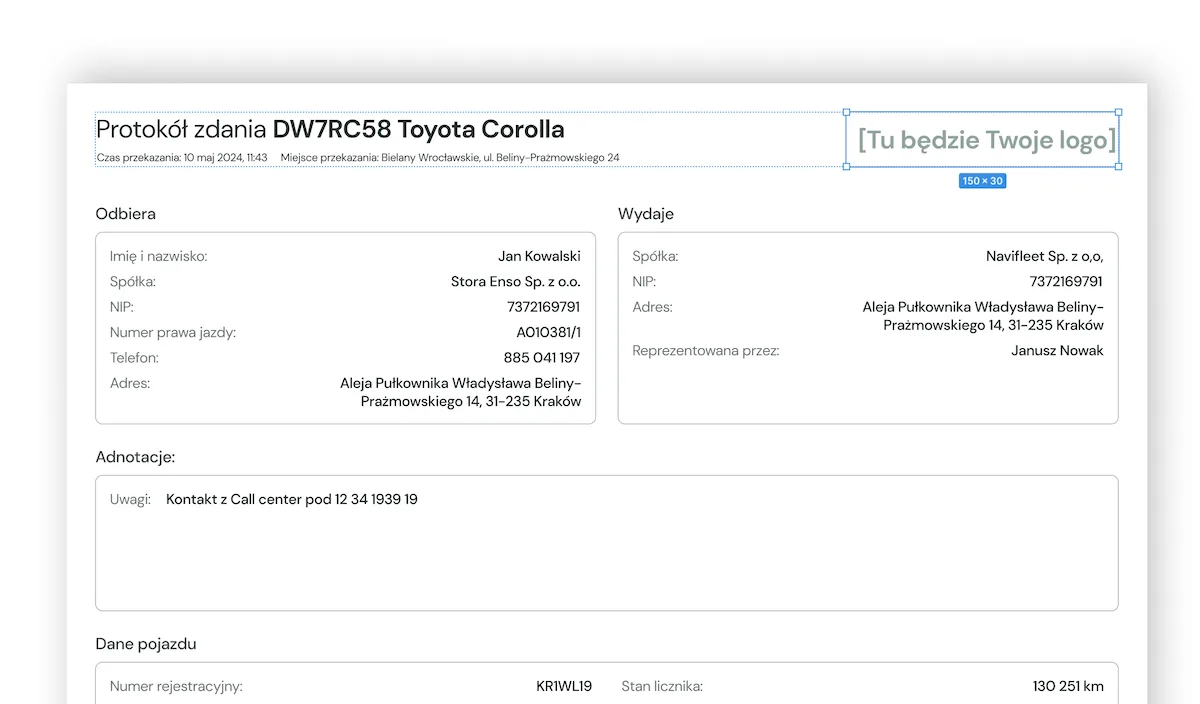
The illustration below marks the area reserved for the logo in the report.
Adding a logo to a company and showing it on the report
You can add a logo to each company, and it will be shown on the vehicle issue or return report.
To add a logo:

Go to the Settings tab in the side menu.
Select the Companies submenu.
Open the details of the selected company.
At the bottom of the form there is a field for the company logo.
Once added, the logo is shown on reports instead of the default system logo.
Add the file and Save your changes.
The uploaded logo will not be updated on previously generated reports, but it will appear on the next report created after it was added.