
Help › Navifleet Manager › Web panel: Settings
What are Documents for signature and what is their role?
Updated: 19 August 2026
In addition to the issue report, you have to prepare and print the necessary documents, such as the entrustment agreement, the usage terms and the vehicle manual. See how to configure the app so that all the formalities related to issuing a vehicle can be signed electronically.
Adding a document for signature

Once a template has been properly prepared, it can be uploaded to the Navifleet Manager app. More than one template can be added.
To add another template:
Go to the Settings tab in the side menu.
Select the Documents for signature sub-tab.
Click the Add button.

Note
You can use so-called variables in the document text. With them, the app automatically fills in the data in documents such as the entrustment agreement, the usage terms or driver declarations. The full list of variables is below.
List of variables that can be used in the template
The full list of variables that can be used is as follows:
Handover
[date] - handover date
[datetime] - handover date and time
[address] - handover location
[notes] - Handover notes
Vehicle being handed over
[vehicle.registration_number] - Registration number
[vehicle.brand] - Make
[vehicle.model] - Model
[vehicle.vin] - VIN
[vehicle.year] - Year of manufacture
[vehicle.mileage_km] - Mileage in km
[vehicle.mileage_mth] - Mileage in engine hours
[vehicle.insurance_policy_number] - Insurance policy number
[vehicle.variant] - Model variant
[vehicle.group] - Vehicle group names
[vehicle.energy_source] - Fuel type
[vehicle.fuelcard_PIN] - Fuel card PIN
[vehicle.registration_date] - Date of first registration
[vehicle.registration_card_number] - Registration document number
[vehicle.type] - Vehicle type
[vehicle.segment] - Vehicle segment
[vehicle.notes] - Vehicle notes
Company that owns the vehicle being handed over
[company.name] - company name
[company.address] - company postcode, city and street
[company.nip] - company tax ID (NIP)
Person issuing the vehicle
[issuer.name] - Full name of the person issuing the vehicle
[issuer.address] - postcode, city and street of the person issuing the vehicle
[issuer.phone] - phone number of the person issuing the vehicle
[issuer.driving_license] - driving licence number of the person issuing the vehicle
[issuer.email] - E-mail address of the person issuing the vehicle
[issuer.job_title] - Job title of the person issuing the vehicle
[issuer.group] - Group names of the person issuing the vehicle
[issuer.notes] - Notes from the profile of the person issuing the vehicle
[issuer.ID_type] - Identity document type
[issuer.ID_number] - Identity document number
[issuer.cooperation_form] - Form of cooperation
Person collecting the vehicle
[receiver.name] - Full name of the person collecting the vehicle
[receiver.address] - postcode, city and street of the person collecting the vehicle
[receiver.phone] - phone number of the person collecting the vehicle
[receiver.driving_license] - driving licence number of the person collecting the vehicle
[receiver.email] - E-mail address of the person collecting the vehicle
[receiver.job_title] - Job title of the person collecting the vehicle
[receiver.group] - Group names of the person collecting the vehicle
[receiver.notes] - Notes from the profile of the person issuing the vehicle
[receiver.ID_type] - Identity document type
[receiver.ID_number] - Identity document number
[receiver.cooperation_form] - Form of cooperation
Based on the prepared template, each time a vehicle is issued a PDF document filled in with the relevant data is generated, ready to be signed.
Fields filled in when adding a document template for signature

Choose who has to sign the document
Specify who is required to sign the document when the vehicle is issued: the issuer, the vehicle user or both roles.
Select the company
Select the company or companies for which the document is to be generated when a vehicle is issued.

When a vehicle is issued, we check which company the vehicle belongs to and automatically prepare the appropriate document templates for signature.
Status
By default, the status is set to Active. If the template is not to be used at the moment, select the Archived option.

Select the form of employment
Depending on the vehicle user's form of employment (employment contract, B2B contract, contract of mandate), different document templates may apply. Each template can be configured for the vehicle user's form of employment.

Editing a document template
You can go back to an added document template and edit it at any time. If the content of a file has changed, go to the document template editing view and replace the file.
The change takes effect immediately, and once the form is saved all users will see the new version of the file.
Deleting a document template
To keep things tidy, we have decided that it will not be possible to delete a document template. If you do not want a document to be shown to drivers, edit it and set its status to Archived.
Rules for loading documents for signature
Depending on how the vehicle is issued and on the driver's details, the system loads for signature only the selected documents that meet specific conditions.
Driver collecting the vehicle on their own
If the driver collects the vehicle on their own, only the documents that meet the following conditions appear for signature:
they are assigned to the same company as the vehicle,
they require a signature only from the vehicle user.
In addition, the driver's form of employment is taken into account:
if the form of employment is not filled in, all documents meeting the above conditions are loaded,
if the form of employment is filled in, only documents assigned to the same form are shown (the form of employment narrows down the list of documents).
Vehicle issued by a fleet coordinator
If the vehicle is issued by a fleet coordinator, the documents loaded for signature are those that:
are assigned to the same company as the vehicle,
have the same form of cooperation assigned as the driver.
The coordinator's form of employment does not affect the list of documents.
If the document has no form of cooperation, or the driver's form of employment is not filled in, all documents linked to the same company as the vehicle are loaded.
Documents requiring signatures from both parties
The person issuing the vehicle is shown only the documents that:
have been signed by the driver,
require signatures from both parties.
Signing the documents
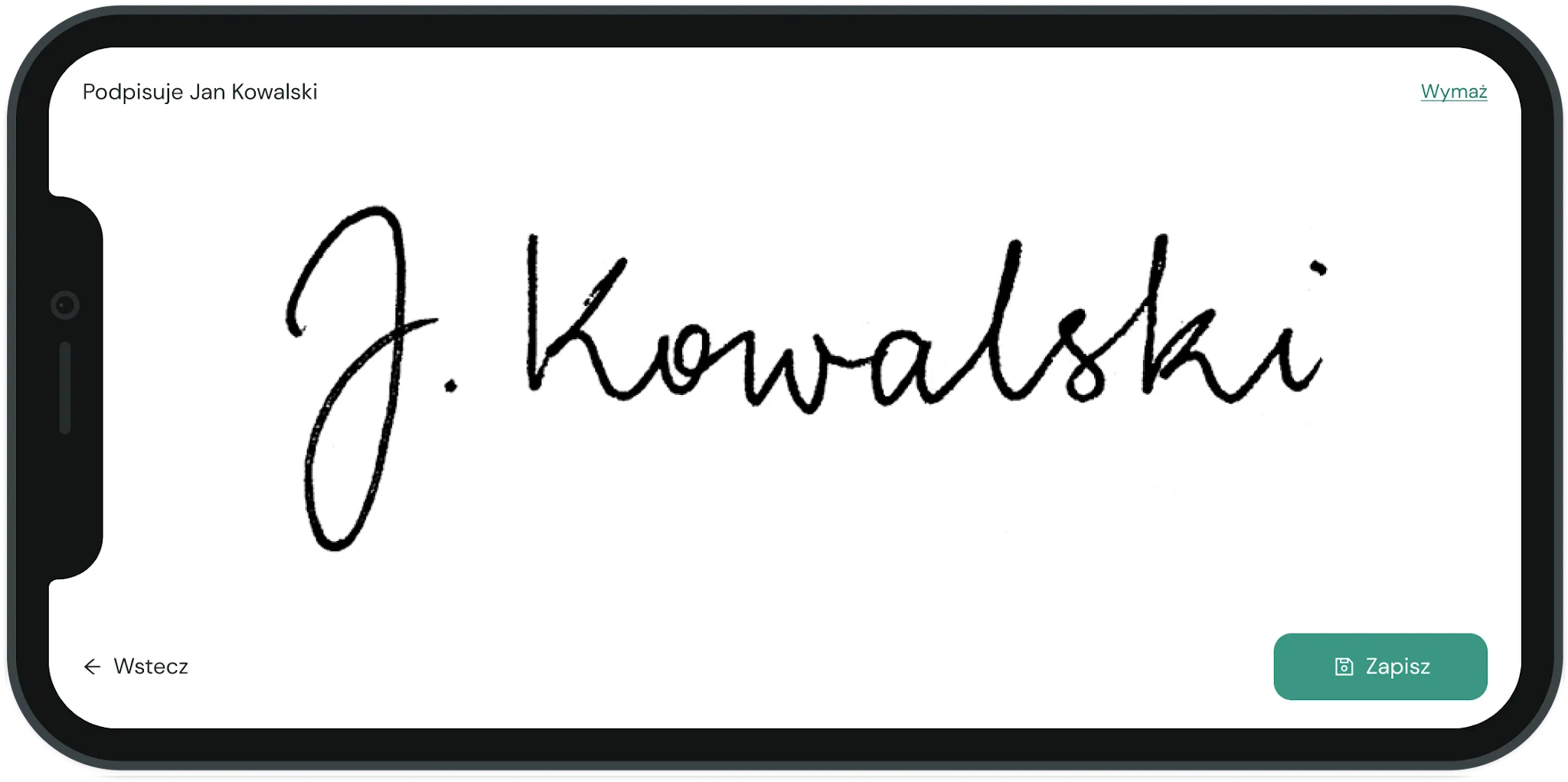
The documents are signed when the vehicle issue report is signed. This means that to sign documents with the user to whom the vehicle is being issued, you need to complete a vehicle issue report.
The process has been designed to take as little time as possible. The user provides a single signature, thereby accepting the content not only of the report but also of all the other documents.
By default, all documents signed during the issue are sent to the e-mail address of the user collecting the vehicle.
Record of signed documents
There is no need to keep a separate record of signed documents, because the system does this automatically.
All documents signed when a vehicle is issued or returned are archived in the cloud and available at any time.