Help › Navifleet Tracker › Driving style analysis
How to create and monitor challenges?
Updated: 10 December 2021
Creating challenges in the Navifleet app is one way to motivate drivers to improve their habits behind the wheel. Created challenges are visible to participants in the mobile app.
How to create a challenge?
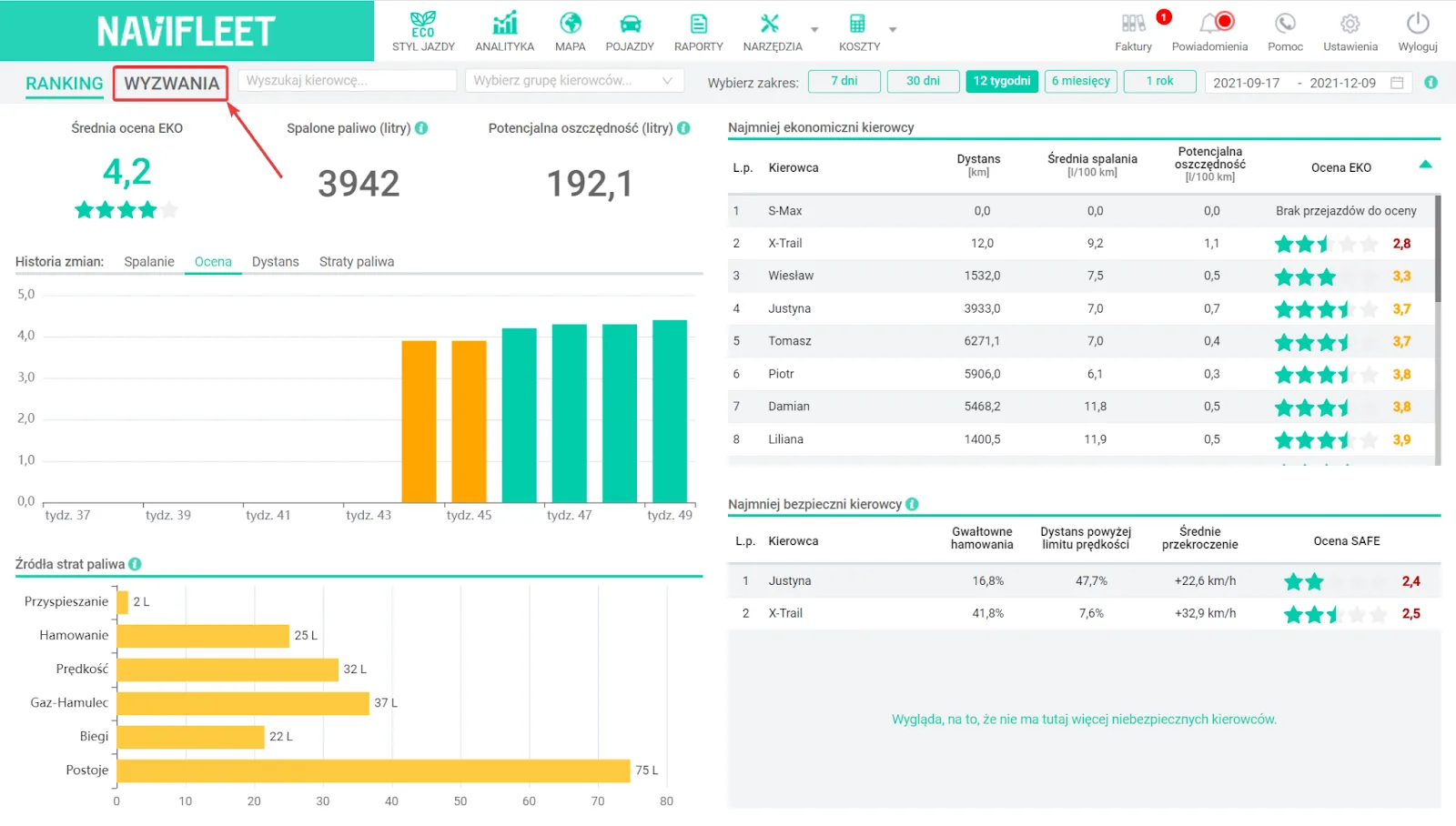
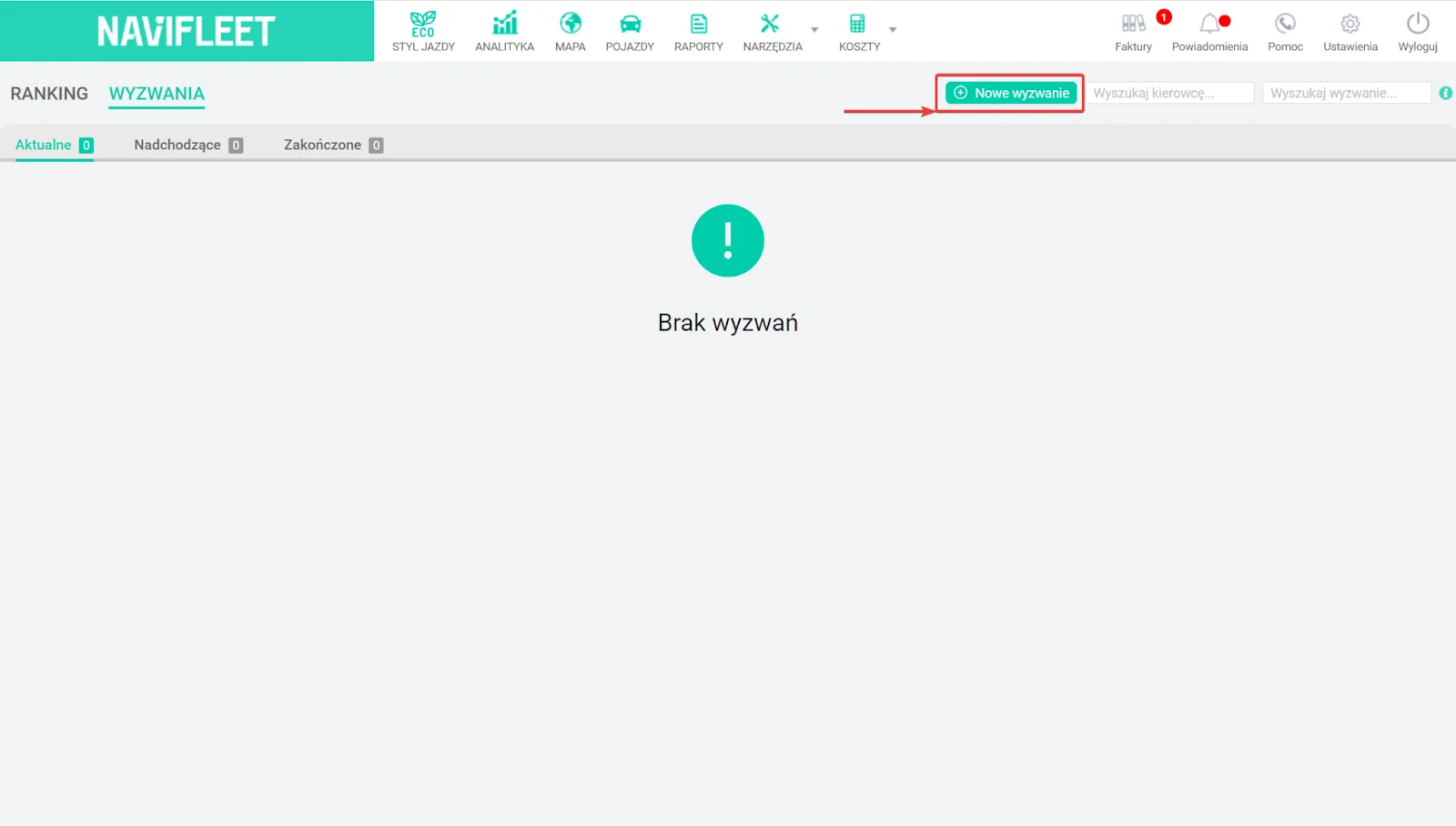
To create a challenge, go to DRIVING STYLE -> CHALLENGES -> New challenge.
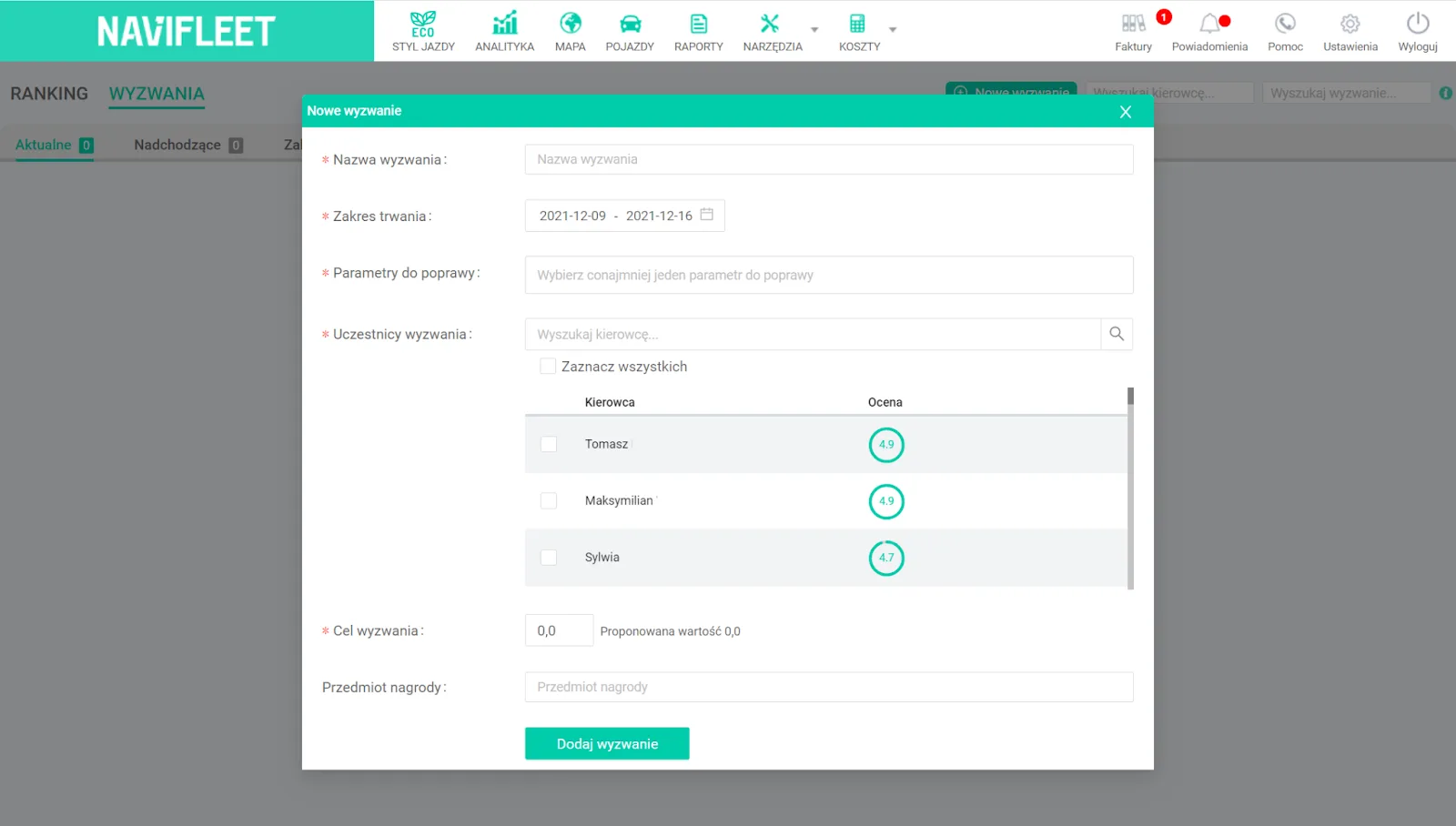
This takes you to the new challenge window. The mandatory fields you must fill in to create a challenge are:
Challenge name - as you prefer.
Duration - you can enter the dates manually or pick them from the calendar.
Parameters to improve - clicking the empty field expands a list of categories in which the participants will compete. You can choose any number of categories from Acceleration, Braking, Speed, Throttle-Brake, Gears and Idling.
Challenge participants - any number of participants can take part in a challenge. Select drivers by ticking the checkbox in the relevant row. The list shows each driver's score for the categories selected for the challenge. Note! If a driver is taking part in another challenge in the selected period, a trophy icon appears next to their score.
Challenge goal - the value that must be reached to win the challenge. It is defined by the fleet manager, who also defines the rules of the competition. The most popular models are:
the top n places win
only those who reached the target value win
the whole group wins if it reached the target value.
An additional (optional) field is Prize. How the winners are rewarded is up to the fleet manager. Motivating drivers can take various forms - from material prizes to extra days off. You can find out more in the article Eco-driving is not a stick. How to get drivers to compete in a healthy way?
How to monitor challenges?
In the Challenges view, you can filter challenges by their status. They are divided into Active, Upcoming and Completed. In addition, in the top right corner of the view there is a search box for drivers and challenges.
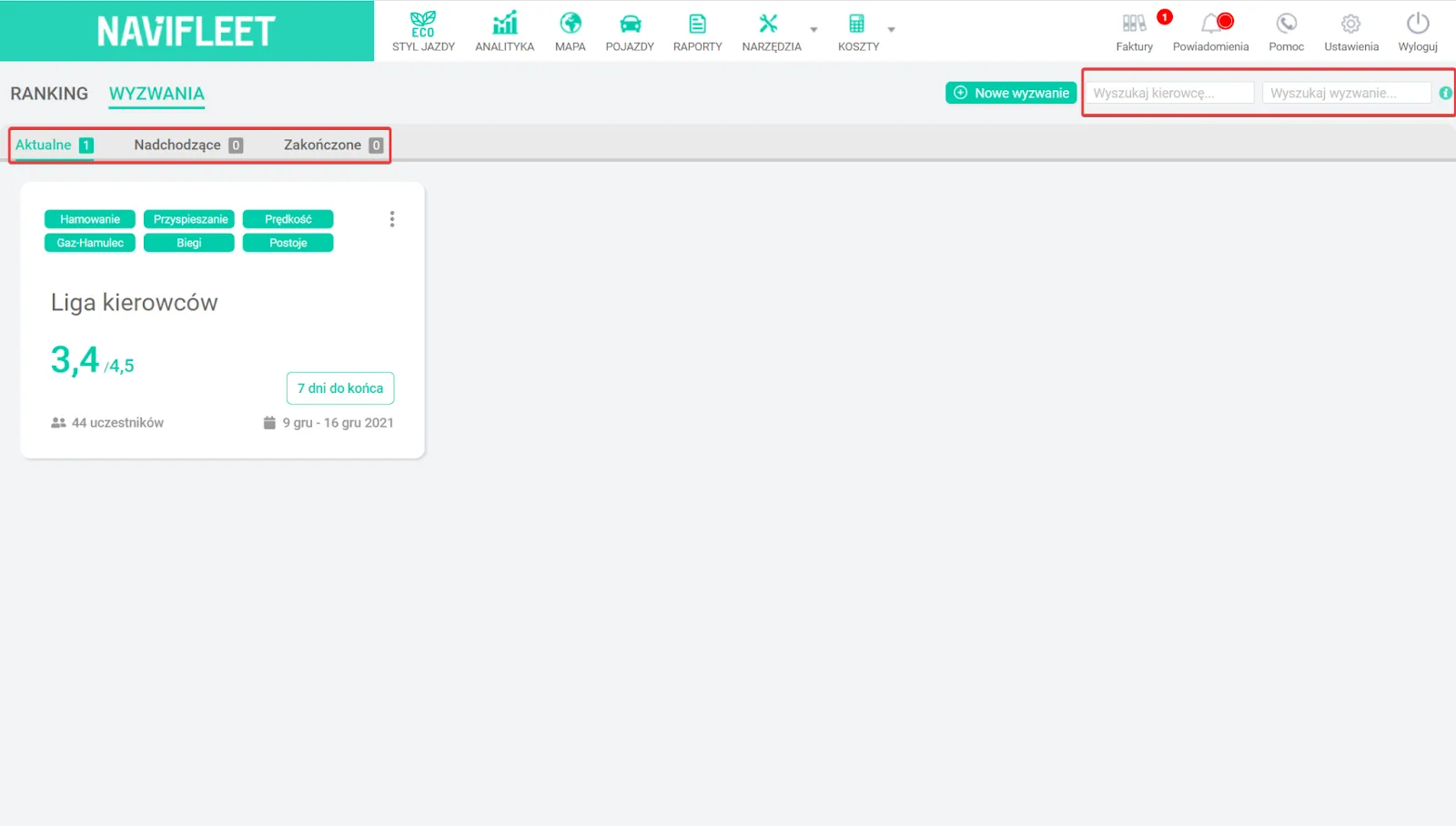
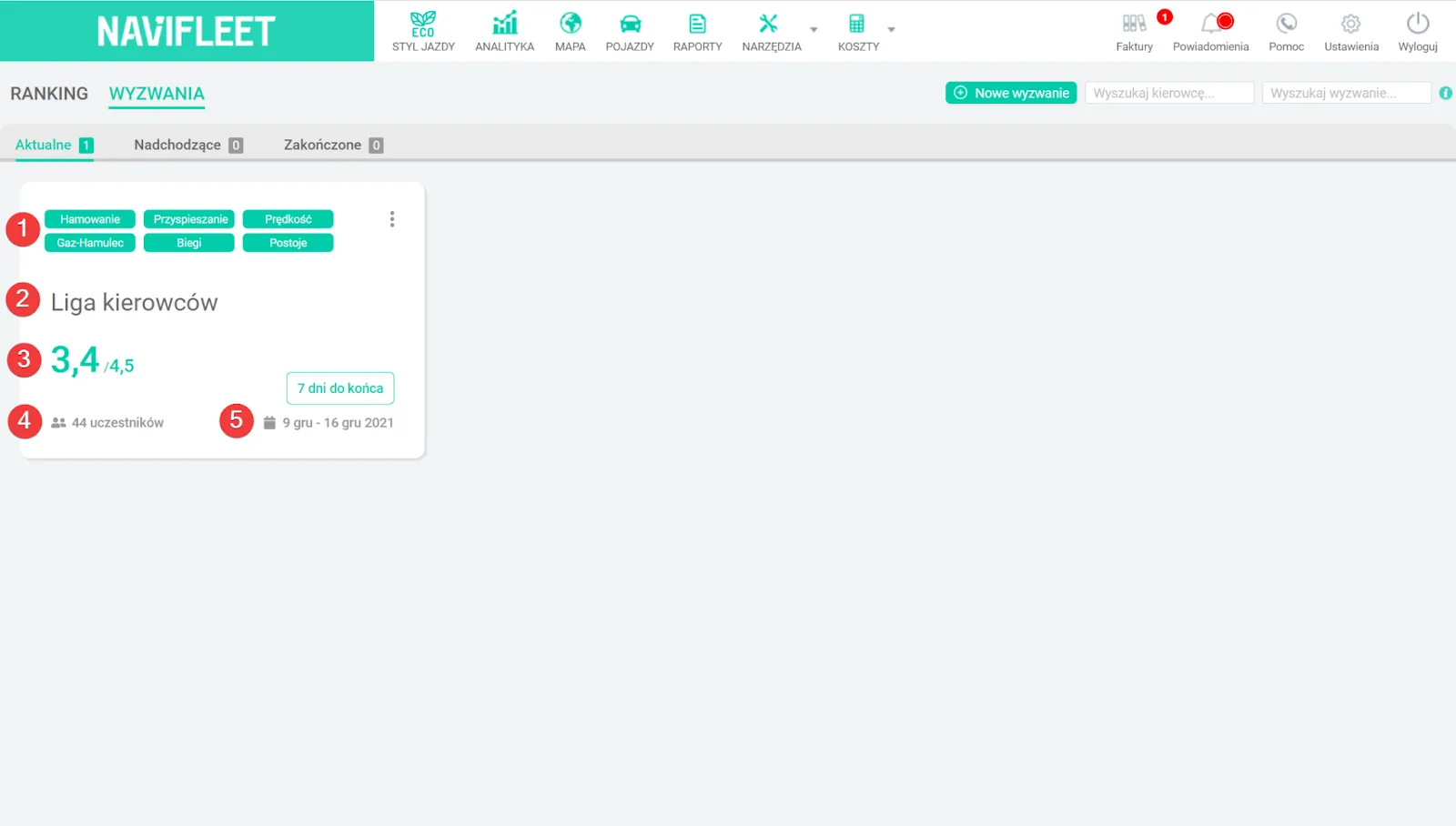
The tile for a challenge shows the following information:
The categories in which the participants compete (1).
The challenge name (2).
The average score of the challenge participants in the selected categories and the challenge goal (3).
The number of participants (4).
The competition period (5)
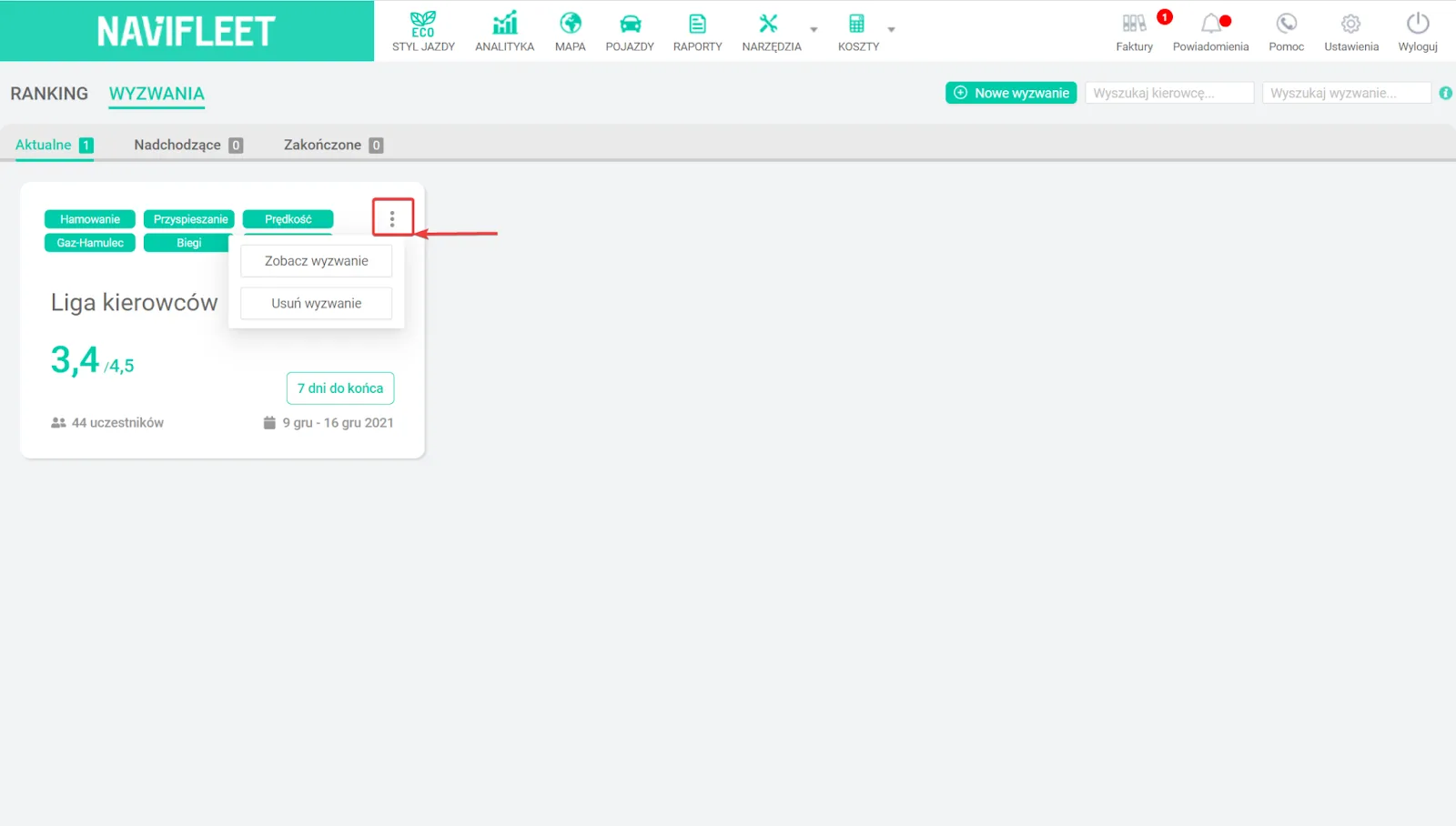
By selecting the ellipsis in the top right corner of the tile, you can open the details or delete the challenge.
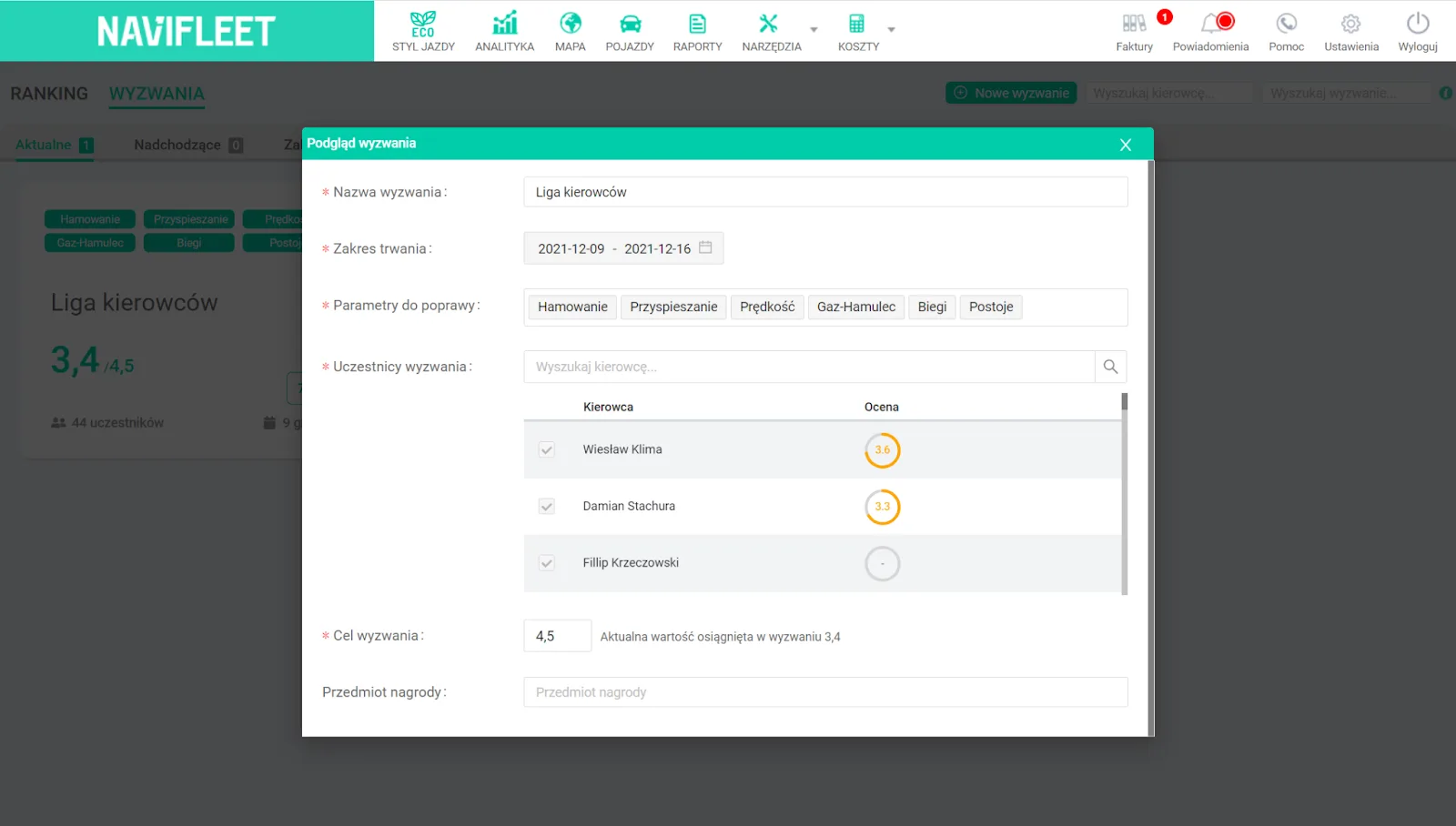
The challenge preview contains all the data defined when it was created, along with the list of participants sorted from the highest score (the current challenge ranking).