Help › Navifleet Tracker › Driving style analysis
Navifleet Driver app - getting started
Updated: 10 December 2021
The Navifleet Driver app for drivers is available in the official App Store and Google Play stores.
Logging in
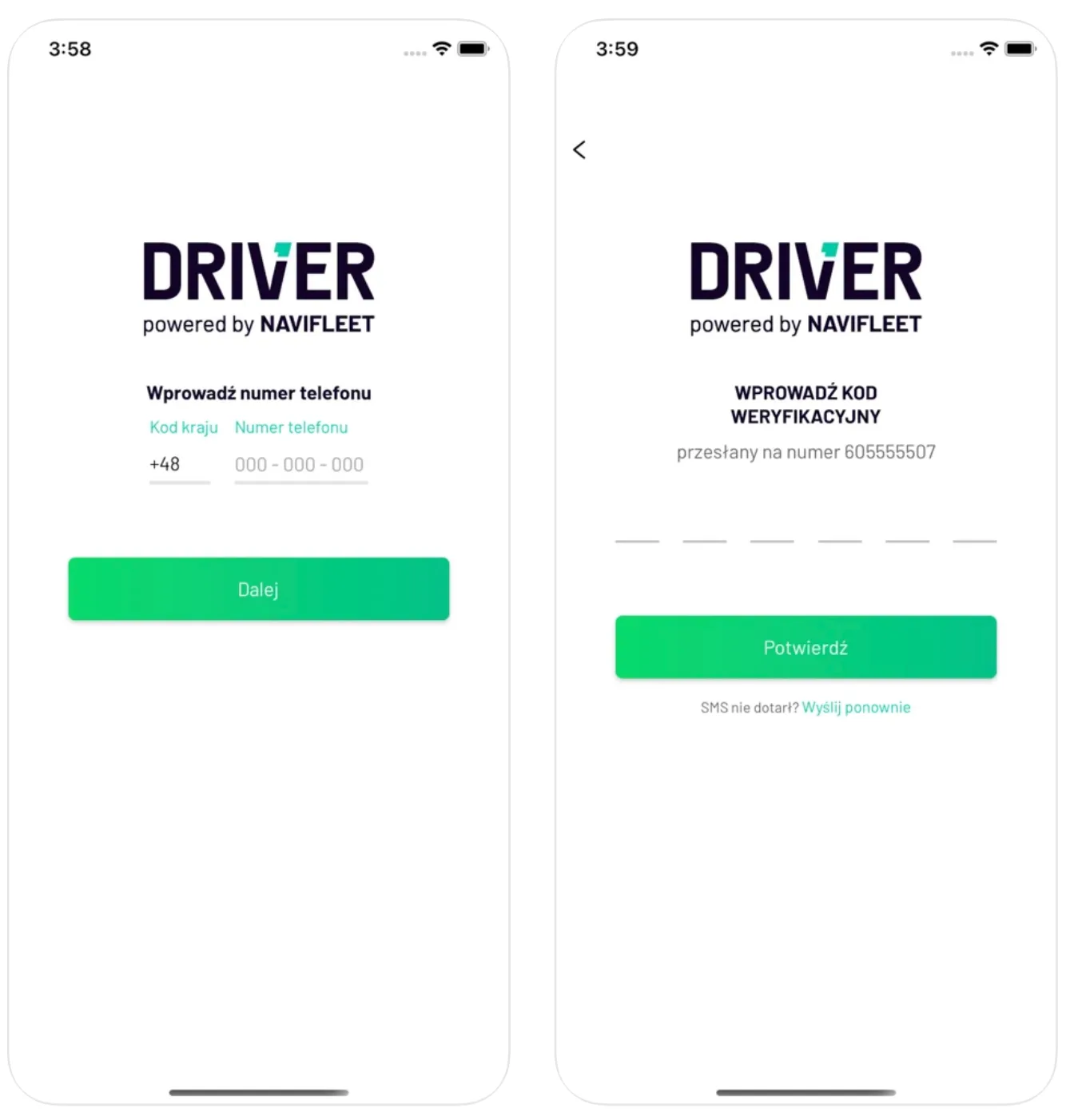
The driver does not need a dedicated access account for the app. Login is done using the phone number entered by the fleet manager in the gps.navifleet.pl app in the TOOLS -> DRIVERS tab.
After entering the number, the driver will receive an SMS with a verification code. Once it is entered, the driver will have access to their results in the Navifleet Driver app.
Driving style rating in the Navifleet Driver app
After logging in, the start screen is displayed. It shows the driver's rating together with the partial ratings. Using the calendar icon, you can change the date range of the displayed rating (the list of the most serious errors always covers a period of 7 days).
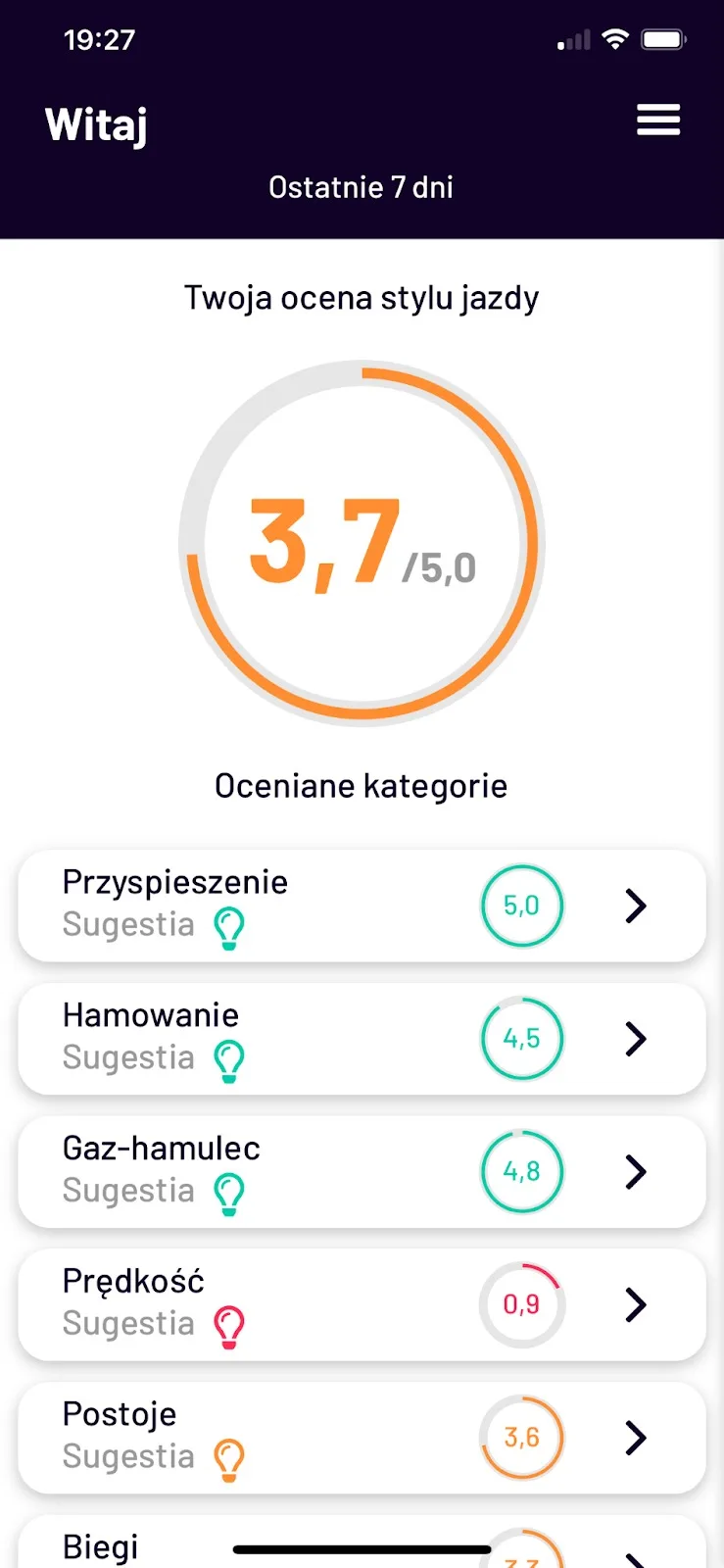
For each rated category the app displays suggestions tailored to the driver's driving style (depending on the rating received). After clicking the suggestion icon you will receive praise or a useful tip appropriate to how you are doing in that category.
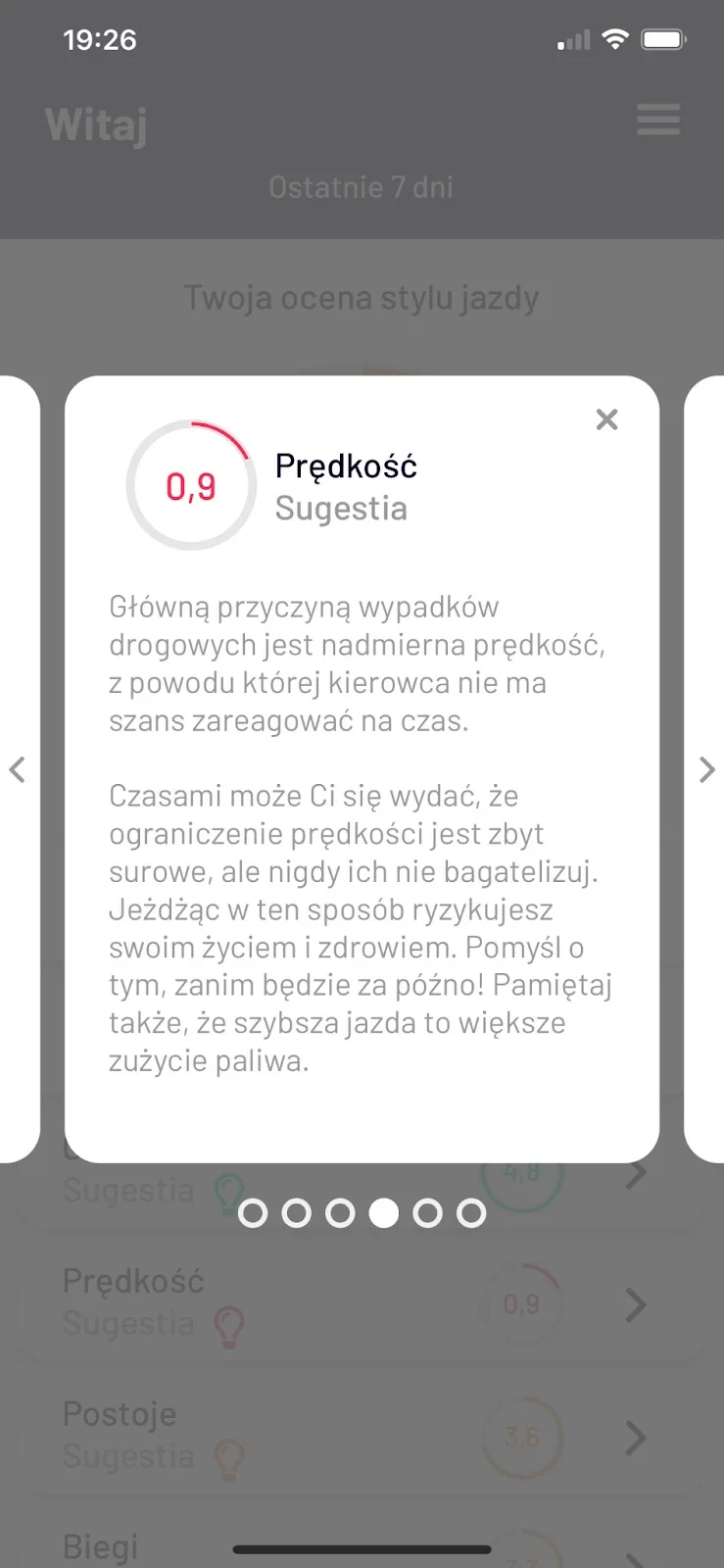
Example suggestion for a low speed rating.
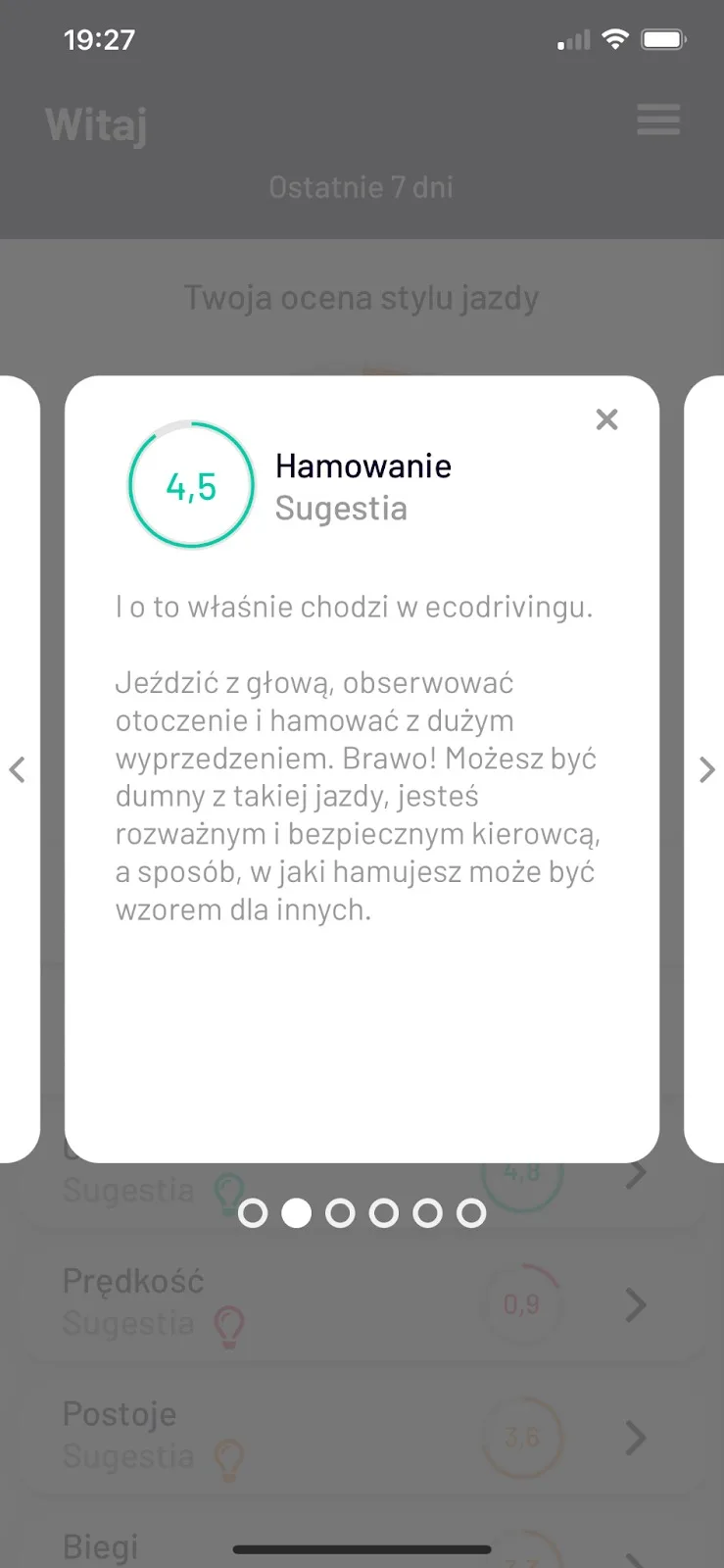
Example suggestion for a high braking rating
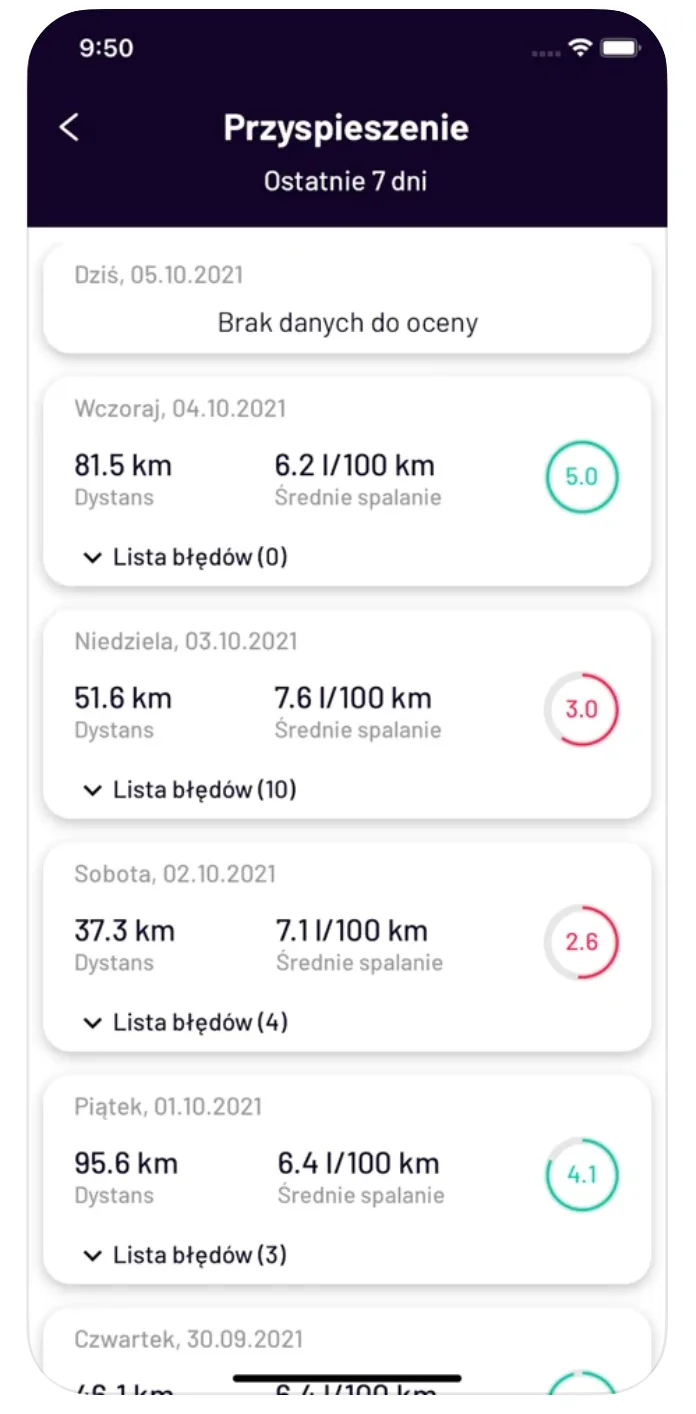
After clicking the rating value for a given category, you will go to detailed statistics where you can check your scores on individual days. They contain information on how your journeys were rated over the last 7 days. Along with the rating, basic statistics are displayed, such as average fuel consumption and distance travelled. Each day's entry can be expanded to show the list of the most serious errors.
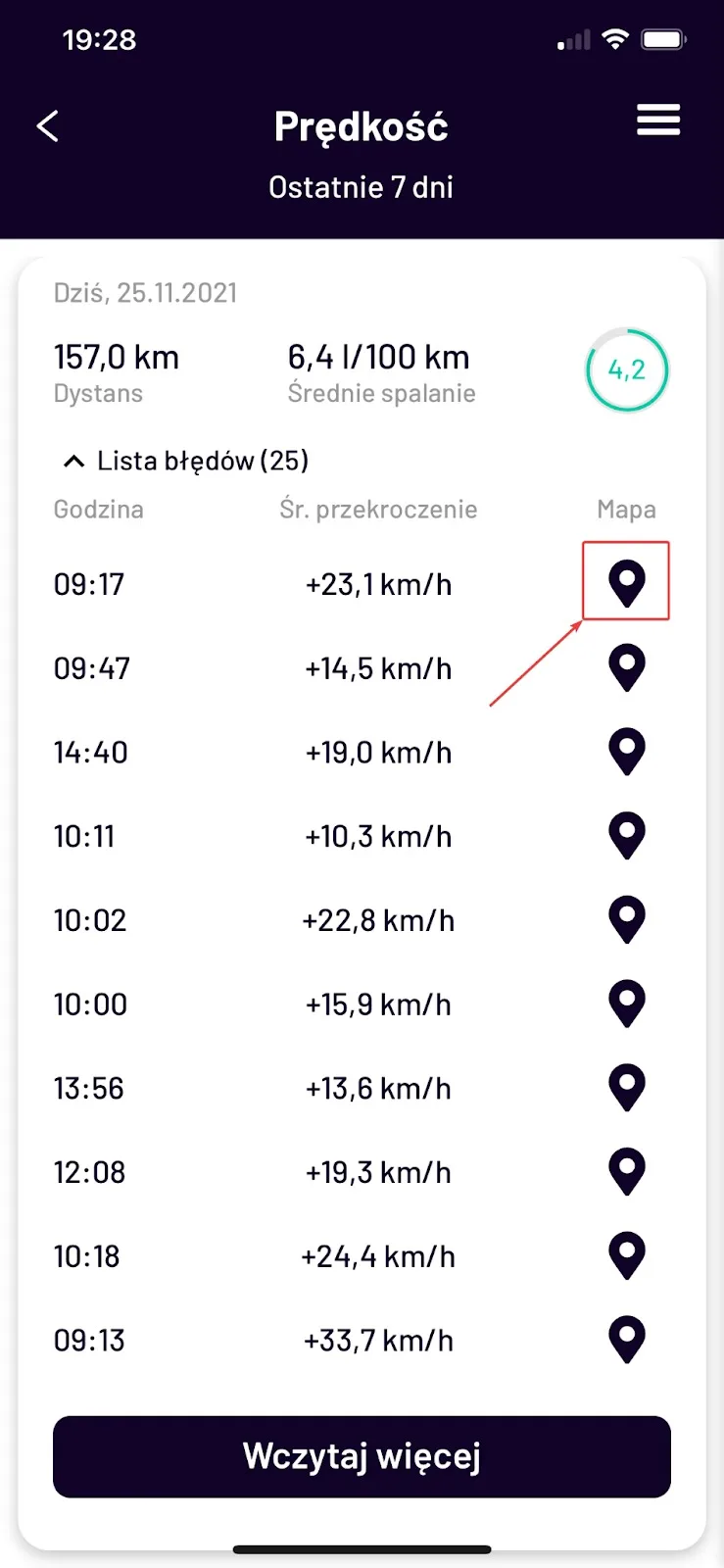
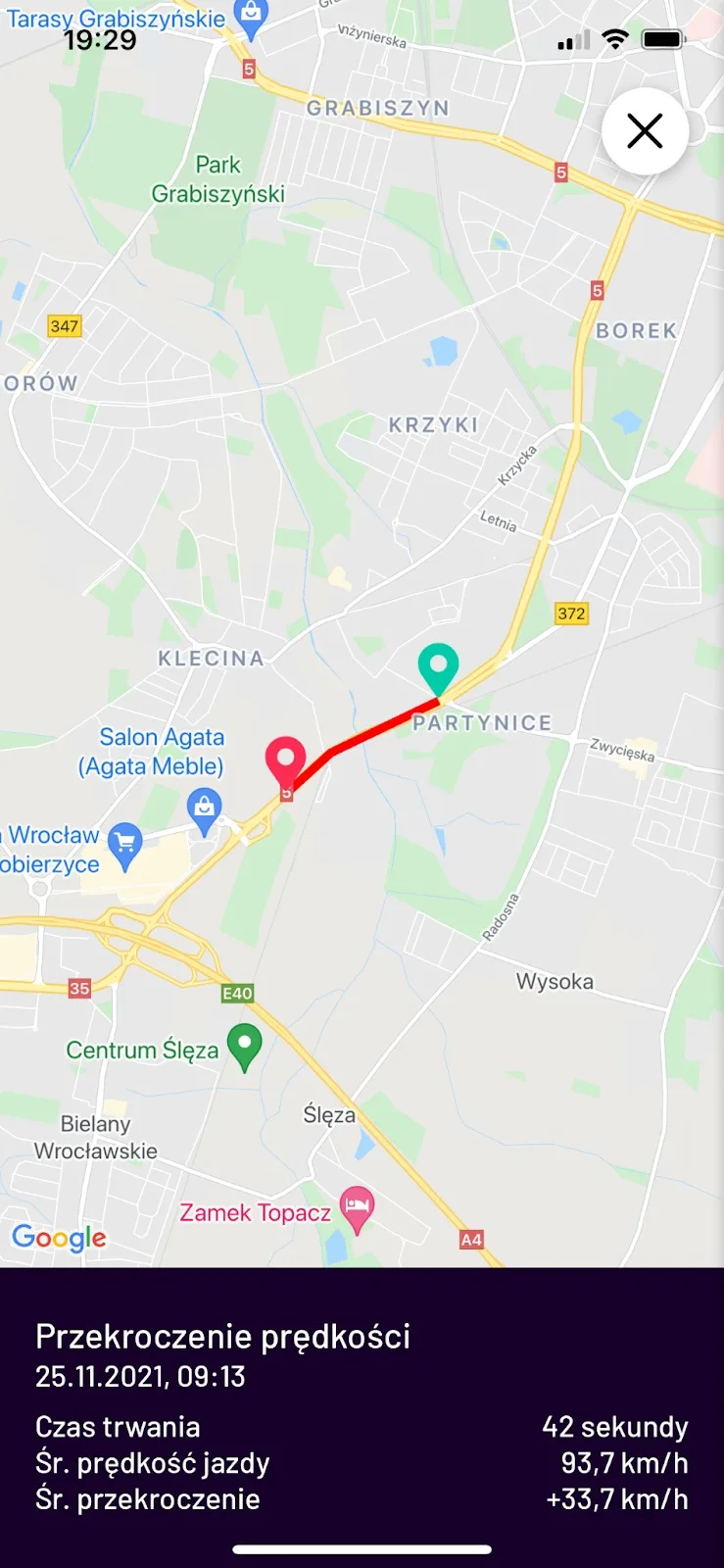
After expanding the list you can see the details of the error (the time it occurred and the scale of the error, depending on the rated category). Selecting the marker icon on the map will display the place where the error was made.
How to monitor challenges in Navifleet Driver?
If a driver has been selected by the fleet manager to take part in a challenge, they can follow the competition and their progress in the Navifleet Driver app.
To go to the challenges view, select Menu -> Challenges.
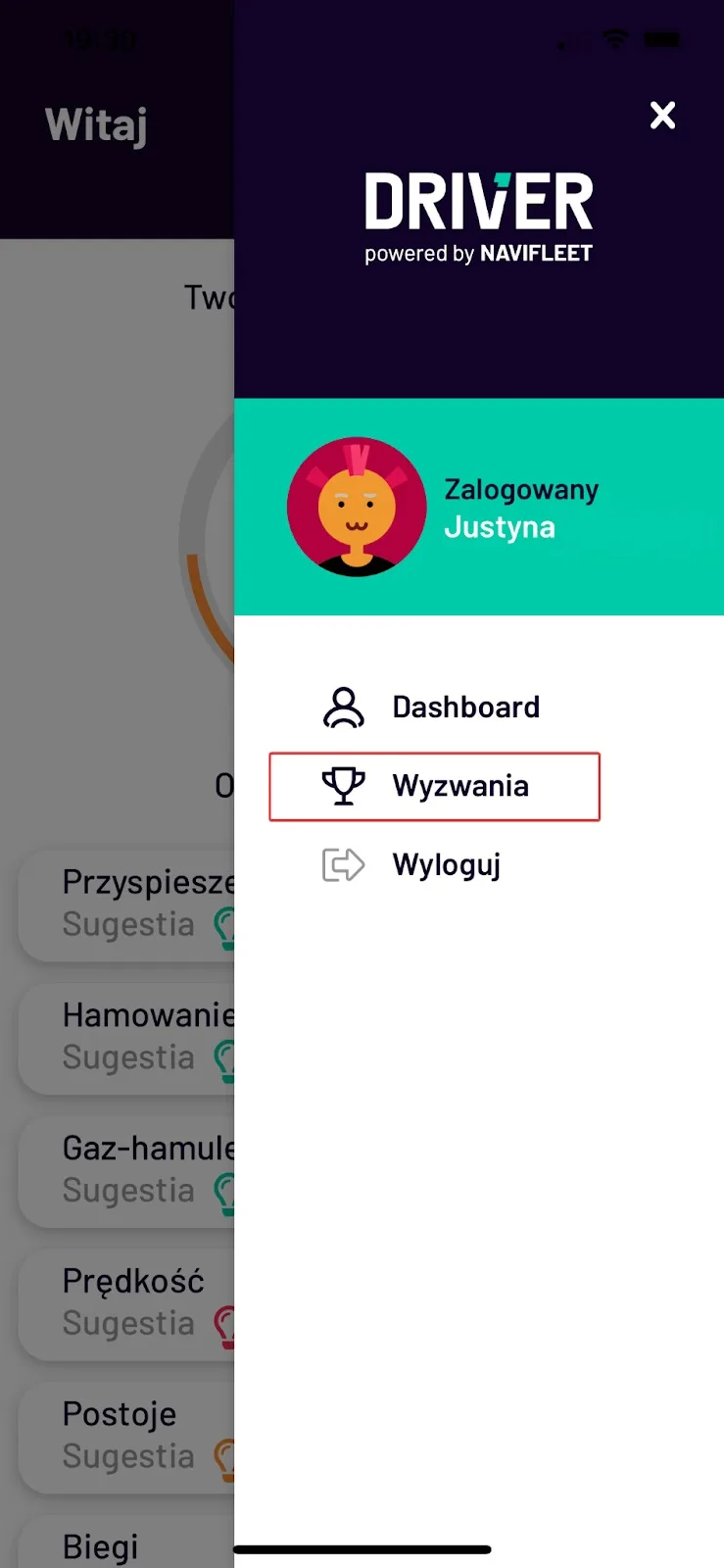
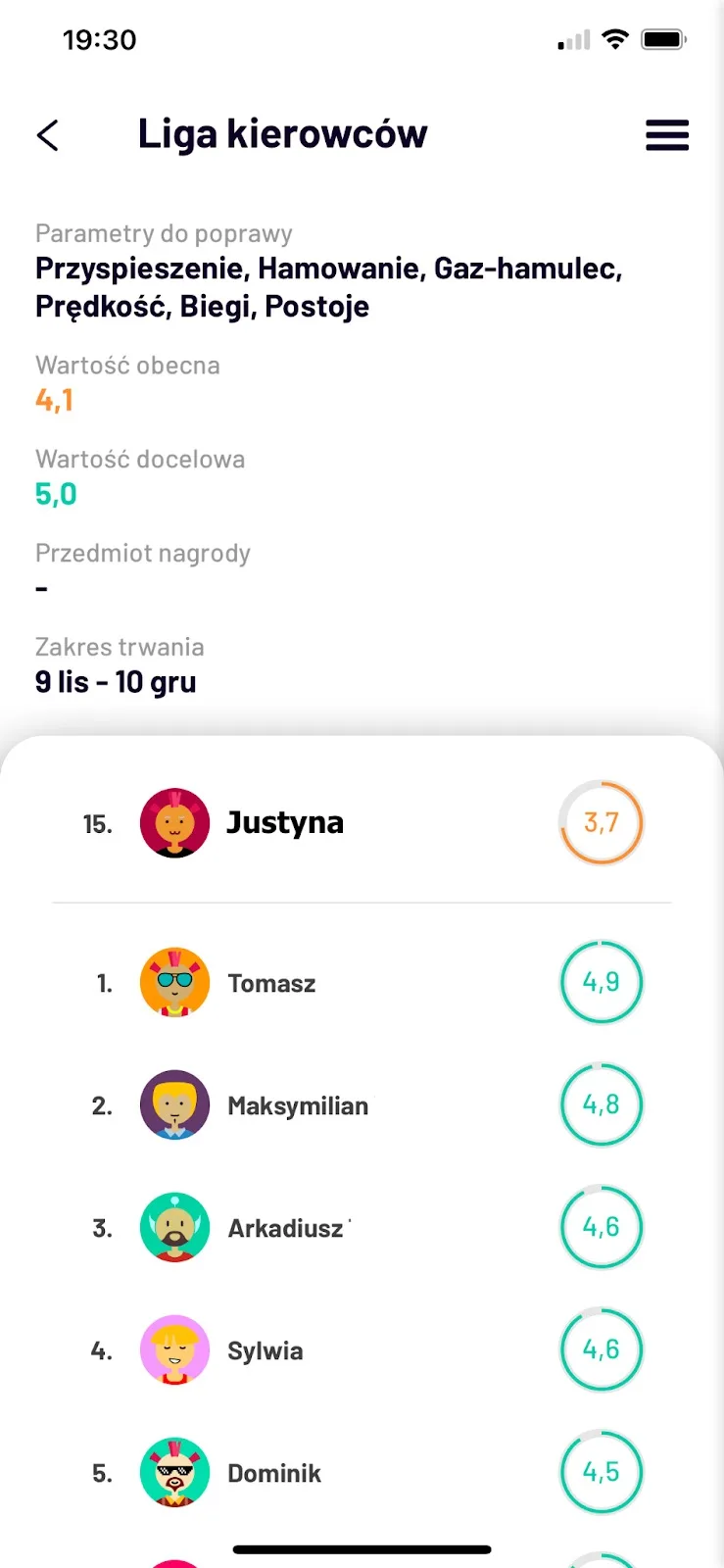
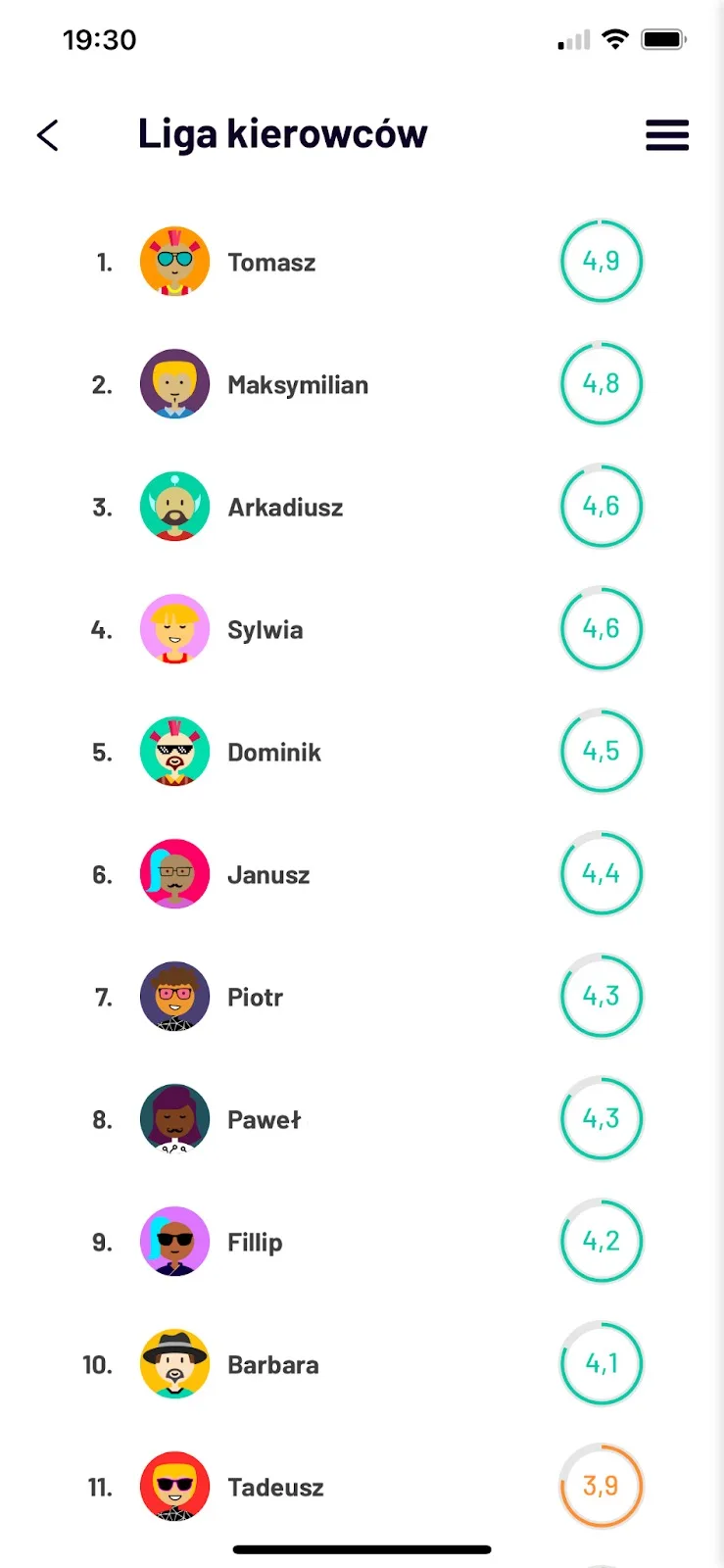
Challenges are divided into active, upcoming and completed. After clicking a challenge, information about it is displayed together with the full, current driver ranking.
The most important piece of information, apart from the ranking of participants with their private ratings, is the target value, i.e. the challenge goal that participants must achieve. The parameter called current value shows the participants' average rating for the categories selected in the challenge over the duration of the challenge.
It is up to the fleet manager to define the winners; the most popular competition models are:
the top n places win,
those who achieved the target value win,
the whole group wins if it achieved the target value.