
Help › Navifleet Tracker › GPS vehicle tracking
Diagnostic alert from the GPS tracker
Updated: 28 August 2024
GPS trackers installed in vehicles send vehicle position data to the Navifleet server at set intervals:
- for a moving vehicle, position data is sent every few seconds,
- for a stationary vehicle, position data is sent every 2 hours.
If a vehicle has not sent its last position within 2 hours, a diagnostic alert is shown next to that vehicle in the Navifleet app.
A system user can set their own tracker inactivity period after which the diagnostic alert is sent, and can also temporarily suspend the alert.
CONTENTS
- Deliberately ignoring a diagnostic alert
- How to change the period from loss of signal to showing the alert
- How to switch off the alert for a set period
- Related topics
Deliberately ignoring a diagnostic alert
Often you know that nothing is wrong with the vehicle despite the lack of signal: the reason for the missing tracker signal is known and needs no action. For example, the battery may have been disconnected, or the car may be parked in an underground car park or a metal garage where the tracker cannot properly receive the GPS signal from the satellite.
In such situations a Navifleet system user can deliberately switch off diagnostic alerts for a period they define. In the vehicle data you can set the tracker inactivity period after which the app shows a diagnostic alert. You can also set the date on which tracker notifications resume. The diagnostic alert then reappears only after the date declared by the user.
How to change the period from loss of signal to showing the alert
- Select the Map tab. The map and vehicle list appear.
- On the vehicle list, pick the vehicle and select Edit vehicle data.

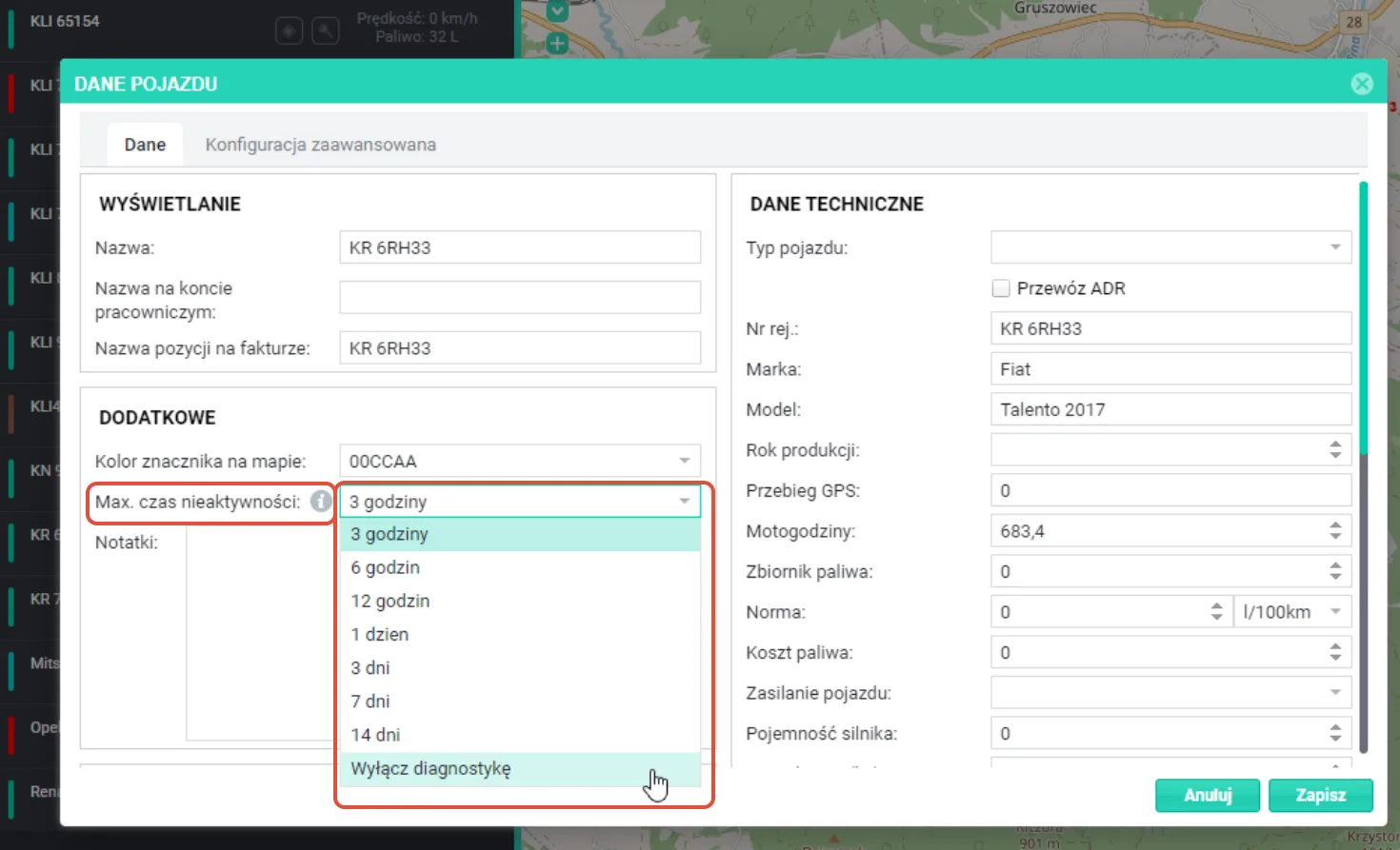
- In the Max inactivity time field, choose for how many hours/days diagnostic alerts from the tracker are to be switched off. You can also select Disable diagnostics.
How to switch off the alert for a set period
- Select the Map tab. The map and vehicle list appear.
- Find the vehicle with the diagnostic alert next to it.
- Click the red triangle. The Diagnostics form window appears.
- In the diagnostics form, in the Resume date field, set the date from which a missing tracker signal will cause the tracker diagnostics form to be shown.