Help › Navifleet Tracker › GPS vehicle tracking
Working time report according to TACHO
Updated: 28 January 2022
The working time report according to TACHO lets you monitor the driver's work. It uses data from the digital tachograph. For the report to give reliable readings, the vehicle's D8 bus must be connected via a GPS tracker or a TMR device (which also serves to download DDD files remotely without leaving the office).
How to generate the working time report according to TACHO?
To generate the report, go to the Reportstab, then select the Working time according to TACHO type.
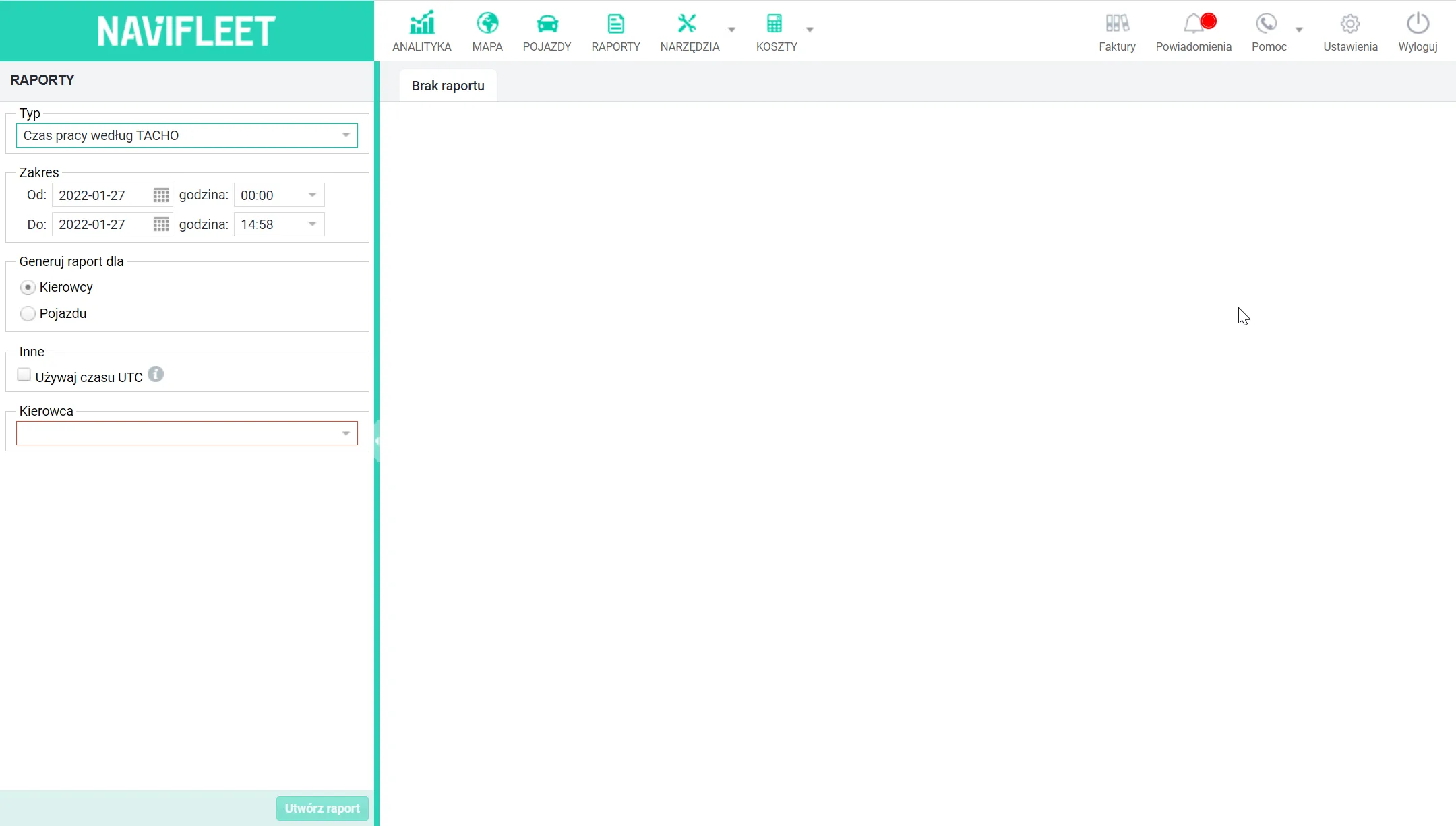
In the window that appears, you can choose the date range, the object (vehicle or driver) for which the report will be generated, and a specific driver. You can also use UTC time.
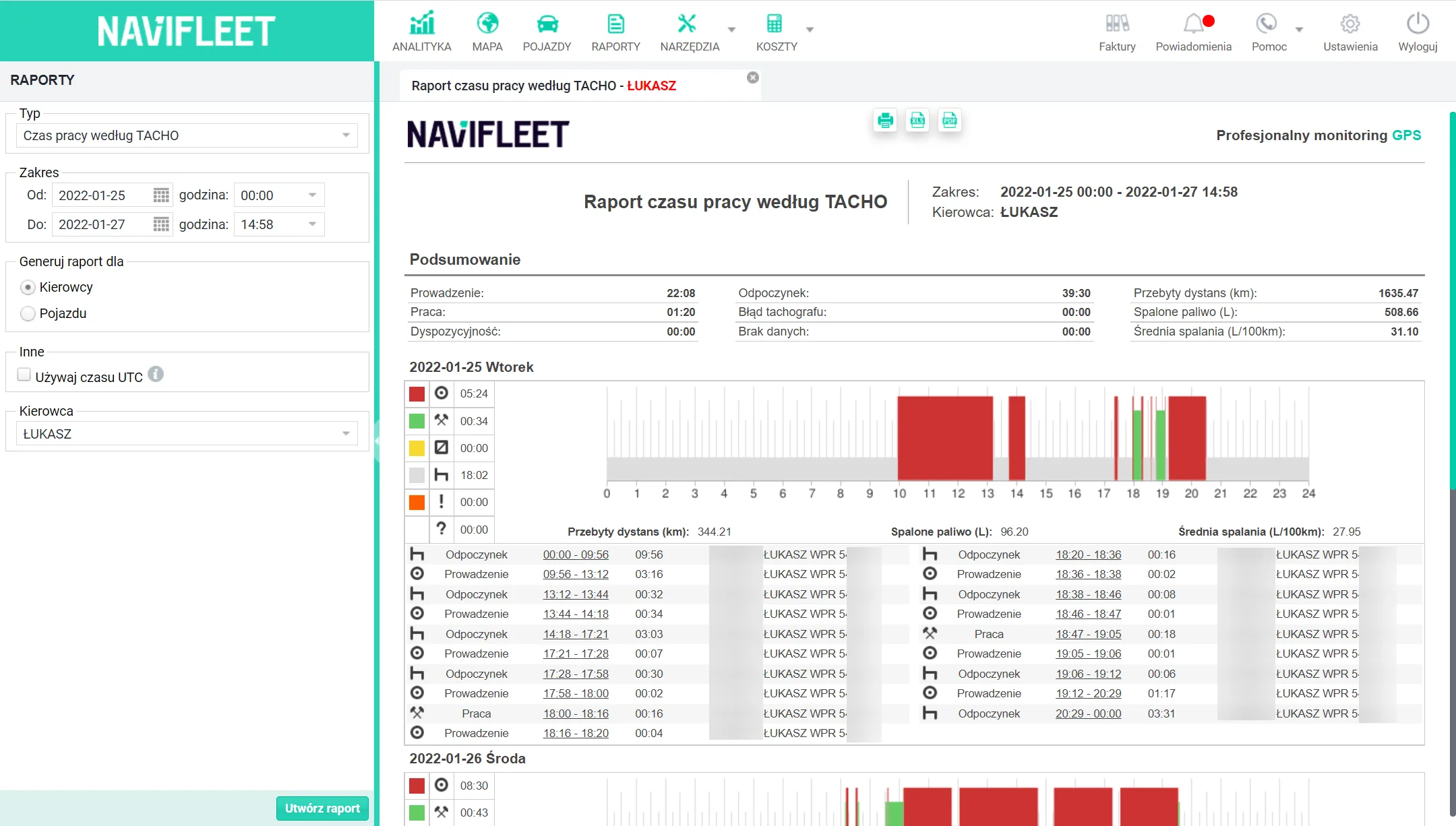
The generated report presents information about the activities performed by the given driver. At the very top there is a summary of the whole period you selected. Below, the modes are broken down into individual days. The data for each day is visualised on a chart. Under the chart there is a precise list of the recorded work modes and an exact record of the time interval during which a given mode was active (click it to check the location where the mode occurred).
Each activity has its own symbol. The report distinguishes the following modes:
| Symbol/colour on the chart | Mode |
 | Driving |
 | Work |
 | Availability |
 | Rest |
 | Tachograph error |
 | No data |
Driver activity chart
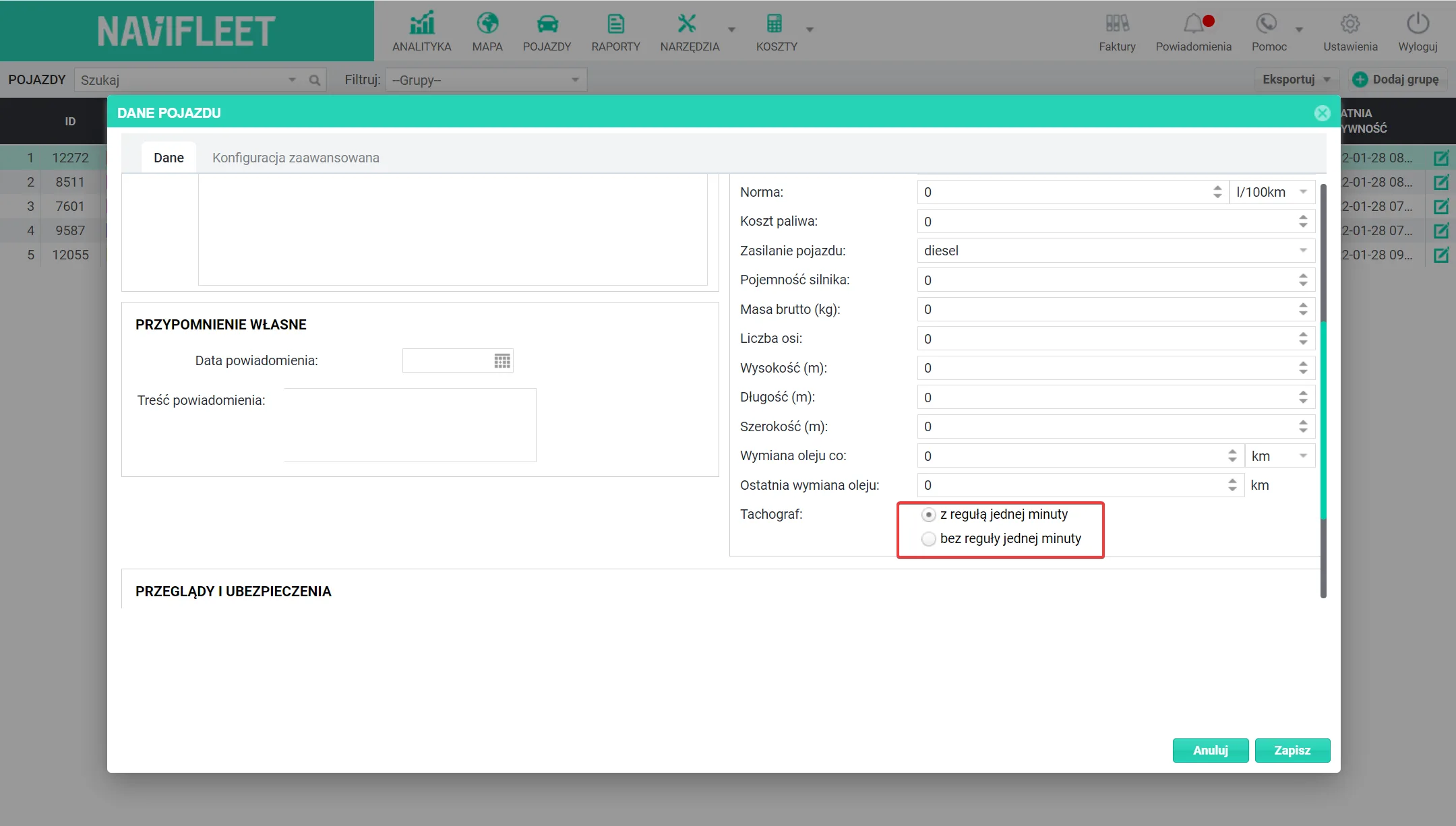
The data coming in from the vehicles is processed by the Navifleet algorithm according to the one-minute rule. It is important to specify at the very beginning, in the vehicle panel, whether the tachograph fitted in it uses the same rule.