
Help › Navifleet Tracker › GPS vehicle tracking
Online location, route history
Updated: 17 March 2022
In this article you will learn:
- how the app works
- where to download the mobile version
- how to adjust the app settings
- how to generate a route history
Online location
The Navifleet app works in a web browser and as a mobile app, which can be downloaded from Google Play and the App Store; immediately after logging in, the user sees the current location of all vehicles.
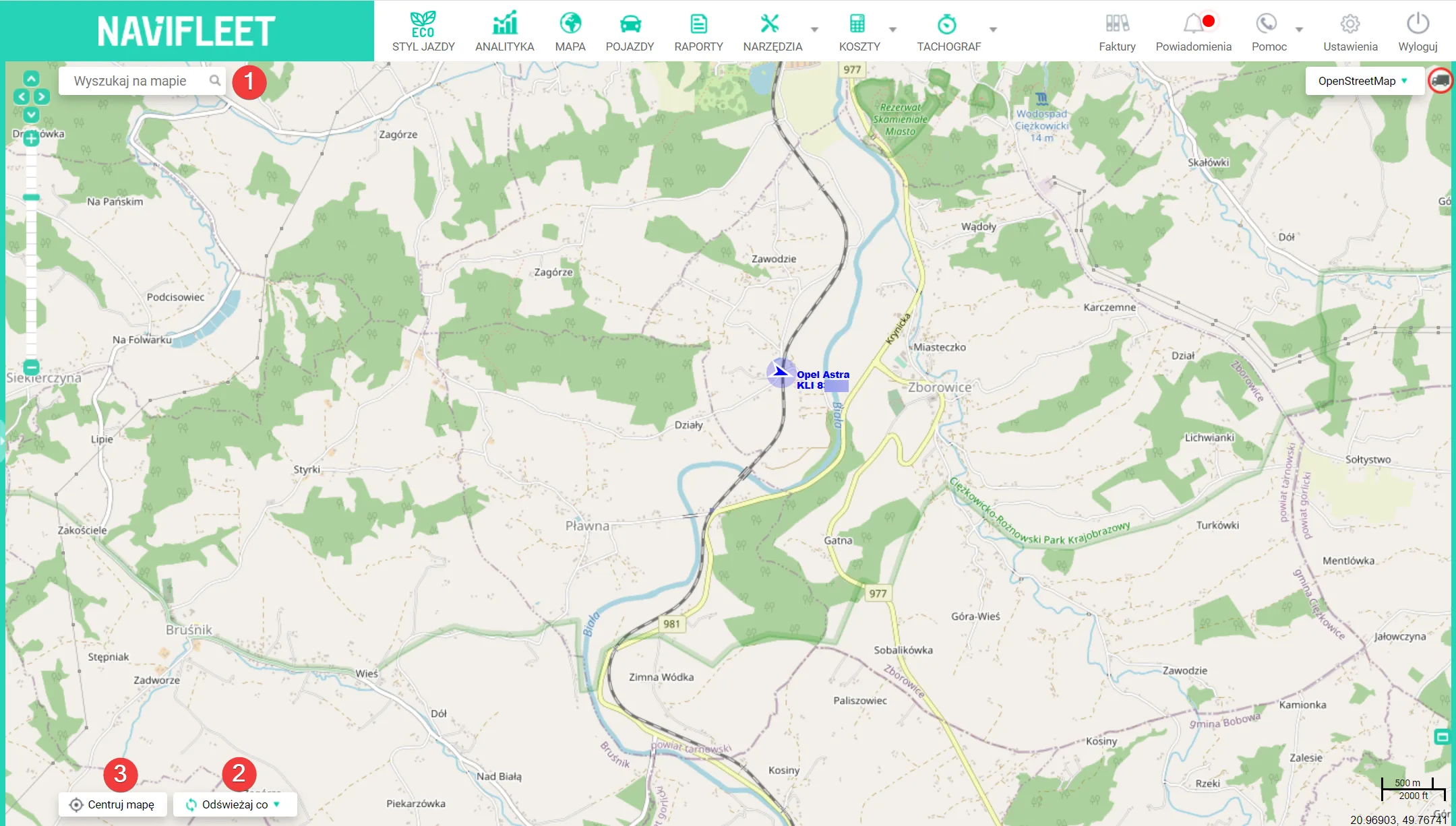
The user can immediately search for an address (1) or set the vehicle position refresh interval (2). In addition, the map centring option (3) can be activated on the group of tracked vehicles.
On the left side of the screen there is a list of monitored vehicles with information on the country they are in, tracking activity and ignition state.
From the list you can also open the vehicle details panel and display the route history as a trace on the map. After clicking an item on the list, the app shows the user vehicle details such as the current mileage and driving status, GPS coverage, current speed, time of recording and current address, as well as the duration of any stop and the exact coordinates with a link to Google Maps.
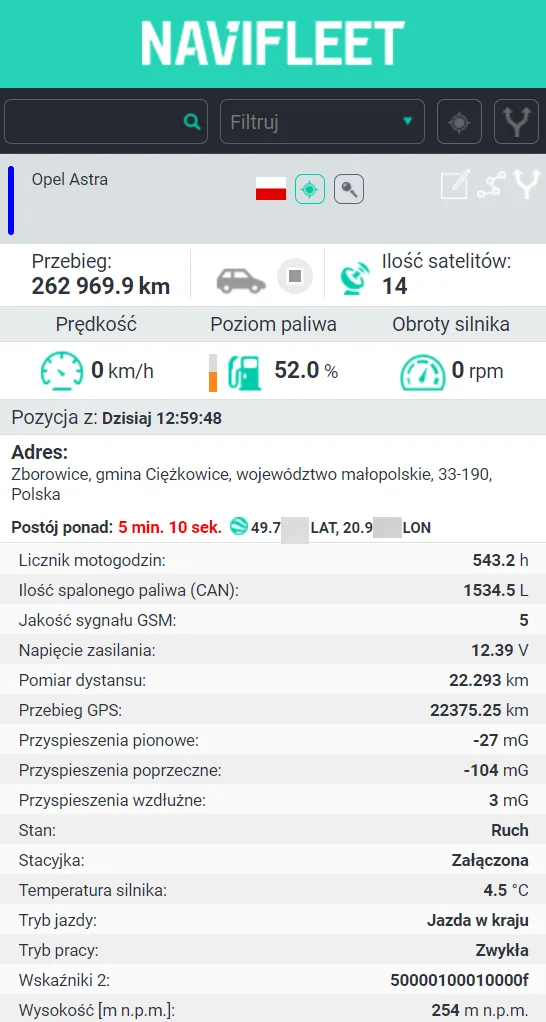
After clicking an item on the list, the app opens a mini-map with the exact location of the vehicle. To start position tracking, activate the refresh vehicle position option. This can be done once for all objects or only for those selected on the list. How often the current position is refreshed depends on the refresh setting in the bottom left corner of the map. Position refreshing works even when the vehicle details view is closed.
In the settings you can choose which information should be displayed on the vehicle list on the left and which next to the vehicle markers on the map.
Route history
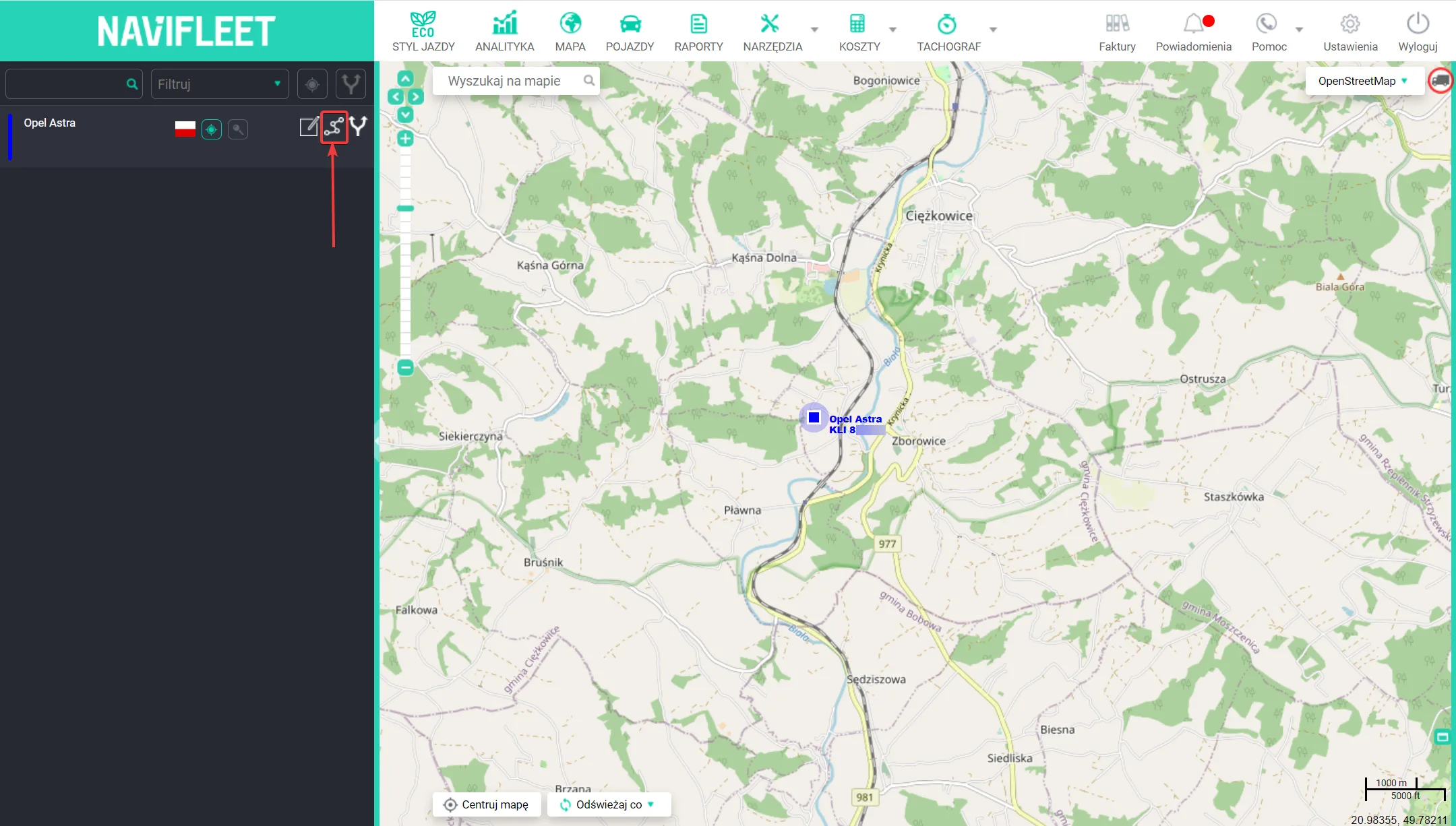
The vehicle route history in graphical form is available from the map. To display the route trace for a selected vehicle, click the corresponding button on the vehicle list on the left and define the time interval for which the route is to be displayed.
The platform instantly renders a preview of the route on the map and marks the start and end with appropriate flags. Red dots on the route represent stops, numbered in the order they occurred
Below the map there are general route statistics including distance travelled, driving and stop time and fuel burned. The route summary also presents information on average and maximum speed, as well as a chart showing what distance was covered in selected speed ranges. Even more in-depth route analysis is possible thanks to the data charts.

A great convenience is the ability to zoom the charts by selecting a fragment with the mouse cursor. Apart from flexible charts, the user has an interactive map on which they can analyse the route travelled in depth. Simply left-click any point on the route. This will display details such as the date and time the position was recorded and the current parameter values.
The map also has a range of useful features, such as an address search, a range editing panel and a set of tools including a distance measurement tool, an area measurement tool and route export to external systems.