
Help › Navifleet Tracker › GPS vehicle tracking
Vehicle work statuses and notifications
Updated: 21 January 2022
A vehicle work status is a combination of vehicle operating parameters linked to a recorded GPS position. The more parameters are available, the more elaborate the work statuses can be. Once configured, statuses can be displayed on the vehicle list, in the route history or in a dedicated status report.
Work statuses can be used to create SMS or e-mail notifications. They will be sent once the defined conditions are met.
Statuses and notifications can be configured very flexibly. Using arithmetic operators you can create advanced conditions. This lets you monitor various aspects of the vehicle's condition and catch potential problems. With statuses and notifications you can build a detailed system of alerts and reports, fully tailored to the needs of a particular user.
CONTENTS
- Types of statuses
- How to configure statuses and notifications
- Status change information
- How to set how a status is displayed on the vehicle list and on the map
- Order in which statuses are checked on the vehicle list
- Displaying a status in the route history or in a report
- Related topics
Types of statuses
In the NaviFleet app you can set an unlimited number of work statuses. A vehicle work status may relate to:
- the vehicle's current position and current data,
- the vehicle's historical position and historical data.
Events shown as a work status may occur as:
- continuous events (e.g. driving at high engine revs),
- point events (e.g. a door opening at a stop).
How to configure statuses and notifications?
- Select Settings, then the Statuses and notifications tab.
- Select Add. A condition definition form will open.
- Enter a name for the set you are defining.
- On the list on the left, tick the vehicles for which the work status is to be marked.
- In the Actions section tick the appropriate checkbox (you can tick both)
- Save as notification
- Save as status.
- In the Conditions section select one of the options:
- All conditions must be met (for example high engine revs and pressure on the accelerator pedal)
- or At least one condition must be met for example high engine revs or pressure on the accelerator pedal).
- In the Conditions section click the Add button and select from the list of parameters the one you want to limit using arithmetic operators, for example "speed / greater than / 140".
Note: The condition configuration can only be saved if all the selected vehicles have the reading of the selected parameter configured.
Tip: if you want to set a status or notification related to being inside or outside a specific zone, you can skip the Conditions section. - In the Locations section tick whether the event must occur
- anywhere
- in selected zones,
- outside selected zones,
- on entering/leaving a zone.
- In the Time of occurrence section tick when the status or notification is to be active.
- Once all the conditions are defined, click Save.
Note: Only one status is assigned to a single position on the map, so the configured conditions should not overlap.
Status change information
Status change information can be presented as:
- an SMS or e-mail notification and in the app (notification history),
- the colour of the vehicle marker on the map,
- the name of the current status on the vehicle list,
- the colour of the trace on the map in the route history,
- in reports generated in the app.
How to set how a status is displayed on the vehicle list and on the map?
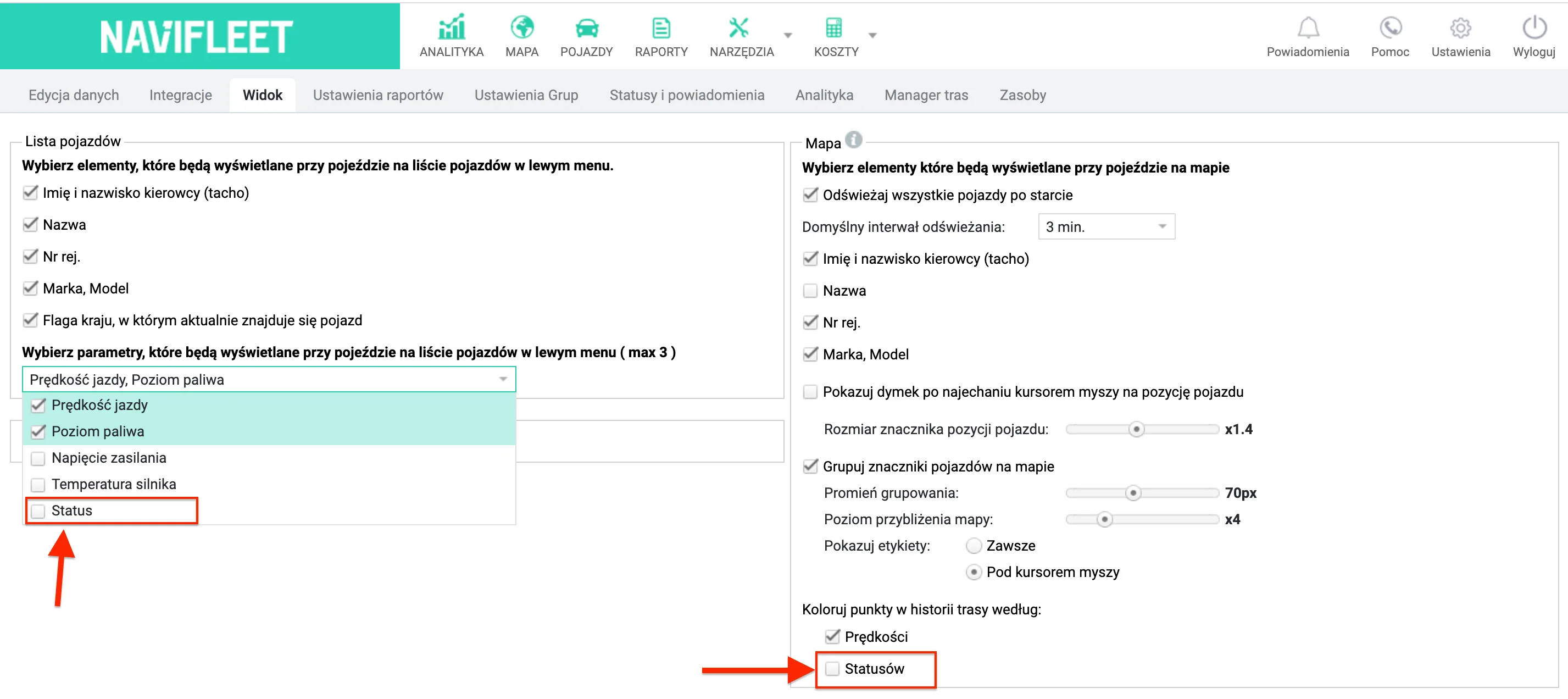
- Select Settings, then the View tab.
- Tick the view elements that are to be displayed next to the vehicle on the vehicle list and on the map.
- Click Save.
- Refresh the browser window. The selected elements will appear on the vehicle list and on the map.
Order in which statuses are checked on the vehicle list

The app checks statuses in the set order for each vehicle. In the route history and at the current position it displays only the first status whose conditions were met at a given GPS position. Status parameters in the report are calculated regardless of how many statuses occurred at the same time. Statuses placed highest on the list have the highest priority. The order can be changed by drag and drop.
Displaying a status in the route history or in a report
Vehicle statuses are presented
- in the route history – this way you can read the time and place of occurrence
- and in the report – the total duration, distance travelled and fuel burned are available.
When displaying a status as a route trace on the map, for greater clarity we recommend switching off the Colour route trace by speed option in the view settings. Statuses will then be coloured with the colours set for each of them. A section of the route on which none of the configured statuses occurred will be shown in black.
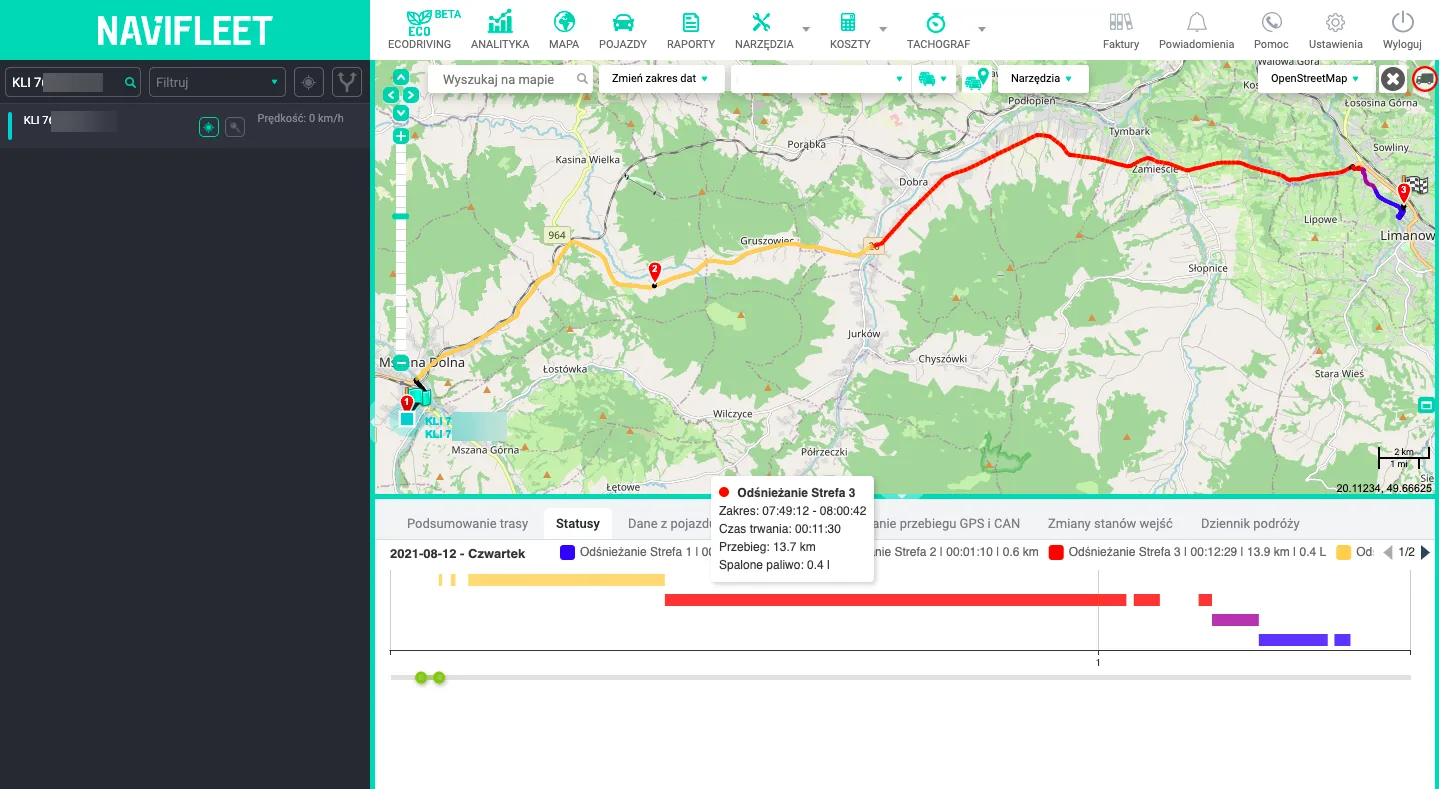
Fig. Statuses on the map
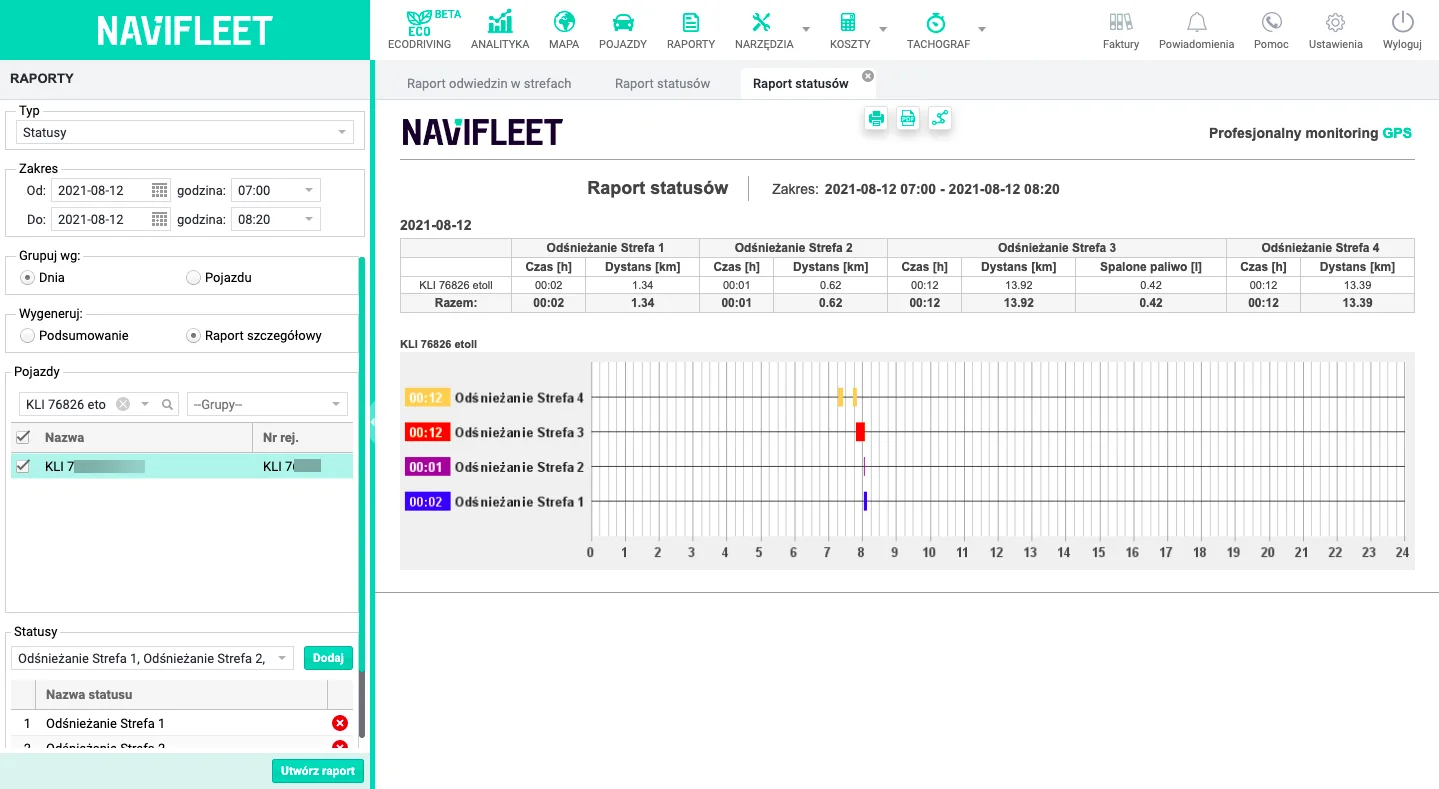
Fig. Statuses in report form