Help › Navifleet Tracker › GPS vehicle tracking
Vehicle view on the vehicle list and on the map
Updated: 13 October 2021
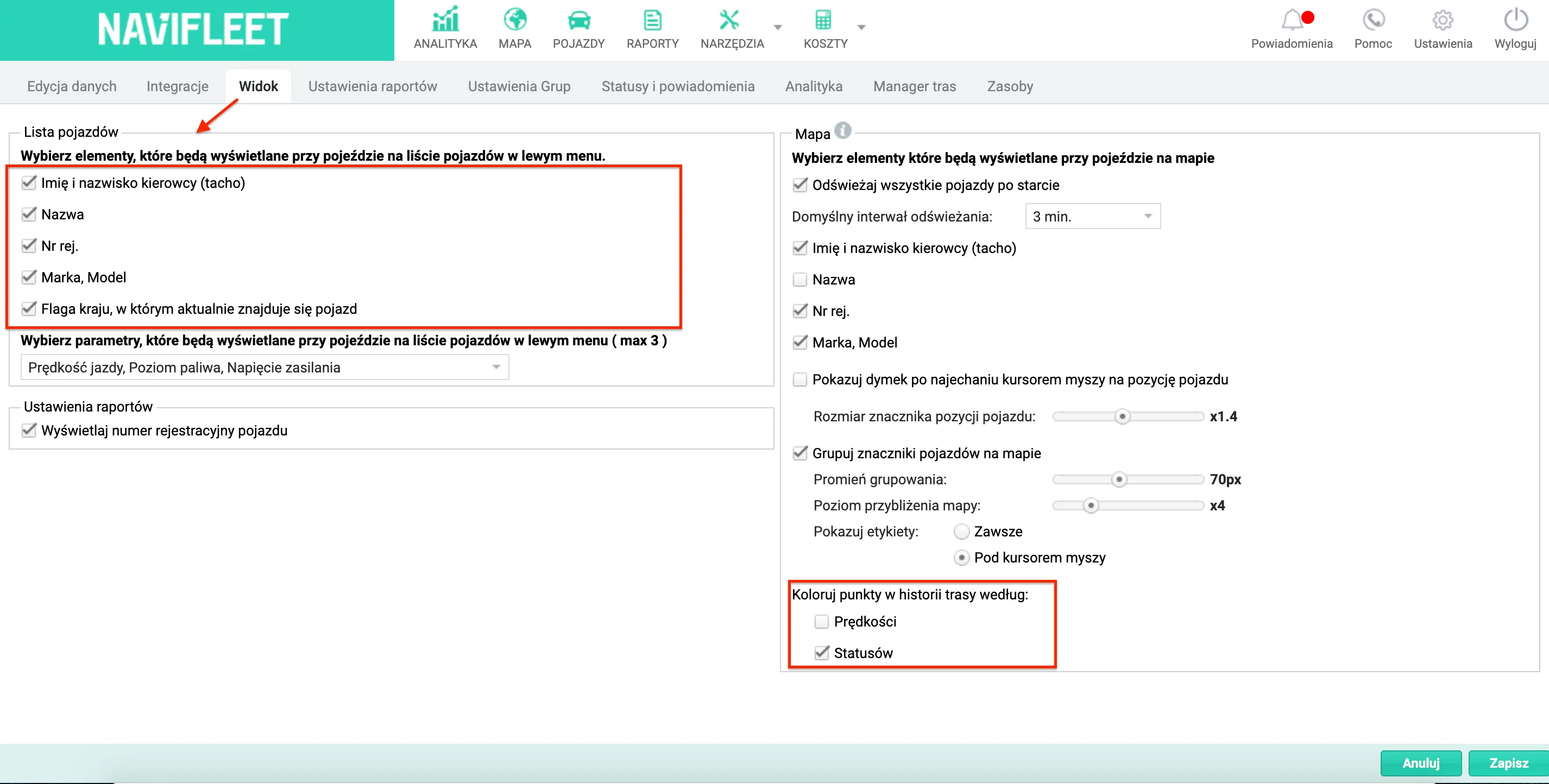
Vehicle data is displayed as a list to the left of the map and on the map itself. The user can choose which elements are displayed both on the list and on the map.
How to set how vehicle data is displayed on the vehicle list and on the map
- Select Settings, then the View tab.
- Tick the view elements that are to be displayed next to the vehicle on the vehicle list and on the map.
- Click Save.