Help › Navifleet Manager › Mobile app
How to collect, return and hand over a vehicle to another driver?
Updated: 4 August 2026
Collecting a publicly available vehicle
In the Navifleet Manager app, every user except those with the No system access profile can collect any vehicle in the group they have been assigned to.
After logging in to the app for the first time, a user with the Vehicle user role is prompted to perform their first action, i.e. collect a vehicle. Users with other roles can also collect a vehicle after their first login. This option is available alongside the other actions they can perform in the app.
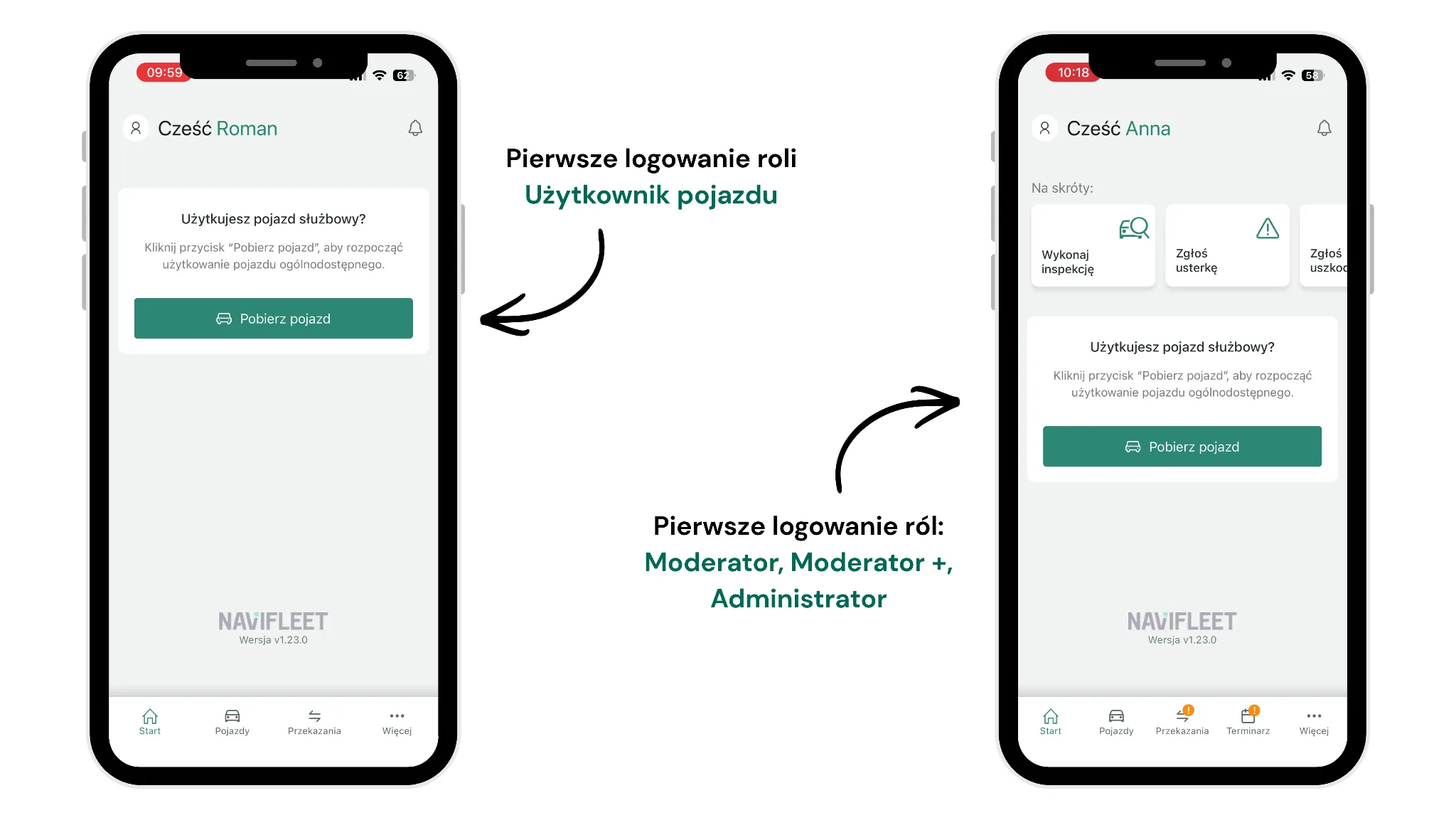
To collect a vehicle:
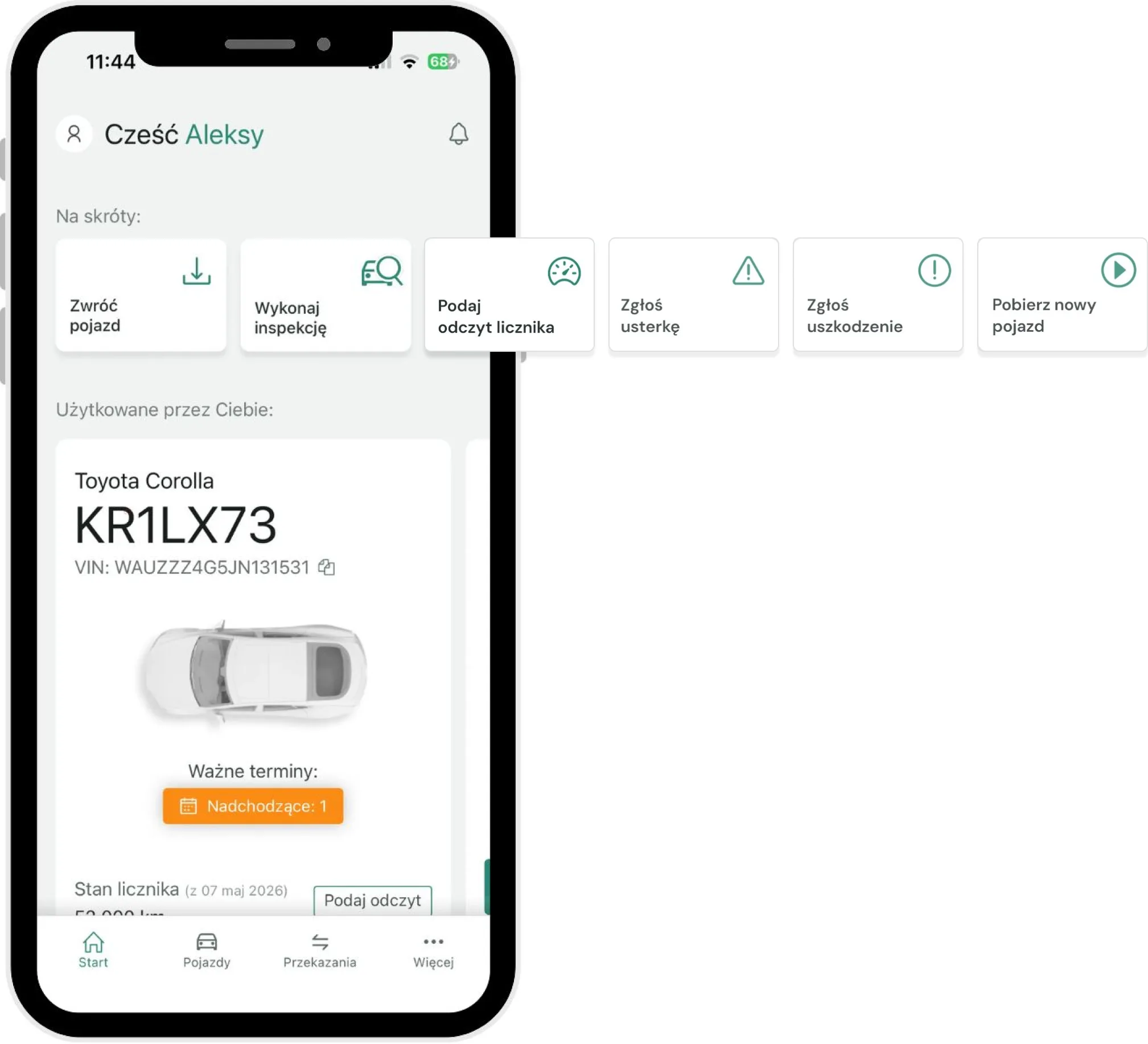
Tap the Collect vehicle button on the start screen.
Go through the whole vehicle collection process, in which you assess the vehicle's current condition and add photos taken at the moment of collection. The app guides you through the whole process step by step. At the end, the user signs the report and accepts the content of any documents (e.g. the fleet policy or terms and conditions). You can read about the details in the article How to carry out vehicle inspections?
How to return a vehicle?
To return a vehicle:
Tap the Return vehicle button on the start screen.
When returning the vehicle, carry out an inspection, assess its condition and add photos. The app guides you through the whole process and at the end lets you sign the report and accept the required documents.
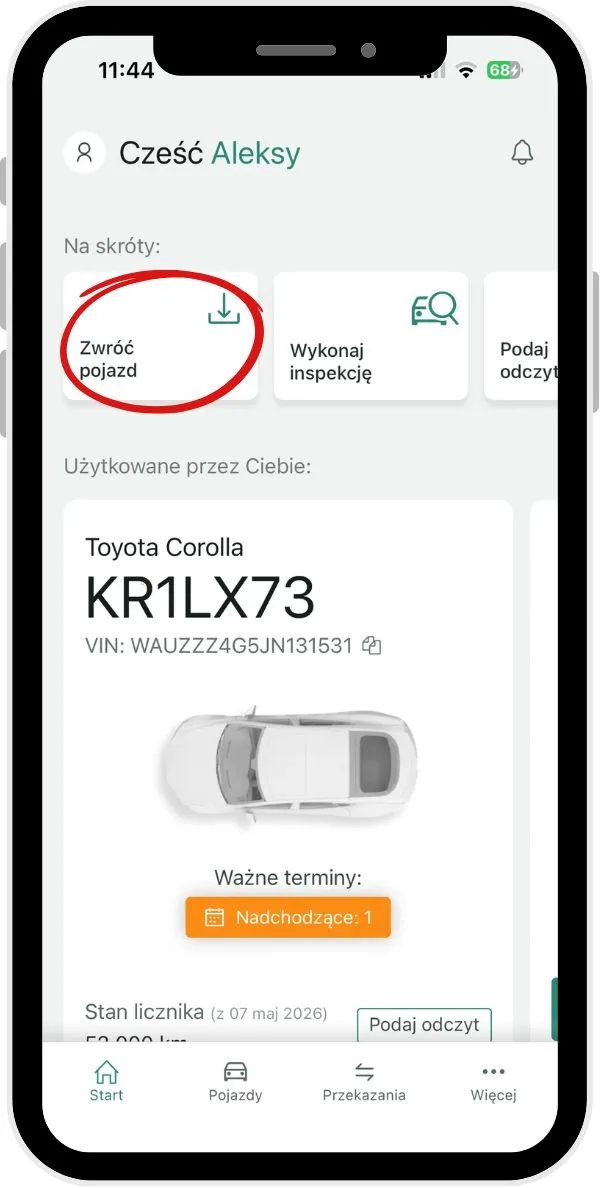
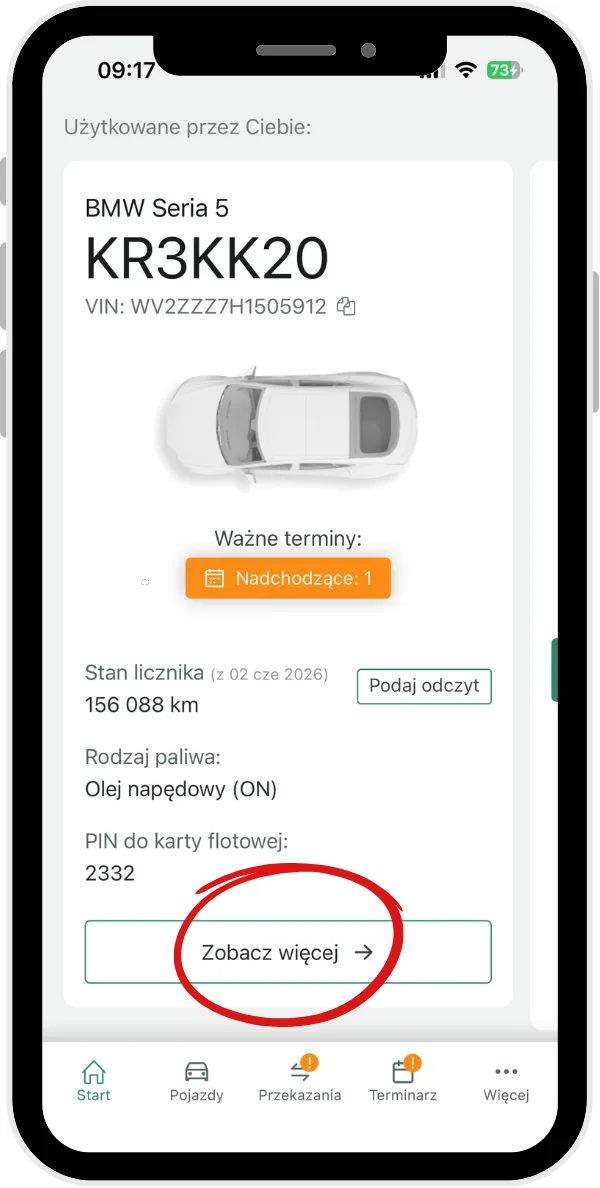
Alternative way to return a vehicle:
Tap the details of the collected vehicle in its information area or use the See morebutton.
Select the Return vehicle action.
The app asks which action you want to perform: select Fill in report, i.e. document the vehicle's condition step by step, or Save without report.
How to hand over a vehicle to another driver?
In the Navifleet Manager app, a driver can hand over the vehicle they are using directly to another driver. During the handover, both drivers should be in the same place.
The driver handing over the vehicle:
Selects the Return vehicleoption.
Selects Hand over to driver.
Scans the QR code of the driver receiving the vehicle or enters their numeric code.
Fills in the handover report following the instructions displayed in the app.
The driver receiving the vehicle:
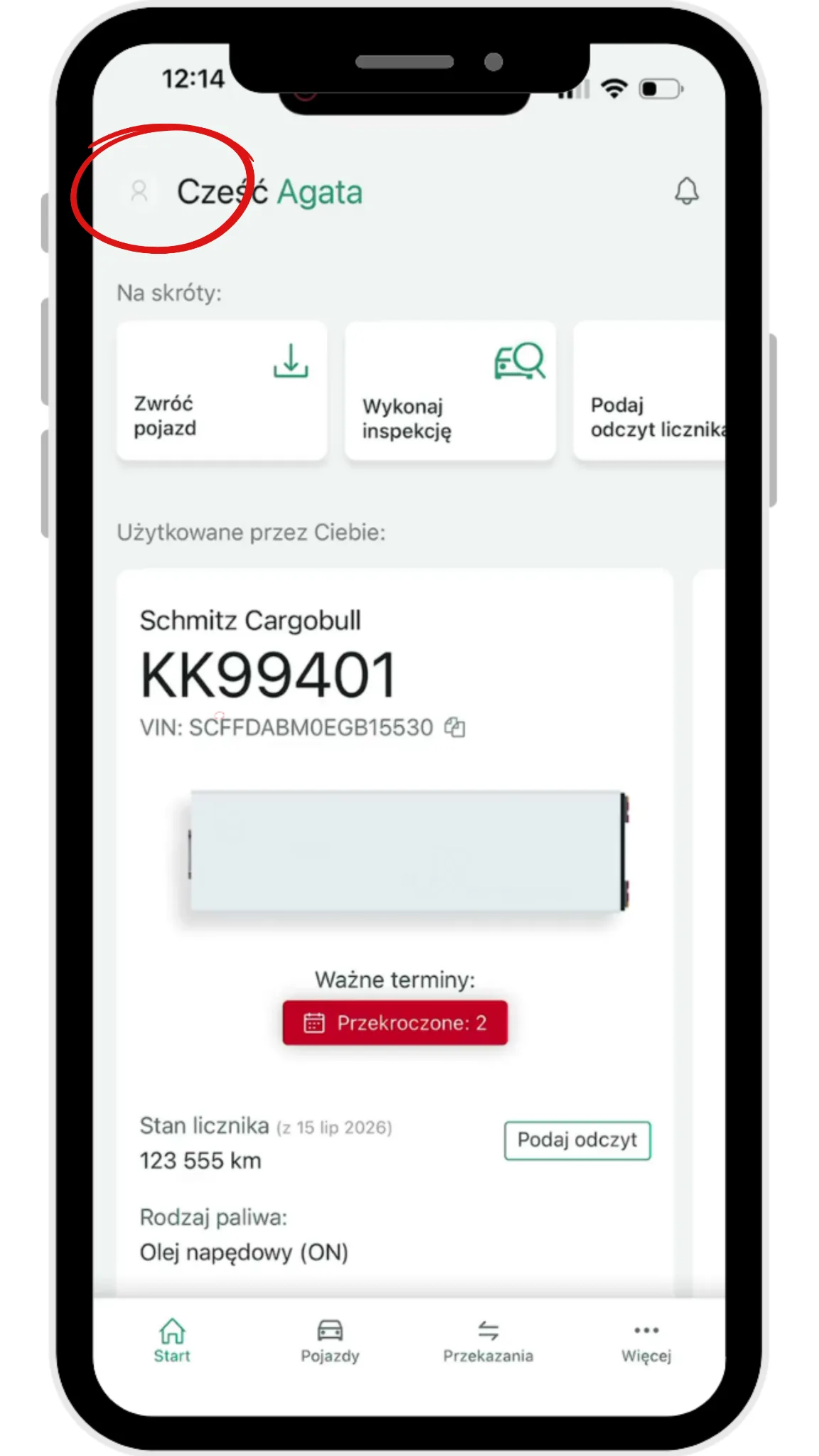
Taps the profile icon in the top left-hand corner of the screen.
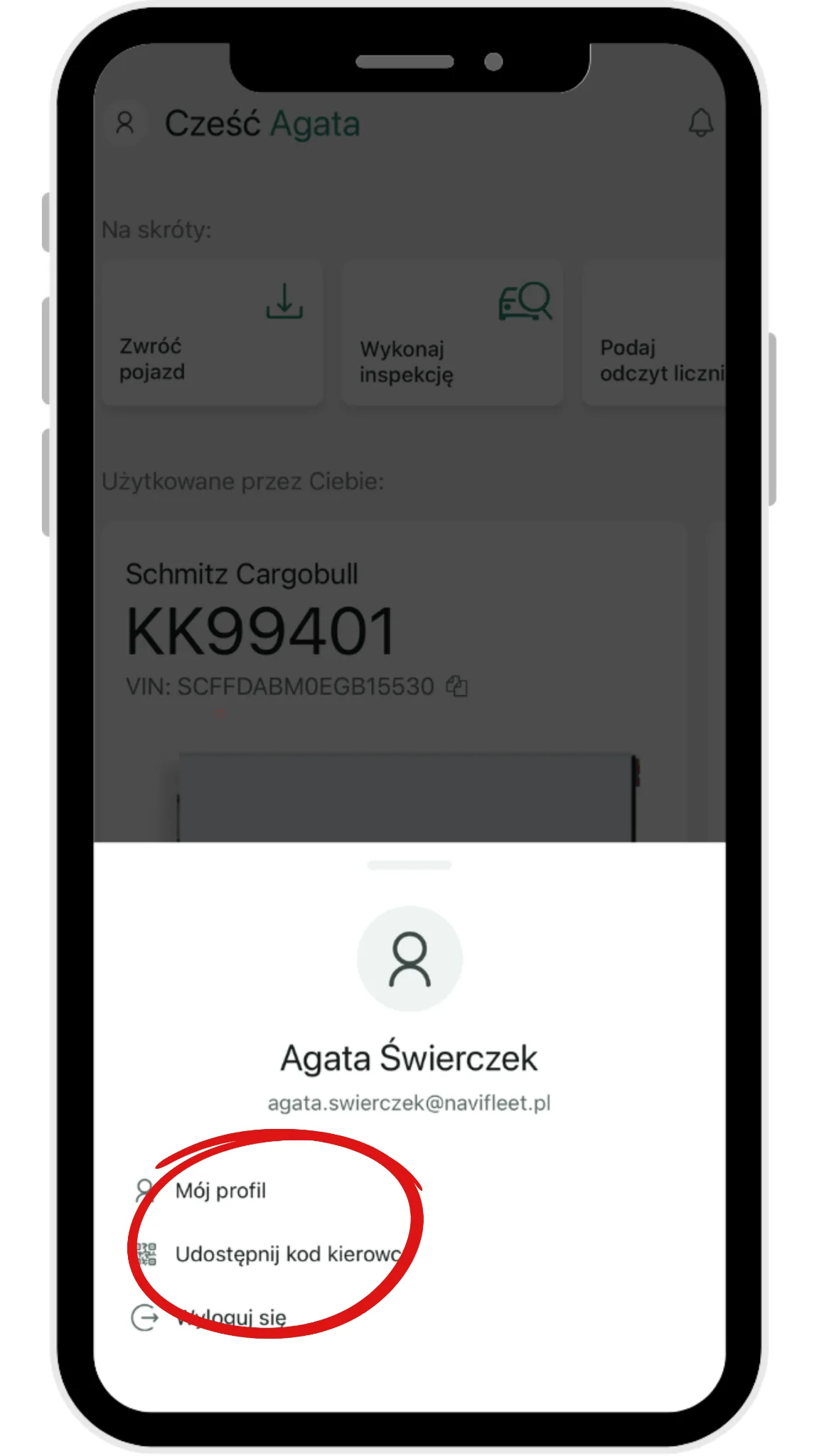
Selects the Share driver codeoption.
Displays the QR code or the numeric code.
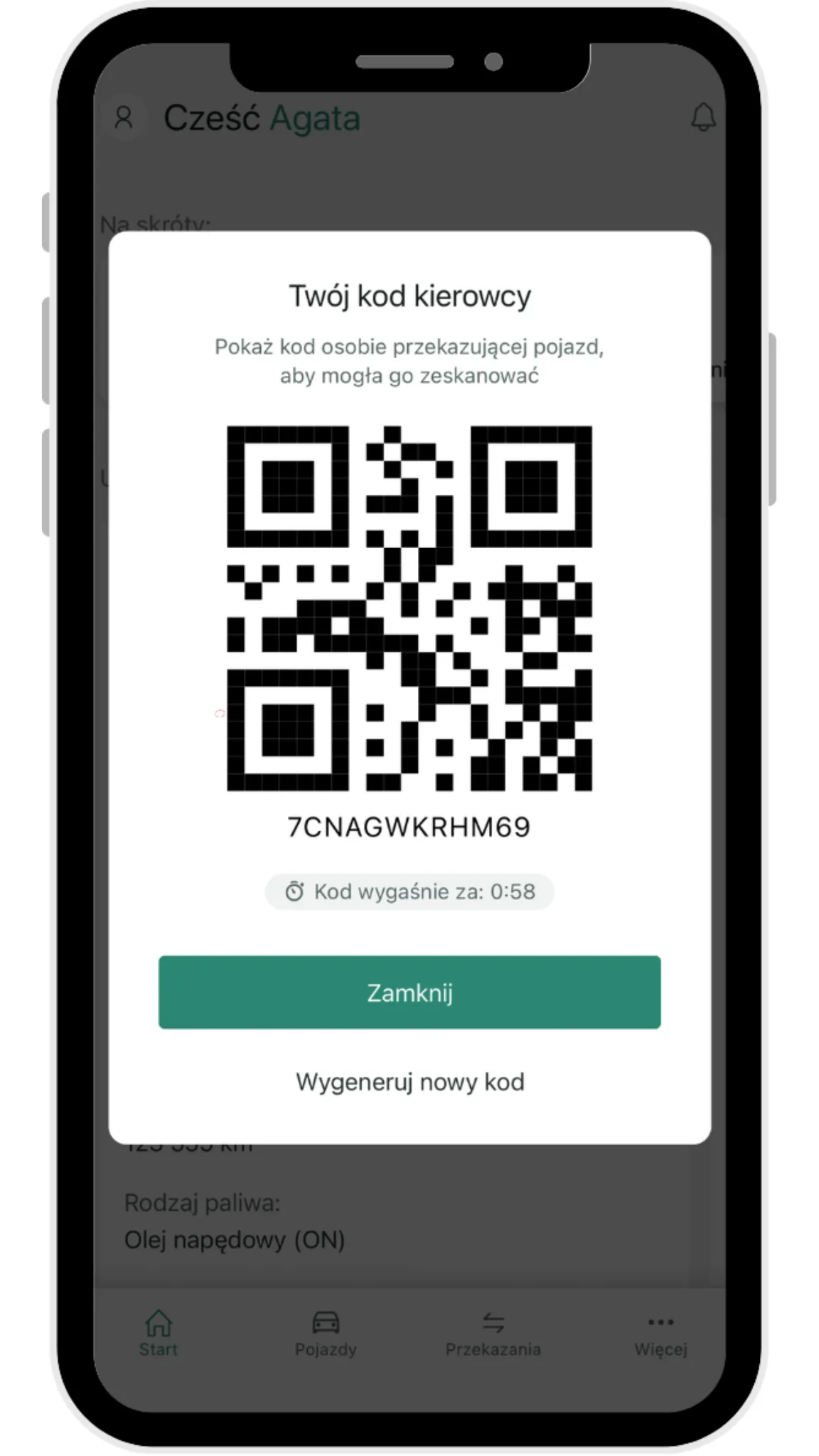
The code is valid for one minute. If it expires, the driver should display a new code.
Once the code has been scanned or entered, the whole process takes place on the phone of the driver handing over the vehicle. Both drivers sign on this device. When the process is complete, the system creates a single, shared vehicle handover report.
Information about the vehicle in use
Regardless of whether the driver collected the vehicle themselves or it was handed over to them by the fleet administrator, they have access to the information and documents assigned to that vehicle.
While using the vehicle, the driver has access to the documents assigned to that vehicle and to documents not requiring a signature that are assigned to the same company as the vehicle. You will find more information in the article Documents and files.
The driver can perform the most important operations related to using the vehicle:
carry out a vehicle inspection (read How to carry out vehicle inspections? ),
update the odometer reading (read Updating the odometer and enginehours),
report a defect (read Reporting a defect),
report damage (read Reporting damage),
issue or receive a vehicle,
collect a new vehicle.