Help › Navifleet Manager › Mobile app
Registration and first login to the Navifleet Manager app
Updated: 17 August 2026
Mobile app
The Navifleet Manager app lets you manage a vehicle directly from your phone. Registration is done via an e-mail invitation sent by the fleet administrator.
How to register?
To link your account to the company's system, use the link from the e-mail you received:
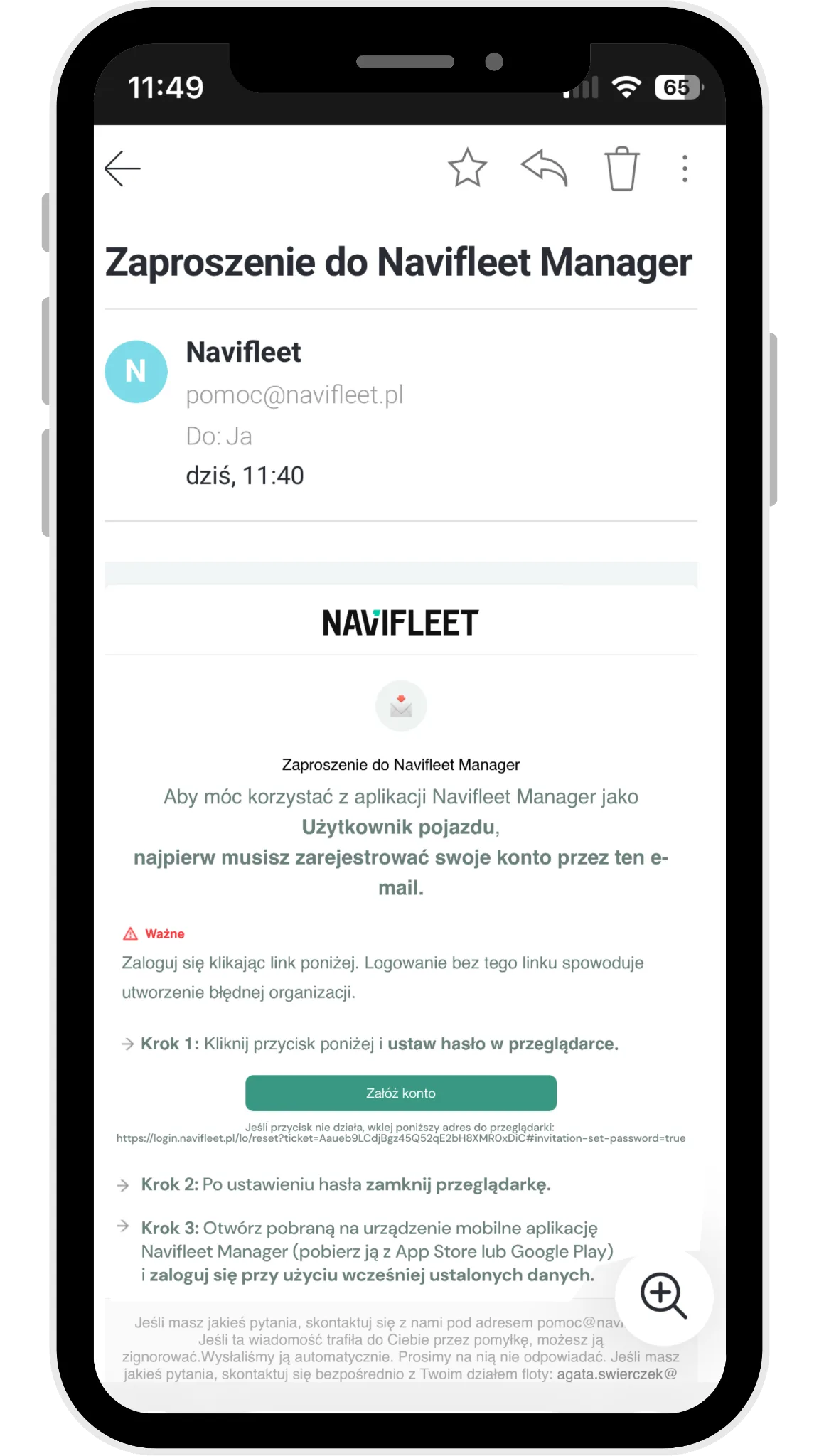
Activation: Open the e-mail Invitation from Navifleet Manager and click the activation button
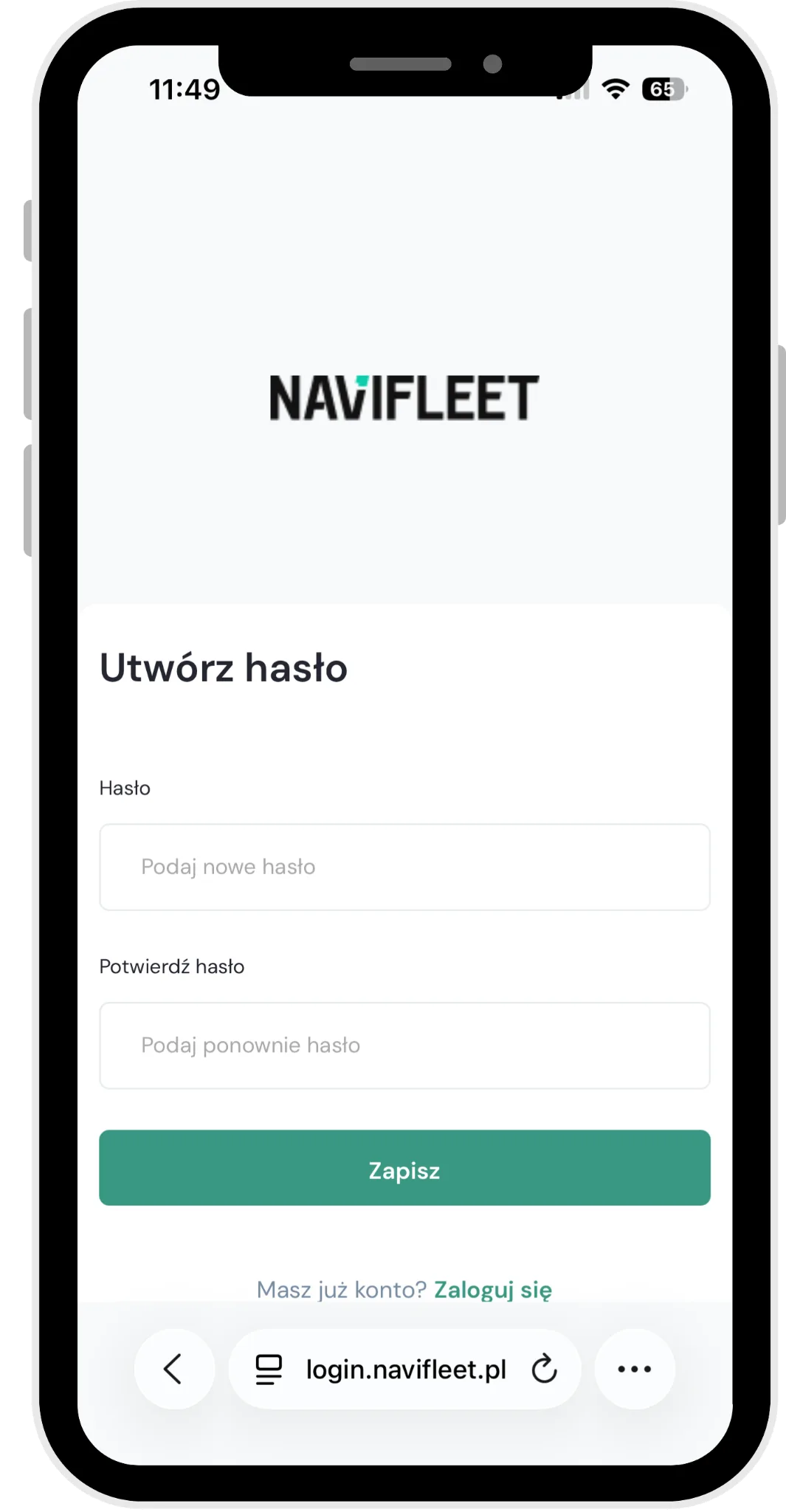
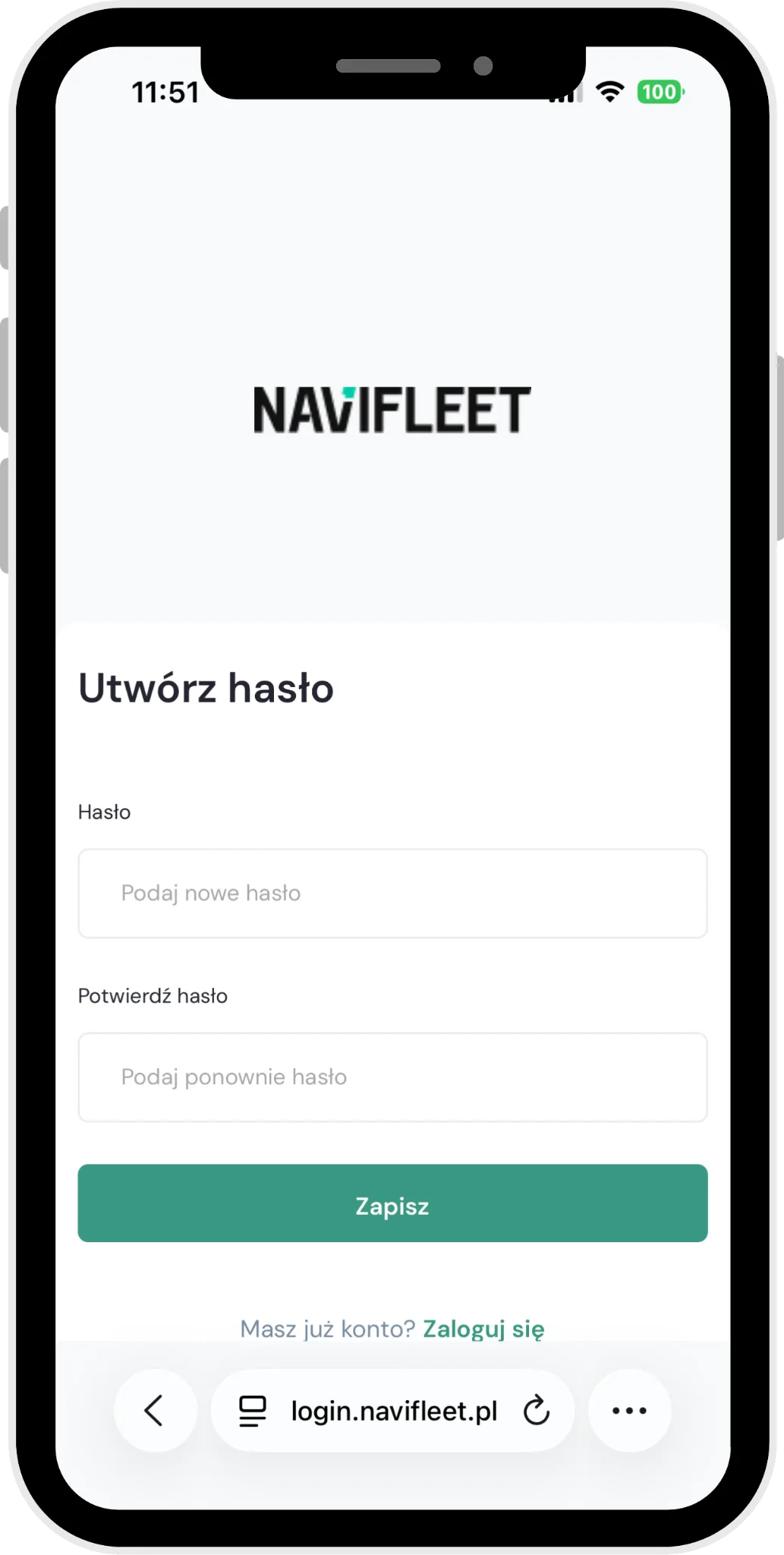
2. Setting a password: In the browser that opens, enter your new password.
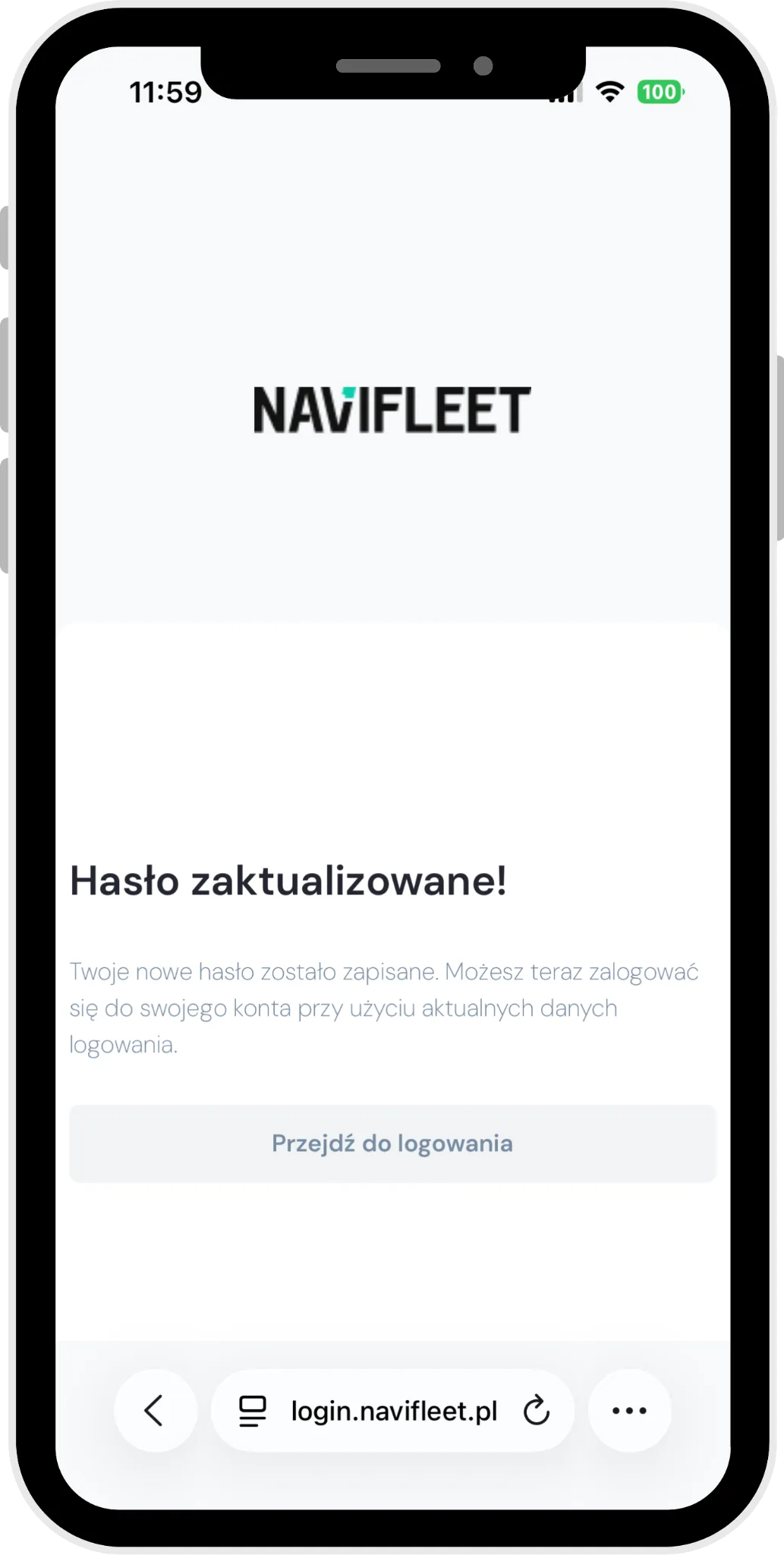
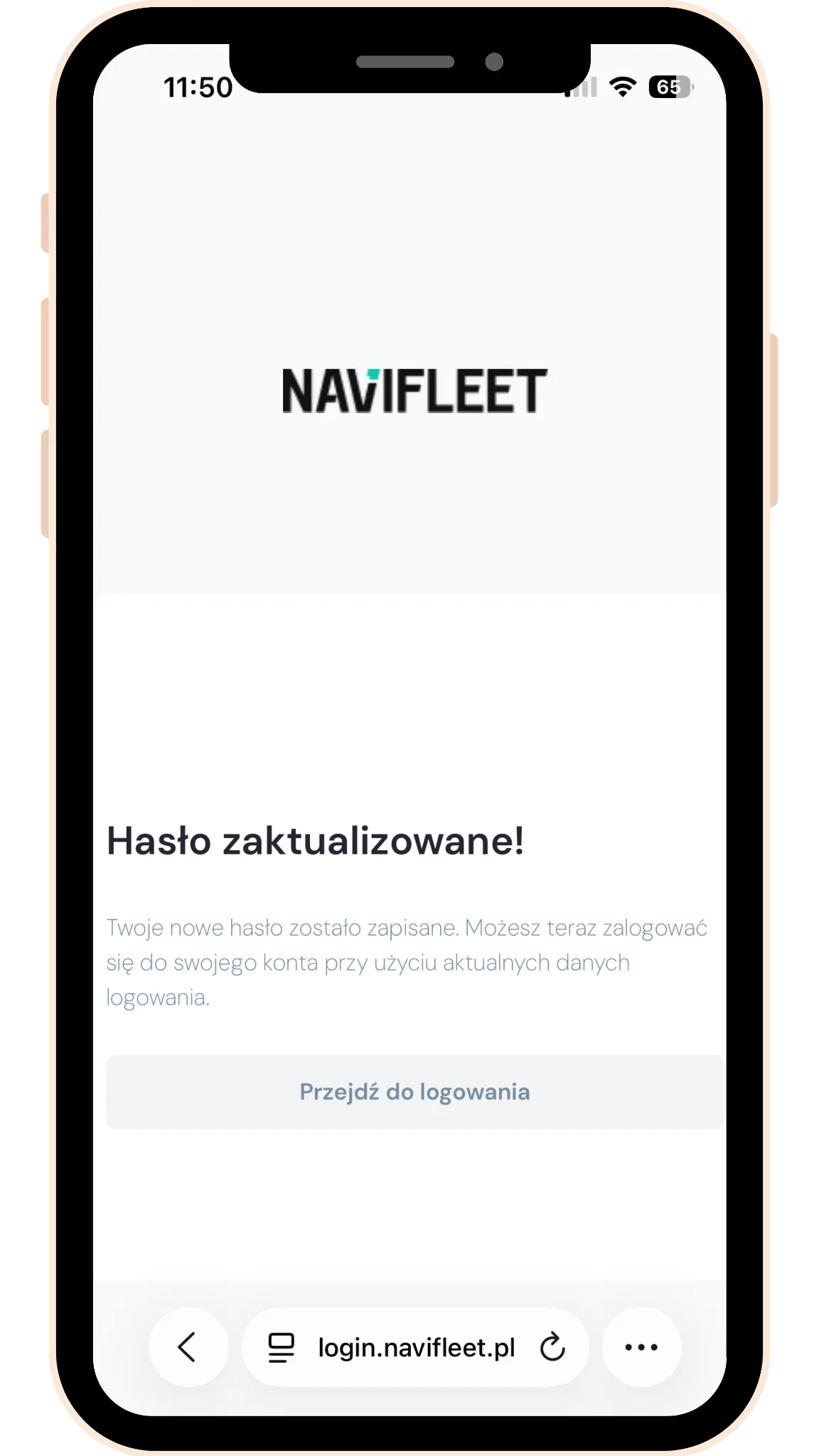
3. Logging in: Once the password has been set correctly, the message Password updatedappears. Do not log in in the window that has appeared; close the web browser. Launch the mobile app.
Logging in to the mobile app
Download the app from the App Store or Google Play.


Log in with your e-mail address and the new password.
How to change your password?
On the login screen, tap Log in, then Forgotten your password?
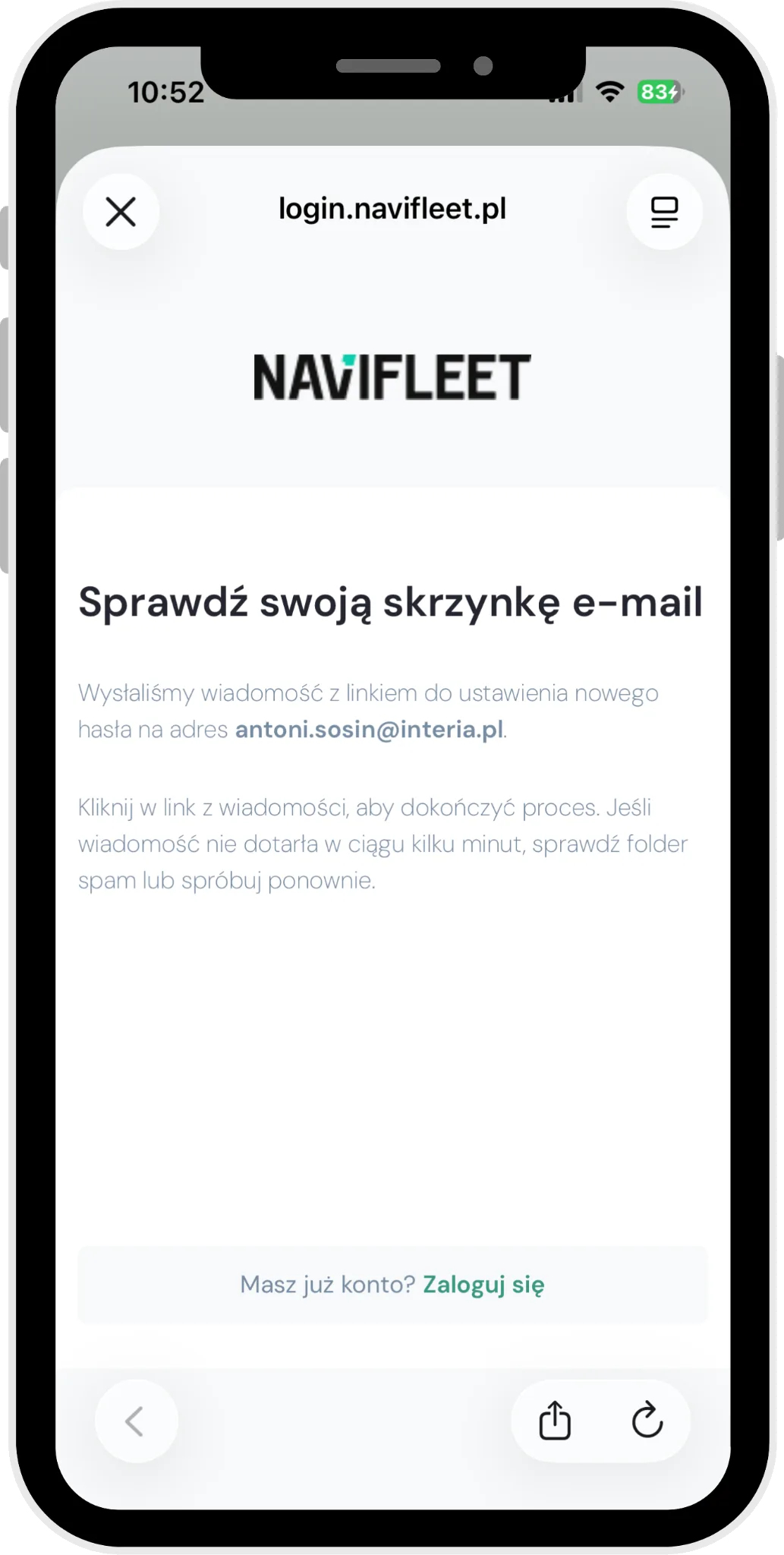
Enter your e-mail address and tap Continue.
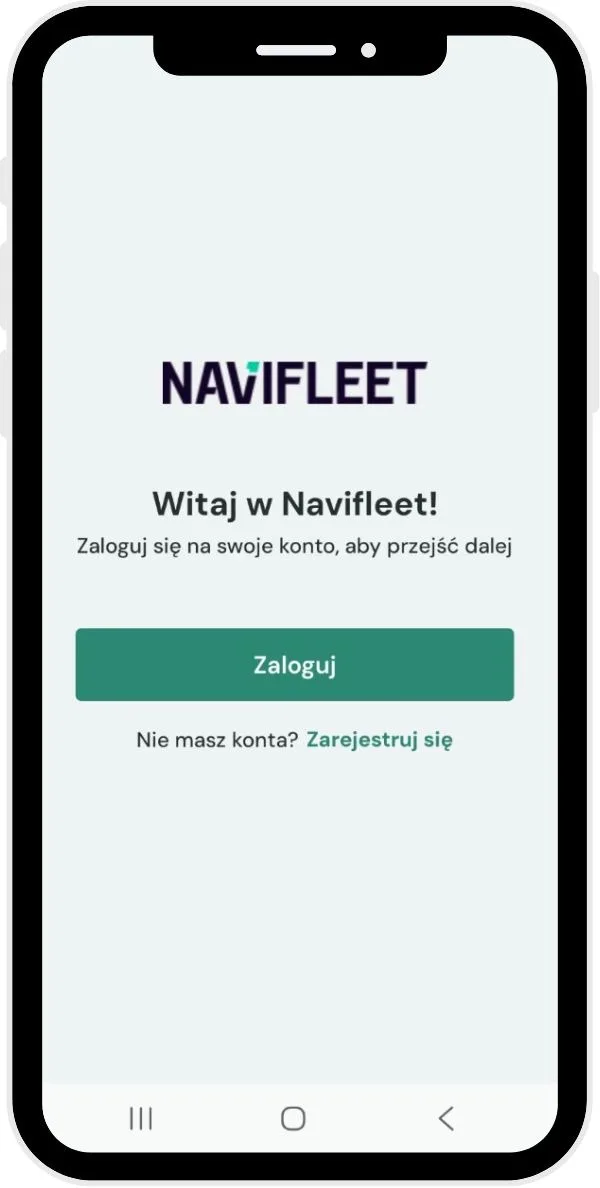
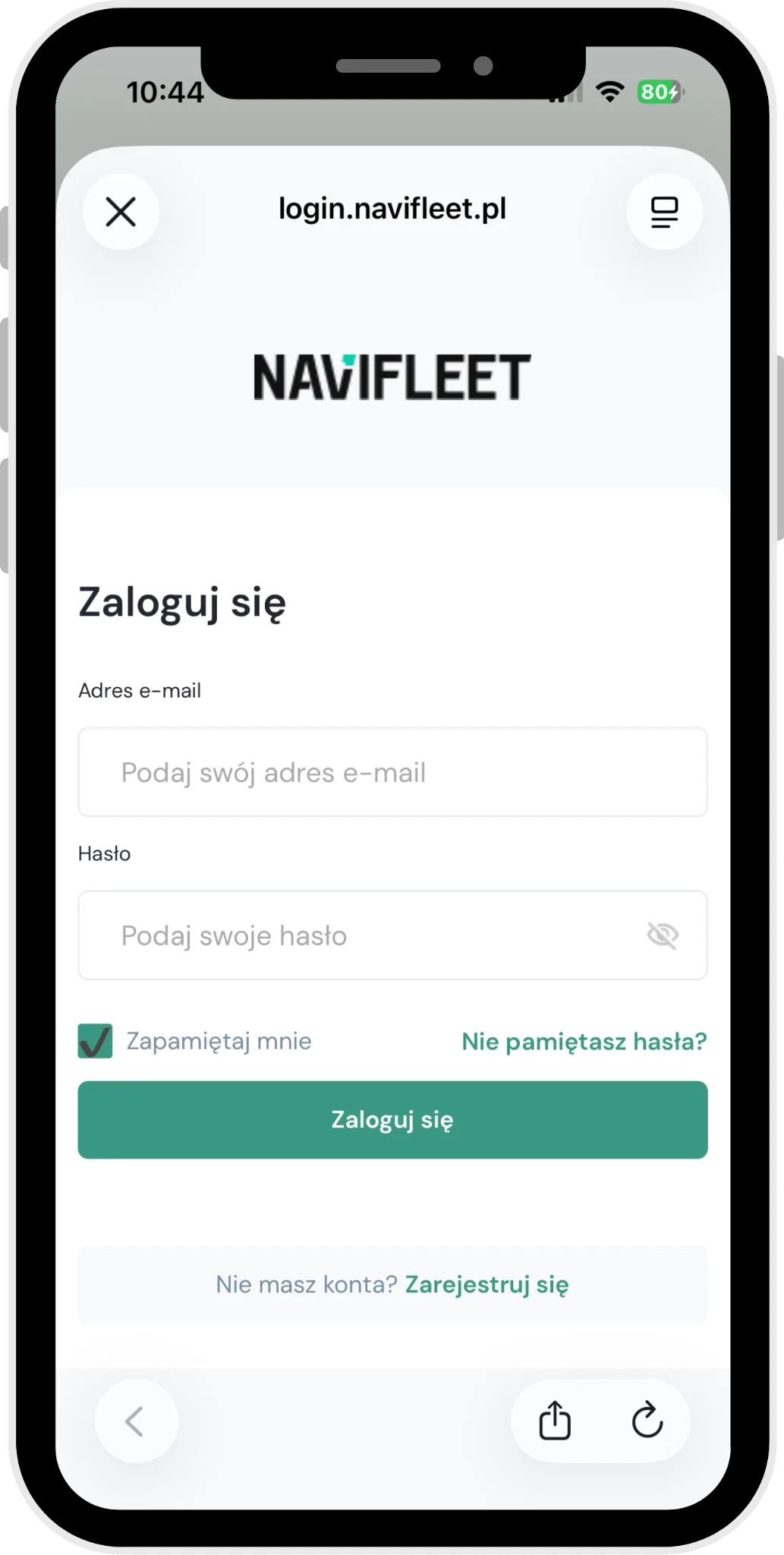

Open the link from the new e-mail and set a new password in the browser.
Setting a new password
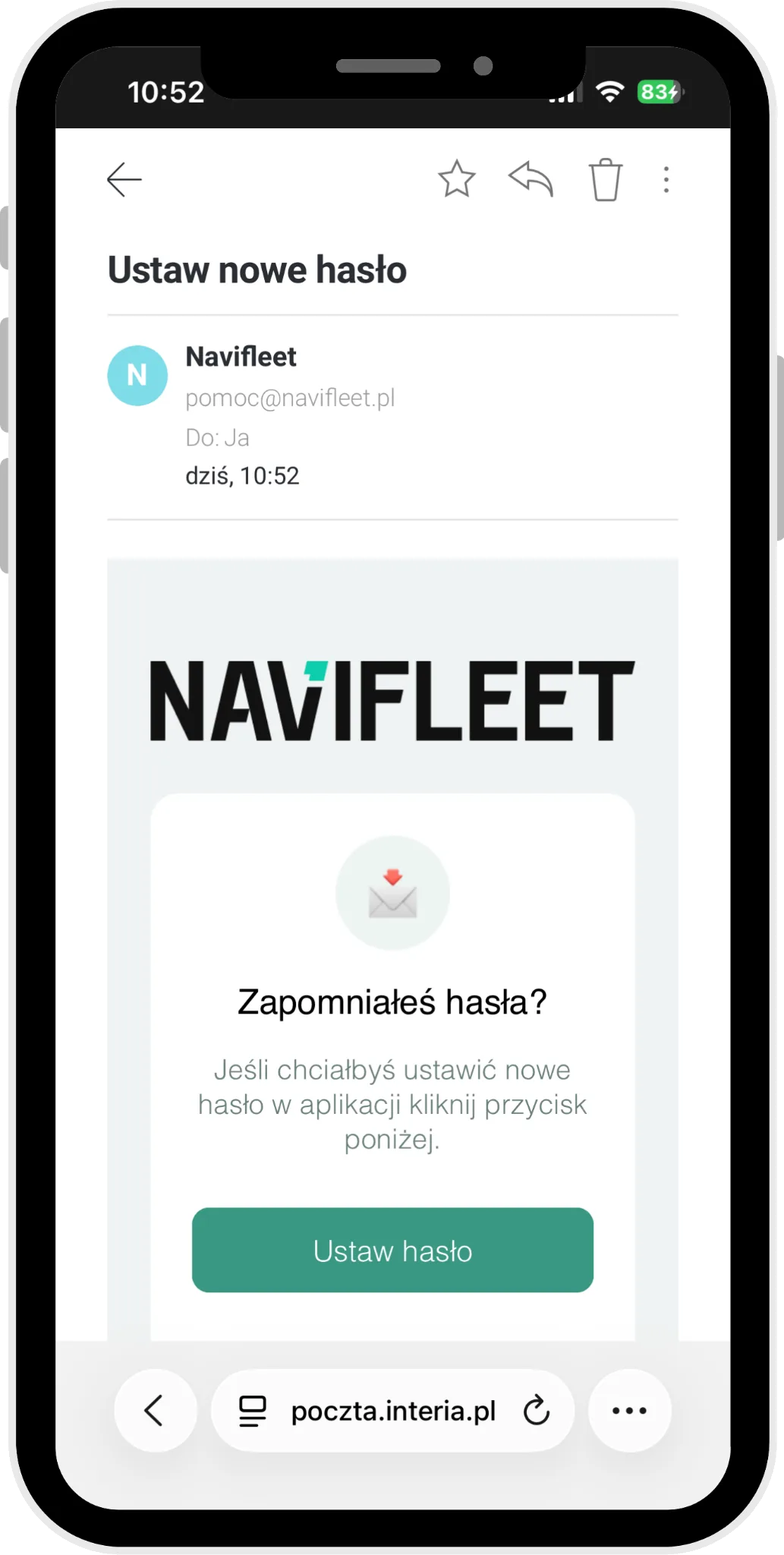
Open the e-mail from Navifleet and click the Set passwordbutton.
Enter the new password in the Password and Confirm passwordfields, then click Save.
Confirmation
When you see the message Password updated!, close the browser window and log in to the Navifleet Manager app using the new password.