Help › Navifleet Manager › Mobile app
Updating the odometer reading by the vehicle user
Updated: 6 August 2026
The driver can enter the vehicle's current odometer reading and engine hours.
To update the odometer reading:
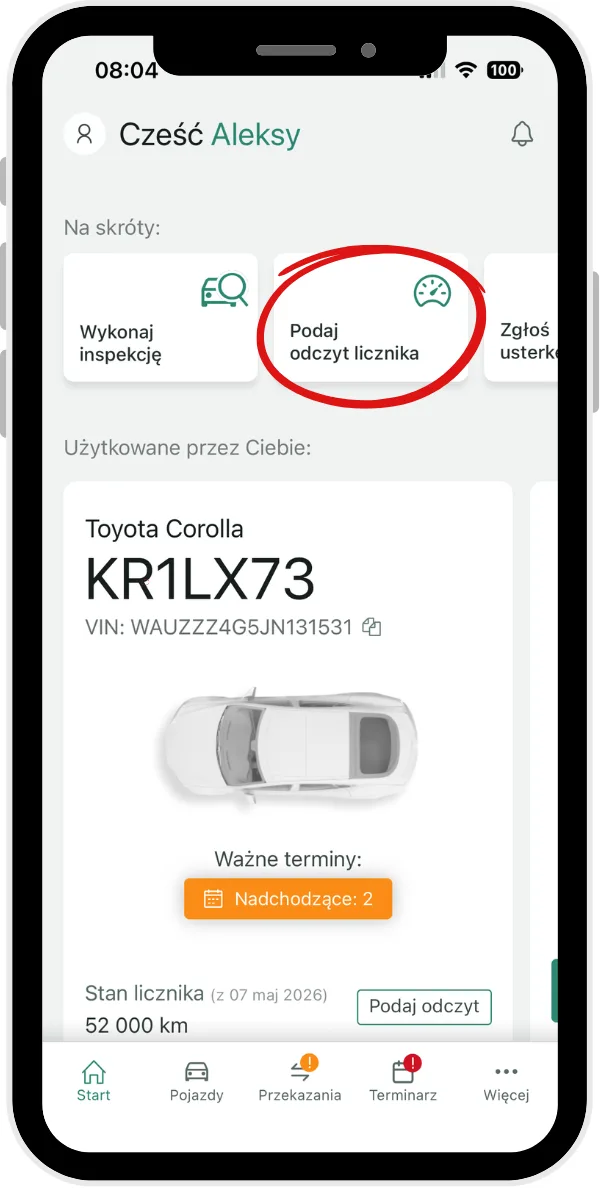
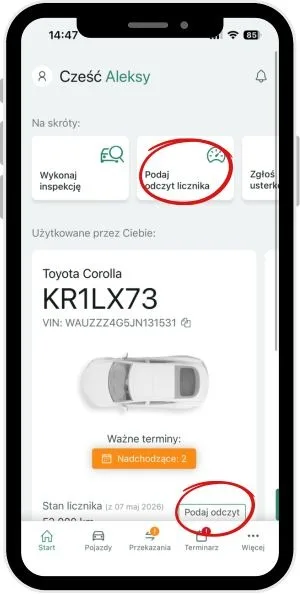
On the home screen, tap the Enter odometer reading button. You can also use the Enter reading quick action button next to the current odometer reading.
The app suggests the vehicle currently in use, but you can also pick another one from the list of available vehicles.
Enter the current odometer reading.
The system may flag a value that is unusually high, to limit data entry errors.
To update engine hours:
On the home screen, tap the Enter odometer reading button.
Choose from the list the vehicle whose engine hours you want to change. If it is currently in use, the system suggests it by default.
Enter the current engine hours.