
Help › Navifleet Manager › Mobile app
Viewing and editing the scheduler
Updated: 6 August 2026
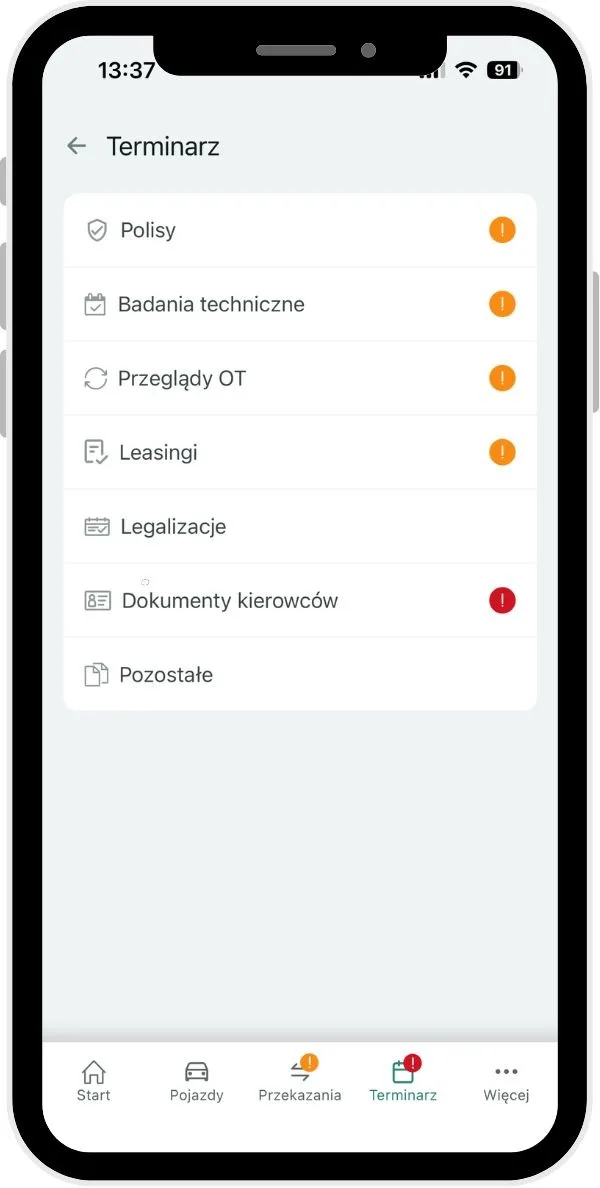
Meaning of the information icons
To allow a quick assessment of the fleet's condition, visual markers have been introduced:
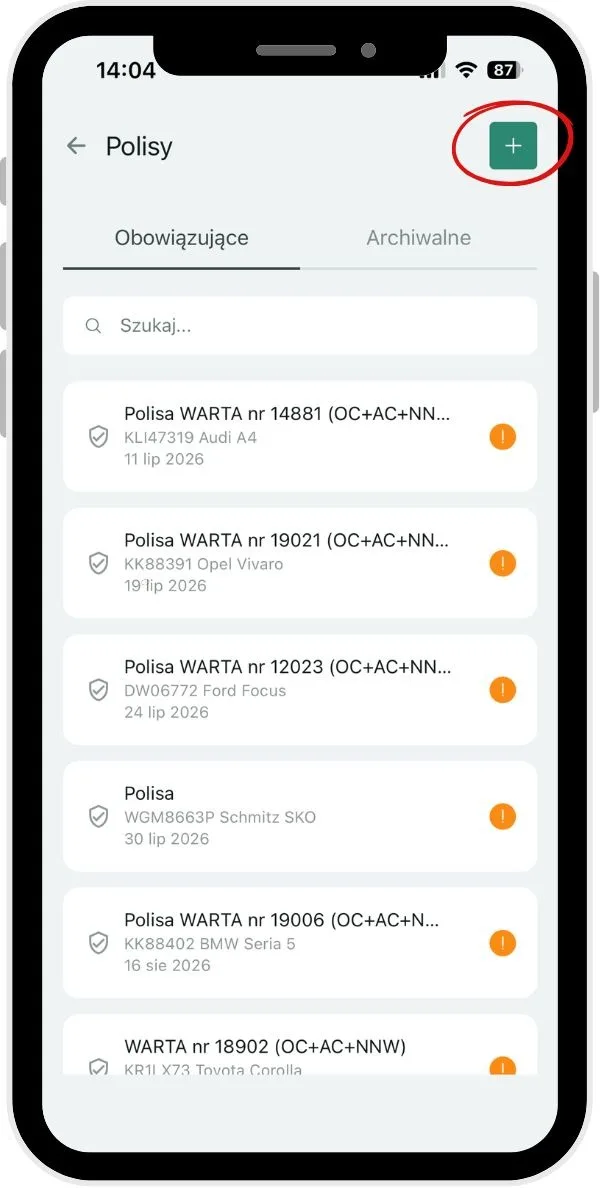
Orange icon with an exclamation mark - the deadline is approaching.
Red icon with an exclamation mark - the deadline has passed.
No icon - the deadline is current and there is no risk of it being exceeded.
Scheduler of the vehicle in use
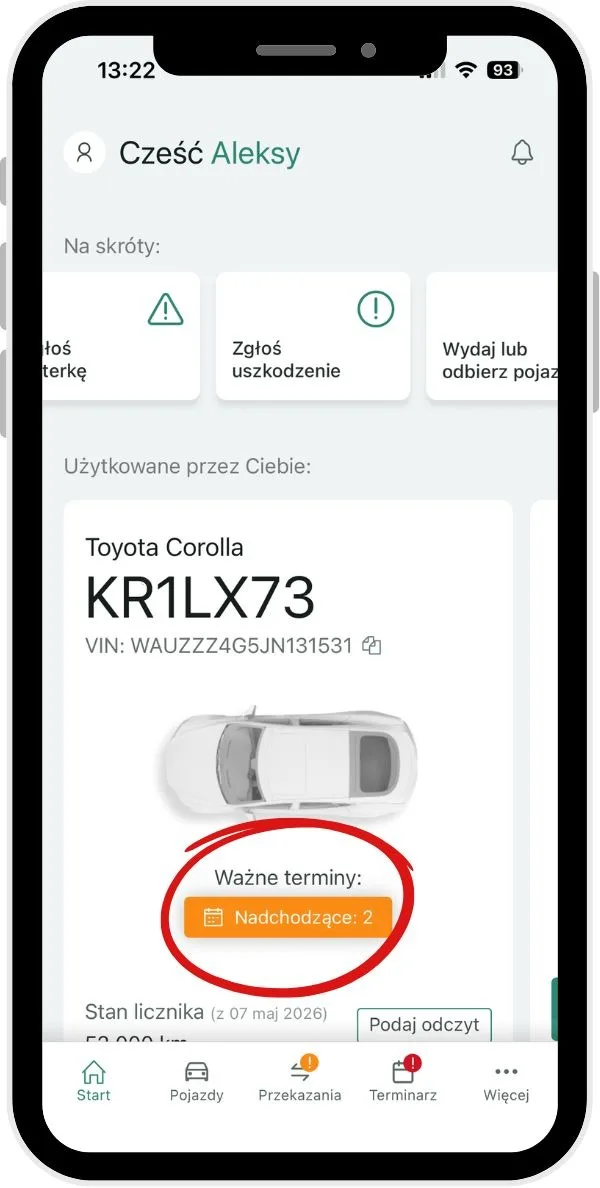
The details of each vehicle include a Scheduler tab, which lets you quickly check which deadlines will expire soon. In addition, vehicle users see information about upcoming deadlines on the app's home screen.
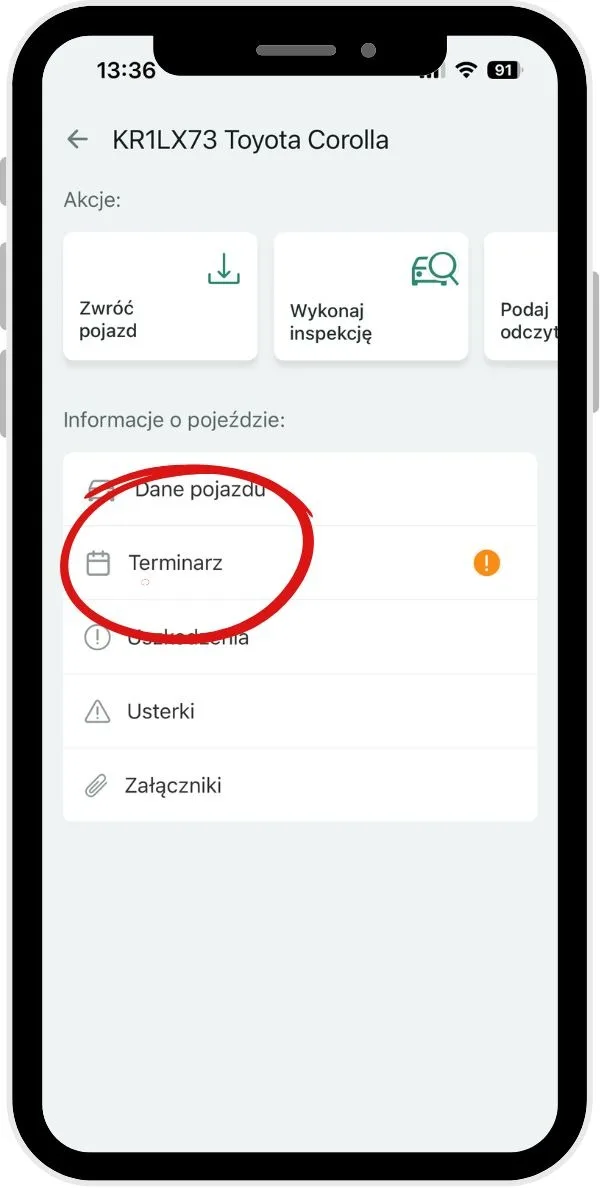
To check deadline details:
Open the details of the vehicle in use.
In the Vehicle information section select Scheduler.
Go to the Active or Archived tab.
Select the deadline you are interested in.
After clicking a deadline, its details, notes and status information are displayed. From here you can also archive the deadline or add another one.
Scheduler for all vehicles
To check the details for all vehicles:
Click Scheduler in the bottom menu.
Select one of the areas:
Policies,
Roadworthiness tests,
Periodic services,
Leases,
Calibrations,
Driver documents,
Other.
Go to the Active or Archived tab
Select a deadline.
After clicking a deadline, its details, notes and status information are displayed. From here you can also archive the deadline or add another one.
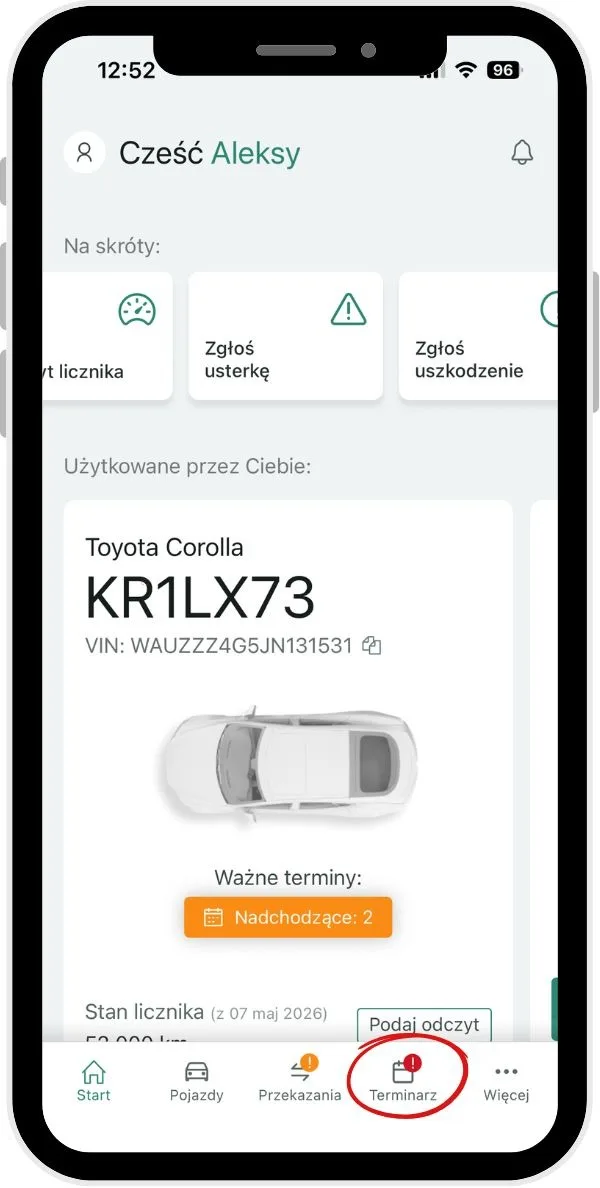
Adding a new deadline
Click Scheduler in the bottom menu.
Select one of the areas:
Policies,
Roadworthiness tests,
Periodic services,
Leases,
Calibrations,
Driver documents,
Other.
Click the add icon in the top right corner of the screen.
Fill in the required fields:
Document name
Vehicle the deadline applies to
Deadline type
Status (current or archived)
Valid from
Notes (optional)
Save the information entered.
Notifications
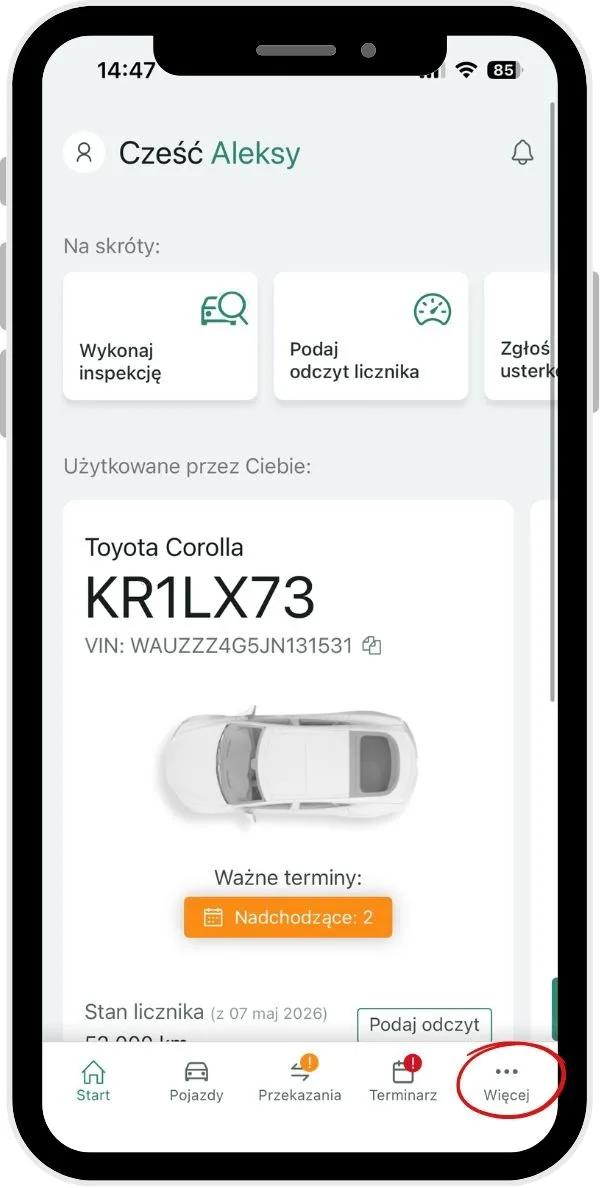
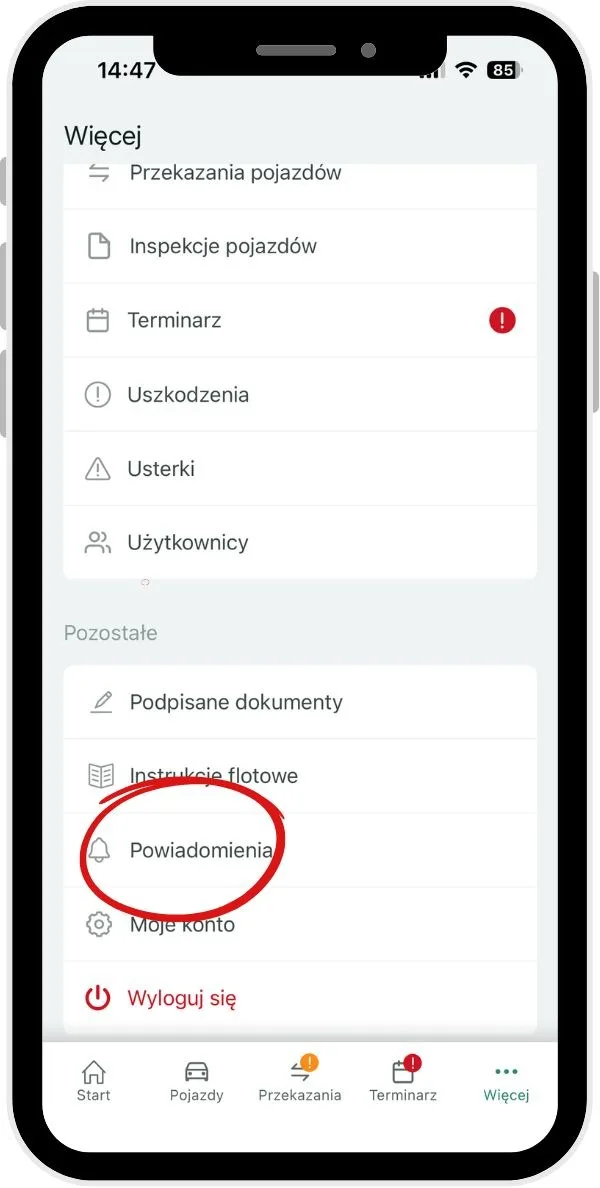
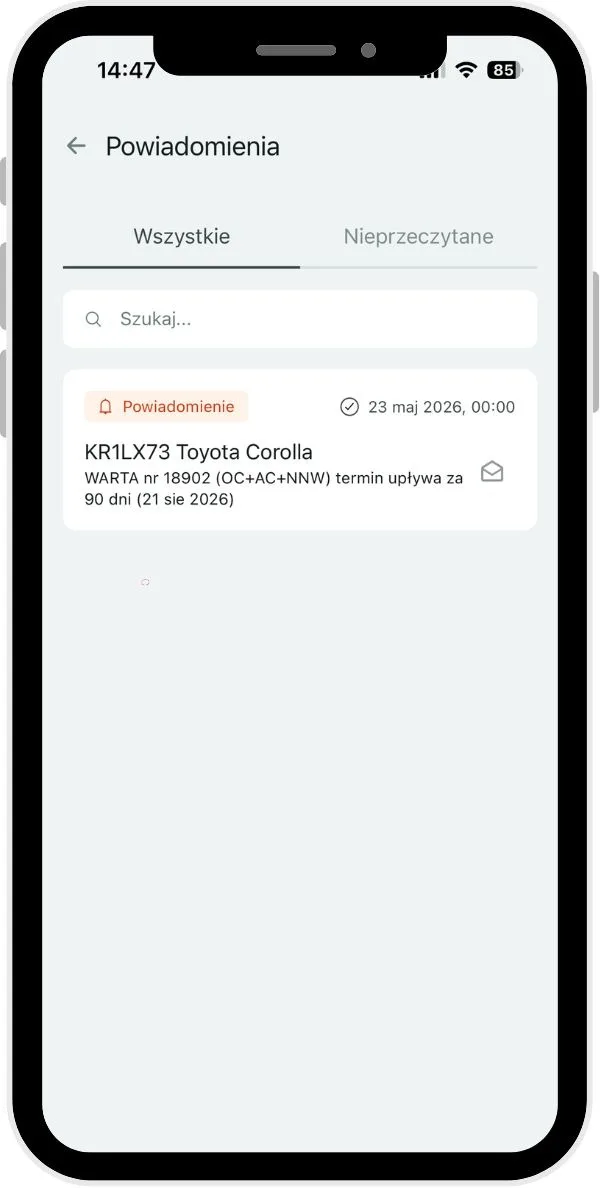
In the app you can quickly check which deadlines need special attention in the Notifications tab. To do this:
Click More in the bottom menu.
Select Notifications in the Other section.
Switch the view to All or Unread to review the information.
E-mail notifications
The app sends e-mail notifications according to the current configuration. The fleet administrator decides whether notifications are sent to vehicle users.