Help › Navifleet Manager › Mobile app
How to draw up an electronic vehicle handover report?
Updated: 24 August 2026
Vehicle, company and user details
The vehicle, company and user details are filled in automatically based on the information stored in the system. You do not need to enter them manually for each report. Data updates are visible from the next report onwards and do not affect documents that have already been created.
Completing a vehicle handover report
To draw up a report in the mobile app, you can use one of two methods.
Method one
Log in to the mobile app, then:
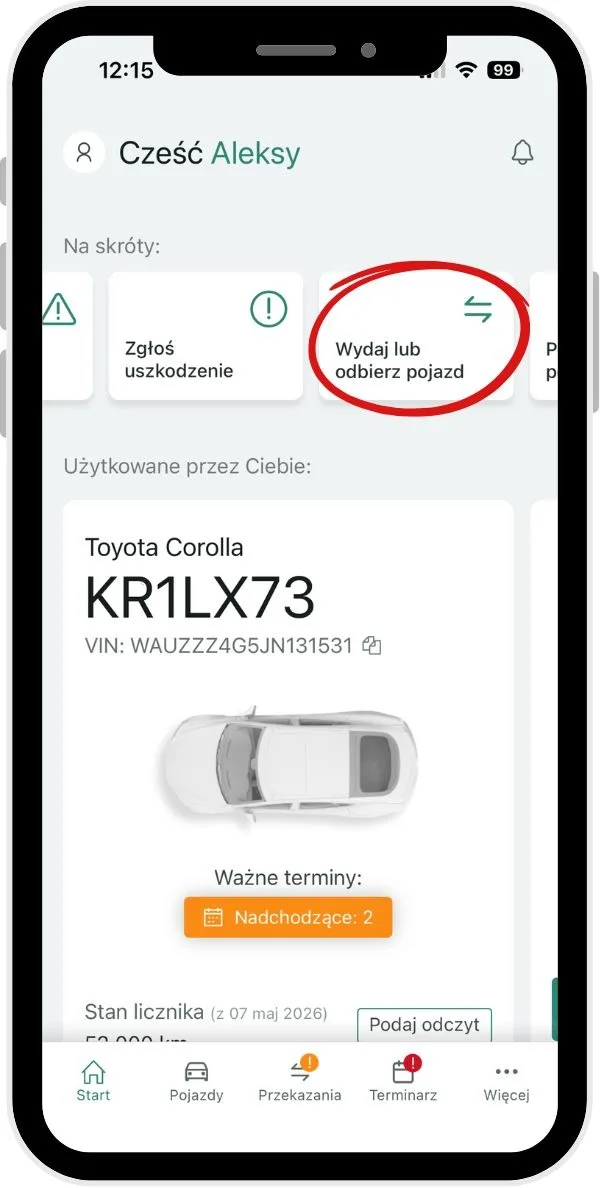
On the home screen, select Issue or collect a vehicle.
Select the vehicle from the list.
Check the vehicle details and click Next.
From the available options, select Fill in the report.
Complete the vehicle inspection.
Method two
Log in to the mobile app, then:
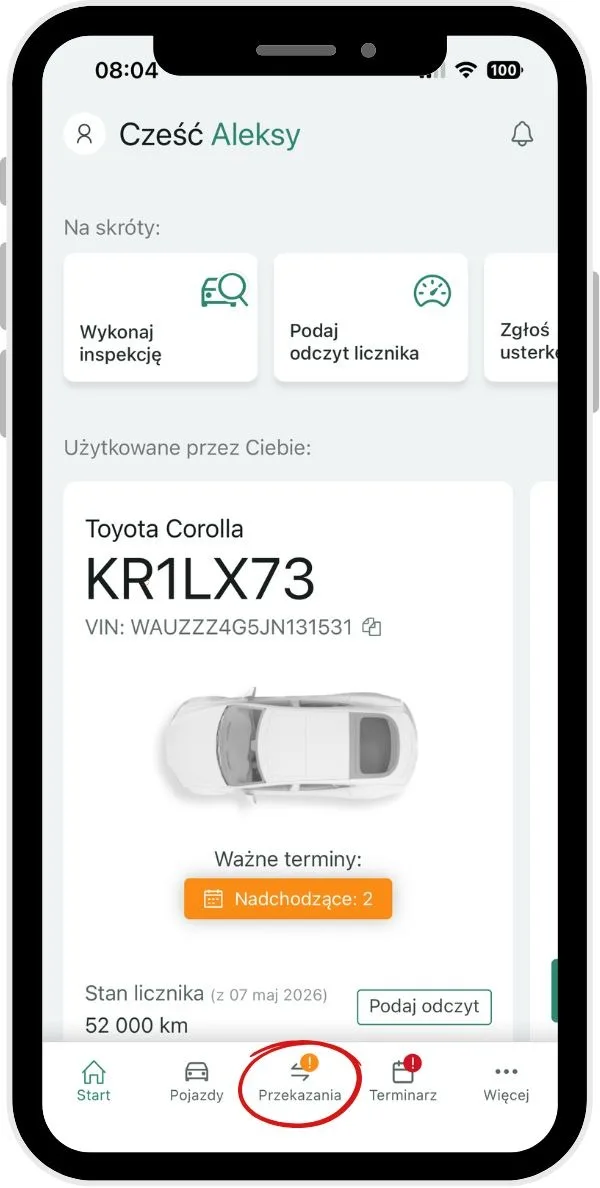
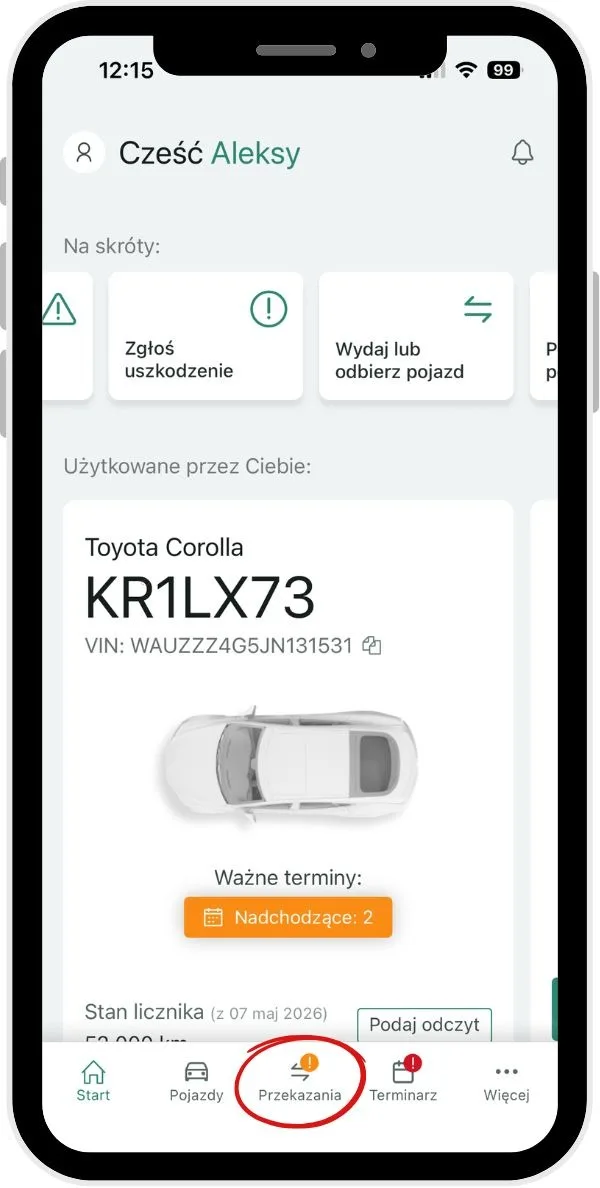
Go to the handover list by selecting Handovers in the bottom menu. You can also get there via the More option, then selecting Vehicle handovers.
Select the add icon in the top right corner and start creating the report.
Select the vehicle from the list.
Check the vehicle details and click Next.
From the available options, select Fill in the report.
Complete the vehicle inspection.
Vehicle inspection during the report
While the report is being created, a vehicle inspection is carried out, which guides you through the whole process of documenting the vehicle's condition.
A detailed description of the inspection and its steps can be found in the article How to carry out vehicle inspections?
Signing the report
At the end, the report is signed by the parties. Depending on the handover type, it may include only the report or also additional documents, such as a vehicle entrustment agreement or vehicle usage terms. All documents are approved with a single signature and are then automatically sent to the user's address.
Where to find the completed report
In the bottom menu, select Handovers.
Go to the Completed tab.
Select the relevant handover from the list.
Once the handover details are open, at the bottom of the screen, in the Vehicle handover documents section, you will find the signed report generated as a PDF file.