
Help › Navifleet Manager › Mobile app
How to perform vehicle inspections?
Updated: 4 August 2026
A vehicle inspection is performed from the mobile app. How you start it depends on your permissions: a user assigned to the vehicle can start an inspection directly from the tile at the top of the screen, while an Administrator, Moderator or Moderator+ can start an inspection for any vehicle from the vehicle list:
Vehicle inspection from the home screen
On the home screen, go to the Shortcuts section.
Tap Perform inspection.
Select the vehicle from the list.
Tap Go to inspection.
Vehicle inspection from the details of the vehicle in use
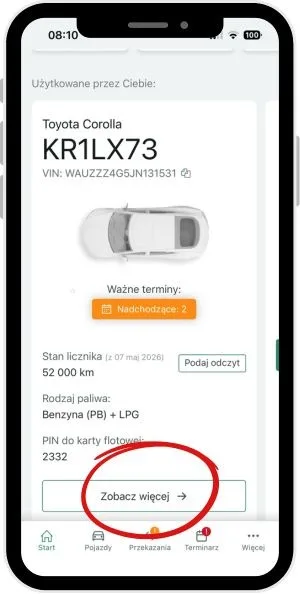
In the view of the vehicle in use, tap See more.
In the Actions section, select Perform inspection.
Vehicle inspection from the Vehicles tab
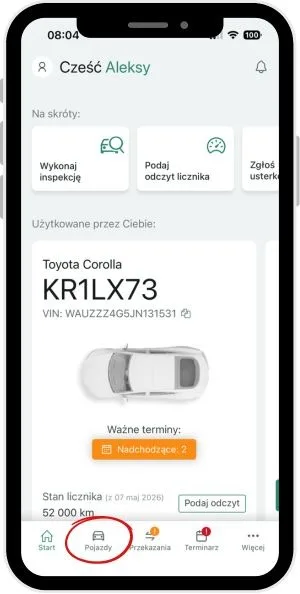
On the bottom bar of the app, select Vehicles.
Select the vehicle from the list.
In the Actions section, select Perform inspection.
What steps does a vehicle inspection consist of?
The process of documenting the vehicle's condition is identical to that of a vehicle issue or return report. The inspection guides the user step by step through the whole process, showing at each stage a description of the actions to perform and additional tips.
To ensure the documentation is reliable, the inspection requires new photos to be taken and does not allow key information to be modified, such as the vehicle, the date and time of the inspection and the person carrying it out.
The inspection consists of the following stages:
Step 1
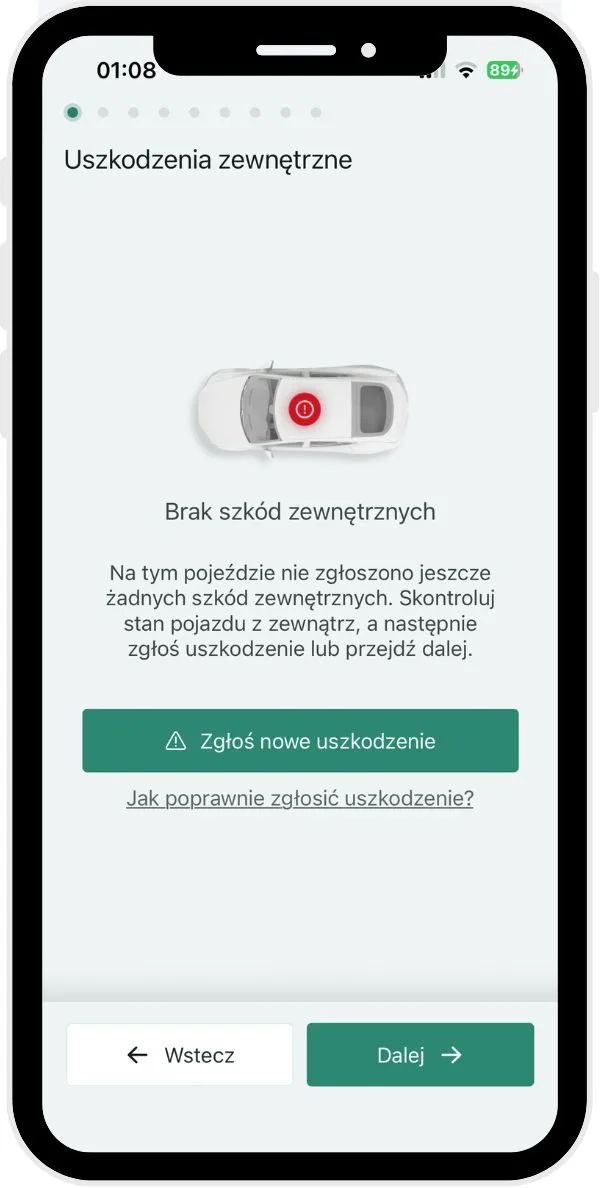
External damage
The process begins with checking and reporting any external damage to the vehicle. The screen shows information about the vehicle's current condition, listing previously reported damage or the message “No external damage”. A clear status and intuitive graphics make it easy to assess the car's condition, and the ability to quickly add a new report speeds up the whole process.
Step 2
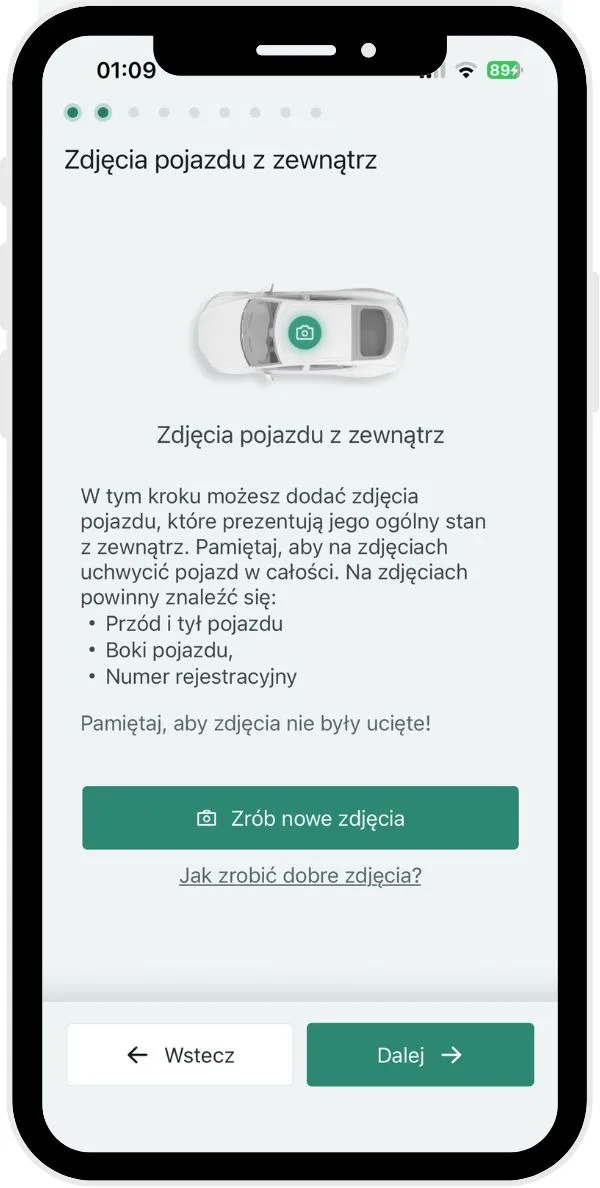
Exterior photos of the vehicle
The app guides the user through taking complete photographic documentation of the vehicle. It indicates the required shots, such as the front, rear and sides of the vehicle and the registration plate, helping to take correct photos. As a result, the documentation is a reliable confirmation of the vehicle's current condition.
Step 3
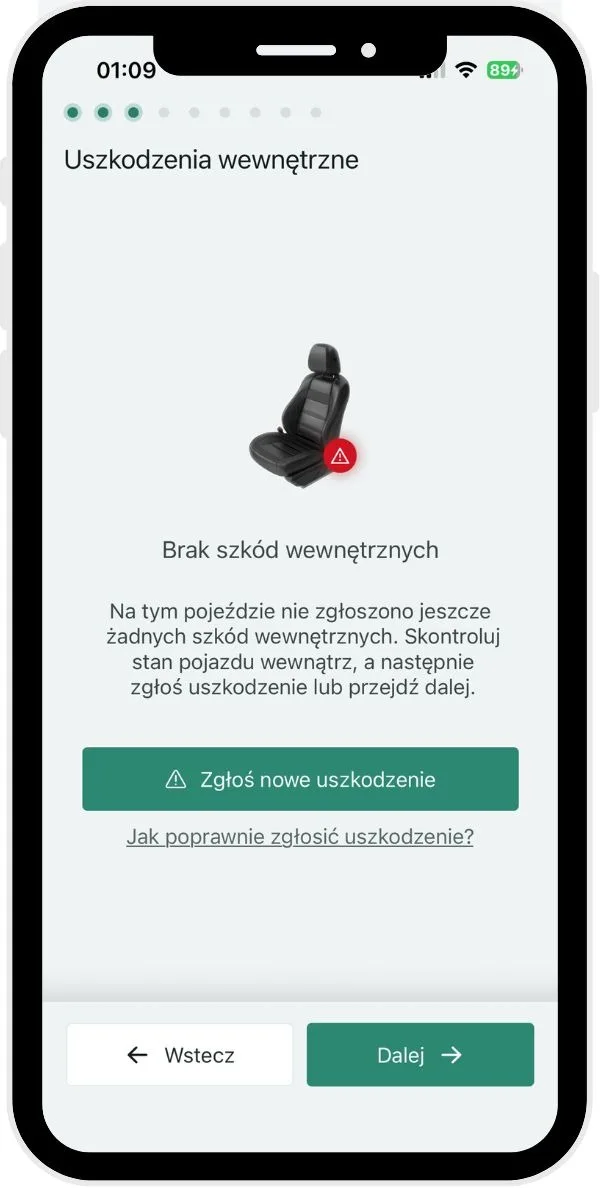
Internal damage
The next stage lets you check the vehicle's interior and report any damage to its components. The screen shows previously reported damage that has not yet been repaired, or the message “No internal damage”.
Step 4
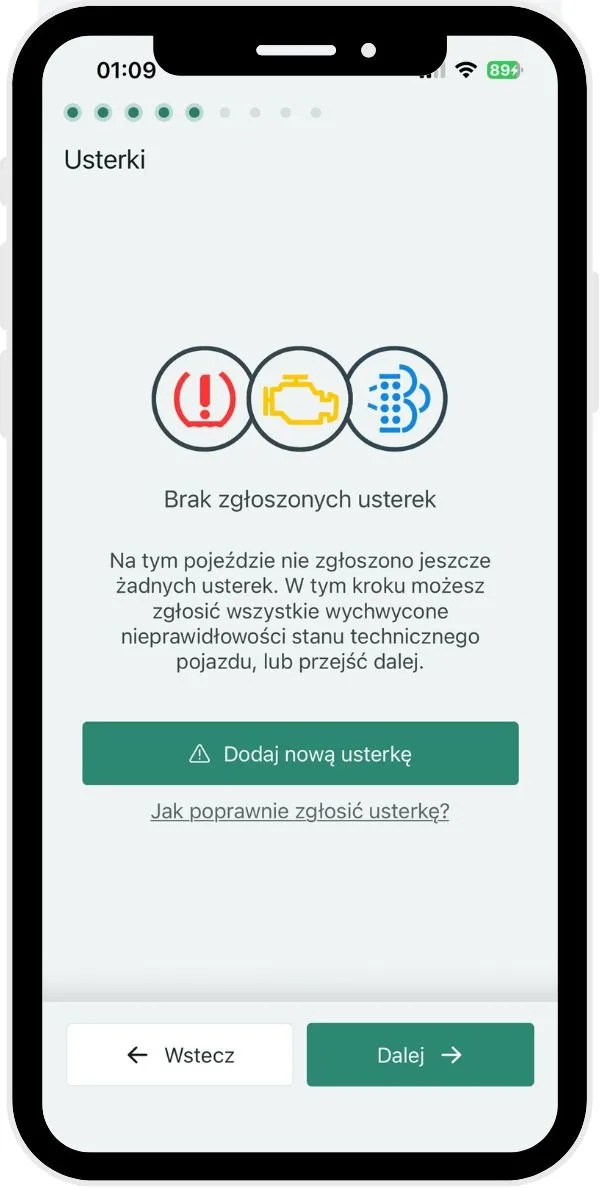
Defects
The next stage lets you report technical problems affecting the vehicle's roadworthiness, such as warning lights, unusual noises or components not working properly. The screen shows previously reported defects that have not yet been fixed, or the message “No defects reported”.
Step 5
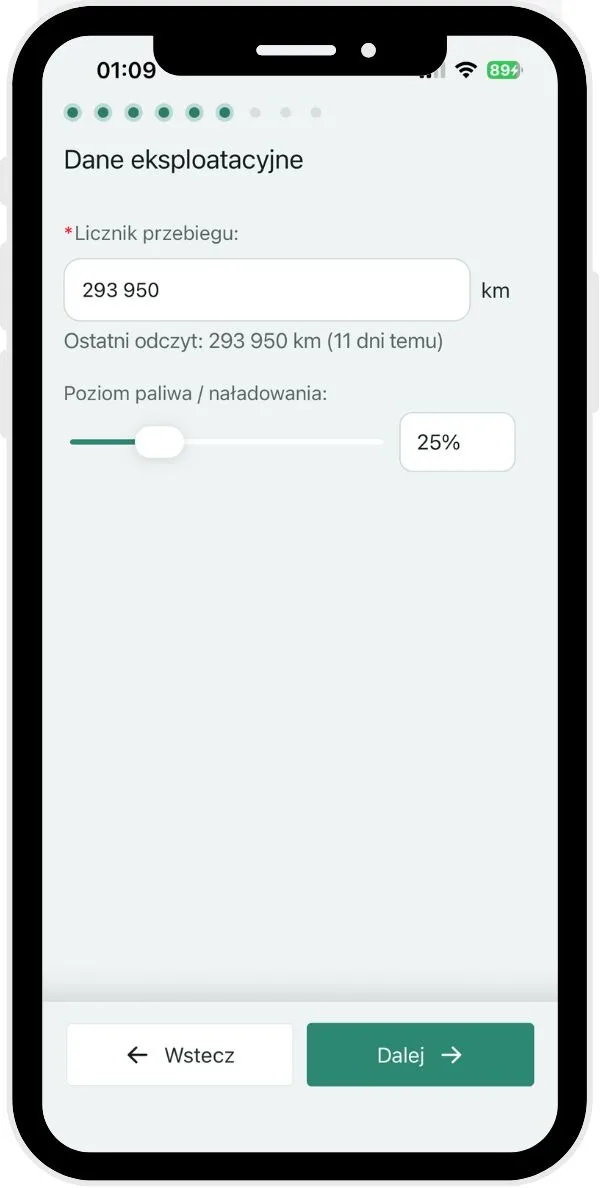
Operating data (e.g. odometer reading, fuel/charge level)
The next stage lets you fill in the vehicle's basic operating data, such as the current mileage and the fuel level or battery charge. The screen shows the last saved odometer reading as a reference point, which helps avoid errors when entering data, and lets you quickly set the current fuel or energy level using an intuitive slider.
Step 6
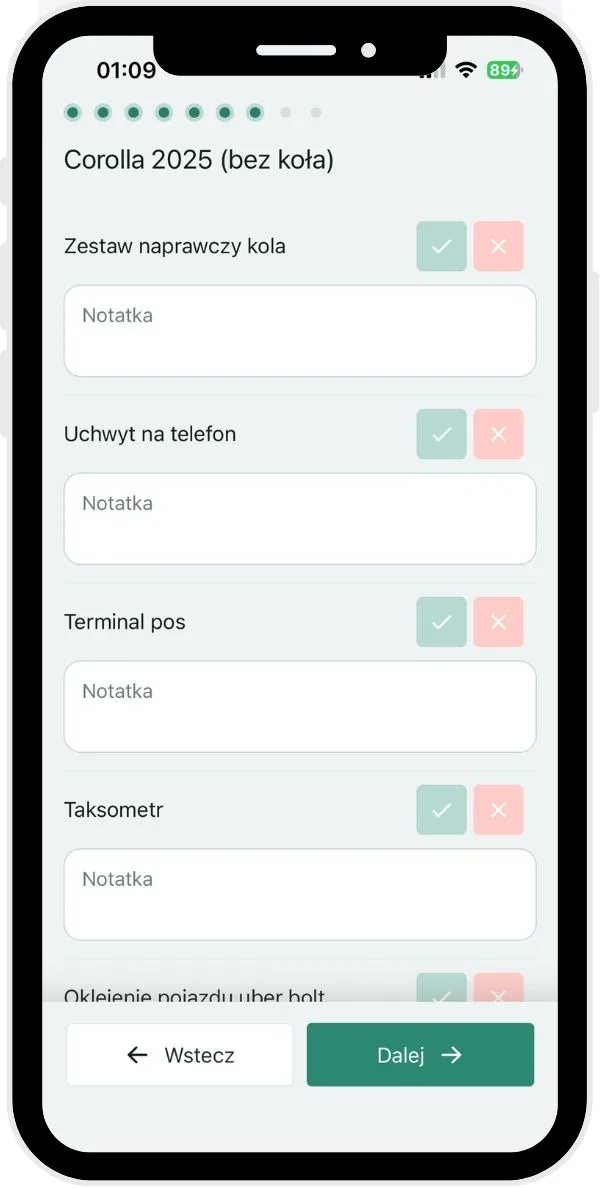
Checklists (vehicle equipment inventory)
The next stage lets you verify the additional equipment handed over with the vehicle, such as a repair kit, phone holder, POS terminal or taximeter (depending on the configuration. The screen presents a list of items that can be quickly marked as present or absent using simple “yes” and “no” buttons, which speeds up the check and minimises the risk of overlooking key components. In addition, each item has a note field, letting you clarify its condition or any shortfalls without using the general comment. How to create and configure the list is described in detail in the article Checklists.
Step 7
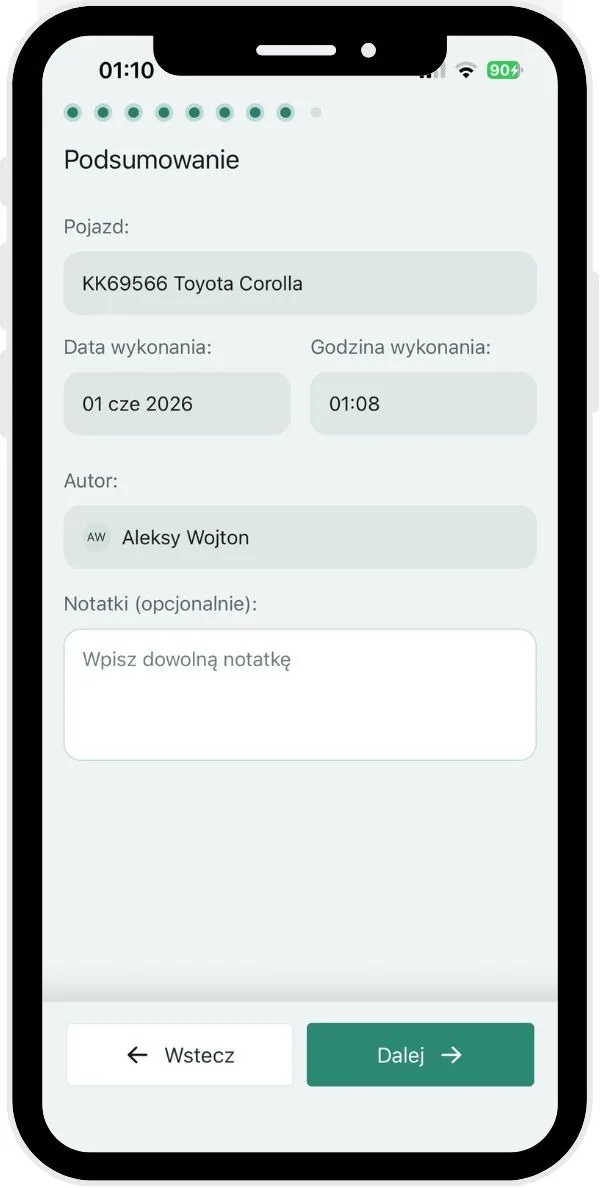
Summary
The final stage presents the automatically collected report data, such as the vehicle model with its registration number, the date and time of completion and the author's details. The user does not have to fill in this information manually, which eliminates the risk of errors and speeds up the process. The screen also lets you add optional remarks in the “Notes” field, so you can supplement the report with information not covered in the previous steps. The whole screen acts as a final check of the data before the report is confirmed and sent.
Step 8
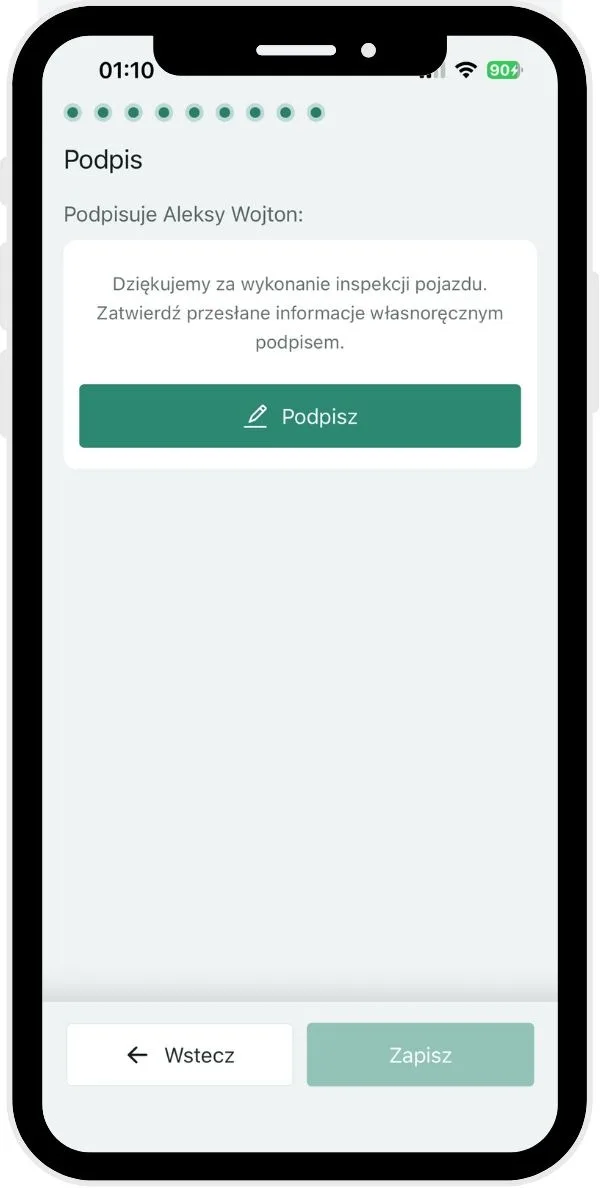
Signature
The last stage of the process clearly identifies the person signing, showing the message “Signed by Aleksy Wojton”, which eliminates the risk of mistakes when one device is used by many users. The screen also contains a short closing message informing that the inspection is complete and giving it a formal character. The main interactive element is the “Sign” button, which starts signature mode and finalises the whole process.
Step 9
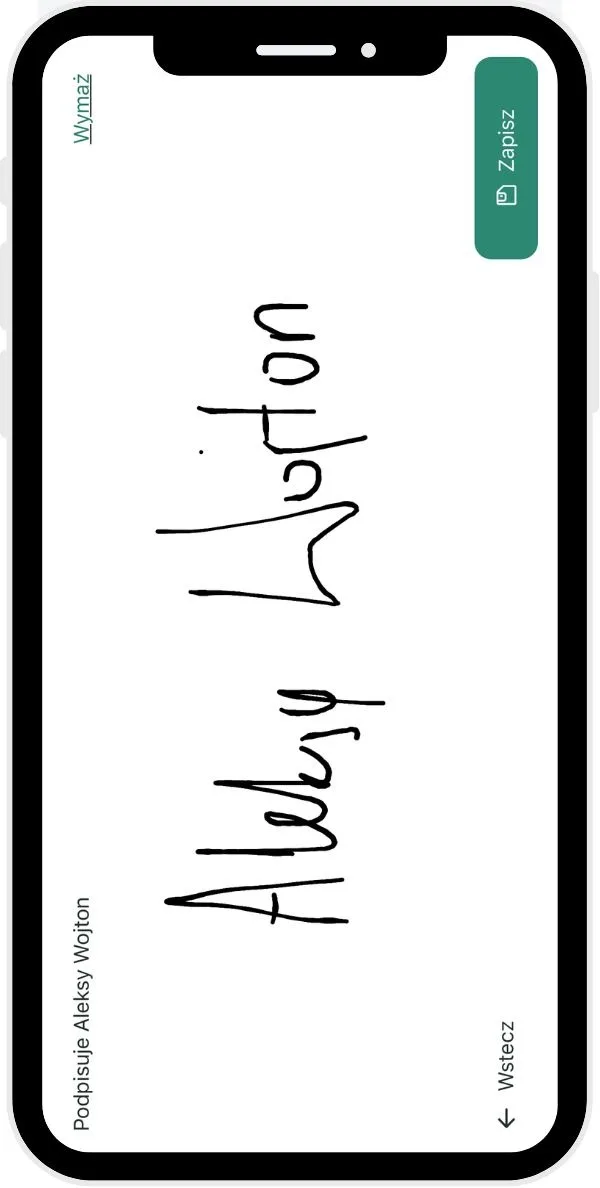
Confirming the signature
This screen lets you sign on the device screen. At any time the user can use the “Clear” function, which quickly removes an incorrect or illegible signature so it can be made again without going back in the process. Final confirmation is made with the “Save” button, which permanently attaches the signature to the report and ends the whole inspection procedure. From this moment the vehicle handover details, together with the generated PDF document, are available in the system.
Where are inspection results shown?
To check vehicle issue and return reports, inspections, damage and defects, open More on the bottom bar of the app, then select the relevant item from the list:
Vehicle handovers: to check vehicle issue and return reports,
Vehicle inspections: to view inspections,
Damage: to check reported damage,
Defects: to check reported defects.
If you want to learn more about inspections in the browser version of Navifleet Manager, read the article What are Inspections and what is their role?