Help › Navifleet Tracker › e-TOLL
Managing OBU / ZSL devices in Navifleet
Updated: 18 March 2022
In the gps.navifleet.pl app and in the mobile app, you can check the status of data transmission to e-TOLL and manage your OBU / ZSL devices.
Checking the status of data transfer to e-TOLL
The TOOLS -> E-TOLL/SENT DEVICES tab contains a list of all the ZSL and OBU devices that have permission for the e-TOLL module.

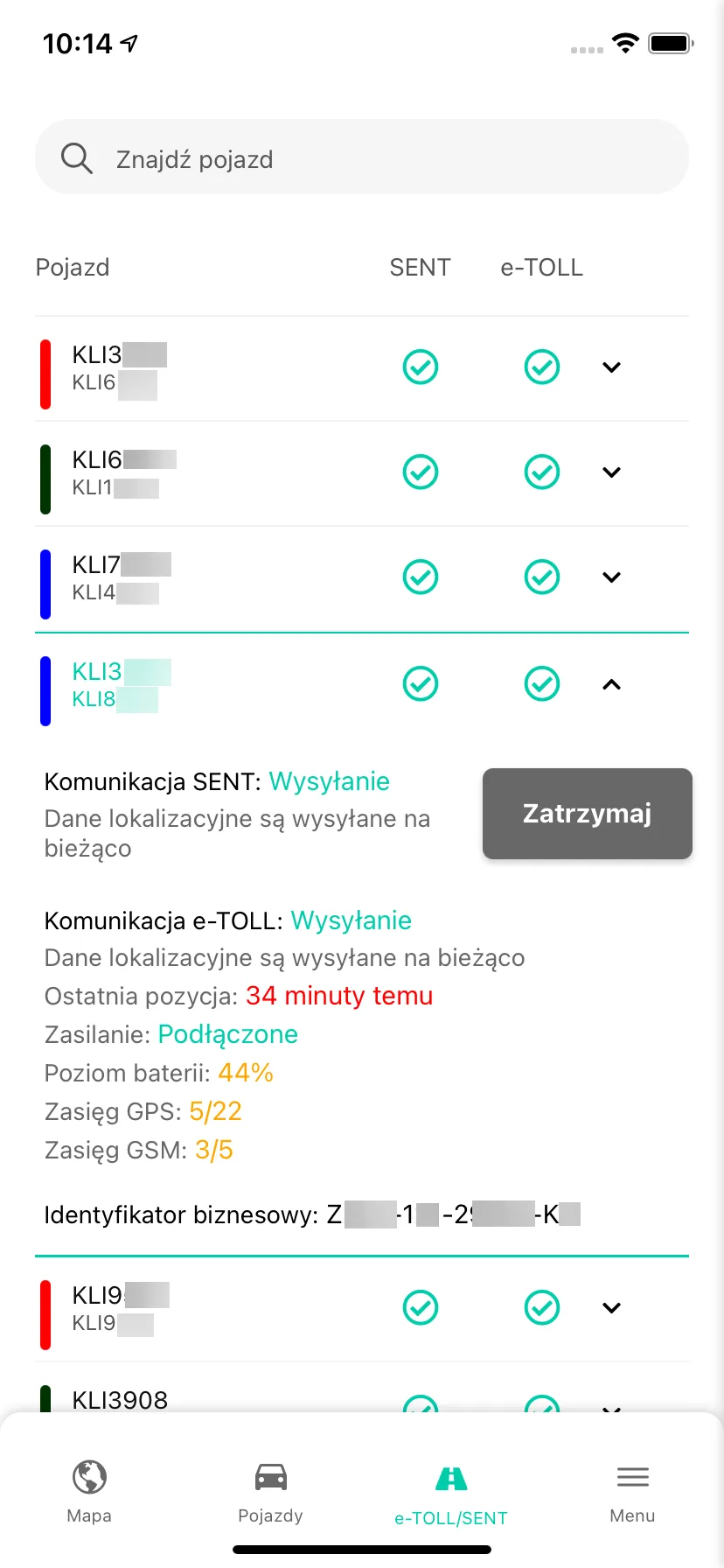
The list of all OBU / ZSL devices is also available in the mobile app:
Description of the fields displayed:
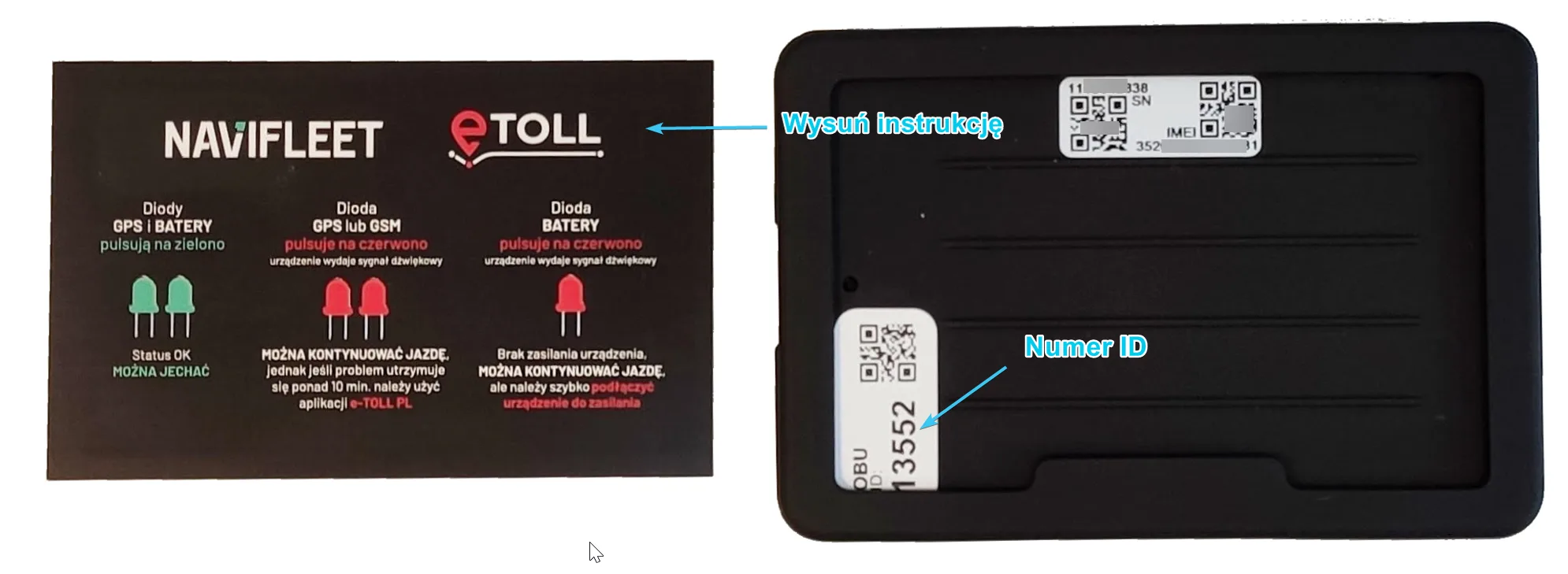
- ID (1) - the physical inventory number of the GPS tracker and the device identifier in the Navifleet system,
- NAME (2) - the vehicle name entered by the user; it is not passed to the e-TOLL system.
- REG. NO. (3) - the vehicle's registration number; it is not passed to the e-TOLL system.
- TECHNICAL IDENTIFIER (4) - the device's serial number, passed to the e-TOLL system.
- BUSINESS IDENTIFIER (5) - the OBU / ZSL device identifier assigned by e-TOLL during registration. It is required to add the device to the account and to assign the device to a vehicle in IKK.
NOTE! The business identifier is assigned automatically by the Ministry of Finance. Until the business number has been assigned, the Navifleet app displays the message “Awaiting registration”. If the “Awaiting registration” message persists for more than 24 hours, report this to Navifleet Customer Service.- PIN (6)
- SENT COMMUNICATION (7) - the status of communication with the SENT system.
- E-TOLL COMMUNICATION (8) - indicates the transfer of location data to the e-TOLL system; the status can take the following values:
Status icon | Description |
- | The device is not used in the e-TOLL system. |
 | The vehicle is stationary or abroad (no need to send data to the e-TOLL system). |
 | Error in communication with the e-TOLL system. |
 | Location data is being sent to the e-TOLL system. |
 | Technical break ordered by KAS. During a technical break, the data is archived and will be sent once the system resumes operation. |
- DEVICE STATUS (9) - the highlighted icons indicate, in turn: the last position sent to the e-TOLL system; the status of the device's connection to the power source; the battery level; the signal strength and the active satellites. This information can take the following values:
| Status icon | Description |
 | The device has not sent a location for at least 15 minutes. |
 | The current position is being sent to the system. |
| No data | The device has not yet sent any data to the system. |
| Status icon | Description |
 | Device disconnected from power. |
 | Device connected to power. |
| Status icon | Description |
 | Device battery flat. |
 | Medium charge level. |
 | Device fully charged. |
| Status icon | Description |
 | No signal. |
 | Signal not optimal, but sufficient to send the location. |
 | Optimal signal. |
| Status icon | Description |
 | No active satellites. |
 | Limited number of satellites. |
 | Sufficient number of active satellites. |
If individual icons are greyed out:  this means that the given parameter is not supported by the device (in the case of location, it means that the device has not yet sent any data about the vehicle's position).
NOTE! Regardless of the status of correct communication, you must make sure on the IKK system side that the device has been assigned to the vehicle and activated. The Navifleet system has no access to this information, so you need to check it yourself. The app lets you configure notifications about communication errors. You can activate them in Settings.

Notifications about communication errors (with both the SENT and the e-TOLL system) can be received by SMS or e-mail. PUSH notifications are also available. Make your choice according to your preferences by ticking the appropriate option.
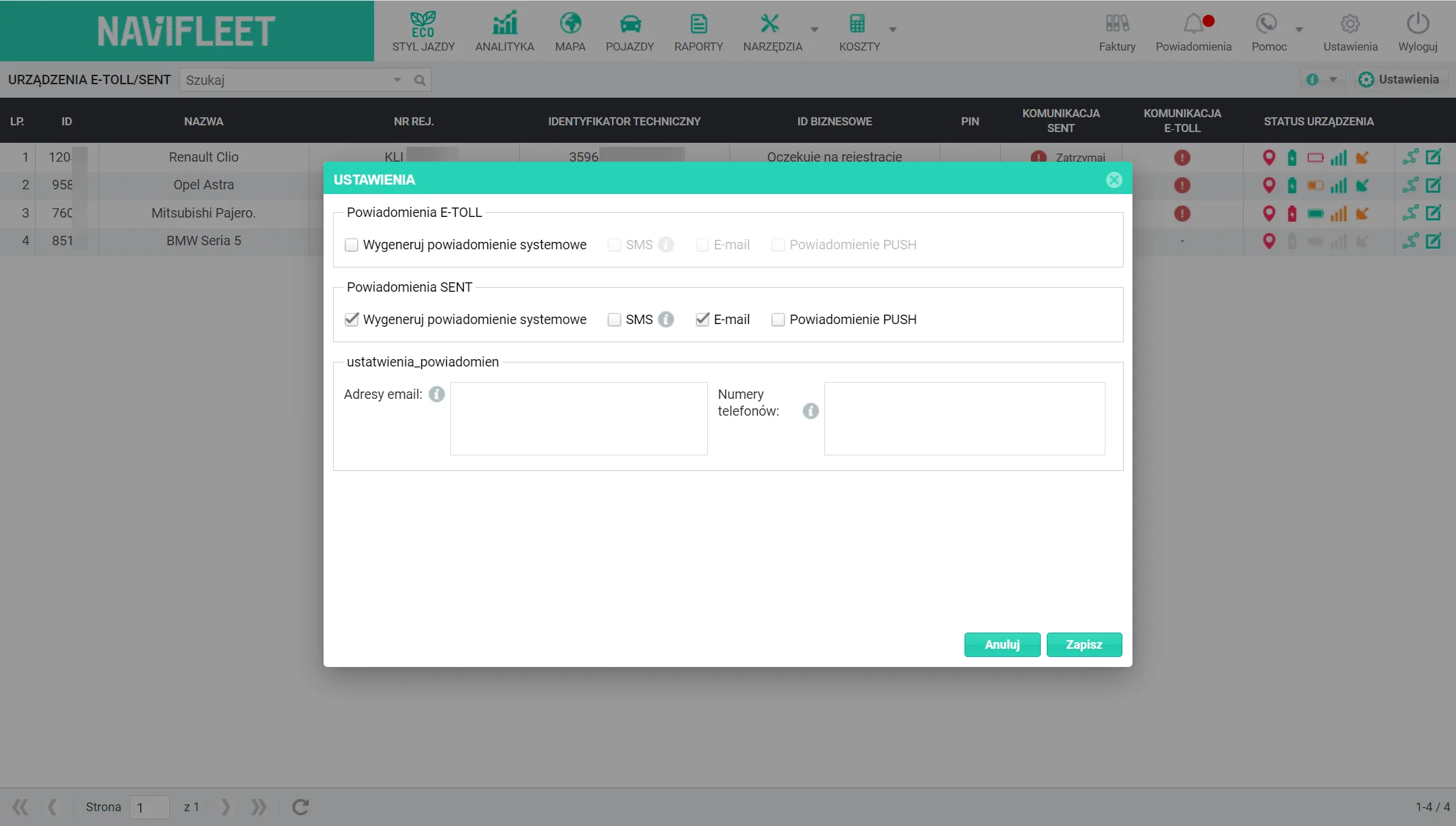
Alerts will be sent to the specified e-mail addresses and phone numbers. If there are several e-mail addresses or phone numbers, separate them with a space, comma, semicolon, the ENTER key or a slash.
Editing data
From the e-TOLL tab in the gps.navifleet.pl app, you can edit the “Name” and “Registration number” fields. OBU devices are not displayed in the MAP and VEHICLES tabs, and this is the only place in the app where you can rename devices after moving them to another vehicle. To edit a device's details, simply double-click the row with that vehicle in the gps.navifleet.pl app or click the edit button on the right of the list.

How to check the history of routes sent to the e-TOLL system?
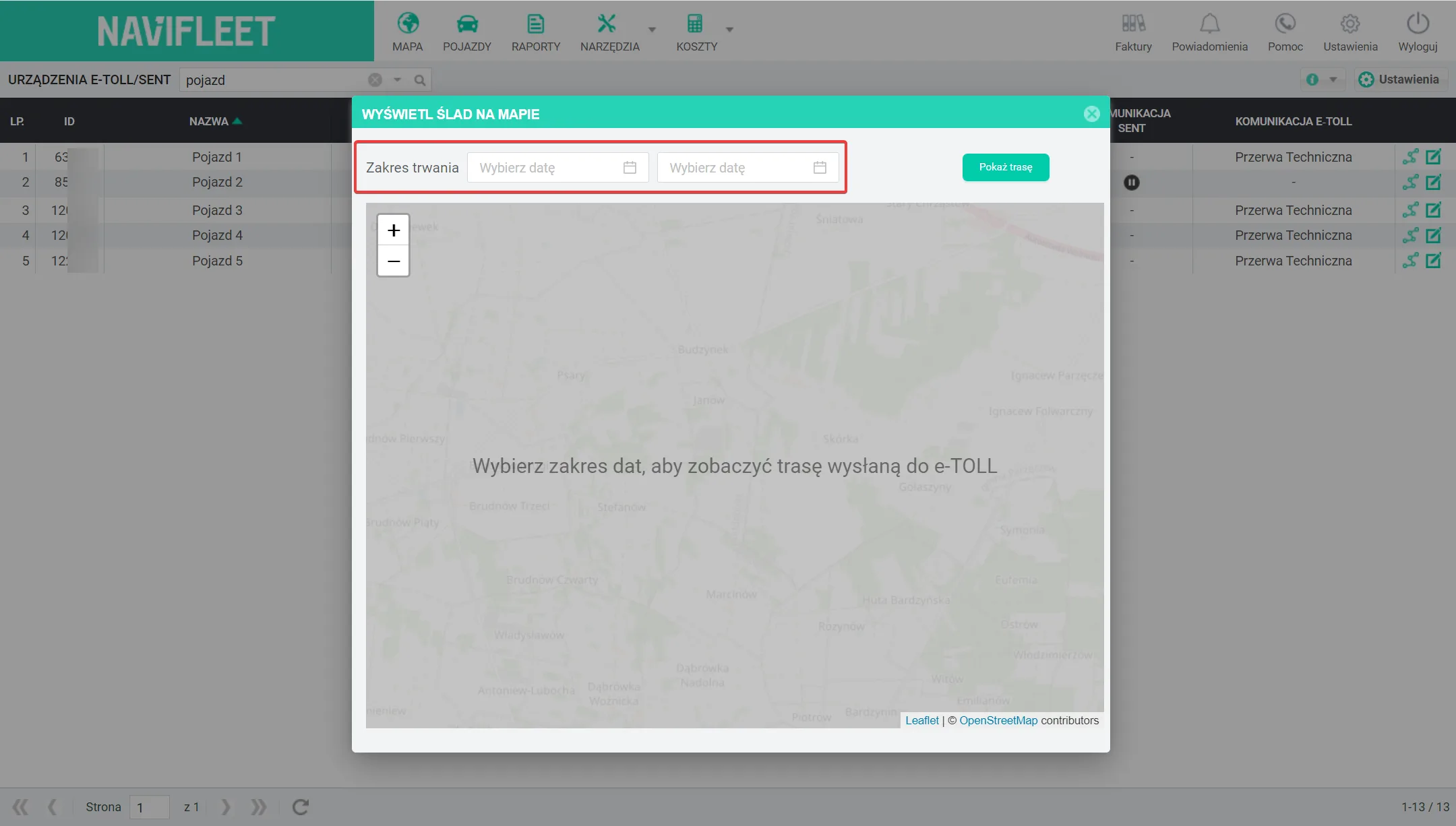
If you have doubts about the correctness of the data sent to e-TOLL, the Navifleet app lets you verify the route passed to the system. You can do this by clicking the button in the last column of the table.

Then simply specify the date range you are interested in. You will receive the information as a trace on the map showing which route was sent to the e-TOLL system (the data is archived for 7 days).