
Help › Navifleet Tracker › e-TOLL
OBU FMB920 device user guide
Updated: 25 February 2022
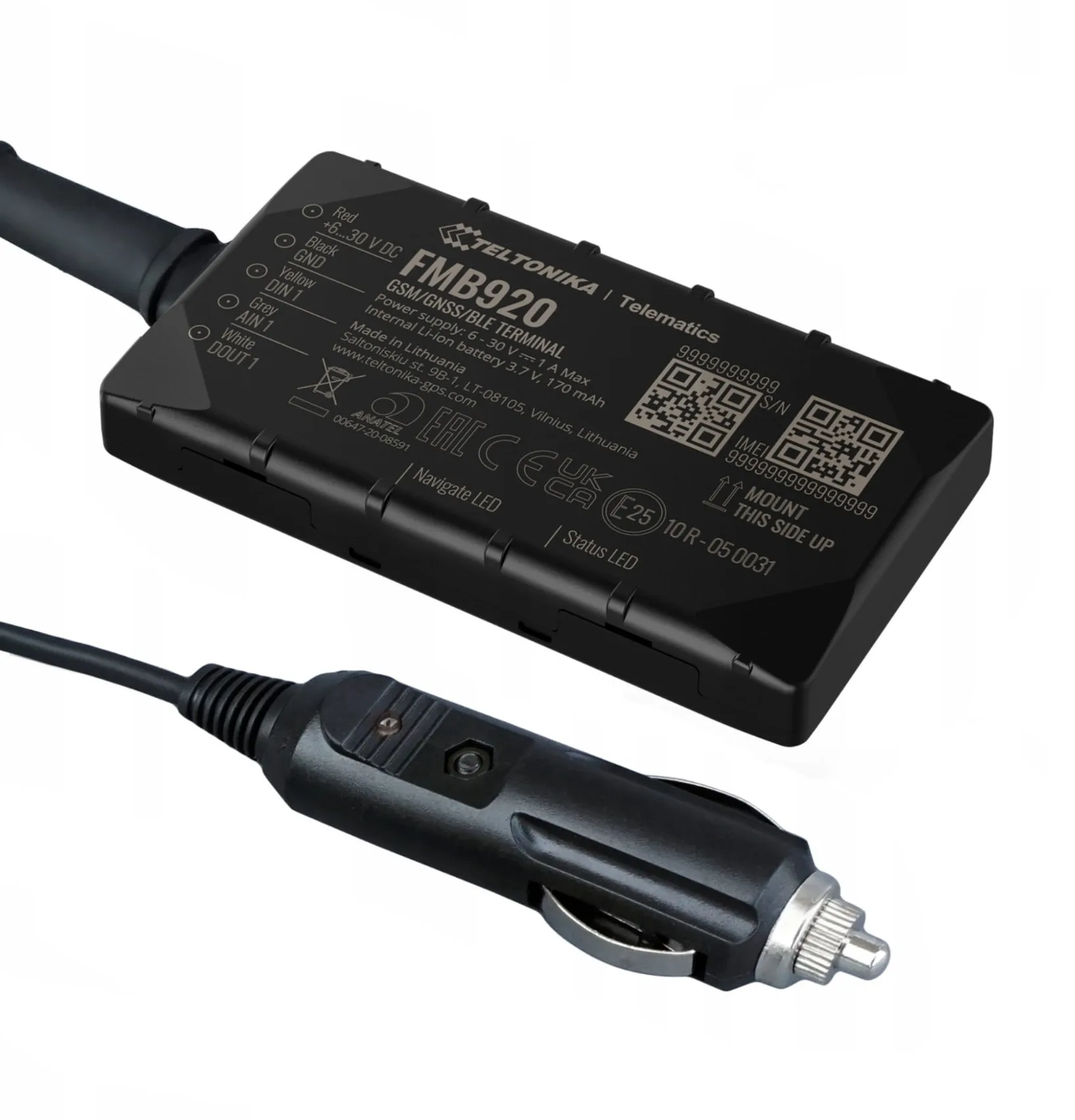
Device description
- Records the position every 5 seconds and sends it to KAS.
- Free support and technical assistance.
- LEDs that show the driver the device is working correctly.
- Self-installation in the 12V/24V cigarette lighter socket.
Package contents
Navifleet OBU device with a 60 cm power cable.
Mounting tape.
Quick start
- Register your company in IKK at www.login.mf.gov.pl.
- Place the device on the vehicle's dashboard within the driver's line of sight.
- Plug the power cable into the vehicle's cigarette lighter socket.
- The device starts automatically, which is indicated by its LEDs.
- You can start driving once the NAVIGATE and STATUS LEDs are flashing green. This means the device has GPS and GSM coverage.
Device status indication
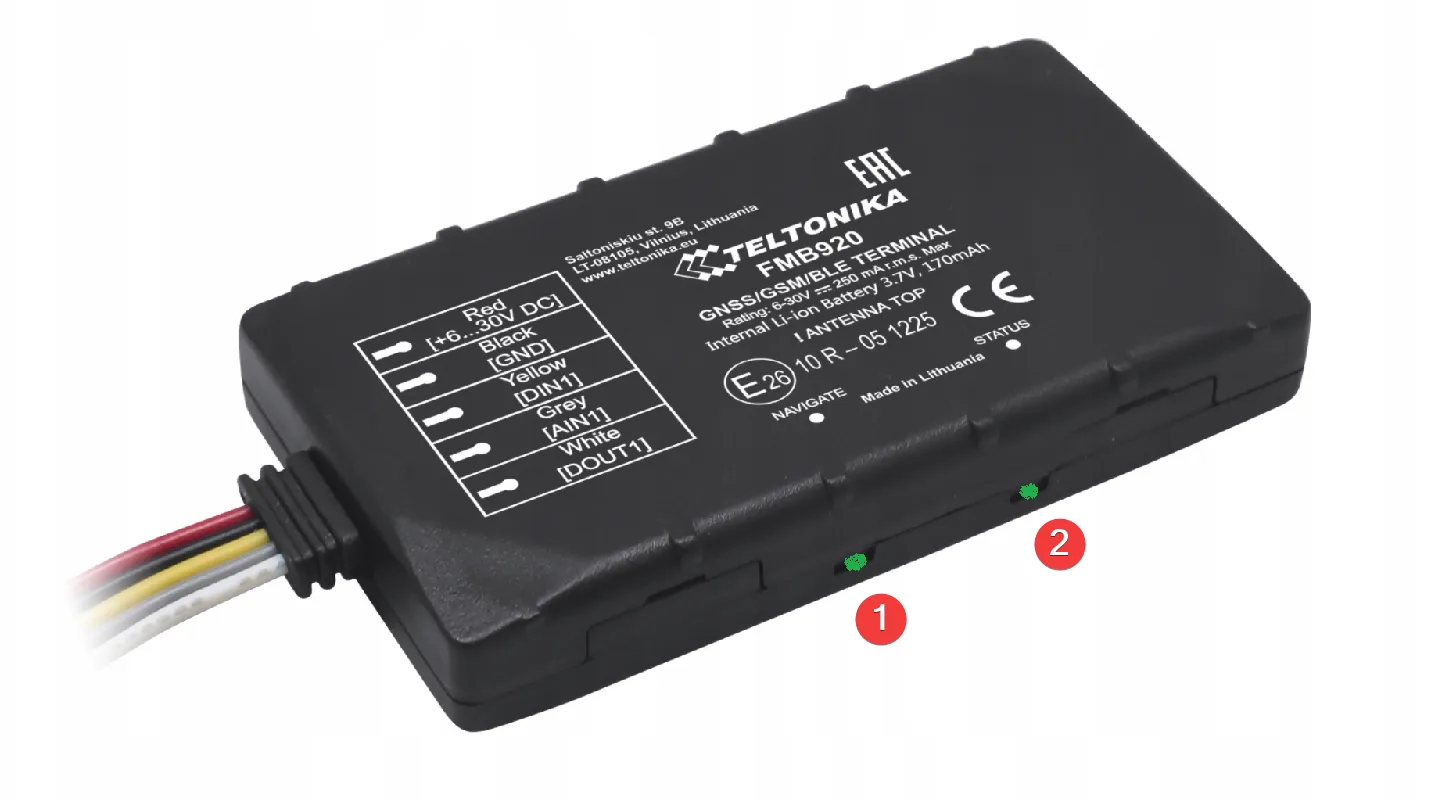
NAVIGATE LED (1) meanings:
- Steady on – no GNSS signal is being received.
- Flashes every second – normal mode, GNSS is working.
- Not flashing – the device is switched off or in sleep mode.
- Flashes rapidly and continuously – the device firmware is being flashed.
STATUS LED (2) meanings:
- Flashes every second – normal mode.
- Flashes every two seconds – sleep mode.
- Blinks rapidly for a short time – modem active.
- Not flashing – the device is not working or is starting up.