
Help › Navifleet Tracker › e-TOLL
Starting the mobile app in the event of a GPS device (ZSL/OBU) failure
Updated: 28 September 2021
This article describes what a driver should do if problems occur with the operation of OBU/ZSL devices.
When to switch to the mobile app?
If your device has stopped working, you can switch to the mobile app and continue the journey.
How to switch to the mobile app?
If problems with data transmission to the e-TOLL system are detected, follow a procedure consisting of the following steps:
Steps that can be skipped if they have been carried out before.
Step 1: The driver downloads the e-TOLL PL mobile app
Step 3: Linking the mobile app to the vehicle in which the OBU/ZSL device is not working
Required steps
Step 4: Activating the mobile app in the vehicle in which the OBU/ZSL device is not working
We recommend carrying out steps 1, 2 and 3 in advance. It is good practice to equip drivers with the e-TOLL mobile app beforehand and link the apps to the profiles of the vehicles they drive. The whole emergency procedure then comes down to steps 4 and 5, which the driver can carry out on their own in a few minutes.
Step 1: Downloading the e-TOLL PL mobile app
Download links for the app:
Android: e-TOLL PL Apps on Google Play
iOS: e-TOLL PL app on the App Store
Step 2: Launching the e-TOLL PL mobile app for the first time and assigning a business identifier.
When launched for the first time, the app guides the user through the process of obtaining a business identifier for the app. Everything happens automatically; you just need to confirm the consecutive steps.
Step 3: Linking the mobile app to the vehicle.
This step can be done in two ways:
- The driver passes the mobile app's business identifier to the carrier or another person responsible for road tolls in the company, who links it to the vehicle in the IKK account from the administrator account.
- The driver goes to the etoll.gov.pl website themselves, logs in to their account and assigns the app identifier to the vehicle. This method requires an account to have been created in the e-TOLL system beforehand and linked to the entity account as a DRIVER. See how to create driver accounts in the system.
In both cases, the process of linking the mobile app to the vehicle is identical. It can be carried out on a phone or on a computer. It looks as follows:
Go to the etoll.gov.pl website and click the “Log in” button in the top right corner. You can also change the language of the website here. After logging in to your account, select the entity that pays for the journey.

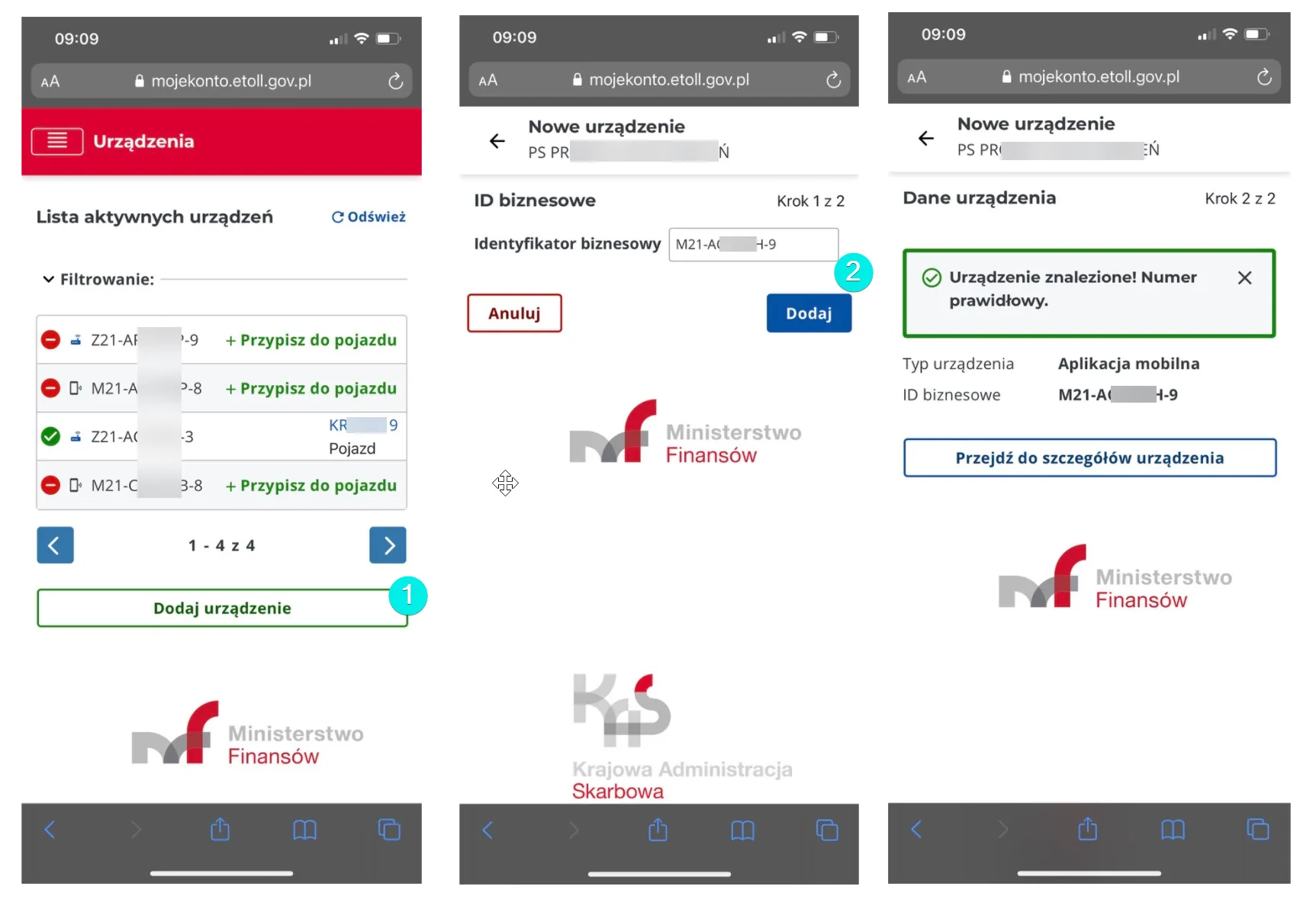
After selecting the entity, go to the Devices section, then click “Add device”, enter the business identifier from the app and select “Add”.
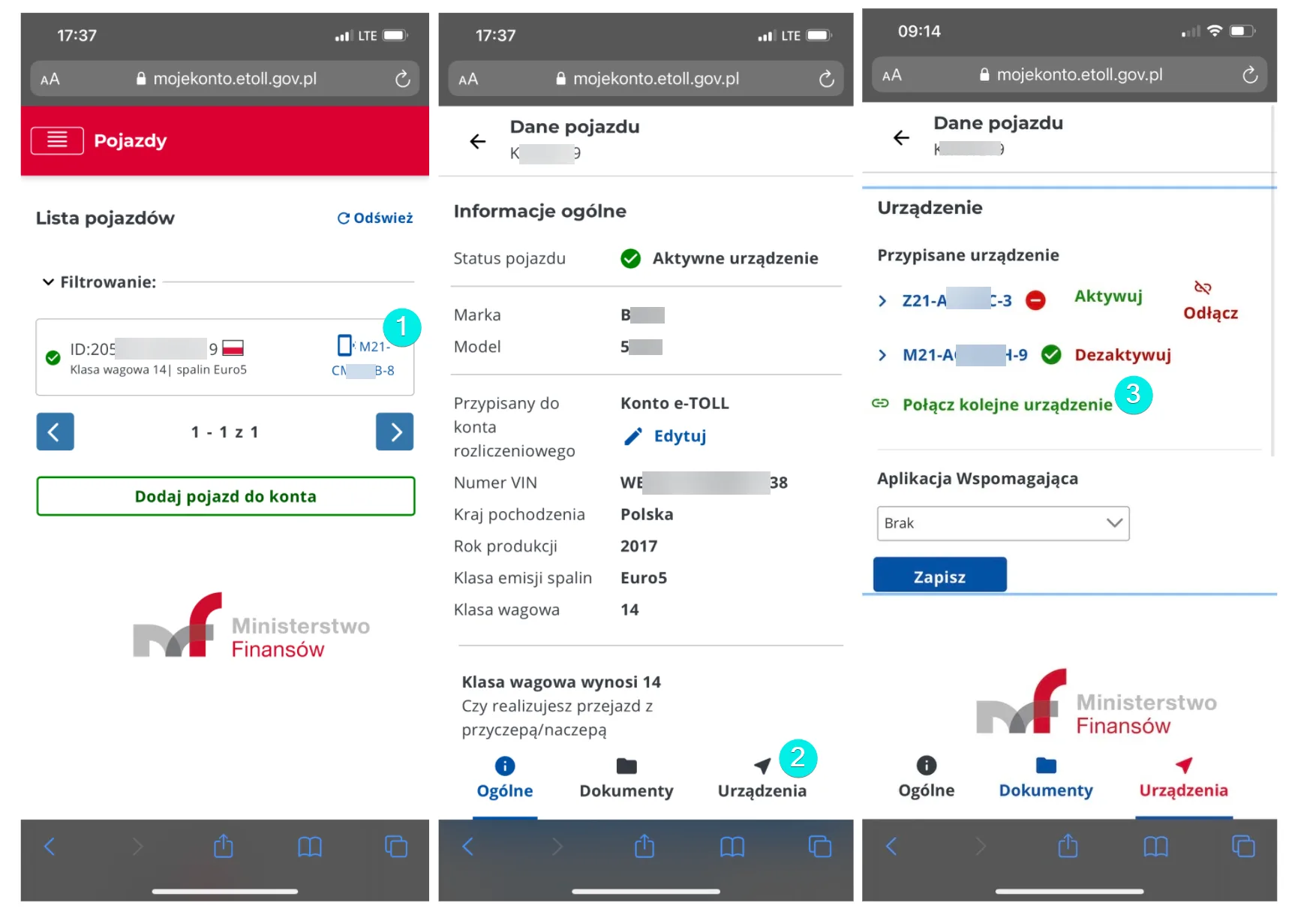
In the next step, select Vehicles from the menu in the top left corner, select the correct vehicle, go to the Devices section (on the right) and assign the mobile app (M21-A****H-9) to the vehicle.
Step 4: Activating the mobile app
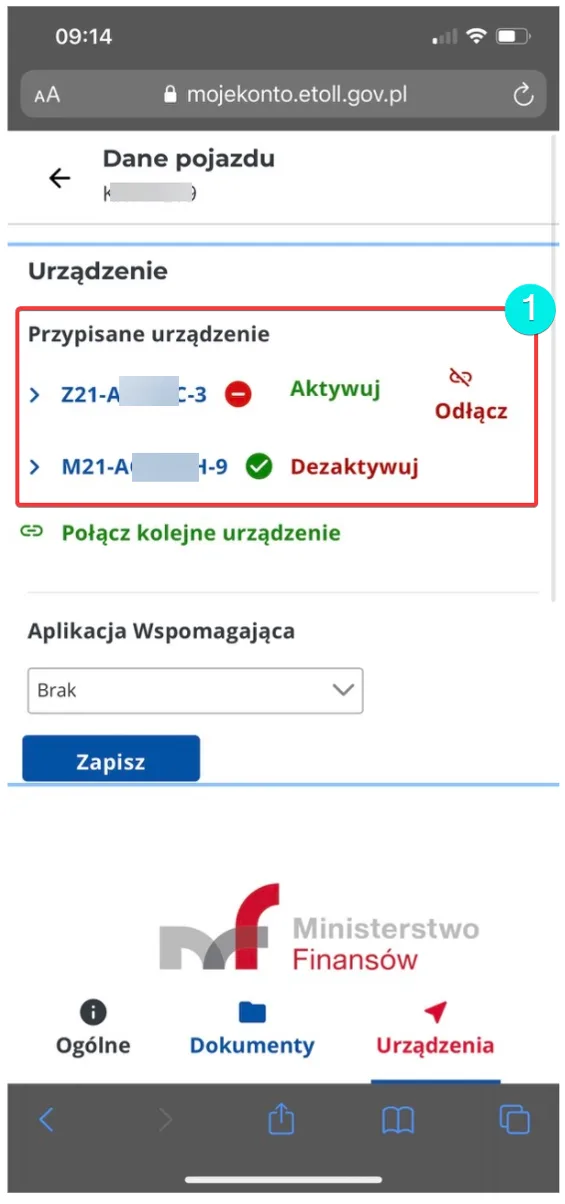
The mobile app can be activated by the driver or by a company representative who has access to the account. To do this, log in to the IKK system on the etoll.gov.pl website, then go to MENU -> VEHICLES -> VEHICLE DETAILS -> DEVICES and select the Activate button next to the mobile app's business identifier on the list of assigned devices. Mobile app business numbers start with the letter M, ZSL/OBU device numbers with the letter Z.
Step 5: Starting the journey
After activation, the e-TOLL PL mobile app will ask you to enter a PIN code and a password as protection against unauthorised access by third parties (this is a one-off action at the first launch). Once this is done, click “Configure journey”, declare the presence of a trailer (if any) and select “Start journey”. From then on, the mobile app acts as a ZSL device.
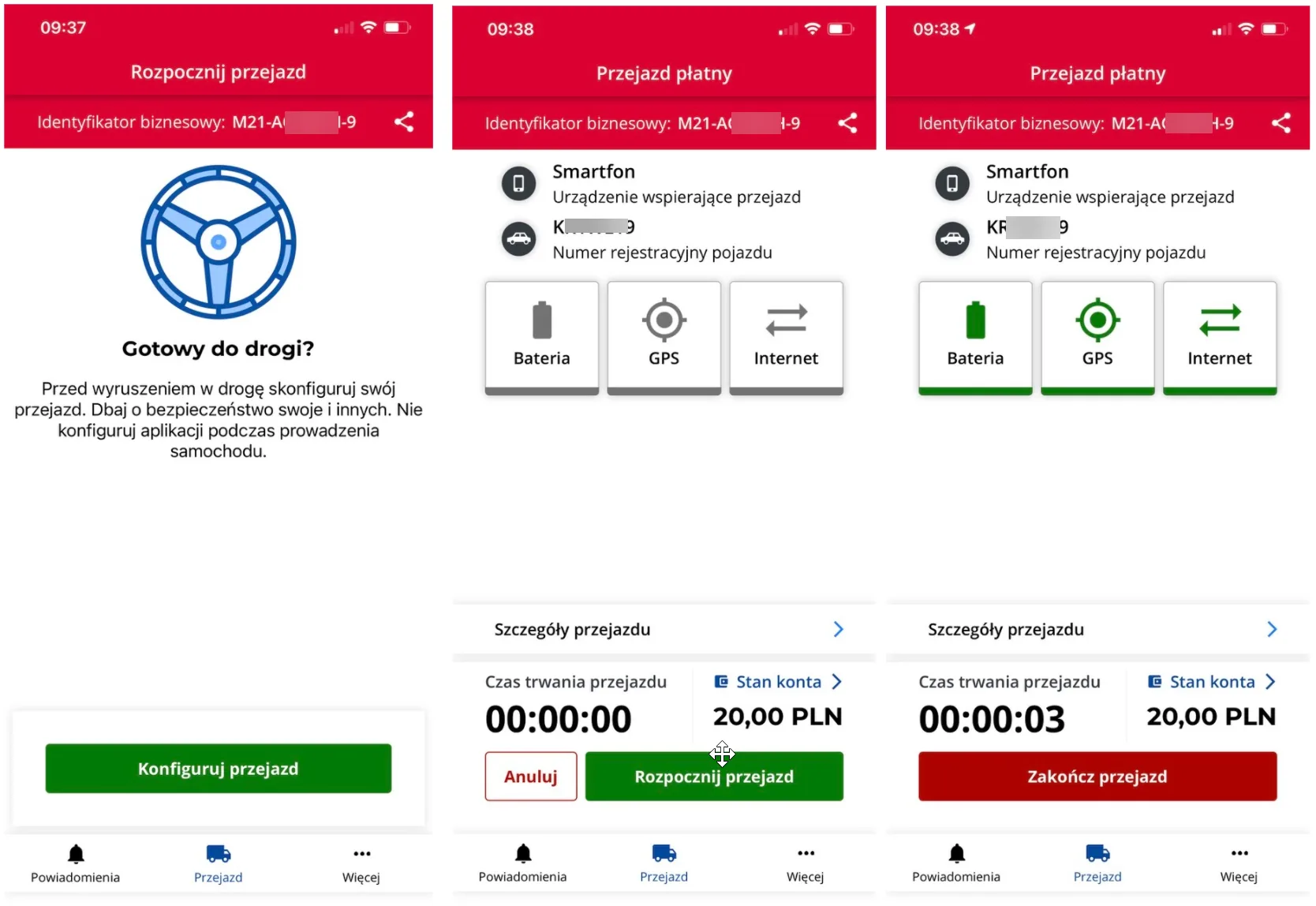
When starting the journey, the app checks whether the required options are enabled on the phone:
- GPS – required for operation.
- Data transfer (internet) – required for operation.
- Battery optimisation. This option must be disabled so that the app can run continuously and is not stopped after a period of inactivity.